How to Check a Canvas App's License Designation in Power Apps

Power Apps works out a License designation for every app from what it connects to. Standard apps run with the Power Apps rights included in many Microsoft 365 licenses; Premium apps need a Power Apps plan. It takes a few seconds to check.
Prerequisites
- A canvas app in Power Apps. The example is the Career Development Plan app, which uses SharePoint and Office 365 Users.
Step 1: Open the App's Details
In Power Apps, open Apps, select the app and choose Details on the command bar. License designation is at the bottom of the Details tab:
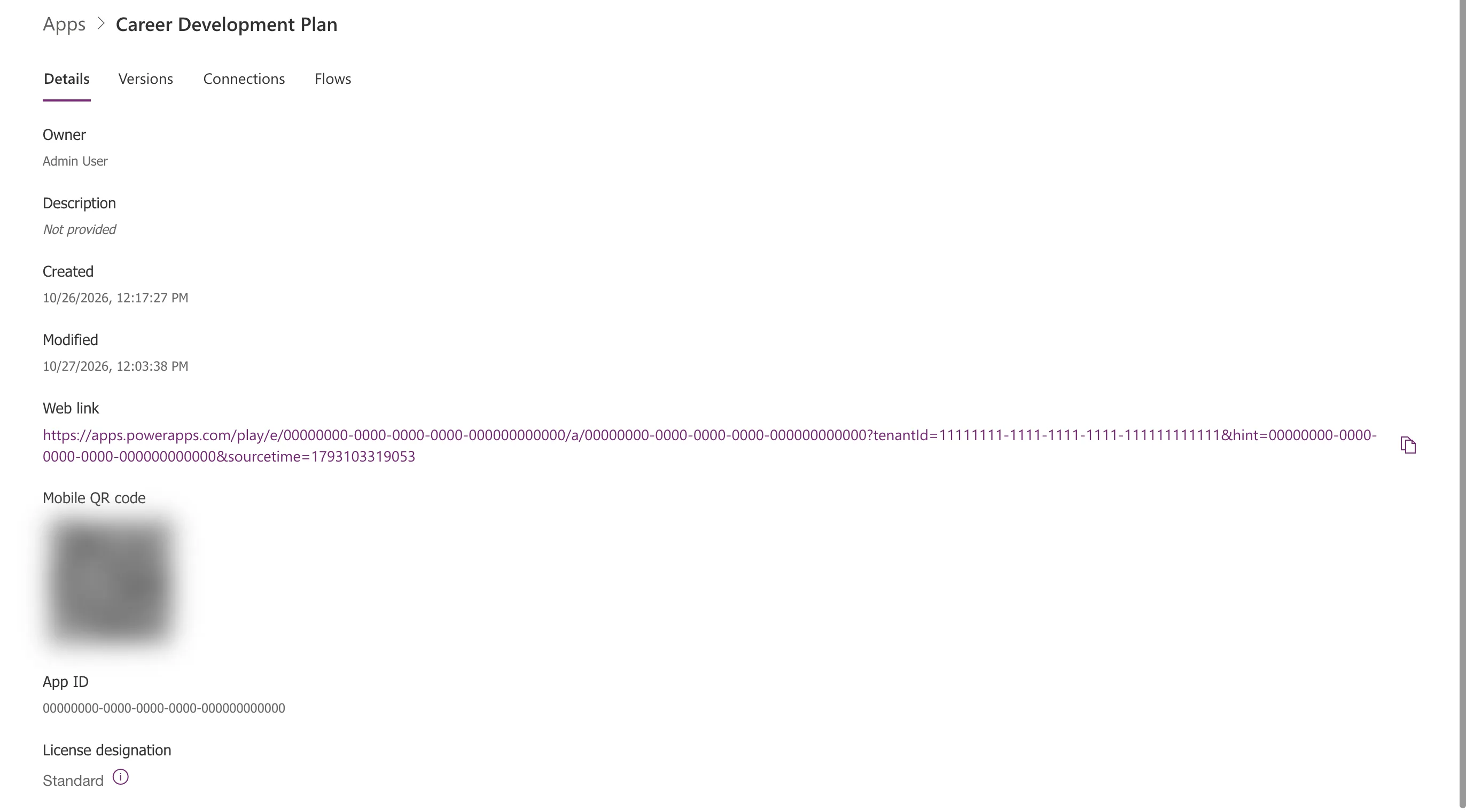
Microsoft's article shows the same value under the app's Settings too (How to check license designation for an app).
Step 2: Read What It Means
Hover the information icon next to the value. For Standard, it explains which licenses can run the app:
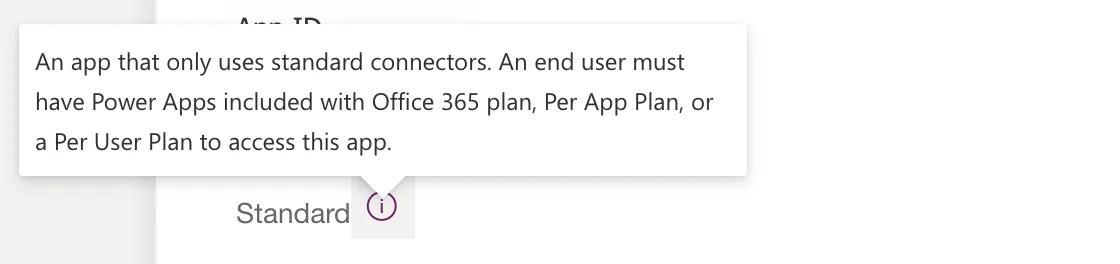
Microsoft's table, in short:
| Designation | The app uses | Users need |
|---|---|---|
| Standard | Only standard connectors | Power Apps for Office 365 (part of many Microsoft 365 licenses), a per app plan or a per user plan |
| Extended | Connectors that became premium on 1 October 2019, used before then | The same as Standard |
| Premium | At least one premium connector, a custom connector or an on-premises gateway | A per app plan or a per user plan |
Step 3: Spot Premium Connectors While You Build
In Studio, premium data sources have a diamond icon in Add data, and hovering it shows a Premium tooltip:
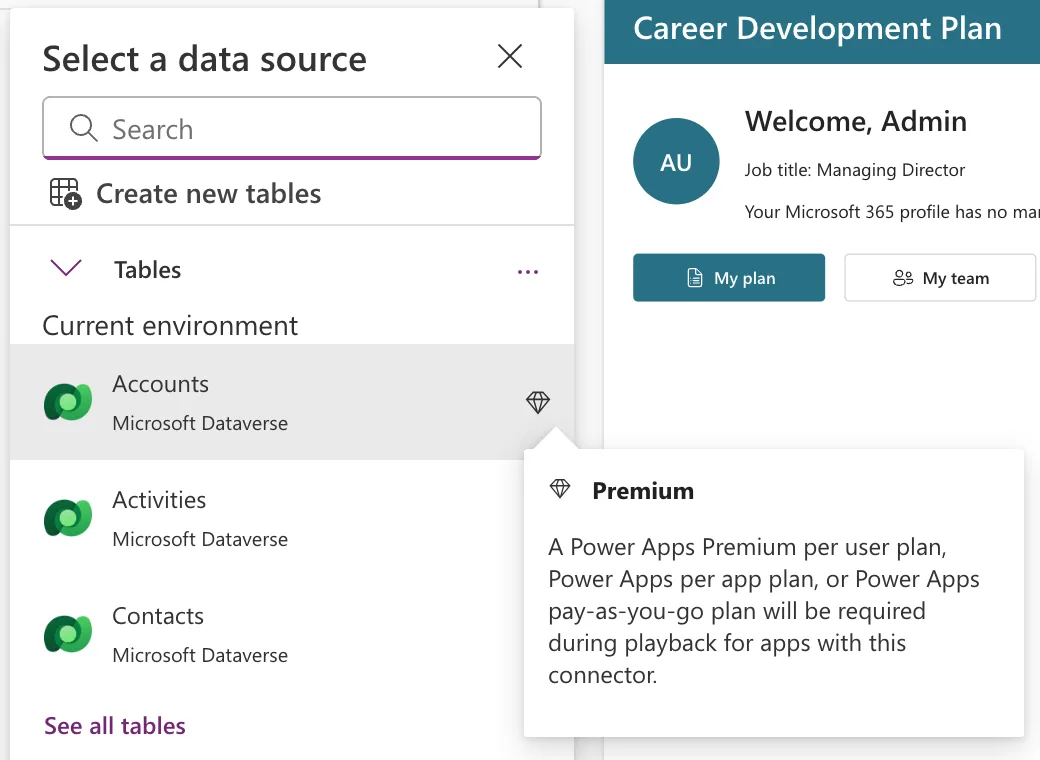
SharePoint and Office 365 Users have no diamond. Studio still attaches a note about a paid plan to them; the designation is what counts (Fixed: "A Power Apps Per User Plan … Will Be Required During Playback").
Two Exceptions to Know
- Flows. Microsoft lists a known issue: if the app runs a flow that uses a premium connector, the app can still say Standard, but users need premium rights.
- Managed environments. There, every user needs a qualifying license, whatever the app uses (Licensing for managed environments).
Common Mistakes
| Mistake | What happens | Do this instead |
|---|---|---|
| Judging by the Data pane's note | You buy licenses you don't need | Check License designation |
| Adding one premium connector late | The whole app becomes Premium | Check the designation after adding data |
| Forgetting the flows | A Standard app that still needs premium rights | Check the connectors in the app's flows |
Troubleshooting
| Symptom | Likely cause | Fix |
|---|---|---|
| The app says Premium unexpectedly | A premium or custom connector, or a gateway | Look for the diamond in the Data pane |
| Users are asked for a license on a Standard app | The environment is managed, or a flow is premium | Check the environment and the flows |
FAQ
Does a Dataverse environment make the app premium?
Not by itself. The Career Development Plan app lives in an environment with Dataverse, uses only SharePoint and Office 365 Users, and is Standard. Using Dataverse tables in the app makes it premium.
Which users can run a Standard app?
People with Power Apps for Office 365, a per app plan or a per user plan. In the example, a user with only Microsoft 365 E5 Developer ran it (How to See a User's Licenses and Apps in the Microsoft 365 Admin Center).
Conclusion
Apps → select the app → Details → License designation tells you whether users need a Power Apps plan. Standard means the Power Apps rights in Microsoft 365 are enough; watch for premium connectors and flows.
