How to Change the Time Zone of a SharePoint Site

A new SharePoint site doesn't pick up your time zone or your browser's. It takes the default from the SharePoint admin center, which is Pacific Time unless an admin has changed it. One setting, in the site's Regional settings, gives the site its own time zone.
This guide sets the site of the Overtime Timesheet series to London time. The steps are the same for any site and any time zone.
Why a New Site Has the Wrong Time Zone
Microsoft's Best practices for changing site creation time zone display in SharePoint admin center explains it: "By default, the SharePoint admin center uses Pacific Time (PST). When you create a new SharePoint site, it inherits the current time zone setting from the admin center."
The Overtime Timesheet site was no exception. In its list's New item form, each date and time field had an (i) icon, and selecting it showed the time zone the site was using:
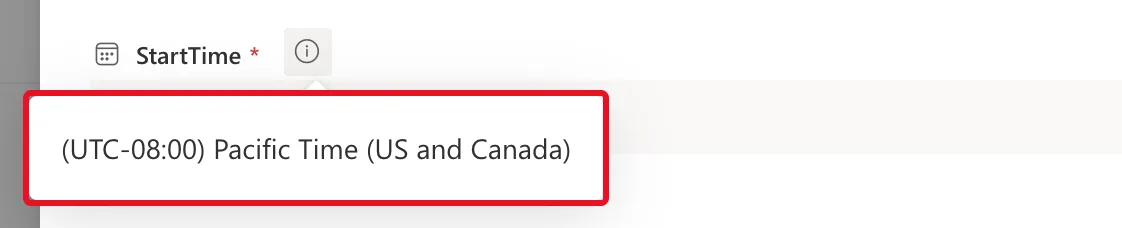
A team in London entering shift times in a form set to Pacific Time is exactly what this setting is for.
Prerequisites
- A SharePoint site you own. If you created the site, you're its owner. How to Create a SharePoint Communication Site creates one.
- Your time zone's name, as Windows lists it. London is (UTC) Dublin, Edinburgh, Lisbon, London.
Step 1: Open Site Information
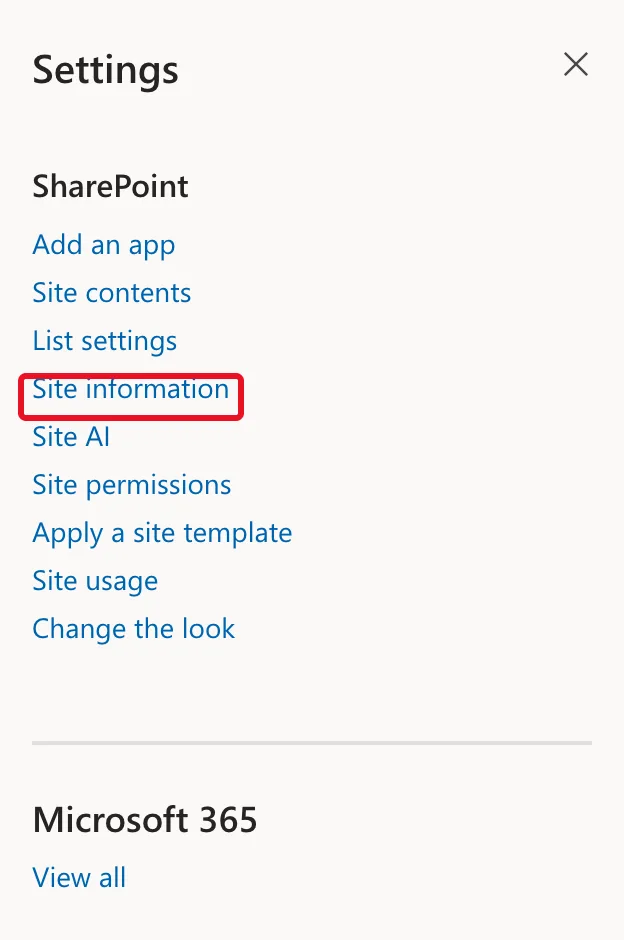
On any page of the site, select Settings, the gear at the top right, then Site information:
Step 2: Open All Site Settings
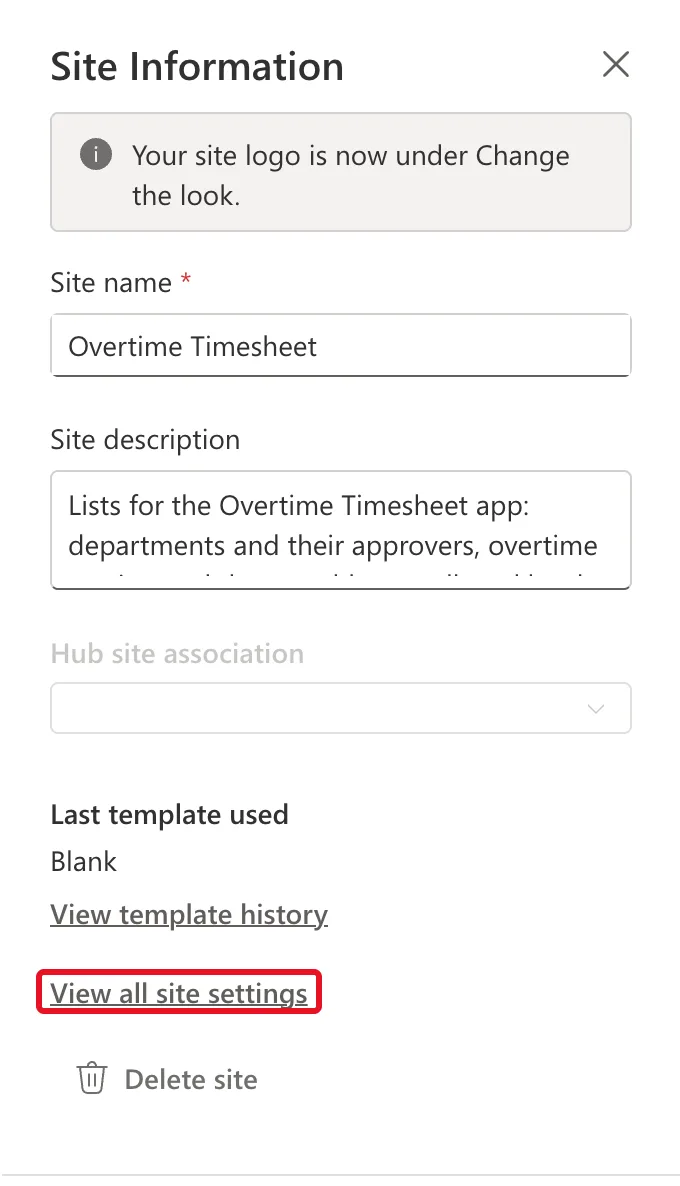
The Site Information panel shows the site's name and description. Select View all site settings near the bottom. Delete site is just below it, so take care:
Step 3: Open Regional Settings
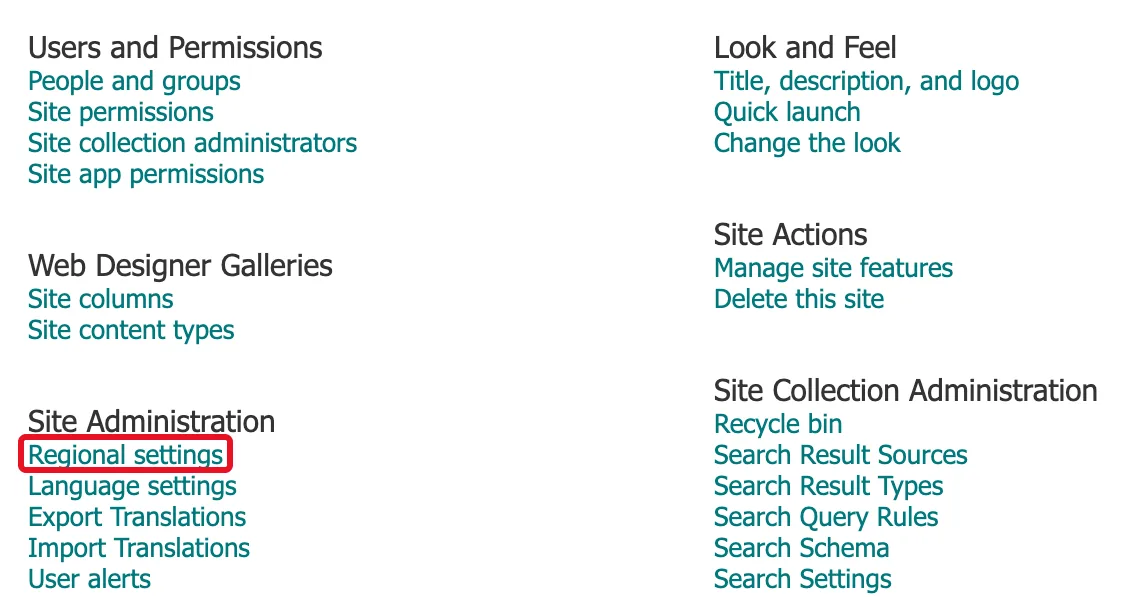
The classic Site Settings page opens. Under Site Administration, select Regional settings:
Step 4: Choose the Time Zone
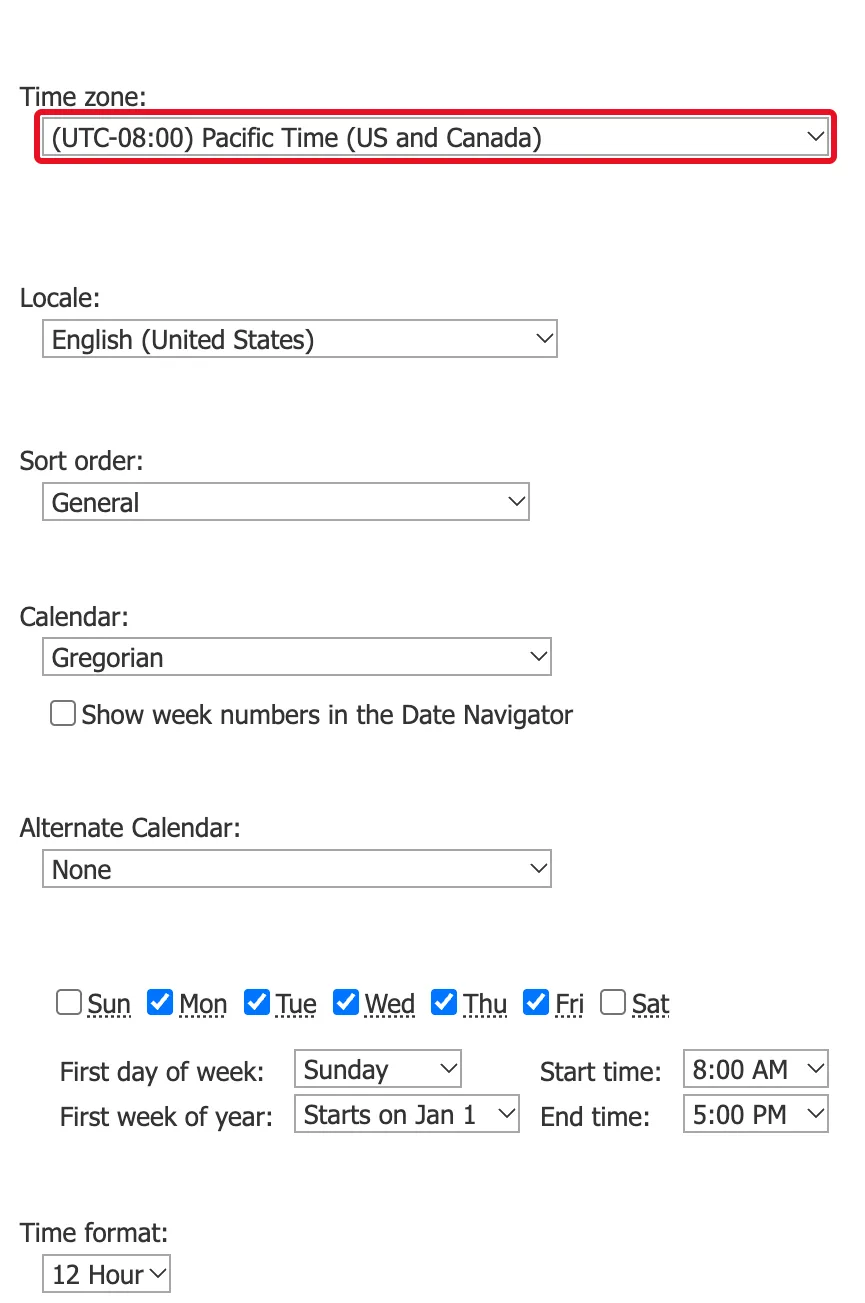
Time zone is the first setting on the page. Here it shows the default this site was created with, (UTC-08:00) Pacific Time (US and Canada):
Open the list and choose your time zone. For London it's (UTC) Dublin, Edinburgh, Lisbon, London:
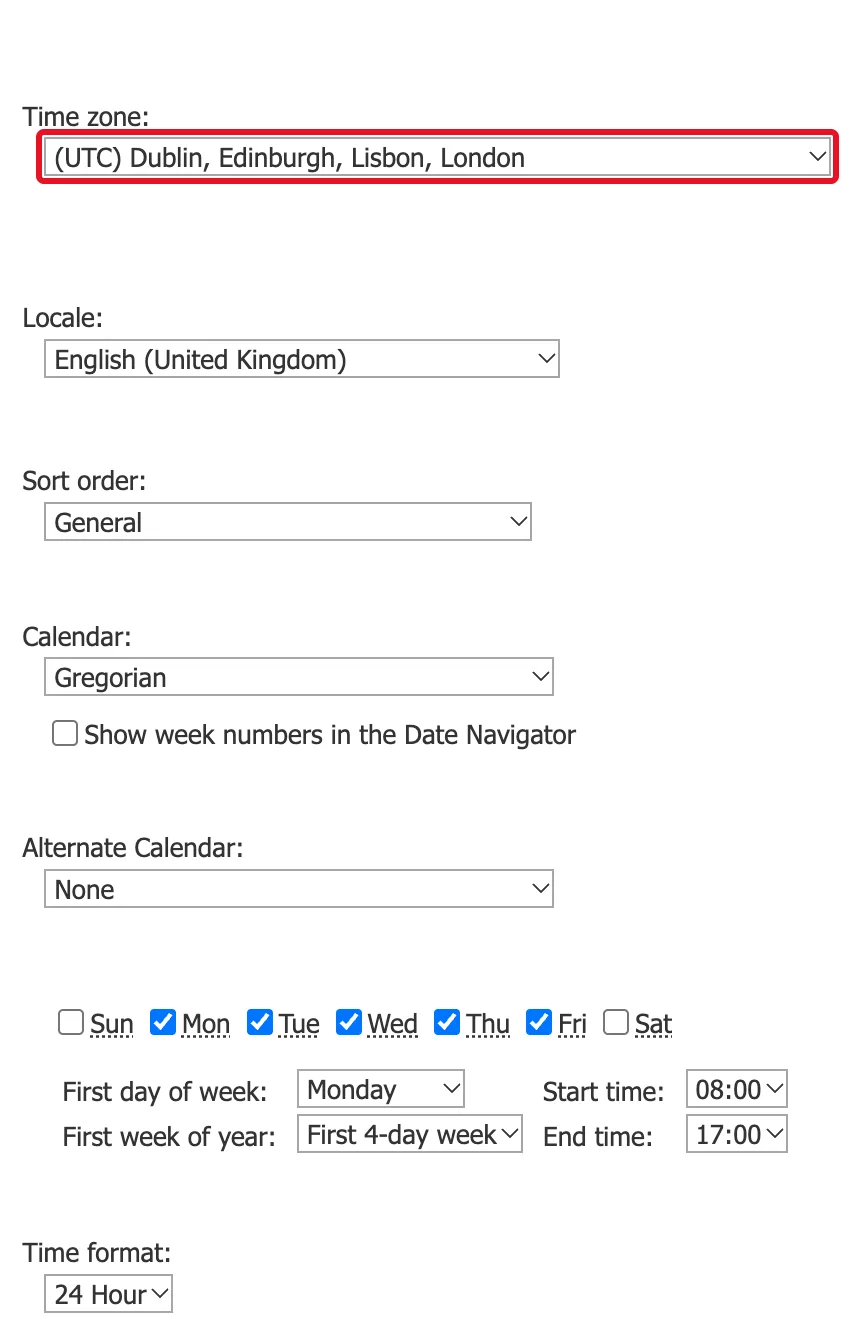
The list has several entries that start with (UTC). Pick the one that names your city, not (UTC) Coordinated Universal Time, which never changes for summer time.
The same page sets the Locale, which decides the date format. Microsoft's Change regional settings for a site warns that "when you change the locale setting for a site, all other regional settings are set to the default settings for the new locale." On this site, changing the locale reset the work week and the time format but left the time zone on Pacific Time. Change the locale first, then check the time zone. How to Change the Date Format of a SharePoint Site covers the locale.
Step 5: Save with OK
Scroll to the bottom of the page and select OK:
SharePoint goes back to the Site Settings page. There's no confirmation message.
Check the Result
Open a list's New item form again. On this site, the (i) icons next to the date and time fields were gone after the change. My browser is set to London time too, so the site and the browser now agree:
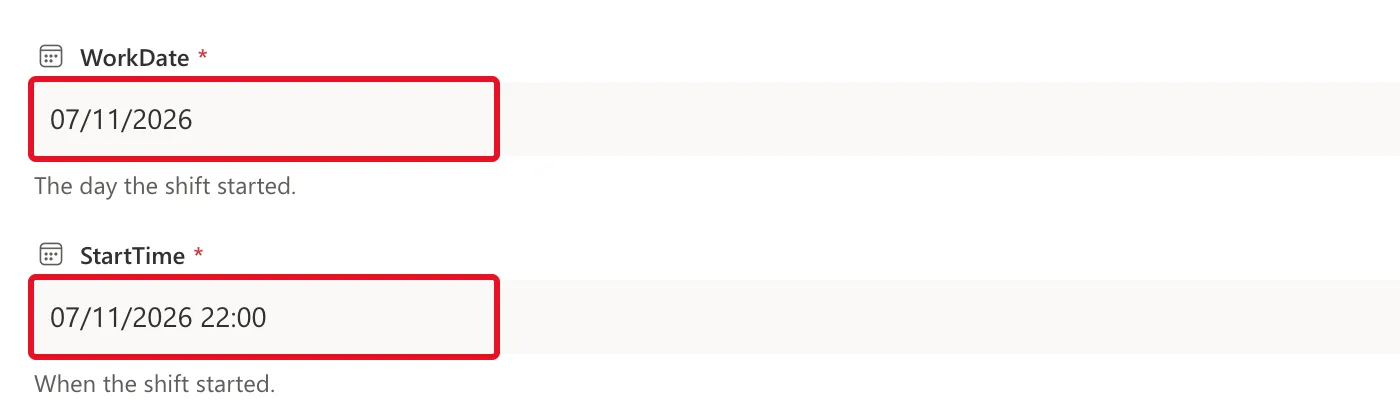
The dates in that screenshot are day first and the time is 22:00 because this site's locale and time format changed at the same time. The next two guides cover those.
Common Mistakes
| Mistake | What happens | Do this instead |
|---|---|---|
| Choosing (UTC) Coordinated Universal Time for a UK site | Times are an hour out all summer | Choose (UTC) Dublin, Edinburgh, Lisbon, London |
| Changing the locale after the time zone and not checking again | The locale resets other regional settings to its defaults | Change the locale first, then check the time zone |
| Expecting every site to change | Each site has its own regional settings | Change each site, or ask an admin to change the default for new sites |
Troubleshooting
| Symptom | Likely cause | Fix |
|---|---|---|
| No Regional settings link | You're not an owner of the site | Ask a site owner, or have them make you one |
| Can't find View all site settings | Looking in the wrong panel | Settings gear → Site information → View all site settings |
| Times look right to you but wrong to a colleague | One of you uses personal regional settings | Check whose settings differ from the site's (see the FAQ) |
FAQ
Can each person see times in their own time zone?
Yes. Microsoft's Change regional settings for a site says: "Individual users can choose to use your default settings or specify their own personal settings, which would override the site-level settings."
Can new sites get the right time zone from the start?
Yes, if a SharePoint admin changes the default. Manage site creation in SharePoint describes where the admin center sets "the default time zone and storage limit for new sites."
Does the site's language change too?
No. The language is chosen when the site is created and can't be changed afterwards. Regional settings change formats and the time zone, not the language.
Conclusion
A new site takes the admin center's time zone, Pacific Time by default. Set your own in Settings → Site information → View all site settings → Regional settings → Time zone → OK, and change the locale first if you're changing that too.
Additional Resources
- Change regional settings for a site
- Best practices for changing site creation time zone display in SharePoint admin center
- Manage site creation in SharePoint
