How to Change the Regional Format in Excel for the Web (UK Dates)

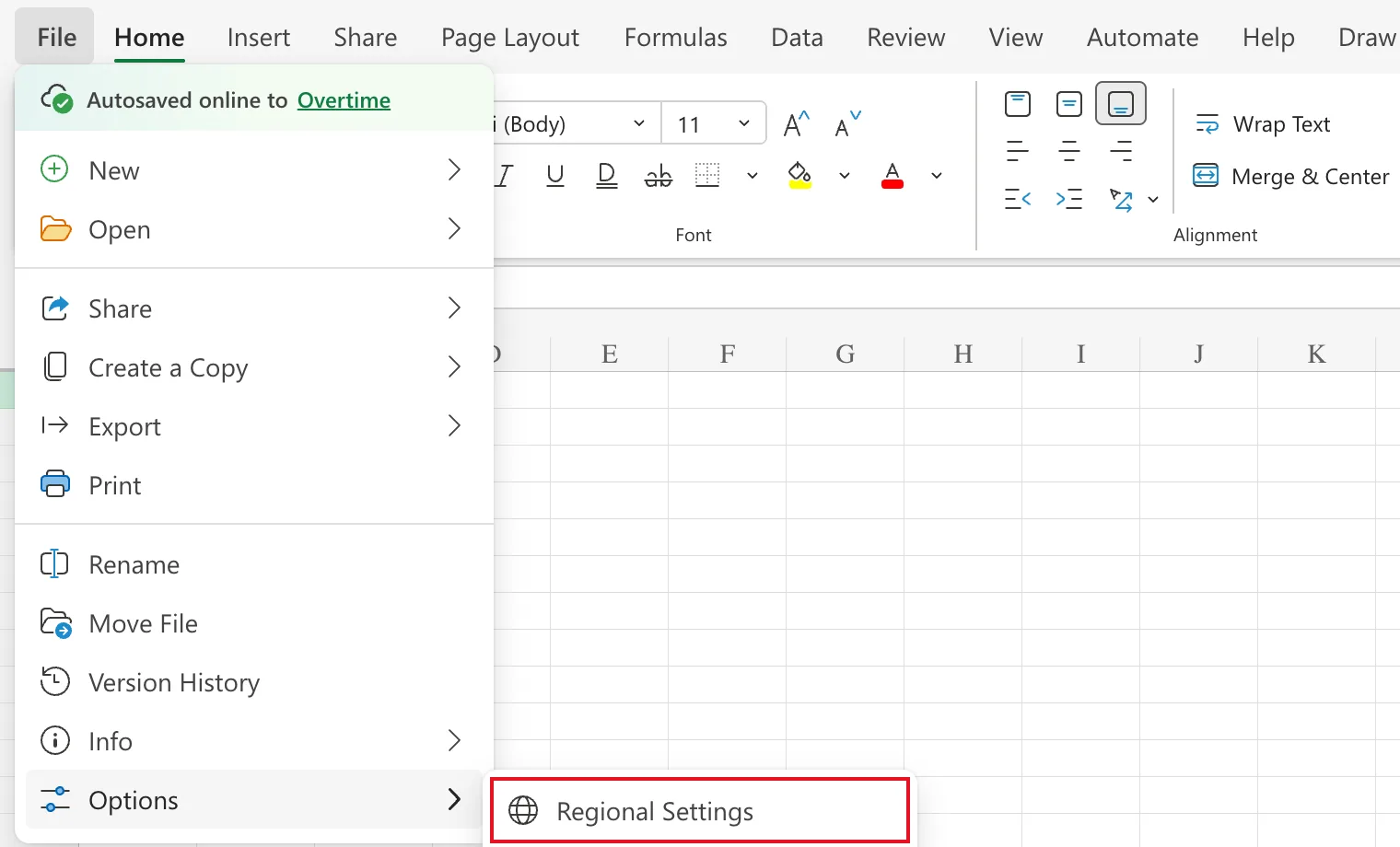
Excel for the web decides how to read a typed date like 02/10/2026 from its regional format. Set to English (United States), that's 10 February; set to English (United Kingdom), it's 2 October. Change it before you enter any dates: File → Options → Regional Settings.
The old overtime timesheet in Part 1 of the Overtime Timesheet series is a UK timesheet, so its dates are day first.
Prerequisites
- A workbook open in Excel for the web.
Step 1: Open Regional Settings
Select File, then Options, then Regional Settings:
Step 2: Check the Current Format
Change regional format settings opens with the current format. Mine was English (United States):
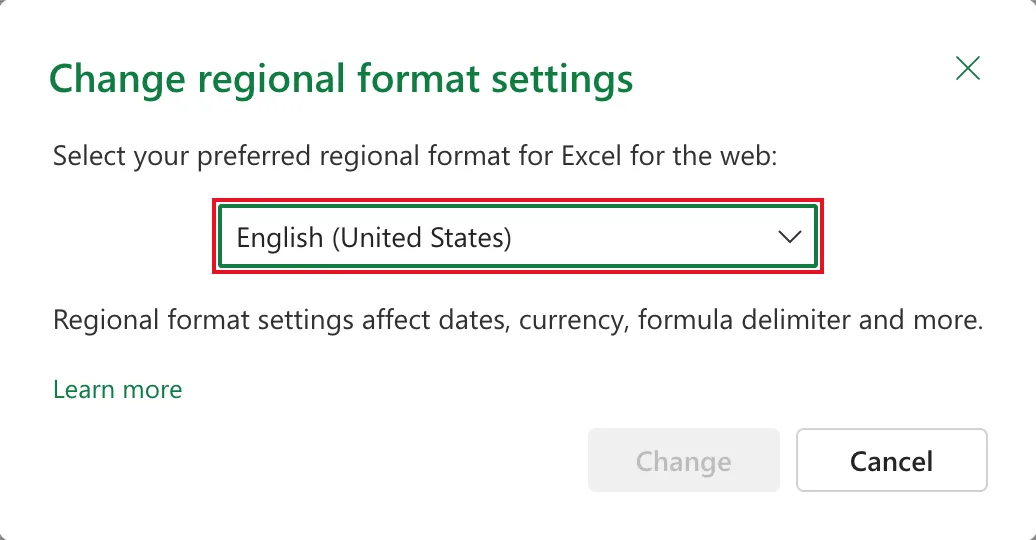
The dialog says what it affects: Regional format settings affect dates, currency, formula delimiter and more.
Step 3: Choose the New Format and Change
Open the list and select English (United Kingdom), then select Change:
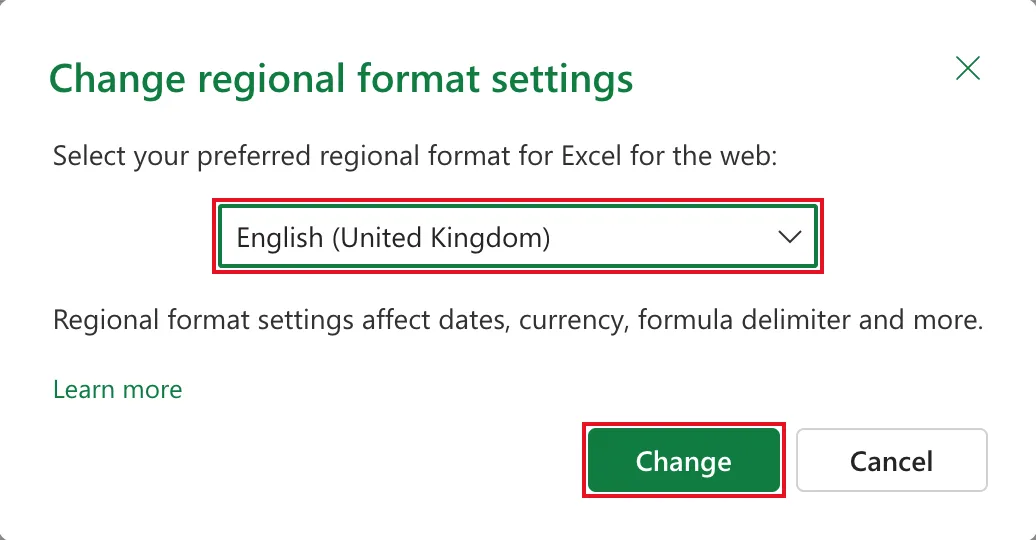
Excel for the web reloads the workbook. From then on, a date you type or paste is read day first: 02/10/2026 is 2 October 2026, as the dates in How to Paste Tab-Separated Data into Excel show.
Common Mistakes
| Mistake | What happens | Do this instead |
|---|---|---|
| Pasting dates first and changing the format afterwards | Dates already entered keep the day and month they were read with | Change the format first, then enter the dates |
| Expecting it to change Windows or macOS settings | It's Excel for the web's own setting | Change your device's region separately if you need to |
| Assuming the formula delimiter stays the same | Some regional formats use ; between arguments instead of , | Check a formula after changing to an unfamiliar format |
Troubleshooting
| Symptom | Likely cause | Fix |
|---|---|---|
| 02/10/2026 shows as 10 February | The regional format is English (United States) | Change it to English (United Kingdom) |
| Change is greyed out | You haven't picked a different format | Pick one from the list |
| Some dates stay left-aligned after typing | Excel read them as text, like 13/10/2026 in a month-first format | Change the format, then type them again |
| The regional format can't be changed | The browser blocks third-party cookies, where Excel for the web stores it | Allow third-party cookies for the site, as Microsoft's page explains |
FAQ
Does this affect my colleagues?
No. Microsoft's Change regional format settings in Excel for the web says your regional settings apply only to your view of Excel workbooks and don't affect how other people view them. Each person sets their own.
Where is the setting kept?
In your browser. The same page says the preference is stored in a third-party cookie, so another browser, or one that clears cookies, starts from its default again.
Does it change the currency symbol?
The dialog says regional format settings affect currency as well as dates, so a UK format shows pounds where a currency format is used.
Why do UK timesheets need this?
Because a date like 04/10/2026 is valid both ways round. Excel doesn't warn you; it just reads the wrong day.
Conclusion
For day-first dates, set File → Options → Regional Settings to English (United Kingdom) before you type or paste them.
