How to Change the Page Size of a Power BI Report

A report page has a fixed size in pixels, and visuals sit inside it. When a page runs out of room, make it bigger instead of squeezing the visuals. Here's how to change the page size.
Microsoft's Apply page size and settings in a Power BI report says: When you don't have anything selected on the page canvas, the Visualizations pane shows Format page options. Expand Canvas settings to control the aspect ratio, dimensions, and vertical alignment of the report canvas. Its visual defaults article adds that new pages default to 1920 by 1080. The example makes a page of expense claims 1200 pixels high, to fit a text box under its visuals.
Step 1: Open Canvas Settings
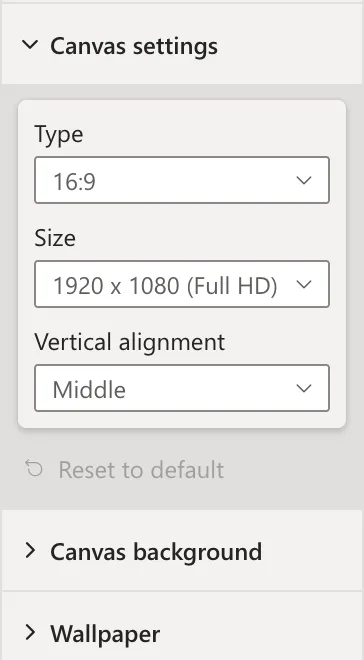
In Editing mode, click an empty part of the page so nothing is selected. In the Visualizations pane, select Format page, the brush icon, and expand Canvas settings. The page is 16:9, 1920 x 1080 (Full HD):
Step 2: Choose Custom and Type the Size
Set Type to Custom. Width and Height boxes appear; keep the width at 1920 and type 1200 as the height, then press Enter:
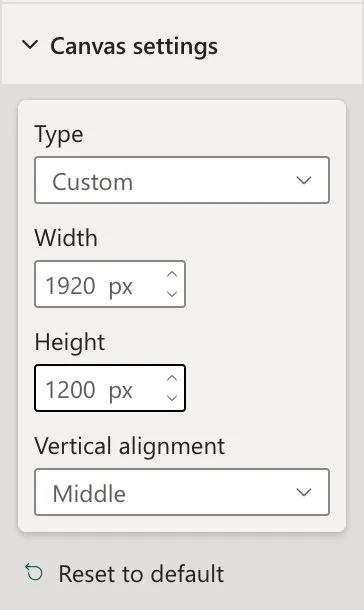
The article lists the other types: 16:9, 4:3, Letter and Tooltip, and the 16:9 sizes from 1280 x 720 (HD) to 3840 x 2160 (4K UHD).
Step 3: Check the Page
The page is taller, with room under the visuals for the text box:
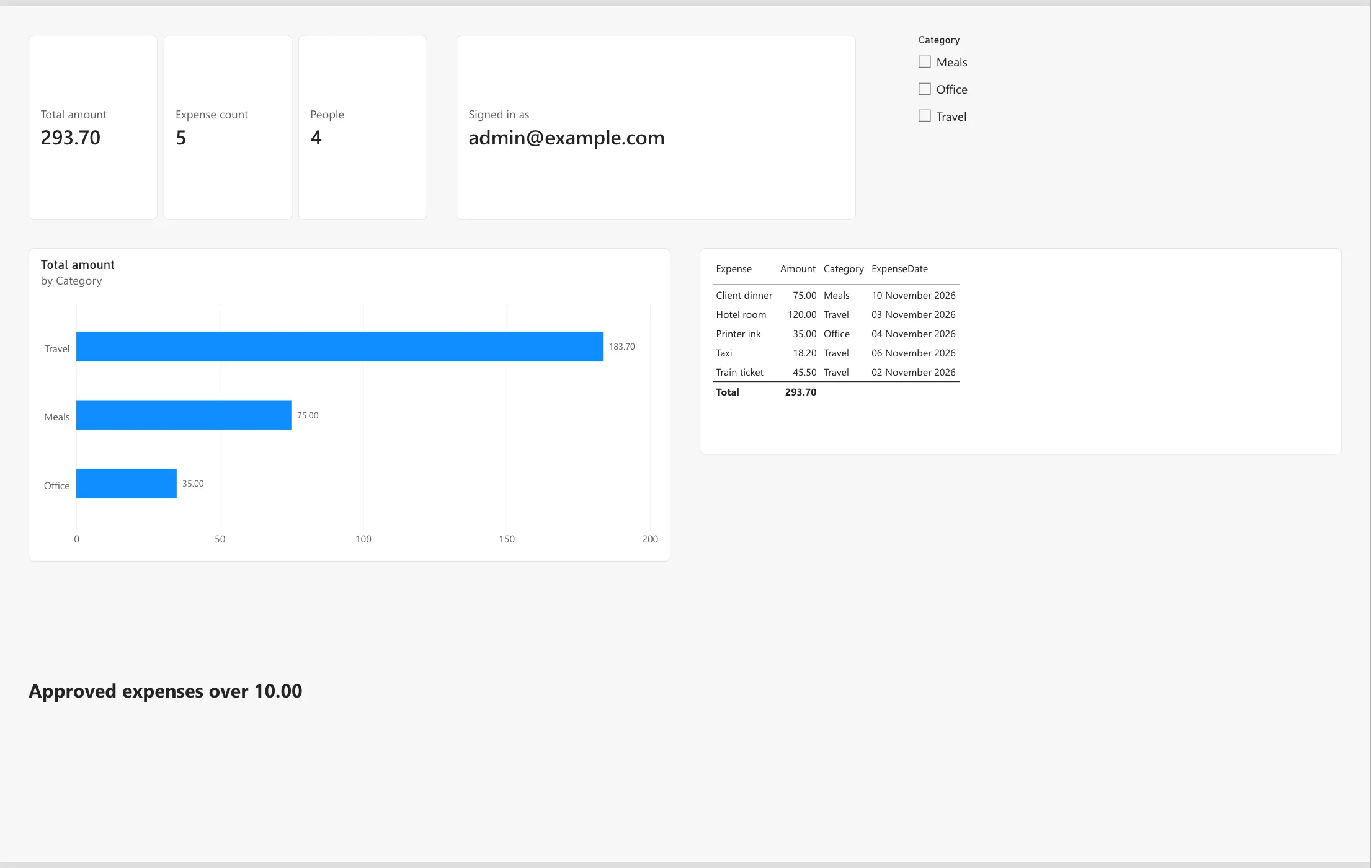
How a tall page fits a reader's window depends on the report's page view, such as Fit to page or Fit to width in the View menu, which the same article describes.
Common Mistakes
| Mistake | What happens | Do this instead |
|---|---|---|
| Shrinking the page to make fonts look bigger | Responsive visuals shrink their fonts and warn (Fixed: "Data Label Font Reduced" on a Power BI Visual) | Keep 1920 x 1080 and size the visuals |
| A visual selected while looking for Canvas settings | The pane shows the visual's settings | Click an empty part of the page |
| Different sizes on every page | The report jumps as readers change pages | Use one size for all pages |
Troubleshooting
| Symptom | Likely cause | Fix |
|---|---|---|
| No Canvas settings | A visual is selected | Click an empty part of the page |
| Visuals hang off the page | The page got smaller than their positions | Move them, or make the page bigger |
FAQ
Can new pages get my size automatically?
The article says the default page size for new pages can be set in a custom report theme.
Conclusion
With nothing selected, Format page > Canvas settings: choose a size, or Custom with a width and height in pixels. The example's page became 1920 by 1200.
