How to Change the Date Format of a SharePoint Site

If your SharePoint site shows 7 November as 11/7/2026, it's using the US date format. The format comes from the site's Locale, in Regional settings. Set it to your country and the same date shows as 07/11/2026.
This guide changes the site of the Overtime Timesheet series, a site for a UK team, from English (United States) to English (United Kingdom).
Before: US Dates
A new site uses English (United States). On the Overtime Timesheet site, the home page said it was published on 11/7/26, month first:

A list's New item form did the same. Picking 7 November 2026 in a date field filled in 11/7/2026:

And the date picker's weeks started on Sunday:
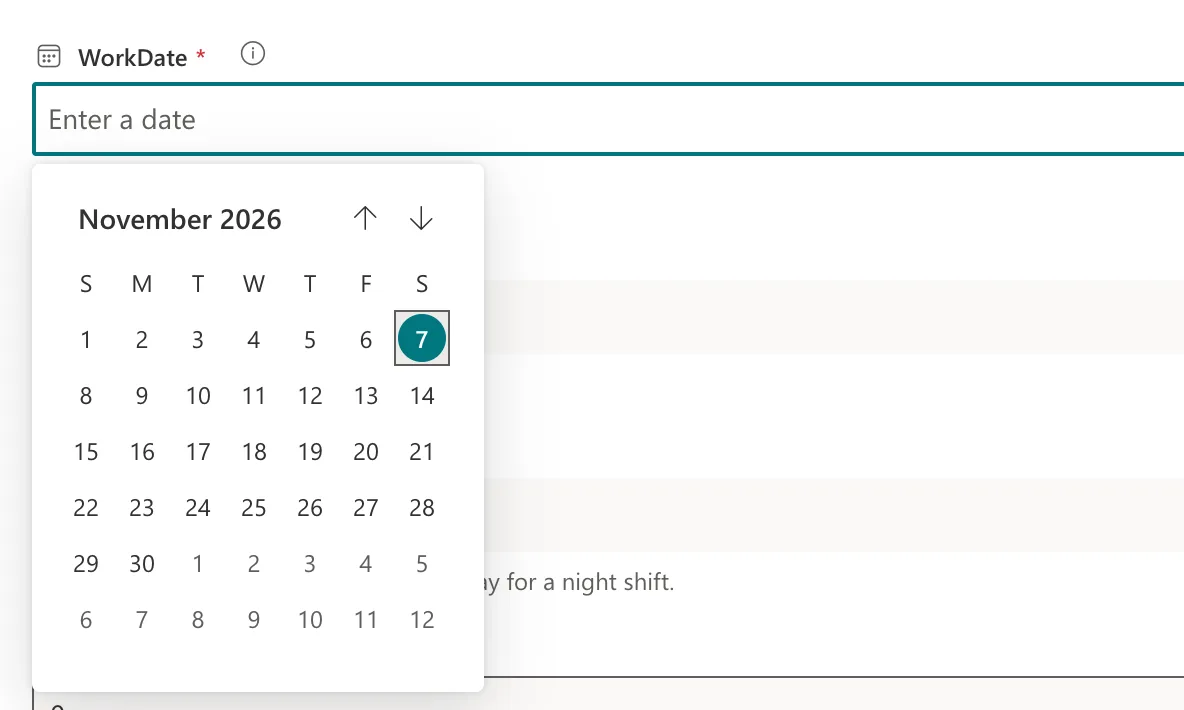
For a team that writes dates day first, 11/7/2026 reads as the 11th of July.
Prerequisites
- A SharePoint site you own. If you created it, you're its owner.
Step 1: Open Regional Settings
Select Settings (the gear) → Site information → View all site settings, then Regional settings under Site Administration. How to Change the Time Zone of a SharePoint Site shows each of those screens.
Step 2: Choose the Locale
Under Region, Locale is set to English (United States). The page describes it as the way "the site displays numbers, dates, and time":
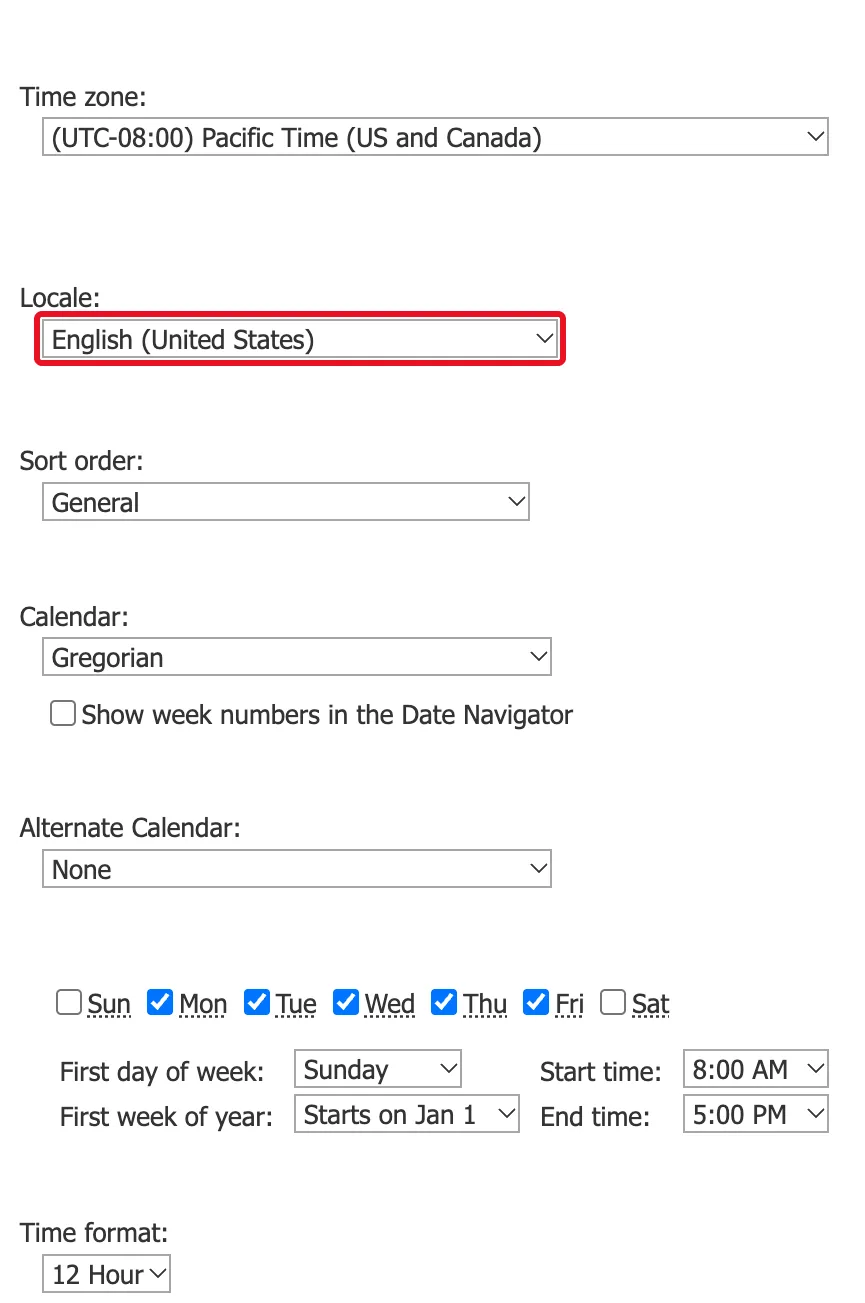
Open the list and choose English (United Kingdom). There are 16 English locales, from English (Australia) to English (Zimbabwe); pick your country's.
As soon as you choose, the other settings on the page change too. Look at them before you go on:
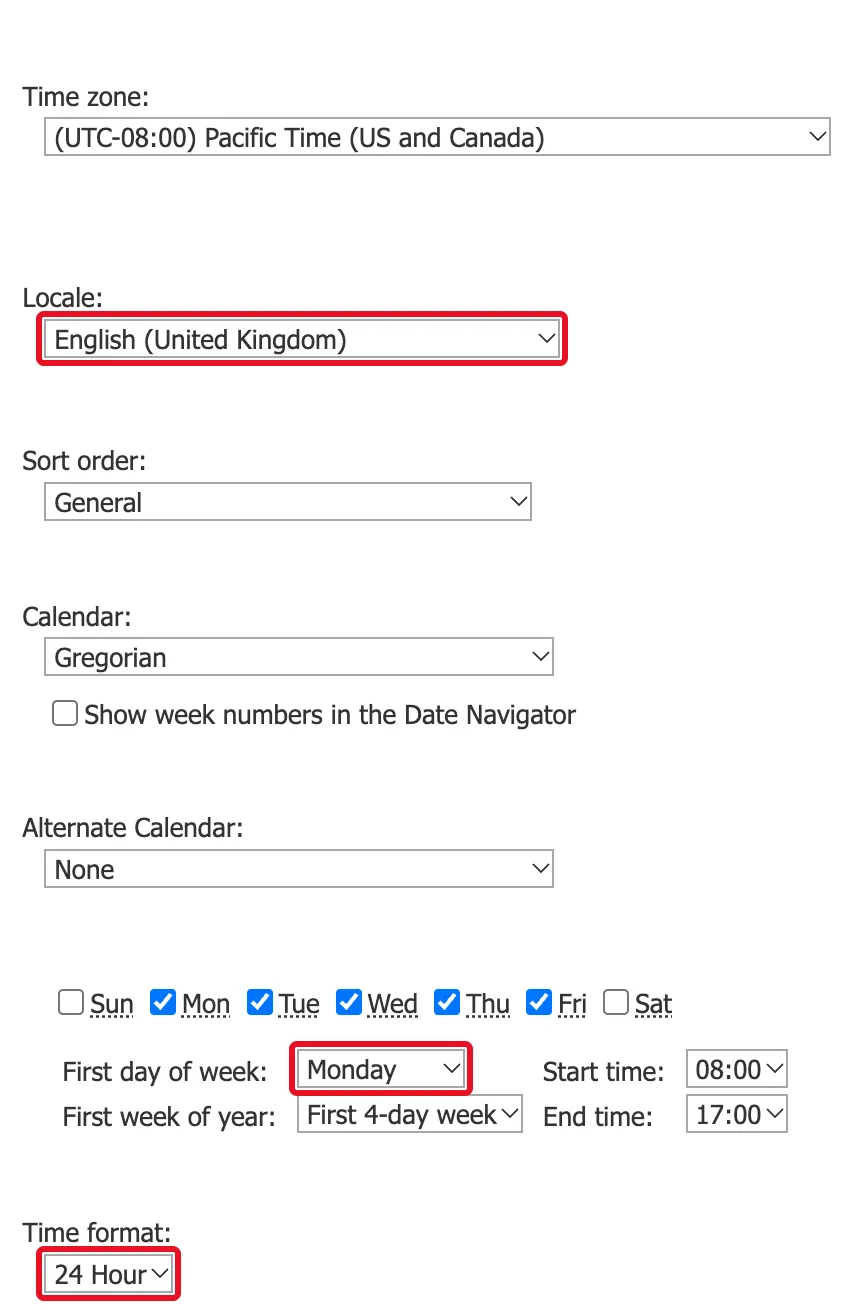
Choosing the locale changed several of them:
| Setting | English (United States) | English (United Kingdom) |
|---|---|---|
| First day of week | Sunday | Monday |
| First week of year | Starts on Jan 1 | First 4-day week |
| Start time / End time | 8:00 AM / 5:00 PM | 08:00 / 17:00 |
| Time format | 12 Hour | 24 Hour |
That's what Microsoft's Change regional settings for a site describes: "When you change the locale setting for a site, all other regional settings are set to the default settings for the new locale." The time zone wasn't among them: it stayed on Pacific Time. Change the locale first, then set anything you want different from its defaults.
Step 3: Save with OK
Check the time zone. On this site it was set to London at this point (How to Change the Time Zone of a SharePoint Site), so the settings were:
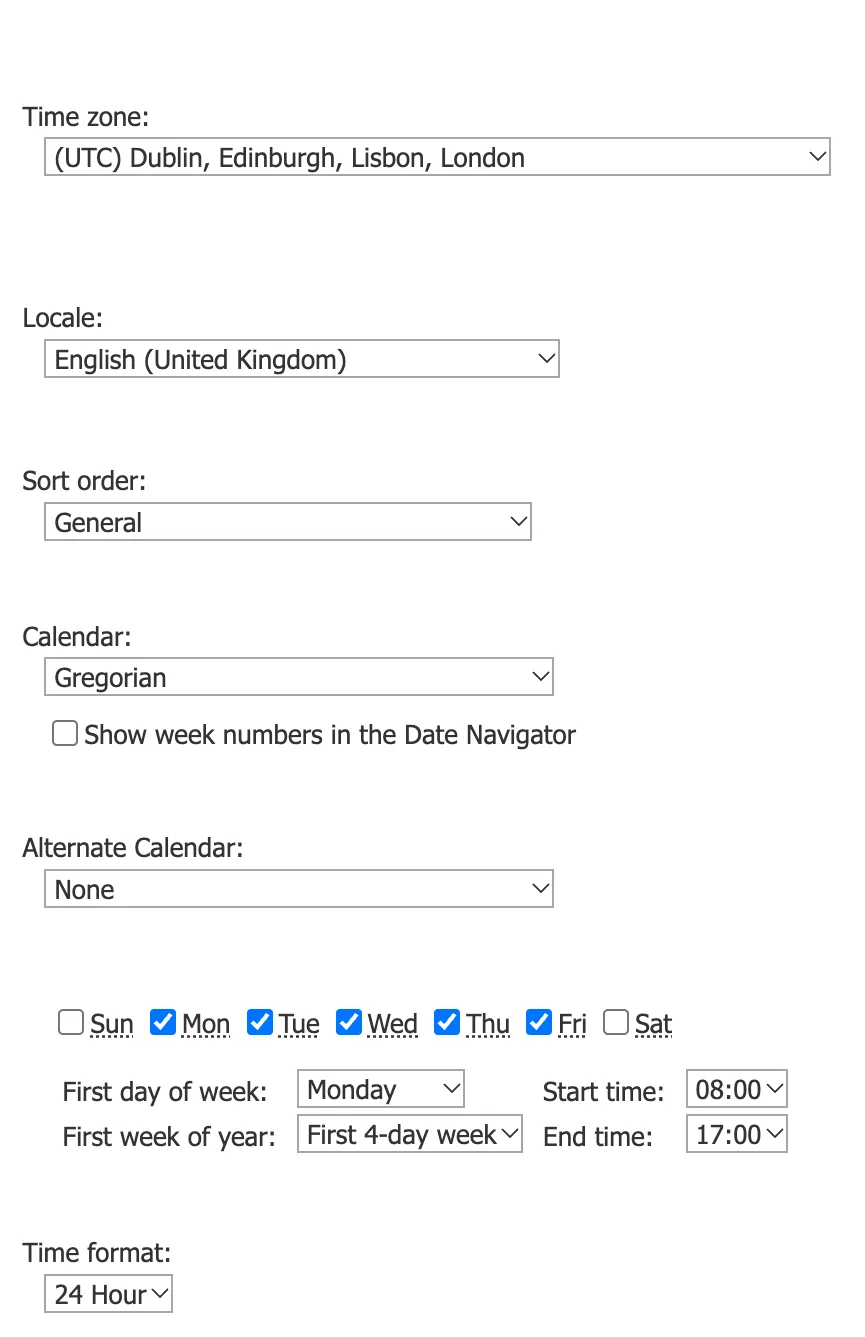
Then select OK at the bottom right of the page:
After: UK Dates
The home page now says 07/11/26:

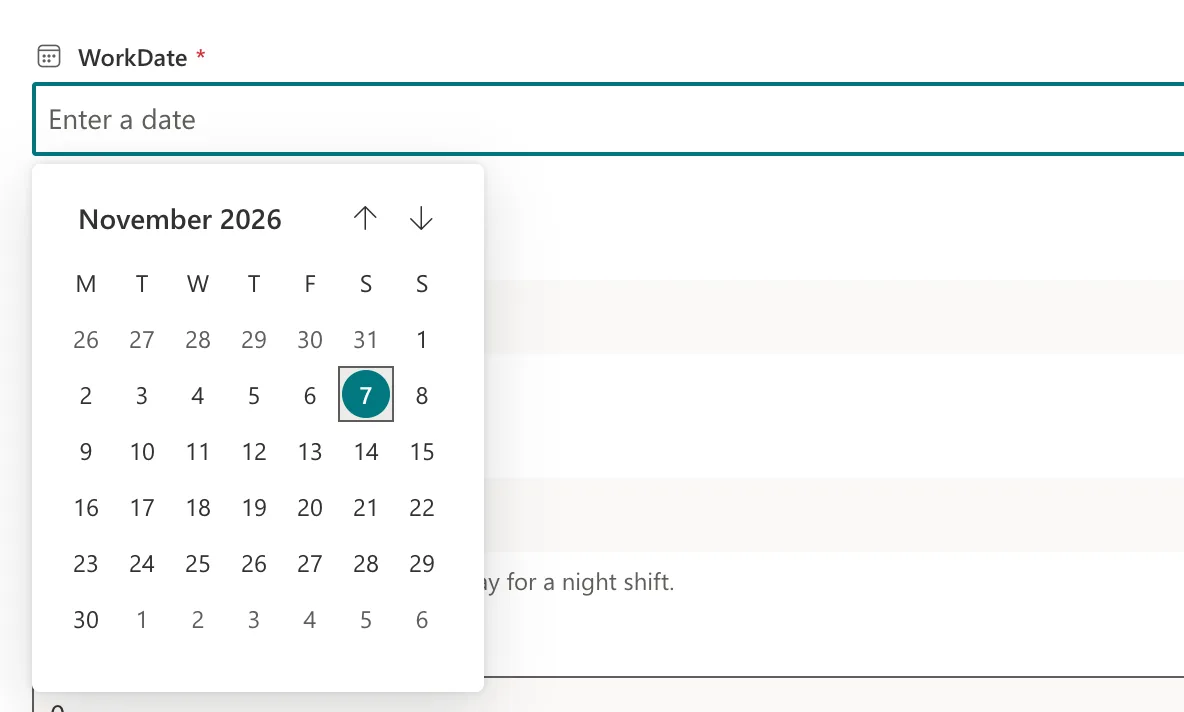
The date picker starts the week on Monday:
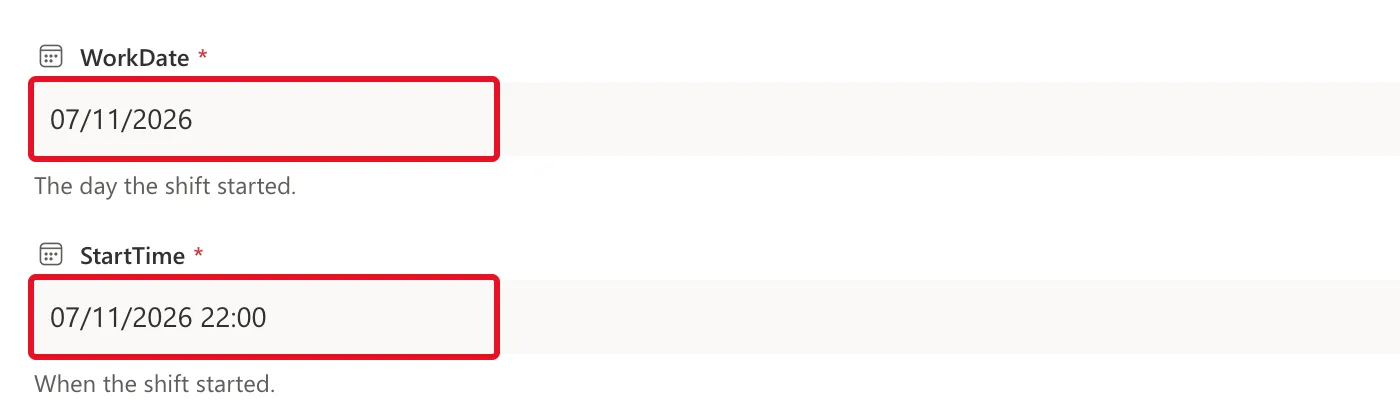
And picking the same day fills in 07/11/2026, with the time in the 24-hour clock:
Common Mistakes
| Mistake | What happens | Do this instead |
|---|---|---|
| Setting the time format or work week, then changing the locale | The locale puts them back to its own defaults | Change the locale first |
| Expecting the locale to set the time zone | The time zone stays as it was | Set Time zone as well |
| Looking for a date format box | There isn't one: the format comes from the locale | Choose the locale of the country whose format you want |
Troubleshooting
| Symptom | Likely cause | Fix |
|---|---|---|
| One person still sees US dates | They use their own regional settings | Personal settings override the site's (see the FAQ) |
| No Regional settings link | You're not an owner of the site | Ask a site owner |
FAQ
Can each person choose their own date format?
Yes. The same Microsoft page says: "Individual users can choose to use your default settings or specify their own personal settings, which would override the site-level settings."
Does the locale change the site's language?
No. The labels in the screenshots stayed in English. The site's language is chosen when it's created.
Do apps that read the list use this format?
Not necessarily. A Power Apps app formats dates itself, so the Overtime Timesheet series sets its own formats in the app's screens.
Conclusion
A site's date format comes from its locale. Choose your country under Regional settings → Locale, check the settings the locale changes with it, and select OK.
