How to Change an Action's Connection Reference in Power Automate

Each action in a solution flow connects through a connection reference, and the designer picks one for you when you add the action. To switch it, open the action, select Change connection reference at the bottom of its pane, and choose the reference you want.
A connection reference is a solution component that says which connection a flow uses, so the flow can move to another environment and be connected there. Microsoft's connection reference article explains why you sometimes need to switch: When an action is added to a solution flow, Power Automate will try to reuse existing connection references from the current solution or other solutions before creating a new connection reference.
The example is Get Waiting Approvals, a flow in the Overtime Timesheet solution of the Overtime Timesheet app. Its first SharePoint action connected to a reference from another solution in the same environment.
Prerequisites
- A flow in a solution, open in the designer.
- The reference you want, in the flow's own solution (How to Create a Connection Reference in a Solution in Power Apps).
Step 1: See Which Reference the Action Uses
Select the action. The bottom of its Parameters tab says Connected to and the reference's name, followed by a Change connection reference link. For Get the caller, an Office 365 Users action, it was Office 365 Users, from the flow's own solution.
Step 2: Open the Change Connection Dialog
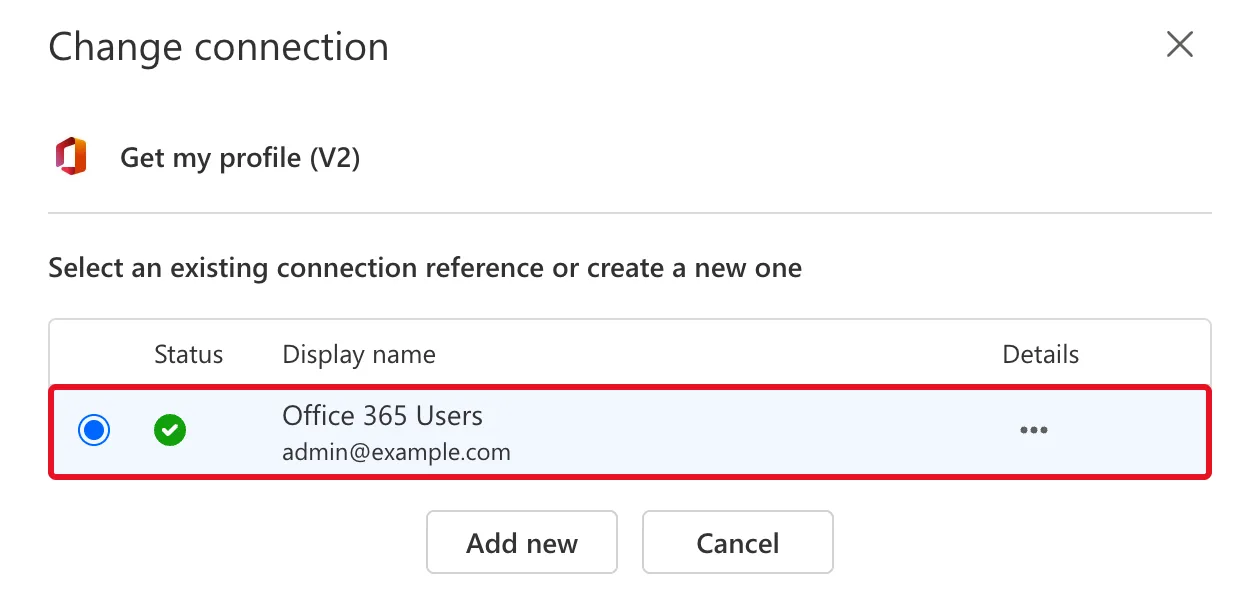
Select Change connection reference. The Change connection dialog lists every reference for the action's connector: its status, display name and the account it connects as. The current one is selected. For the Office 365 Users action, there was only one:
Step 3: Pick the Reference from Your Solution
For the SharePoint action Get items, the dialog showed two references. The designer had chosen Another Solution SharePoint, which belongs to another solution. I selected Overtime Timesheet SharePoint, the flow's own:
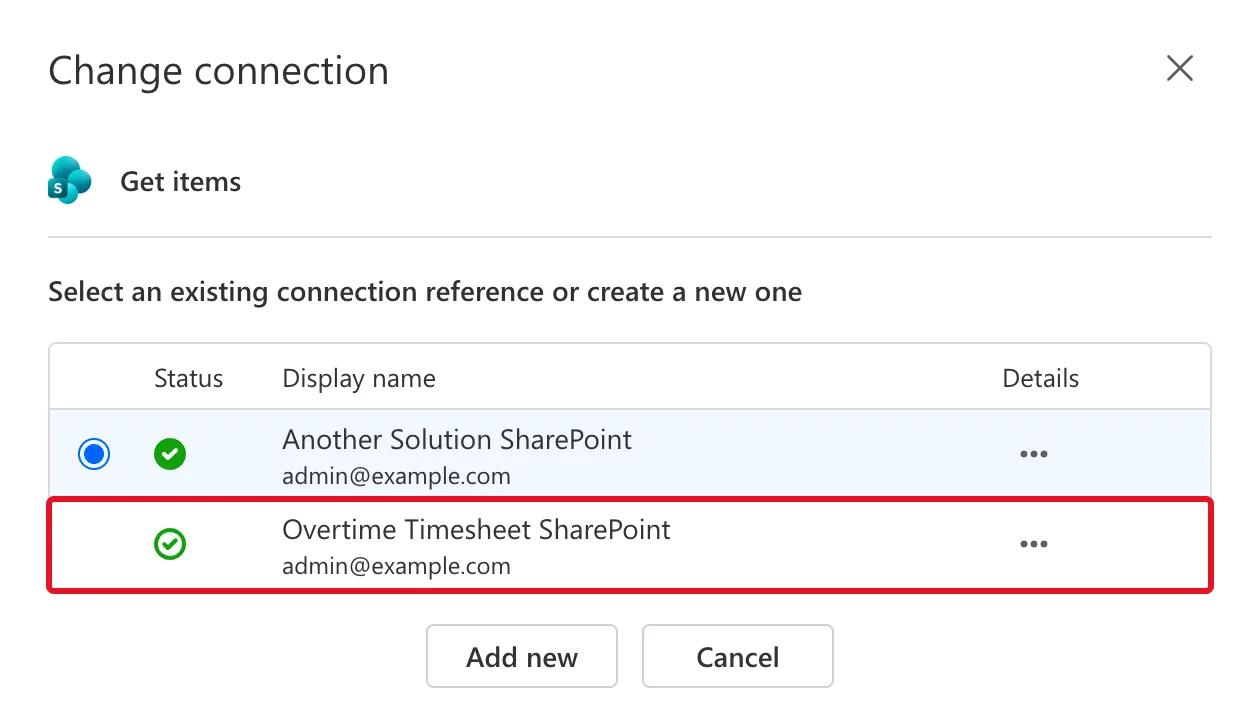
Selecting a reference applies it. The pane then said Connected to the new reference. Add new creates a new reference instead.
Step 4: Repeat for Every Action of That Connector
Each action keeps its own reference. In the example, the second SharePoint action, Get the pending entries, also started on the other solution's reference and needed the same change. Save the flow when every action is on the right reference.
Common Mistakes
| Mistake | What happens | Do this instead |
|---|---|---|
| Leaving an action on another solution's reference | The flow depends on a reference its solution doesn't carry | Switch it to the solution's own |
| Changing only the first action | The others keep the old reference | Check each action of that connector |
| Picking by the account name alone | Several references can use the same account | Pick by the reference's display name |
Troubleshooting
| Symptom | Likely cause | Fix |
|---|---|---|
| The reference you want isn't listed | It doesn't exist yet, or is for another connector | Create it in the solution |
| Each new action connects to the other reference again | The designer reuses it every time | Switch each action as you add it |
| The flow fails in another environment | An action used a reference that didn't move | Check every action's reference before exporting |
FAQ
Why did the designer pick the other solution's reference?
Microsoft documents it: the designer reuses existing references, from this solution or others, before it creates a new one. Here, the other solution's SharePoint reference already existed.
Does changing the reference change whose account the action uses?
Only if the new reference uses a different connection. Here, both used the same account, so only the reference changed.
Conclusion
Change connection reference, at the bottom of an action's pane, switches the action to another reference. Use it on each action the designer connected to another solution's reference, so the flow uses only references from its own solution.
