How to Change a User's Manager in Microsoft Entra

Changing someone's manager in the Microsoft Entra admin center isn't quite the same as setting one for the first time. The current manager stays selected when you pick the new one, so you have to remove them in the same panel. This guide moves Aisha Khan from Daniel Brooks to Olivia Bennett.
The example is the demo organization of the Overtime Timesheet series. Aisha moves to the Emergency Department as a staff nurse, so her job title, department and manager all change at once.
Prerequisites
- The User Administrator role or higher in the Microsoft Entra admin center.
- The person and their new manager. A person has one manager.
Step 1: Open Job Information
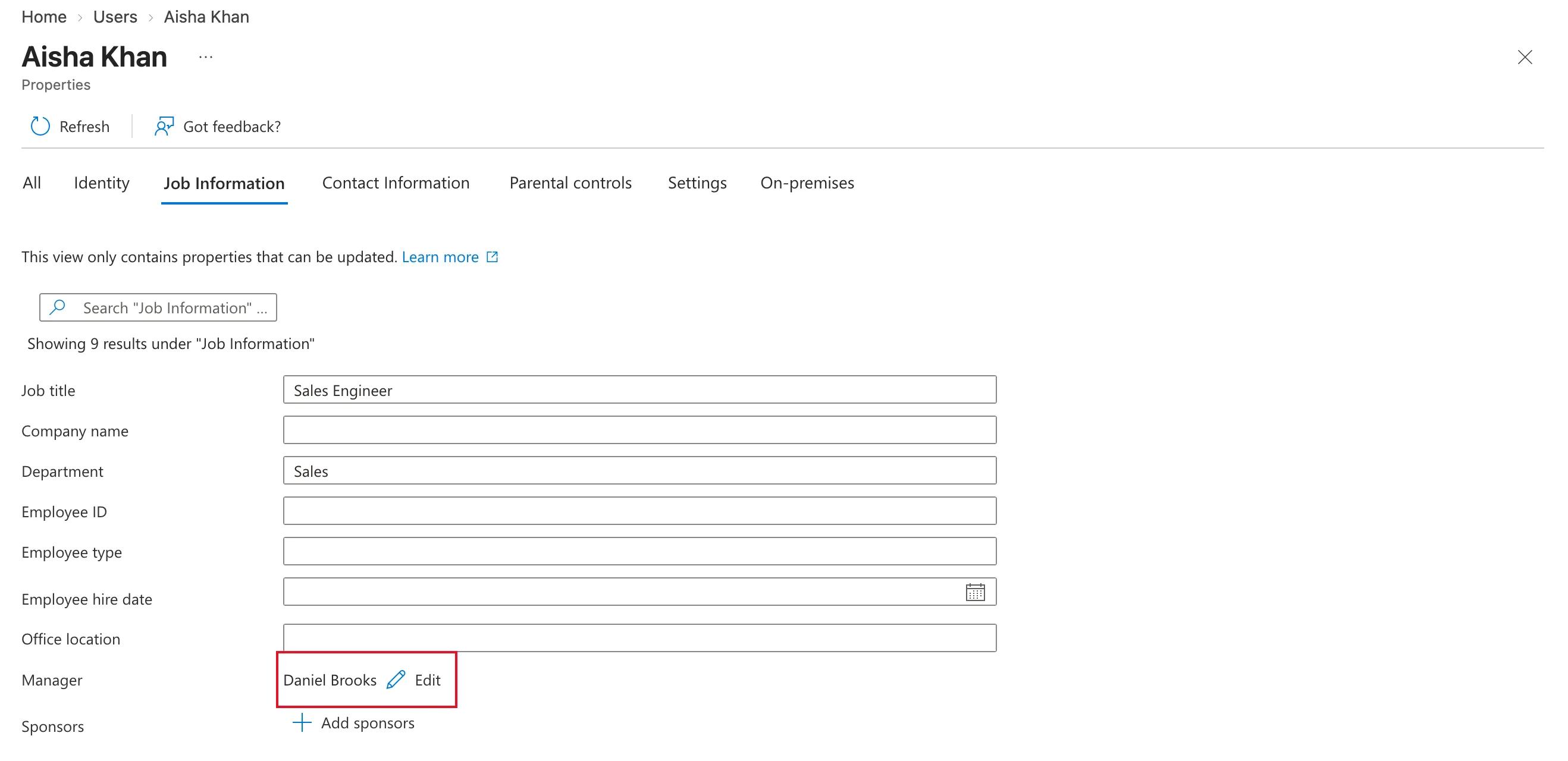
Select Entra ID → Users → Aisha Khan → Edit properties, then the Job Information tab. The Manager row shows the current manager, Daniel Brooks, with an Edit link:
Step 2: Pick the New Manager
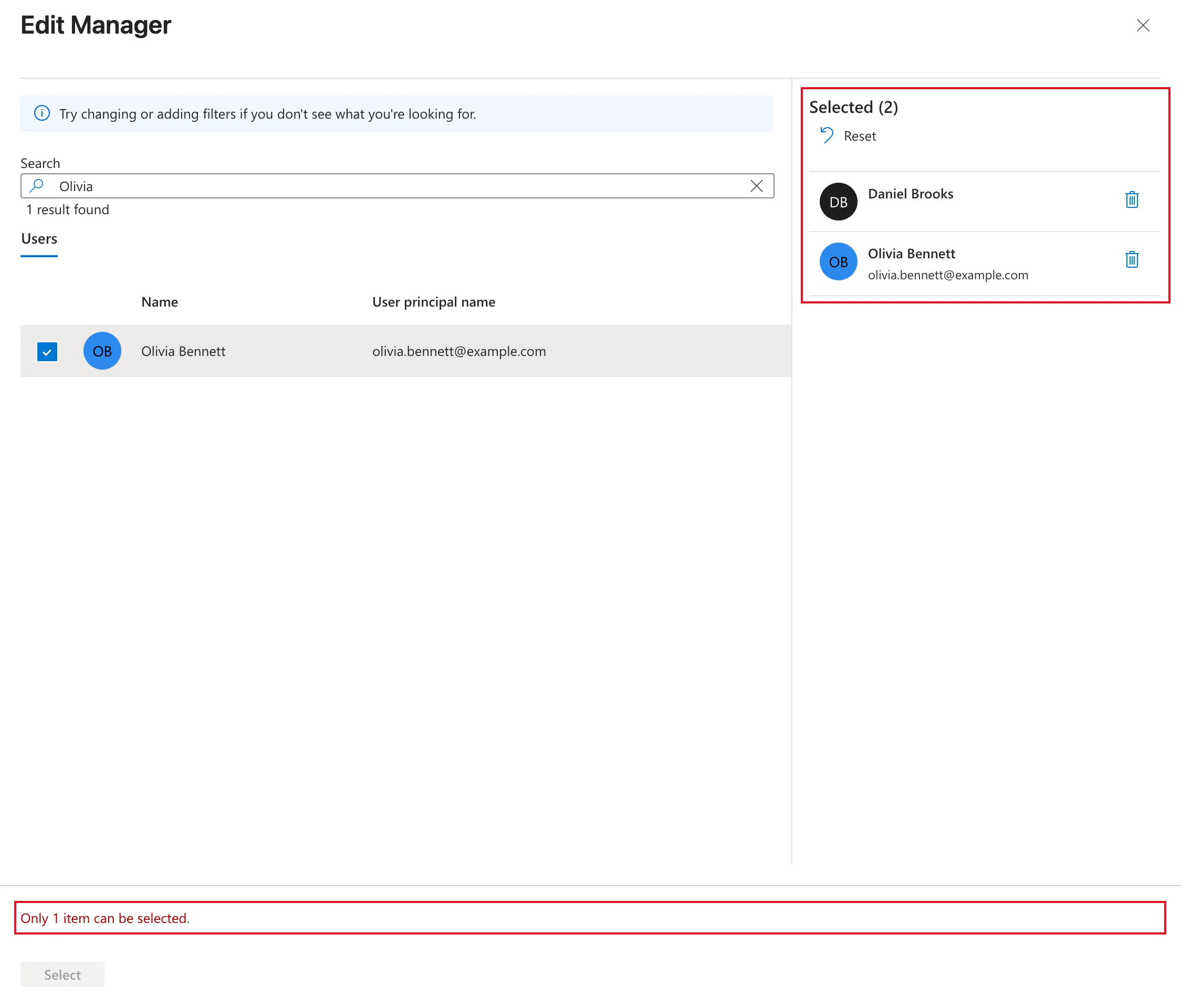
Select Edit next to the manager's name. In the Edit Manager panel, type part of the new manager's name in the panel's own Search box, here Olivia, and tick Olivia Bennett.
The current manager is still listed under Selected, so it now says Selected (2), the panel shows Only 1 item can be selected., and Select is greyed out:
Step 3: Remove the Current Manager
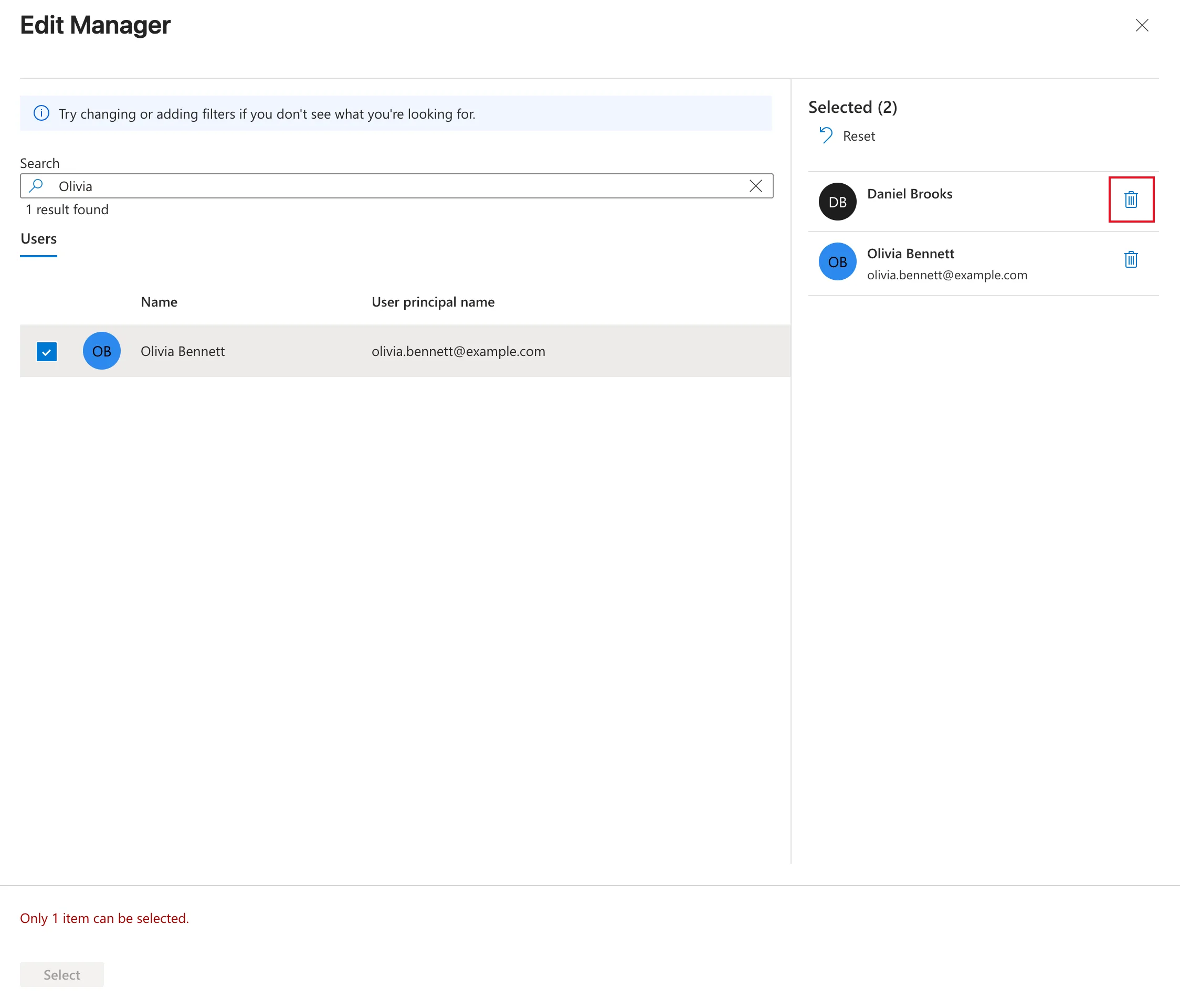
Select the bin icon at the right of Daniel Brooks in the Selected list:
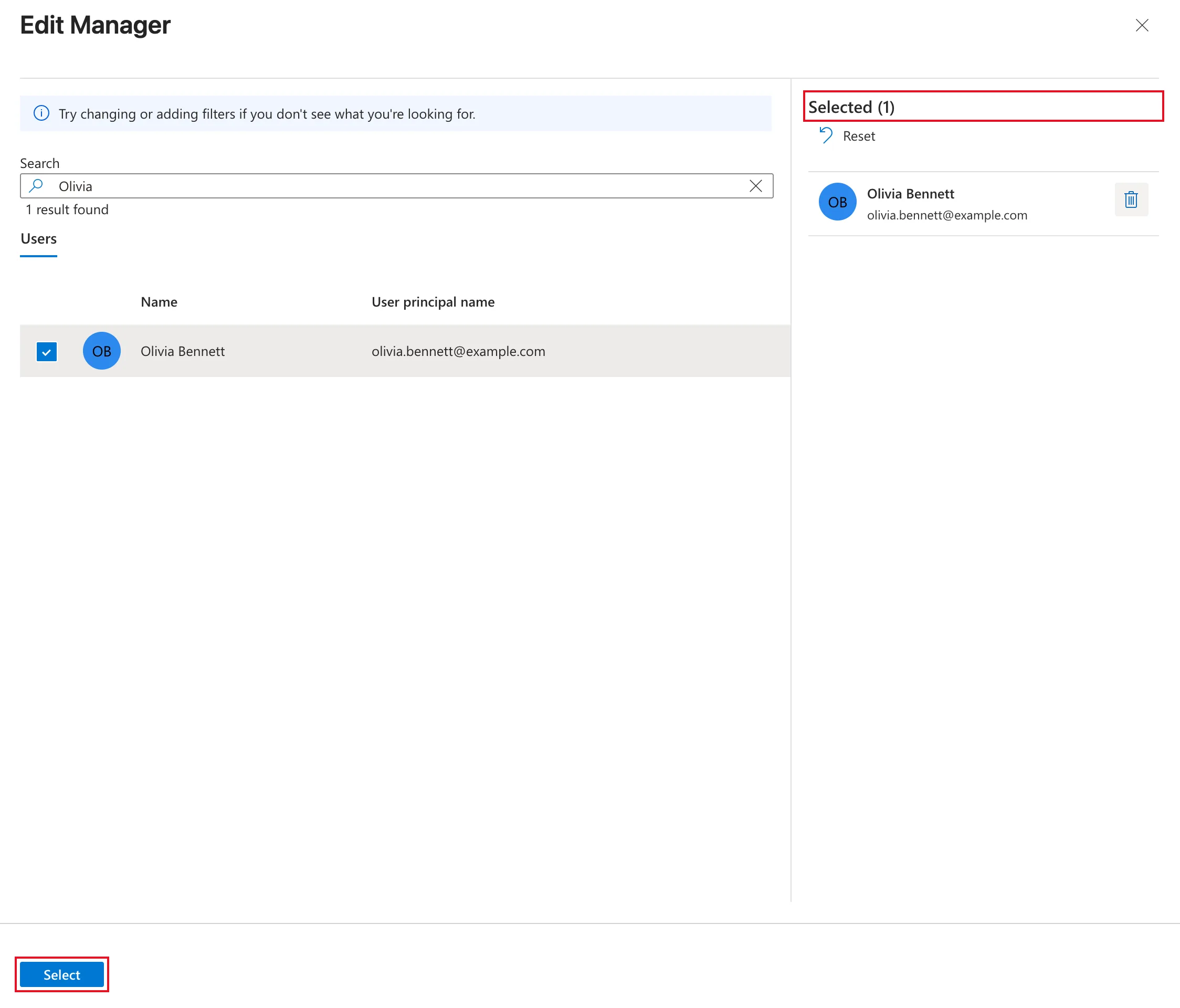
Selected (1) now lists only Olivia, and Select is available. Select it:
Fixed: "Only 1 item can be selected" When Changing a User's Manager has more on that message.
Step 4: Update the Rest and Save
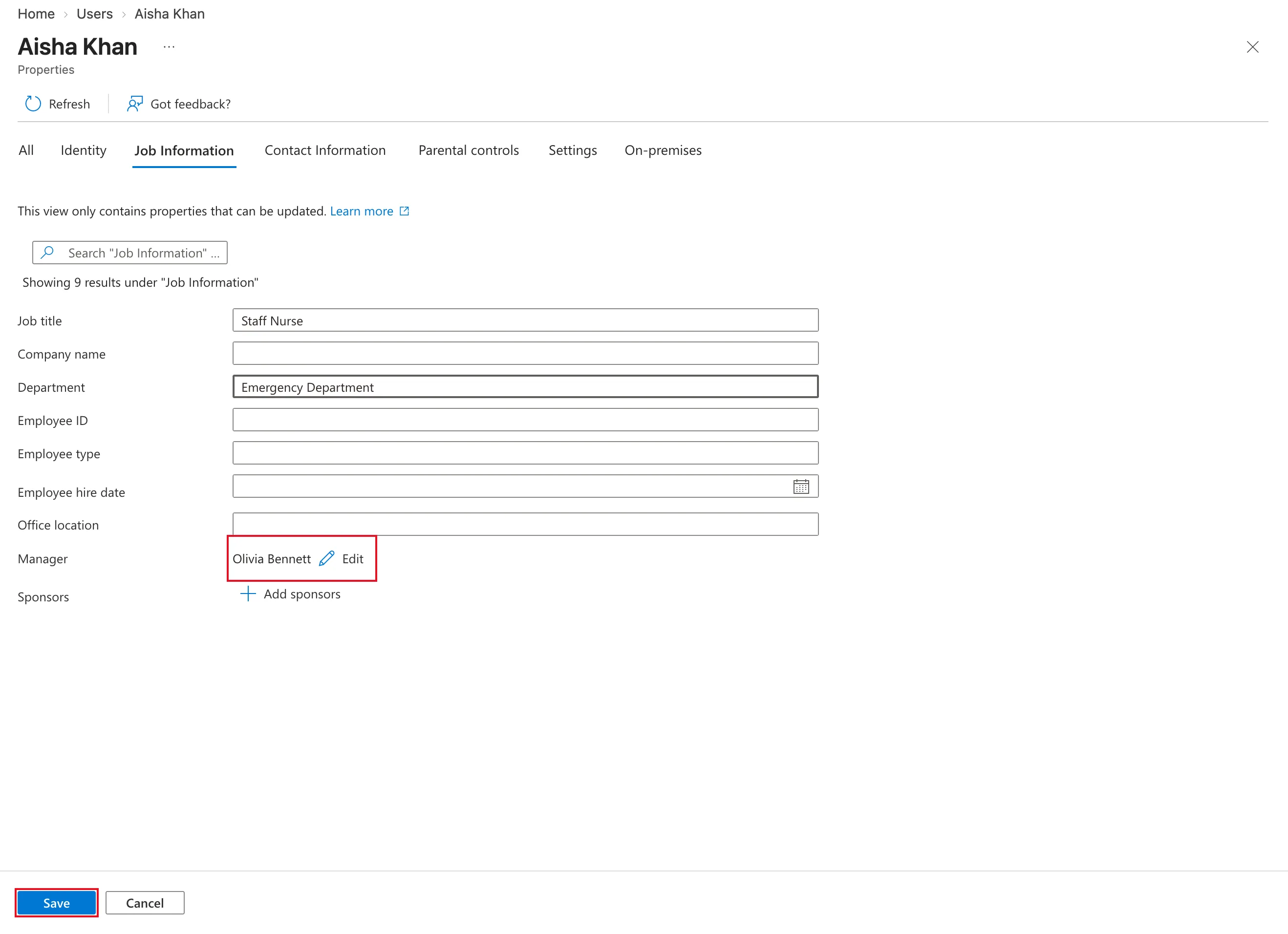
The Manager row now shows Olivia Bennett. Because Aisha's role changed too, I replaced Job title with Staff Nurse and Department with Emergency Department. Then select Save:
Step 5: Check the Result
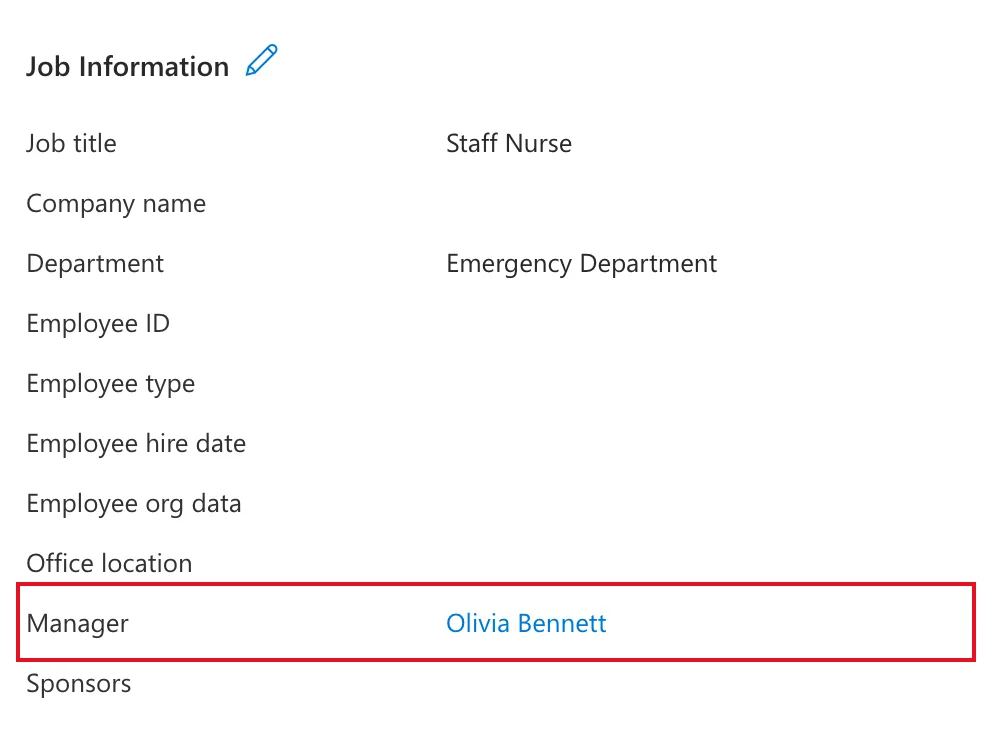
Open the Properties tab and find Job Information. Manager is Olivia Bennett:
I changed the rest of the team's managers the same way: Daniel Brooks and Leo Martin now report to the organization's administrator, and Maya Patel stays with Daniel Brooks.
Common Mistakes
| Mistake | What happens | Do this instead |
|---|---|---|
| Ticking the new manager without removing the old one | Only 1 item can be selected and Select is greyed out | Remove the current manager with the bin icon |
| Using the portal's search bar at the top of the page | It searches the whole portal and picks nobody | Use the Search box inside Edit Manager |
| Leaving without Save | The new manager isn't stored | Select Save on Job Information |
Troubleshooting
| Symptom | Likely cause | Fix |
|---|---|---|
| Select is greyed out | Two people are selected | Remove one from Selected |
| Properties shows the old manager | The tab was open before you saved | Reload the browser page |
FAQ
Do I need to remove the old manager in a separate save?
No. Remove the old manager and pick the new one in the same panel, then save once.
Does the old manager's account change?
No. Only the person's Manager field changes.
Can I do this with PowerShell?
Yes. Set-MgUserManagerByRef sets the manager, replacing the one that's there; How to Set a User's Manager and Job Title shows the command.
Conclusion
To change a manager: Edit properties → Job Information → Manager → Edit, pick the new manager, remove the old one from Selected, then Select and Save.
