How to Change a User's Department in Microsoft Entra

A person's department in Microsoft 365 is a field on their profile in Microsoft Entra. Apps read it, so it has to be right when someone moves. This guide changes Olivia Bennett from Sales to Emergency Department, along with her job title, and checks the saved values.
The example is the demo organization of the Overtime Timesheet series, where a team of six takes on hospital roles. The app that series builds will read each person's department to suggest which department their overtime belongs to.
Prerequisites
- The User Administrator role or higher in the Microsoft Entra admin center.
- The person whose department changes, and the new department's exact name.
Step 1: Open the Person's Properties
In the Microsoft Entra admin center, select Entra ID → Users and select the person, here Olivia Bennett. On her profile, select Edit properties. How to Set a User's Manager and Job Title shows these screens if you haven't used them before.
Step 2: Open Job Information
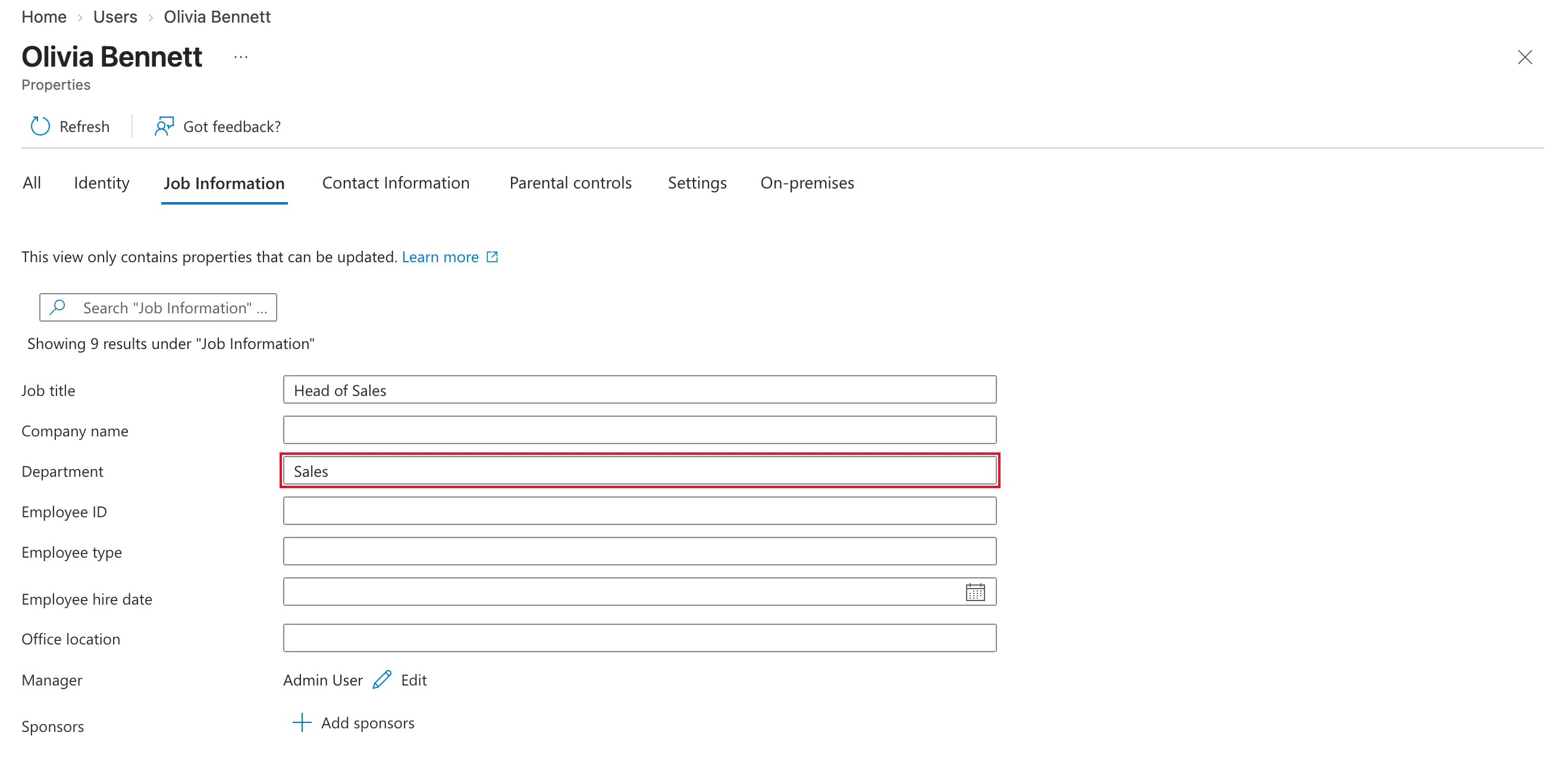
Select the Job Information tab. Department shows the current value, Sales:
Step 3: Type the New Department
Replace Department with the new one, Emergency Department. Olivia's job title changes with her move, so I also replaced Job title with Emergency Department Manager. Then select Save at the bottom of the page:
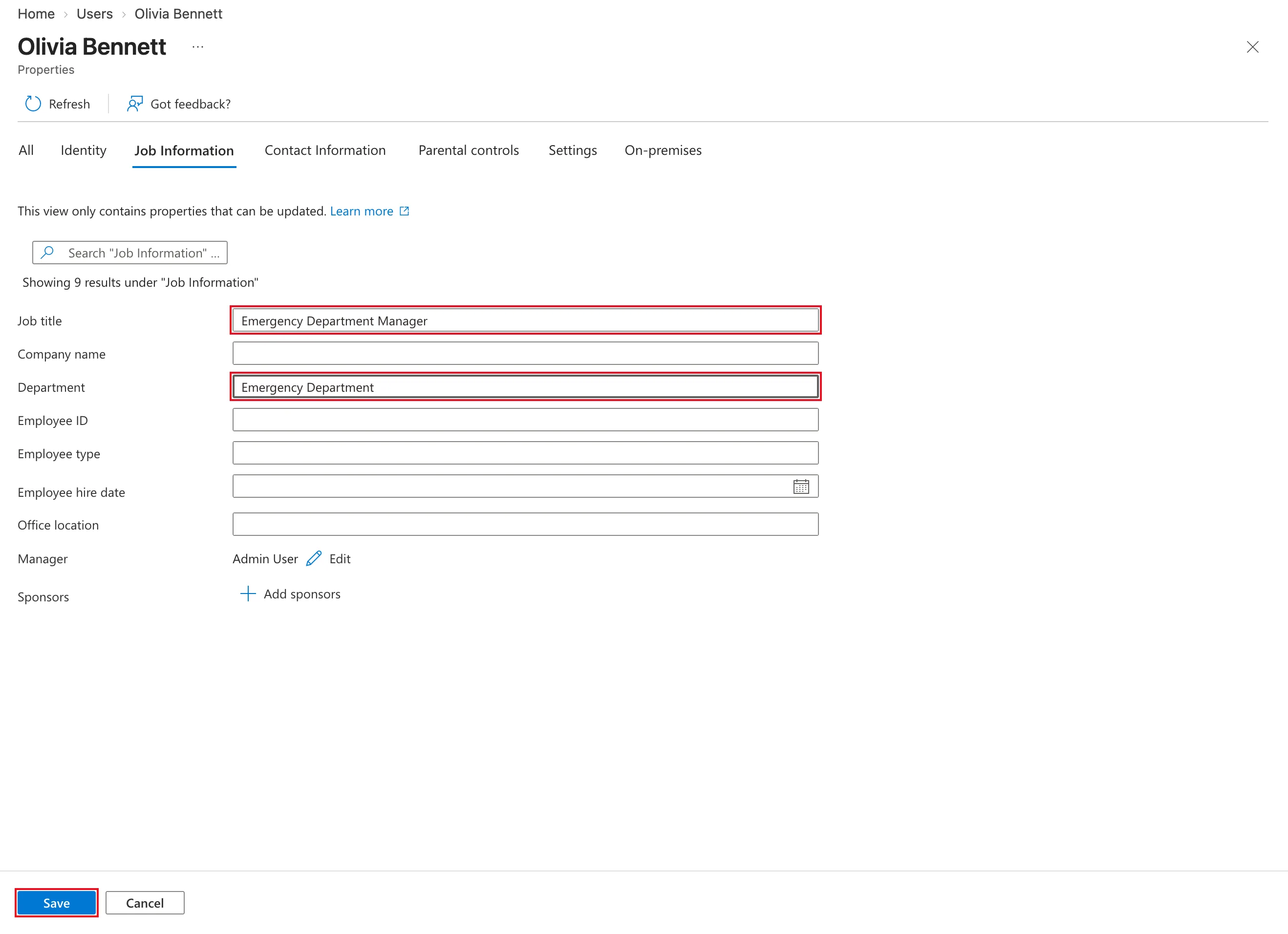
Department is free text. Type it the same way for everyone in the department, because apps compare the text exactly: Emergency Department and Emergency department are two different departments to them.
Step 4: Check the Saved Value
Open the Properties tab and find Job Information. Department shows Emergency Department:
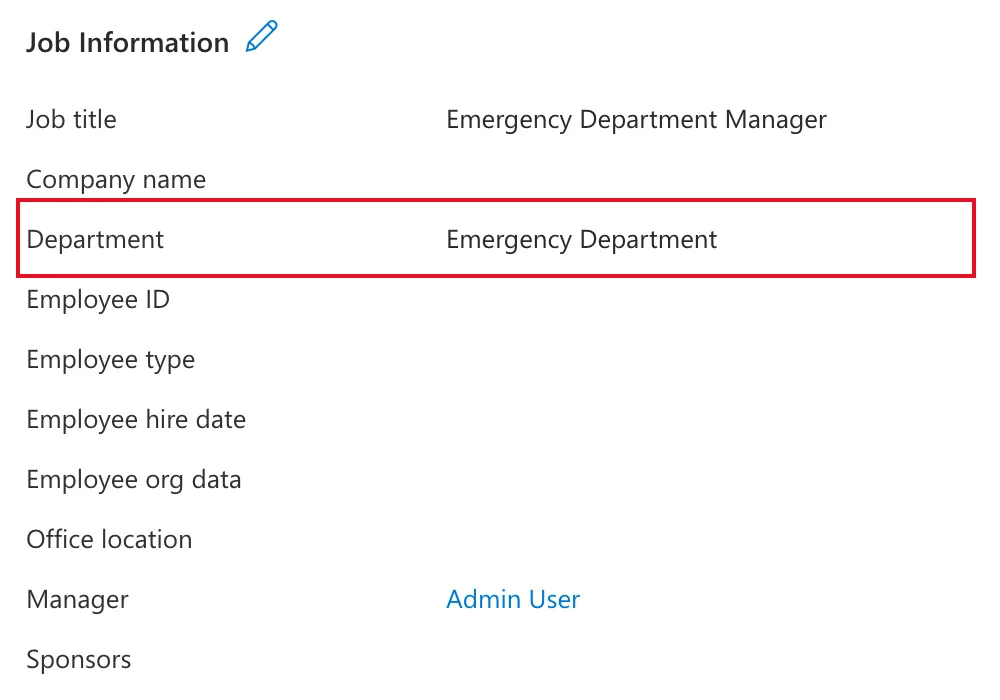
If Properties was already open before you saved, it can show the old value: reload the browser page (Fixed: Microsoft Entra Admin Center Shows the Old Job Title After Saving).
I changed the rest of the demo team the same way: Daniel Brooks to Radiology Manager in Radiology, Maya Patel to Radiographer in Radiology, and Leo Martin to Payroll Officer in Finance. Aisha Khan's change included a new manager too, in How to Change a User's Manager in Microsoft Entra.
Common Mistakes
| Mistake | What happens | Do this instead |
|---|---|---|
| Spelling a department differently for different people | Apps treat them as separate departments | Agree the exact names and copy them |
| Forgetting Save | Nothing is stored | Select Save before leaving the tab |
| Changing the department but not the job title | The person's profile mixes their old and new roles | Update both when someone moves |
Troubleshooting
| Symptom | Likely cause | Fix |
|---|---|---|
| Properties still shows the old department | The tab was loaded before you saved | Reload the browser page |
| The field won't save | Your account lacks the role to edit users | Ask for User Administrator |
FAQ
Is the department the same as a group?
No. Department is a text field on the person's profile. Security groups are separate, and changing someone's department doesn't add them to or remove them from any group.
Do other Microsoft 365 apps see the change?
Yes. It's the same profile that Outlook, Teams and Power Apps read through Microsoft 365.
Can I change the department for many people at once?
Microsoft's guide, Add or update a user's profile information and settings, covers editing several users at once in the admin center.
Conclusion
To change someone's department: Edit properties → Job Information → Department → Save, then check Properties. Keep the names identical across people so the apps that read them agree.
