How to Change a Column's Data Type in Power Query

Every column in Power Query has a data type, shown by the icon in its header. A SharePoint date column arrives as Date/Time, for example, with a time of midnight you don't need. Changing it to Date keeps only the day. Here's how.
Microsoft's Data types in Power Query lists the types, from Decimal number and Whole number to Date, Date/Time and Text, and says the icon on the left of a column header shows its type. The example is the ExpenseDate column of a query of an Expenses list (How to Get Data from a SharePoint List in Power BI in the Browser), which showed values such as 02/11/2026, 00:00:00.
Step 1: Open the Type Menu
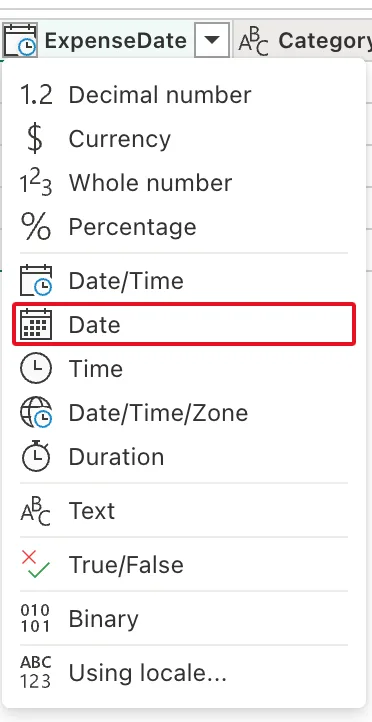
Select the type icon at the left of the column's header. For ExpenseDate, it's a calendar with a clock, Date/Time. A menu lists the data types; select Date:
Step 2: Check the Result
The header's icon becomes a calendar, and the values lose their time: 02/11/2026. Applied steps gains a step, and the formula bar shows it:
Table.TransformColumnTypes(#"Removed columns", {{"ExpenseDate", type date}})
#"Removed columns"is the step before.{{"ExpenseDate", type date}}pairs each column with its new type. Change several columns at once and they all go into this list.
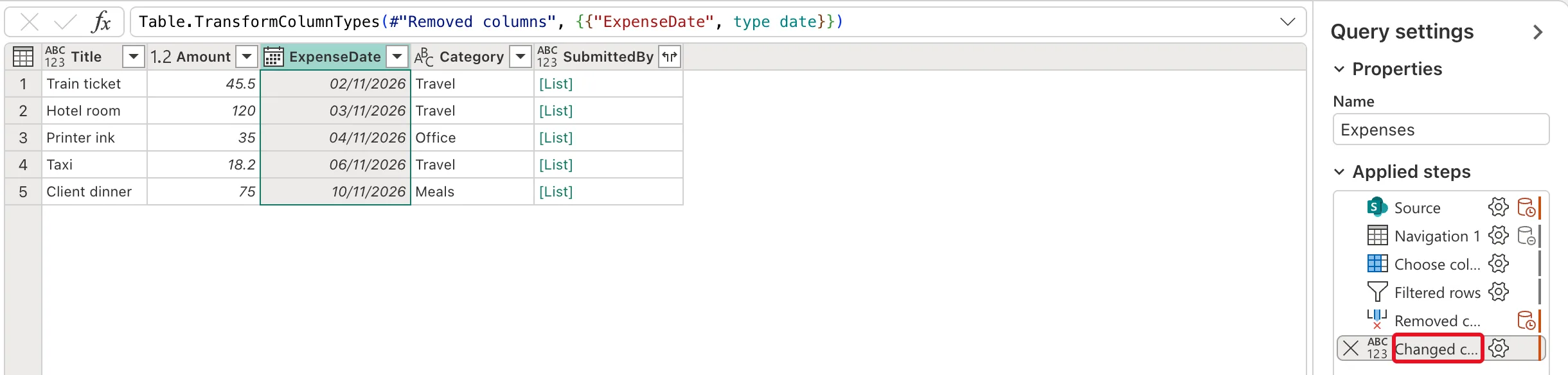
The dates show day first because the browser's language in the example was English (United Kingdom).
Common Mistakes
| Mistake | What happens | Do this instead |
|---|---|---|
| Leaving dates as Date/Time | Reports show 00:00:00 and group by date and time | Date for dates without a time |
| Changing a column of names to Whole number | Every value becomes an error | Choose the type that matches the values |
| Changing a type before removing bad rows | Values that can't convert become errors | Filter first, then change the type |
Troubleshooting
| Symptom | Likely cause | Fix |
|---|---|---|
| Cells show Error after the change | A value can't be converted to the type | Check the values, or choose another type |
| Dates come out with the wrong month | The text was written in another region's format | Using locale... with the source's region |
| The time is still there | The type is Date/Time | Choose Date |
FAQ
What's Using locale for?
It converts text using a region's format, for example 02/11/2026 as 2 November in the UK or February 11 in the US. Microsoft's data types article has a section on locale.
Can I change the type in the model instead?
Yes, the model has its own data type setting. Changing it in Power Query keeps the data clean before it reaches the model.
Conclusion
Select the type icon in the column's header and choose the type. Power Query adds a Table.TransformColumnTypes step; the example turned ExpenseDate from Date/Time into Date.
