How to Call an MCP Tool from C#

MCP tools are usually called by an AI model, but your own code can call them too, which is the quickest way to see what a tool really returns. This guide calls a tool of a remote MCP server from C#, checks whether it worked, and reads its result.
Syntax
McpClientTool <tool> = (await <client>.ListToolsAsync()).Single(tool => tool.Name == "<tool name>");

CallToolResult <result> = await <tool>.CallAsync(
    new Dictionary<string, object?> { ["<parameter>"] = <value> });

<result>.IsError
<result>.Content
| Part | What it is |
|---|---|
<client> | A connected McpClient, from McpClient.CreateAsync |
<tool name> | The tool's name, exactly as the server lists it |
<parameter>, <value> | One entry for each argument the tool takes, under the name in its input schema |
CallAsync | Invokes the tool on the server, in the words of the SDK reference, and returns a CallToolResult |
IsError | true when the tool itself failed. The SDK's documentation explains that the error is reported inside the CallToolResult with IsError set to true, rather than as a protocol-level error |
Content | What the tool returned: a list of content blocks, such as text, images or audio |
<client>.CallToolAsync("<tool name>", <arguments>) calls a tool by name without listing first, but the SDK then logs a warning, because it doesn't know the tool's definition.
The Example
A console app calls the documentation search of the Microsoft Learn MCP server, microsoft_docs_search, with the question create an Azure storage account with the Azure CLI. It prints the title and the link of the first three pages it finds.
Prerequisites
- The .NET 10 SDK.
dotnet --versionprints a version that starts with10.0.
Step 1: Create a Console App
In a terminal, in the folder where you keep your projects, run:
dotnet new console -n McpDocsSearch
cd McpDocsSearch
dotnet add package ModelContextProtocol.Core --version 2.4.0
ModelContextProtocol.Core is the official MCP C# SDK for clients. Open the McpDocsSearch folder in VS Code, or McpDocsSearch.csproj in Visual Studio.
Step 2: Find the Tool and Call It
Replace everything in Program.cs with:
using System.Text.Json;
using ModelContextProtocol.Client;
using ModelContextProtocol.Protocol;

await using McpClient client = await McpClient.CreateAsync(
    new HttpClientTransport(new HttpClientTransportOptions
    {
        Endpoint = new Uri("https://learn.microsoft.com/api/mcp"),
        TransportMode = HttpTransportMode.StreamableHttp,
    }),
    new McpClientOptions { ProtocolVersion = "2025-06-18" });

// Find the search tool in the server's list.
IList<McpClientTool> tools = await client.ListToolsAsync();
McpClientTool search = tools.Single(tool => tool.Name == "microsoft_docs_search");

// Call it with its one argument, query.
CallToolResult result = await search.CallAsync(
    new Dictionary<string, object?> { ["query"] = "create an Azure storage account with the Azure CLI" });

if (result.IsError is true)
{
    Console.WriteLine("The tool reported an error.");
    return;
}
- The connection is the one from How to Connect to an MCP Server in C# with the MCP C# SDK.
Singletakes the tool with that name from the list, and stops the program with an exception if the server doesn't have exactly one. Taking the tool from the list also fills the client's cache of tool definitions.- The dictionary holds the arguments.
microsoft_docs_searchtakes one,query, as its input schema says. IsError is truechecks the result.IsErroris abool?, sois truetreats an empty value as success.
Step 3: Read the Result
The search tool returns one block of text, which holds JSON: a list of results, each with a title, a content excerpt and a contentUrl. Add these lines to the end of Program.cs:
// The answer is text: JSON with a list of results, each with a title and a link.
string json = result.Content.OfType<TextContentBlock>().Single().Text;
using JsonDocument document = JsonDocument.Parse(json);

// The server returns several excerpts of the same page, so keep one result per title.
foreach (JsonElement item in document.RootElement.GetProperty("results").EnumerateArray()
             .DistinctBy(item => item.GetProperty("title").GetString())
             .Take(3))
{
    Console.WriteLine(item.GetProperty("title").GetString());
    Console.WriteLine($"  {item.GetProperty("contentUrl").GetString()}");
}
OfType<TextContentBlock>()keeps the text blocks of the result;.Single()expects exactly one, which is what this tool returns.JsonDocument.Parsereads the JSON, andEnumerateArraygoes through itsresults.DistinctBykeeps the first result of each page. Without it, the first three results here were three excerpts of the same page.
Run the app:
- VS Code
- Visual Studio
In the terminal, in the McpDocsSearch folder, run:
dotnet run
Press Ctrl+F5 (Debug > Start Without Debugging). The output appears in a console window.
Create an Azure storage account
  https://learn.microsoft.com/azure/storage/common/storage-account-create#create-a-storage-account
Quickstart: Create, download, and list blobs with Azure CLI
  https://learn.microsoft.com/azure/storage/blobs/storage-quickstart-blobs-cli
Quickstart: Create, assign, and run a storage task by using Azure CLI
  https://learn.microsoft.com/azure/storage-actions/storage-tasks/storage-task-quickstart-cli
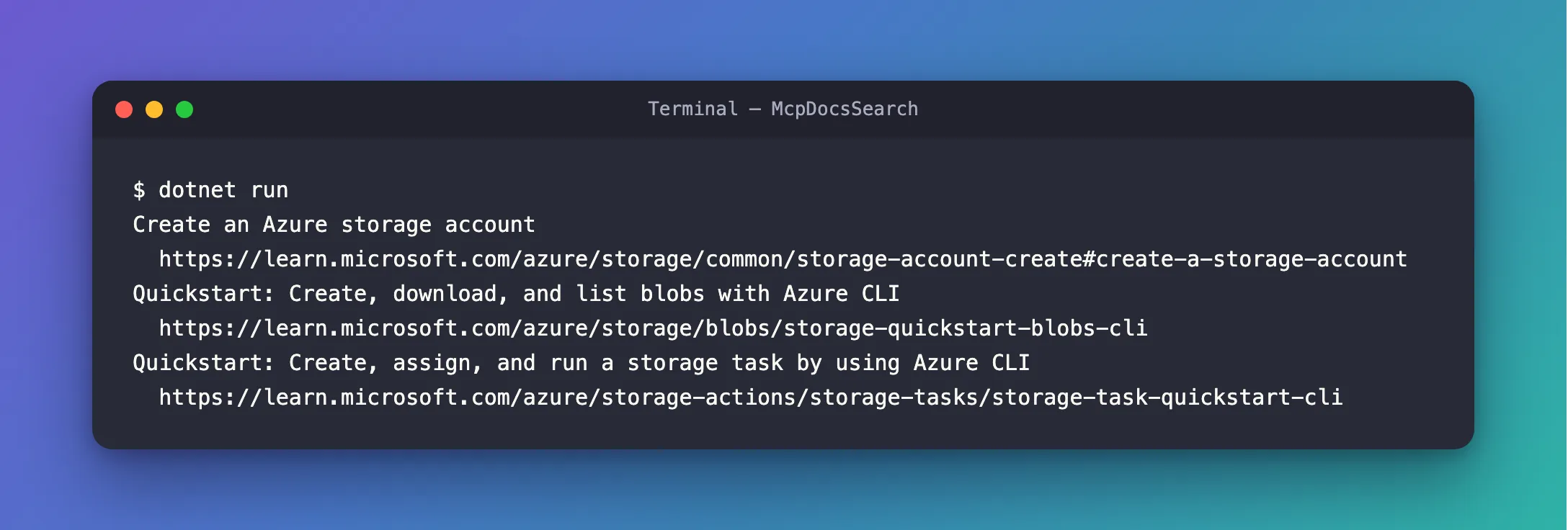
Three pages of Microsoft's documentation, best match first, each with the exact section the excerpt came from.
The Complete File
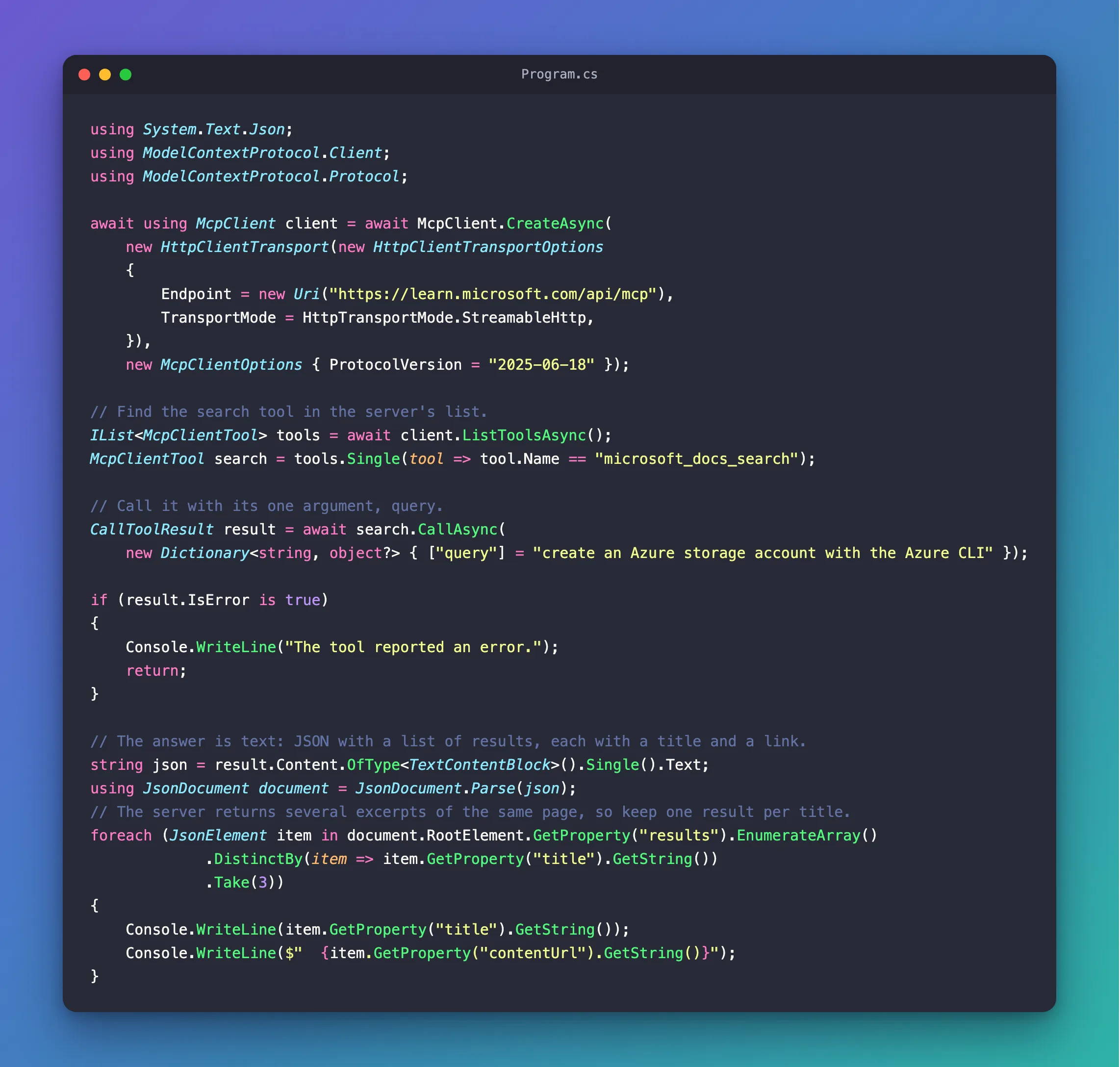
using System.Text.Json;
using ModelContextProtocol.Client;
using ModelContextProtocol.Protocol;

await using McpClient client = await McpClient.CreateAsync(
    new HttpClientTransport(new HttpClientTransportOptions
    {
        Endpoint = new Uri("https://learn.microsoft.com/api/mcp"),
        TransportMode = HttpTransportMode.StreamableHttp,
    }),
    new McpClientOptions { ProtocolVersion = "2025-06-18" });

// Find the search tool in the server's list.
IList<McpClientTool> tools = await client.ListToolsAsync();
McpClientTool search = tools.Single(tool => tool.Name == "microsoft_docs_search");

// Call it with its one argument, query.
CallToolResult result = await search.CallAsync(
    new Dictionary<string, object?> { ["query"] = "create an Azure storage account with the Azure CLI" });

if (result.IsError is true)
{
    Console.WriteLine("The tool reported an error.");
    return;
}

// The answer is text: JSON with a list of results, each with a title and a link.
string json = result.Content.OfType<TextContentBlock>().Single().Text;
using JsonDocument document = JsonDocument.Parse(json);

// The server returns several excerpts of the same page, so keep one result per title.
foreach (JsonElement item in document.RootElement.GetProperty("results").EnumerateArray()
             .DistinctBy(item => item.GetProperty("title").GetString())
             .Take(3))
{
    Console.WriteLine(item.GetProperty("title").GetString());
    Console.WriteLine($"  {item.GetProperty("contentUrl").GetString()}");
}
Common Mistakes
| Mistake | What happens | Do this instead |
|---|---|---|
Calling client.CallToolAsync right after connecting | warn: … Tool '…' not found in cache during tools/call. Mcp-Param-* headers will not be sent. | Take the tool from ListToolsAsync and use its CallAsync |
| Catching exceptions to find a tool that failed | A failed tool doesn't throw: the failure is in IsError | Check IsError first |
| Building on the exact JSON a server returns | Microsoft says the Learn server's request and response formats can change | Check what you read, and keep the parsing in one place |
Troubleshooting
| Symptom | Likely cause | Fix |
|---|---|---|
InvalidOperationException: Sequence contains no matching element from Single | The server has no tool with that name | Print the names from ListToolsAsync and check the spelling |
| The tool warning about the cache | The tool was called by name before the tools were listed | Fixed: Tool not found in cache during tools/call |
FAQ
What does the tool return besides the text?
This one also returns the same results as structured content, in result.StructuredContent. The MCP specification asks for that duplicate: a tool that returns structured content SHOULD also return the serialized JSON in a TextContent block. Read whichever is easier; here the text block is enough.
How do I know which arguments a tool takes?
Each McpClientTool has a JsonSchema, the input schema the server sent. tool.JsonSchema.GetRawText() prints it: for microsoft_docs_search it lists one property, query, of type string.
Conclusion
To call an MCP tool from C#, take it from ListToolsAsync, call CallAsync with a dictionary of arguments, check IsError, and read Content. The search tool of the Microsoft Learn MCP server returns one block of text with JSON in it, which JsonDocument reads like any other JSON.
Additional Resources
- MCP C# SDK: Tools — calling tools from a client, results and errors.
- McpClient —
ListToolsAsyncandCallToolAsync. - MCP specification: Tools — tool results, content blocks and structured content.
- Microsoft Learn MCP Server developer reference — the server's tools.
