How to Call a Child Flow in Power Automate

When several flows need the same steps, put the steps in one child flow and call it from each parent flow with Run a Child Flow. The parent sends the child its inputs, waits for it to finish, and gets back whatever the child returns.
The example is as small as a child flow gets. Make a Greeting takes a first name and returns Hello, <name>!. Greet with a Child Flow calls it with the name Ann and shows what comes back.
Prerequisites
- A solution for both flows. Microsoft's Create child flows says you need a solution with two flows: the parent can only call child flows that are in a solution.
Step 1: Create the Child Flow in the Solution
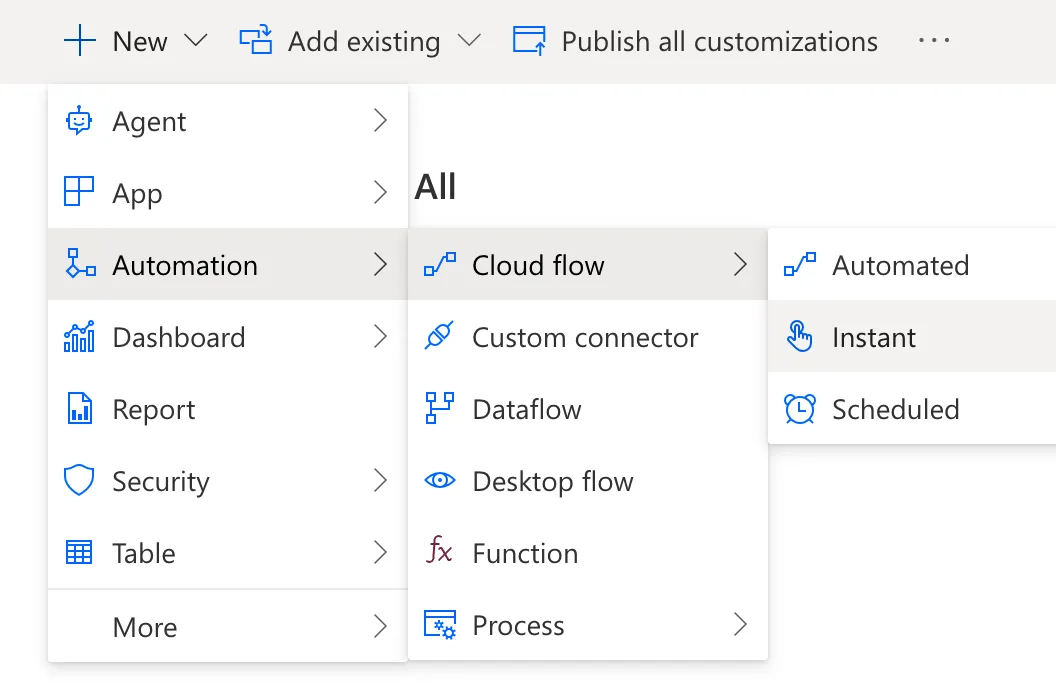
Open the solution, then select New, Automation, Cloud flow and Instant:
Name it Make a Greeting and choose the trigger Manually trigger a flow: Microsoft's article says Child flows must also have the Manually trigger a flow trigger. My new flow opened in the classic designer; How to Create an Instant Cloud Flow Inside a Solution in Power Automate shows how to open it in the new one.
Step 2: Give the Child Its Inputs
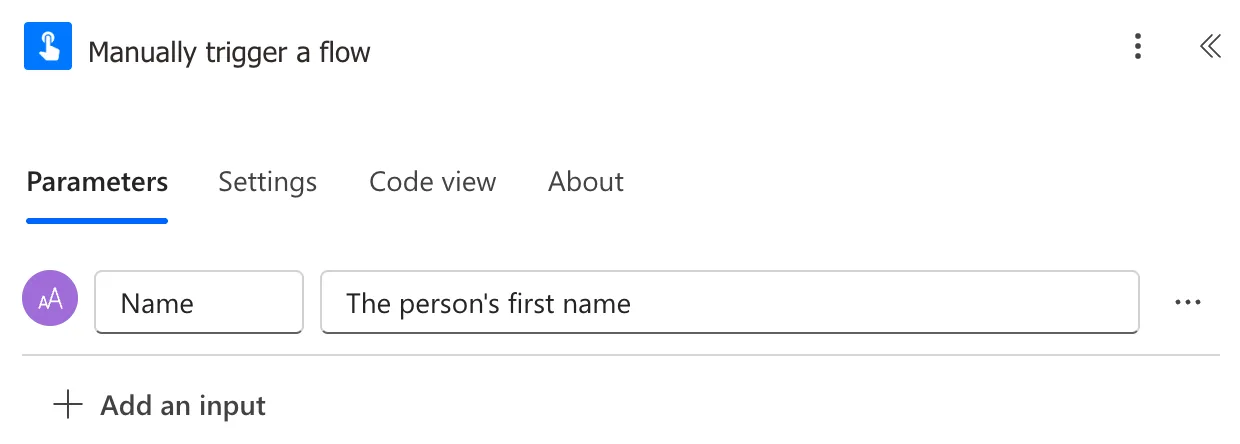
The inputs of Manually trigger a flow are what the parent sends. Select Add an input, then Text, and name it Name, with the description The person's first name (How to Add a Text Input to a Manually Triggered Flow in Power Automate):
Step 3: Return the Result
A child flow ends by sending its results back. Add Respond to a Power App or flow, select Add an output, then Text, and name it Greeting. For its value, add this expression (How to Add an Expression in Power Automate):
concat('Hello, ', triggerBody()?['text'], '!')
triggerBody()?['text']is the Name input. The first text input of Manually trigger a flow is stored under the keytext, which is what you get when you pick Name from dynamic content.concatjoins the three pieces (How to Combine Text in Power Automate with concat()).
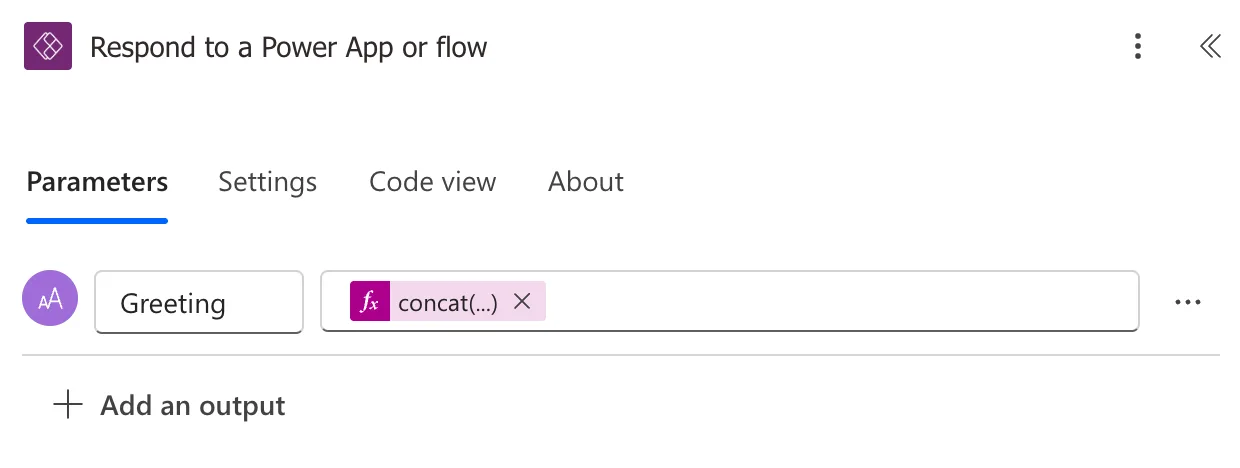
When I selected Add for this expression, the editor said This expression has a problem, although the expression was right. Selecting Add a second time stored it, as Fixed: "This Expression Has a Problem" for a Valid Expression in Power Automate describes. Check the action's Code view afterwards: the value is stored as @{concat('Hello, ', triggerBody()?['text'], '!')}.
Save and publish the child flow (How to Save a Draft and Publish a Flow in Power Automate).
Step 4: Create the Parent Flow and Add Run a Child Flow
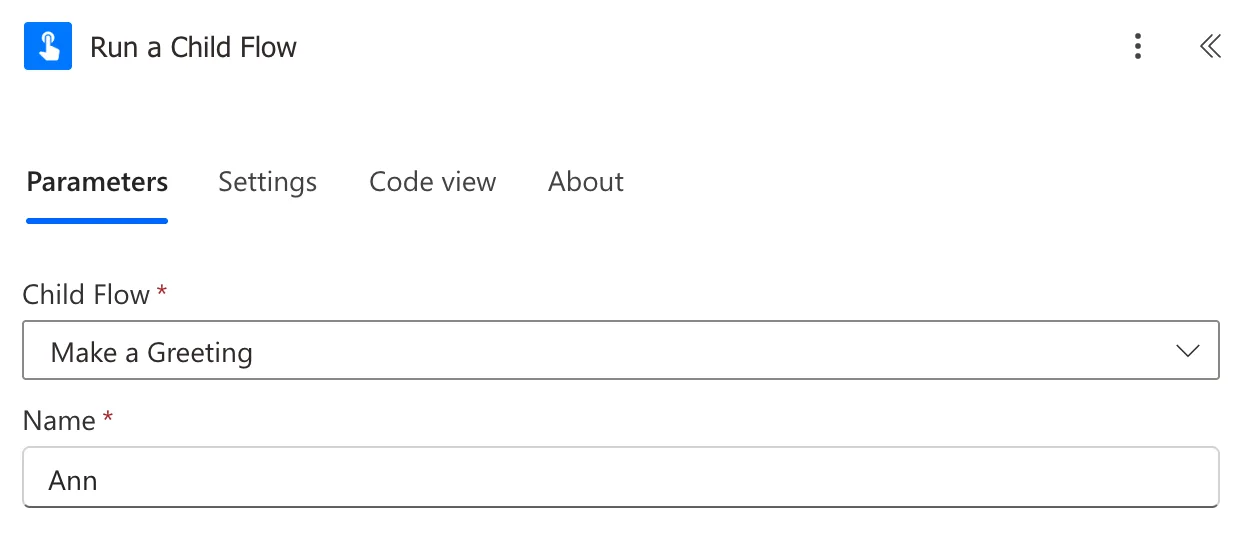
In the same solution, create the parent, here another instant flow called Greet with a Child Flow. A parent can have any trigger. Where it should call the child, add Run a Child Flow, from the built-in Flows connector:
- Child Flow: pick Make a Greeting. The list shows only flows you can open that are in a solution and start with Manually trigger a flow.
- Name: the child's input appears as a field. Type Ann.
Step 5: Use What the Child Returns
The child's outputs are dynamic content of Run a Child Flow. Add a Compose called Show the greeting and pick Greeting for its Inputs (How to Use the Compose Action in Power Automate):
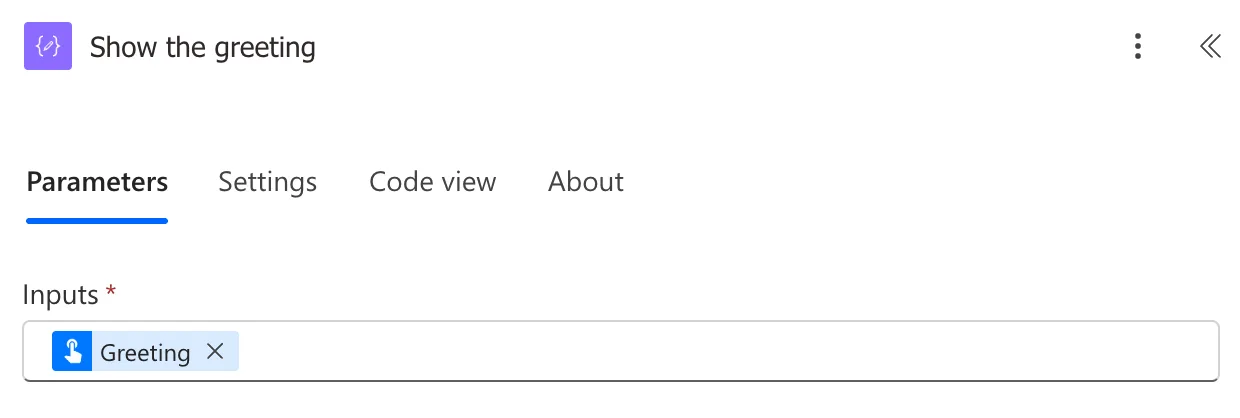
In an expression, the same value is body('Run_a_Child_Flow')?['greeting']: the output named Greeting is stored as greeting.
The Result
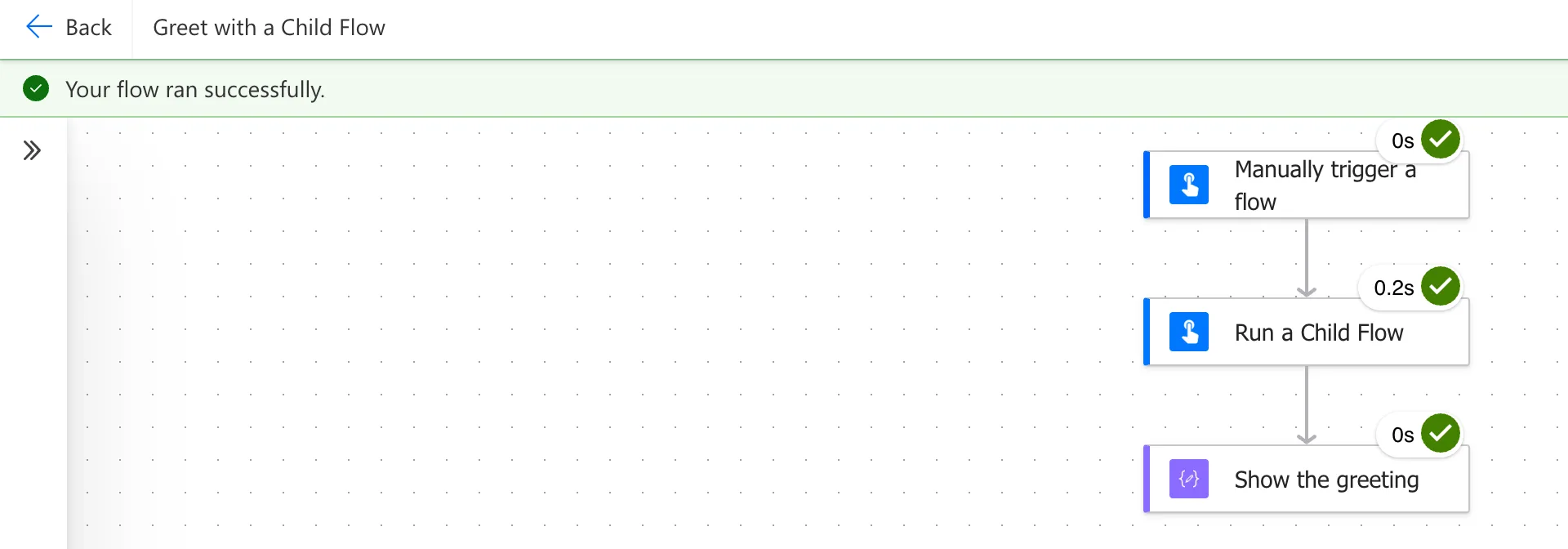
Save the parent and test it (How to Test a Cloud Flow Manually in Power Automate). Run a Child Flow took 0.2 seconds:
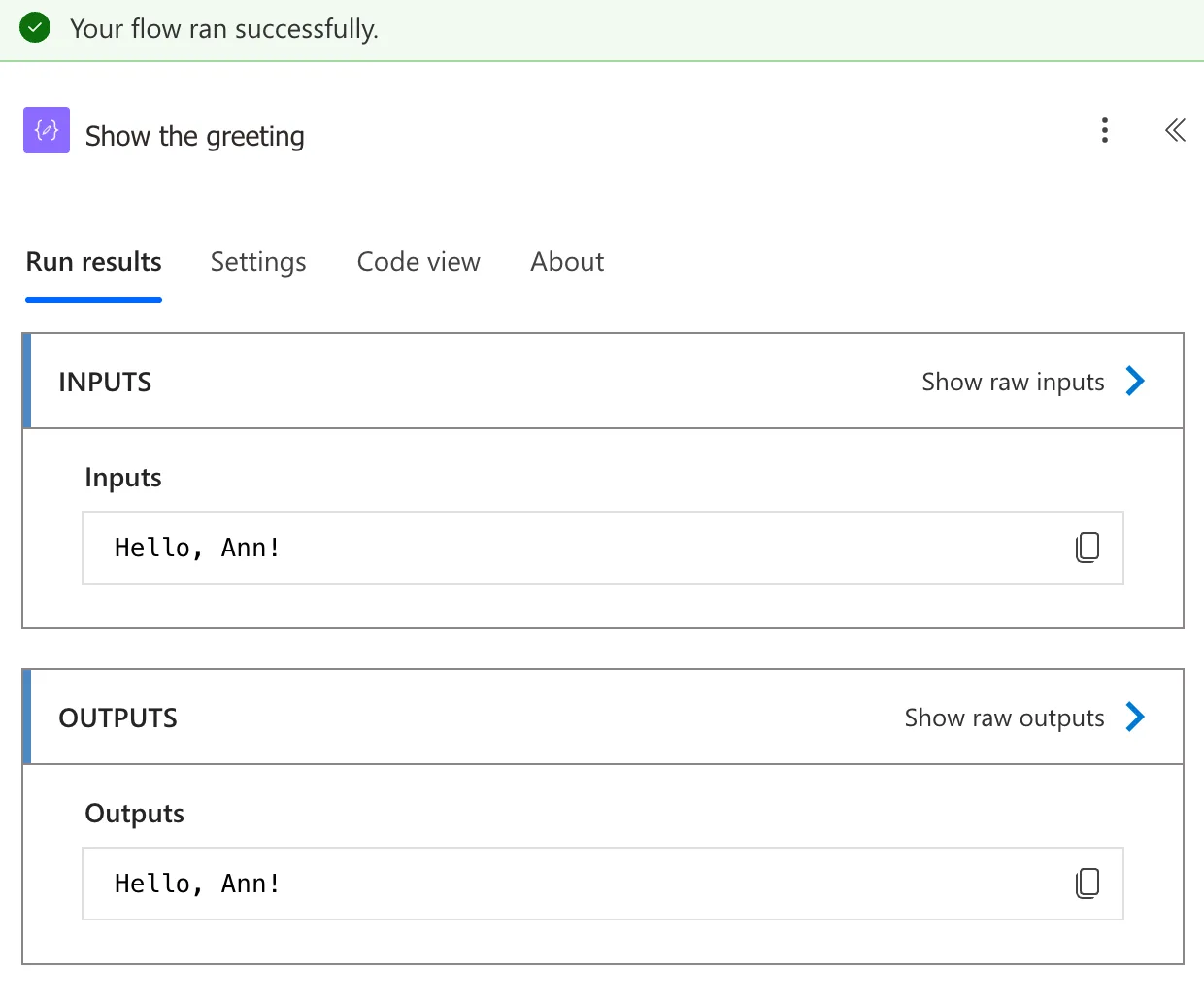
Show the greeting has the child's answer, Hello, Ann!:
When the Child Uses Connections
Make a Greeting uses only built-in actions, so it's ready as it is. A child flow that uses any other connector, such as SharePoint or Excel, needs one more step. Microsoft's article: on the child flow's details page, select Edit on the Run only users tile, and for each connection choose Use this connection instead of Provided by run-only user (How to Choose the Connections Run-Only Users Use in Power Automate). Otherwise the parent fails with an error that says child workflows only support embedded connections.
Common Mistakes
| Mistake | What happens | Do this instead |
|---|---|---|
| A child flow that isn't in a solution | Run a Child Flow doesn't list it | Create both flows directly in the same solution |
| A child with a trigger other than Manually trigger a flow | It isn't offered as a child flow | Use Manually trigger a flow |
| A child that uses connectors, left on Provided by run-only user | The parent fails: child flows only support embedded connections | Use this connection for each one |
Troubleshooting
| Symptom | Likely cause | Fix |
|---|---|---|
| The child flow isn't in the Child Flow list | It's not in a solution, or its trigger isn't Manually trigger a flow | Create it in the solution with that trigger: Microsoft's article warns that a flow imported into a solution might get unexpected results |
| This expression has a problem for a correct expression | The editor's check, not the expression | Select Add again, then check Code view |
FAQ
Does the parent wait for the child?
Yes. Microsoft's article: When the parent flow runs, it waits for the child flow to complete, for up to a year for flows that use only built-in connections and Dataverse, and 30 days for all other flows.
Do the flows stay linked when I move the solution?
Yes. The article says that when you export the solution and import it into another environment, the new parent and child flows are automatically linked.
Can one parent call several children?
Yes, with a Run a Child Flow action for each. You can have multiple child flows inside a parent flow.
Conclusion
Build the child in a solution with Manually trigger a flow for its inputs and Respond to a Power App or flow for its outputs, then call it from a parent in the same solution with Run a Child Flow. The parent waits, and the child's outputs become its dynamic content.
