How to Calculate Hours Worked Across a Daylight Saving Time Change in Excel

On the night the clocks go back, a 22:00 to 06:00 shift lasts 9 hours. Excel says 8, because its dates and times know nothing about clock changes. In spring it's the other way: the shift lasts 7 hours and Excel still says 8. This guide works out when the UK clocks change in a given year and corrects each shift's hours.
The old overtime timesheet in Part 1 of the Overtime Timesheet series has exactly this shift: Ben Harris worked 22:00 to 06:00 on 24 October 2026, with a 60-minute break. It records 7 hours. He was paid an hour short.
Prerequisites
- Shifts with a start and finish date and time in one cell each: How to Enter a Date and Time in One Cell in Excel.
- About 20 minutes. Every function used has its own guide, linked at each step.
Why Excel Gets It Wrong
In the UK, GOV.UK's When do the clocks change? gives the rule: the clocks go forward 1 hour at 1am on the last Sunday in March, and back 1 hour at 2am on the last Sunday in October. In 2026 that's 29 March and 25 October.
On 25 October, 01:00 to 02:00 happens twice. A shift from 22:00 to 06:00 that night really lasts 9 hours. Excel subtracts the two date-times as plain numbers of days, so it gets 8. Microsoft's documentation doesn't mention daylight saving time anywhere I could find; its developer documentation describes Excel's date-time value as "a simple serial number with no time zone information" (Work with dates using the Excel JavaScript API). With no time zone, there's no clock change.
Step 1: Put the Year in a Cell
On a sheet of its own, which I called Clock change, type Year in A1 and 2026 in B1. Everything else is built from it, so changing the year updates the whole sheet.
Step 2: Work Out When the Clocks Change
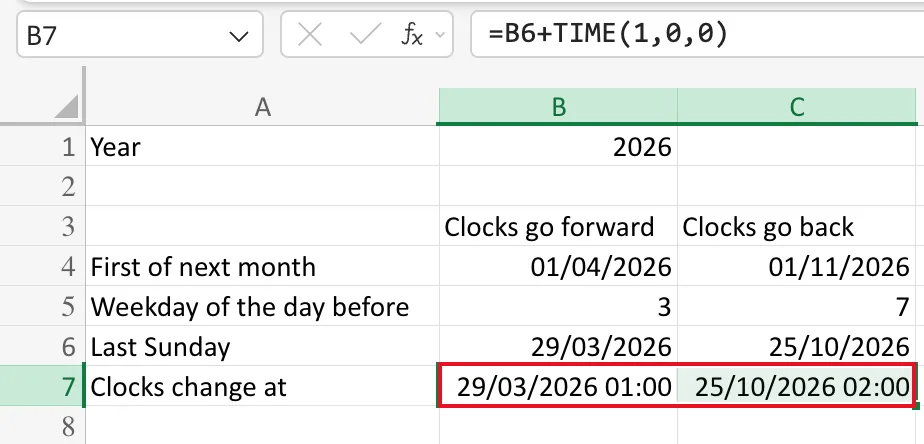
Rows 3 to 7 hold the two change times, one column each: B for Clocks go forward, C for Clocks go back. Each row does one step:
| Row | Label | B (March) | C (October) | Guide |
|---|---|---|---|---|
| 4 | First of next month | =DATE(B1,4,1) | =DATE(B1,11,1) | DATE |
| 5 | Weekday of the day before | =WEEKDAY(B4-1) | =WEEKDAY(C4-1) | WEEKDAY |
| 6 | Last Sunday | =B4-B5 | =C4-C5 | The last Sunday of a month |
| 7 | Clocks change at | =B6+TIME(1,0,0) | =C6+TIME(2,0,0) | TIME |
Row 7 needs the custom format dd/mm/yyyy hh:mm to show its times (Fixed: Excel Shows Only the Date After Adding a Time to a Date). The results match GOV.UK: 29/03/2026 01:00 and 25/10/2026 02:00:
Step 3: Enter the Shifts
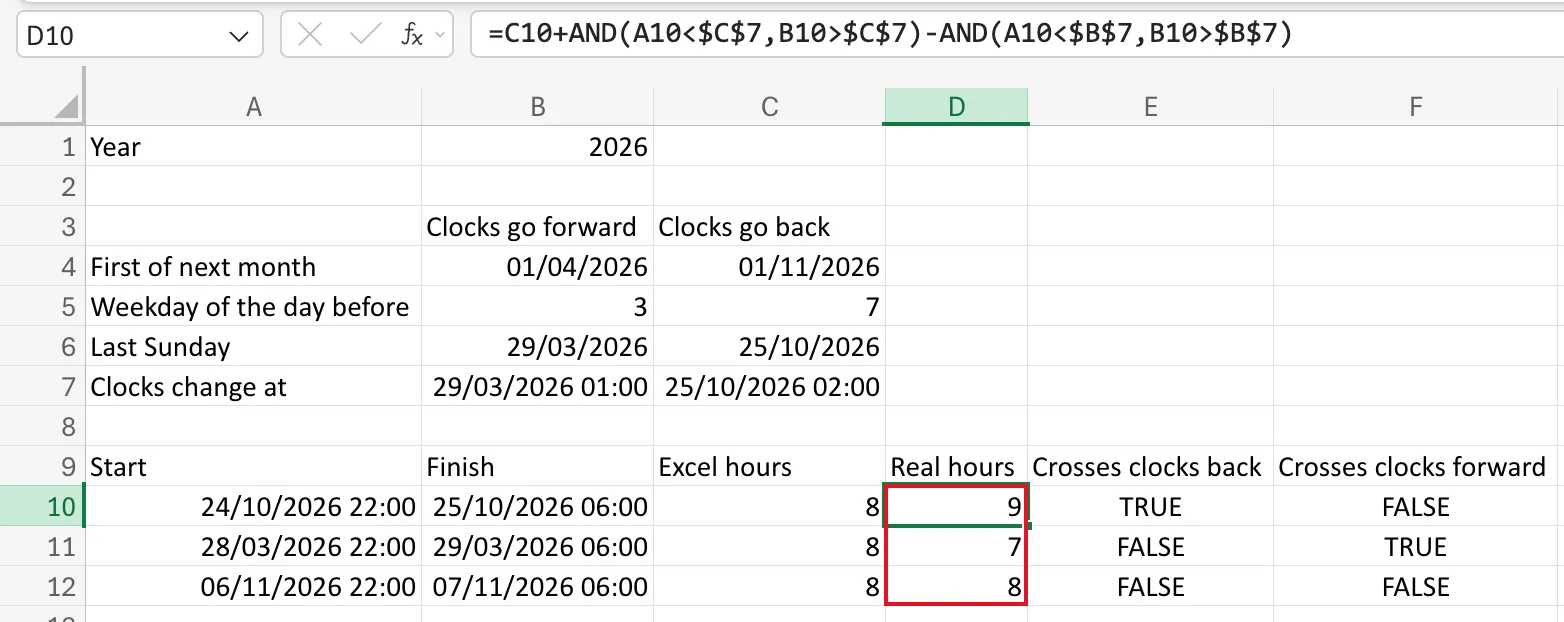
From row 9: headings Start, Finish, Excel hours and Real hours, then one night shift per row. I entered three that show every case:
| Row | Start | Finish | Crosses |
|---|---|---|---|
| 10 | 24/10/2026 22:00 | 25/10/2026 06:00 | the clocks going back |
| 11 | 28/03/2026 22:00 | 29/03/2026 06:00 | the clocks going forward |
| 12 | 06/11/2026 22:00 | 07/11/2026 06:00 | neither |
Step 4: Excel's Hours
In C10, the plain difference in hours, then copied to C11:C12:
=(B10-A10)*24
All three show 8. How to Enter a Formula in Excel builds this one step by step.
Step 5: The Real Hours
A shift that starts before a change and finishes after it is an hour longer when the clocks go back and an hour shorter when they go forward. In D10:
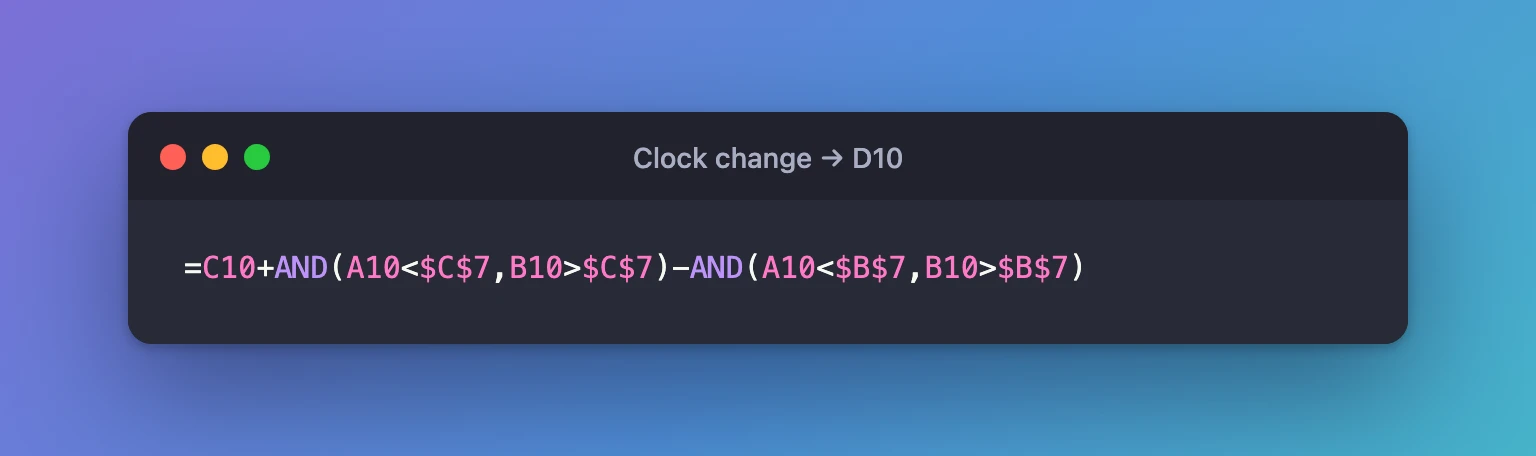
=C10+AND(A10<$C$7,B10>$C$7)-AND(A10<$B$7,B10>$B$7)
AND(A10<$C$7,B10>$C$7)is TRUE when the shift spans the clocks going back, and TRUE counts as 1: How to Check Two Conditions at Once in Excel with AND.AND(A10<$B$7,B10>$B$7)is TRUE when it spans the clocks going forward.$C$7and$B$7stay fixed when the formula is copied down: How to Use Absolute and Mixed Cell References in Excel.
I typed it in the formula bar, where each reference gets its own colour: How to Use the Formula Bar in Excel for the Web. Then I copied C10:D10 down to row 12 (How to Copy a Formula to Other Cells in Excel).
Step 6: Check the Results
Real hours shows 9, 7 and 8. Two check columns, E and F, show each AND on its own, so you can see why:
| Shift | Excel hours | Real hours | Why |
|---|---|---|---|
| 24 to 25 October | 8 | 9 | 01:00 to 02:00 happened twice |
| 28 to 29 March | 8 | 7 | 01:00 to 02:00 didn't happen |
| 6 to 7 November | 8 | 8 | No clock change |
For Ben Harris's shift in the old timesheet, that's 9 hours less his 60-minute break: 8, not the 7 it recorded.
Limits of This Fix
- UK rules only. The change times come from the UK rule. Other countries change on other dates and at other times, so rows 4 to 7 would need their own rule.
- The repeated hour. On the October night, a time such as 01:30 happens twice. A shift that starts or ends between 01:00 and 02:00 that night can't be told apart from clock times alone; the formula treats it as the first 01:30.
- One change per shift. A shift that spans both changes would be months long; the formula isn't meant for that.
The app built in the Overtime Timesheet series records shifts as real dates and times, so the clock change is accounted for when it works out the hours: How to Calculate Hours Across a Daylight Saving Time Change in Power Apps.
Common Mistakes
| Mistake | What happens | Do this instead |
|---|---|---|
| Typing the change dates for one year | Next year's shifts are corrected on the wrong nights | Build them from the year cell |
| Using times only, without dates | You can't tell which night a shift was | Record the date and time of start and finish |
Forgetting the $ on $C$7 and $B$7 | Copied rows compare with empty cells | Keep them absolute |
Troubleshooting
| Symptom | Likely cause | Fix |
|---|---|---|
| Row 7 shows dates without times | Date-only format | Custom dd/mm/yyyy hh:mm |
| Every shift shows the same real and Excel hours | The change times are in the wrong year | Check B1 |
| A check column shows FALSE for a shift that should cross | The shift's finish was typed without its date | Enter both date and time |
FAQ
Does Excel know about daylight saving time at all?
Not in its date and time arithmetic: two date-times are subtracted as numbers. I found nothing in Microsoft's documentation that says otherwise.
Can I put this into the timesheet's own table?
Yes: add a column with the same correction, using the table's start and finish date-times instead of A10 and B10.
Conclusion
Excel's hours ignore clock changes. Work out the change times for the year with DATE, WEEKDAY and TIME, then add an hour for shifts that span the clocks going back and take one off for shifts that span them going forward.
