How to Build a Table in Power Apps with ForAll

ForAll runs a formula once for every record of a table and returns a new table of the results, in the same order. Give it Sequence's numbers, and it can build a whole list in one formula: here, every time of day, five minutes apart, for a drop-down.
The example is the Overtime Timesheet app, whose start and finish times come from a table built with ForAll.
Syntax
ForAll(Table, Formula)
Inside Formula, the fields of the current record are available by name, here Value. Microsoft's ForAll function page says what comes back:
- The result of each formula evaluation is returned in a table, in the same order as the input table.
- When each result is a single value, the result is a single-column table.
- When a result is blank, that record is left out.
Prerequisites
- Sequence, to make the numbers: How to Create a List of Numbers in Power Apps with Sequence.
- Mod and RoundDown, used below to split minutes into hours and minutes: How to Get the Remainder of a Division in Power Apps with Mod and How to Round a Number in Power Apps with Round, RoundDown and RoundUp.
Step 1: Turn Minutes into Times
Start small: four times, fifteen minutes apart. Sequence(4, 0, 15) is 0, 15, 30 and 45 minutes after midnight, and for each of them ForAll makes a time with Time(hours, minutes, seconds):
Concat(
    ForAll(Sequence(4, 0, 15), Time(RoundDown(Value / 60, 0), Mod(Value, 60), 0)),
    Text(Value, "hh:mm"),
    ", "
)
RoundDown(Value / 60, 0)is the whole hours in the minutes.Mod(Value, 60)is the minutes left over.- Concat joins the four times into text, so a text control can show them.
I put it into a text control's Text for a moment; the preview strip and the control both show the times:

Microsoft's Time function describes minutes as usually in the range 0 to 59, so the formula splits the minutes into hours and minutes rather than passing 90 minutes as Time(0, 90, 0).
Step 2: Build the Whole Day as a Named Formula
The app needs all 288 times, 00:00 to 23:55. Define the table once, in App.Formulas (How to Use Named Formulas in Power Apps):
TimeChoices = ForAll(Sequence(288, 0, 5), Time(RoundDown(Value / 60, 0), Mod(Value, 60), 0));
CountRows(TimeChoices) confirms 288 records:

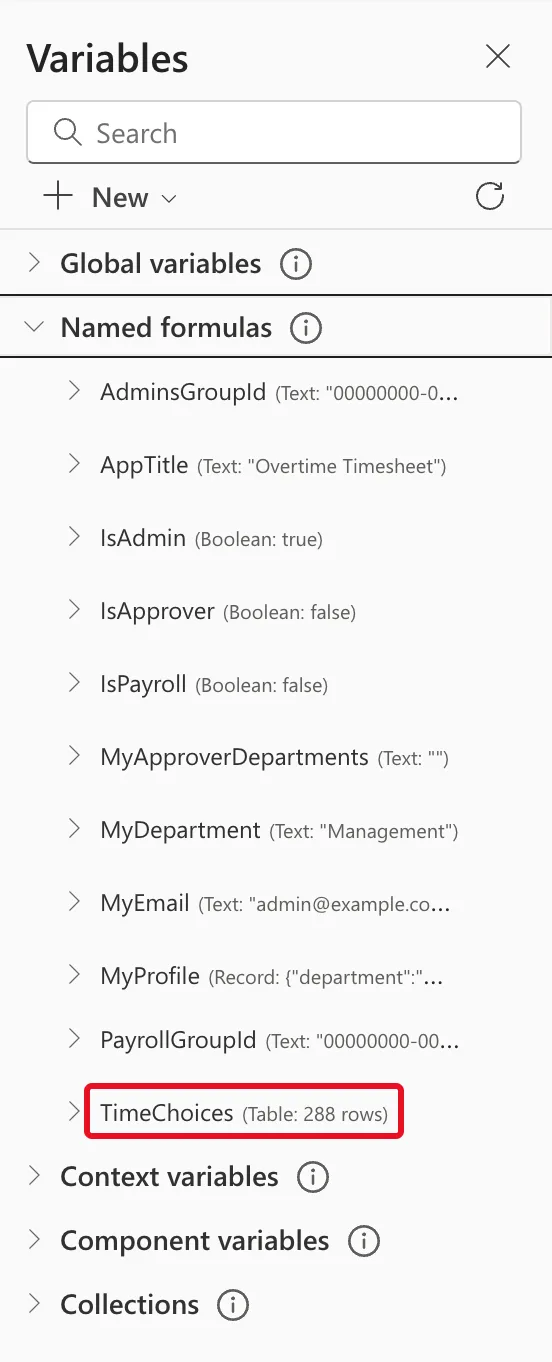
The Variables pane lists it under Named formulas as a table of 288 rows:
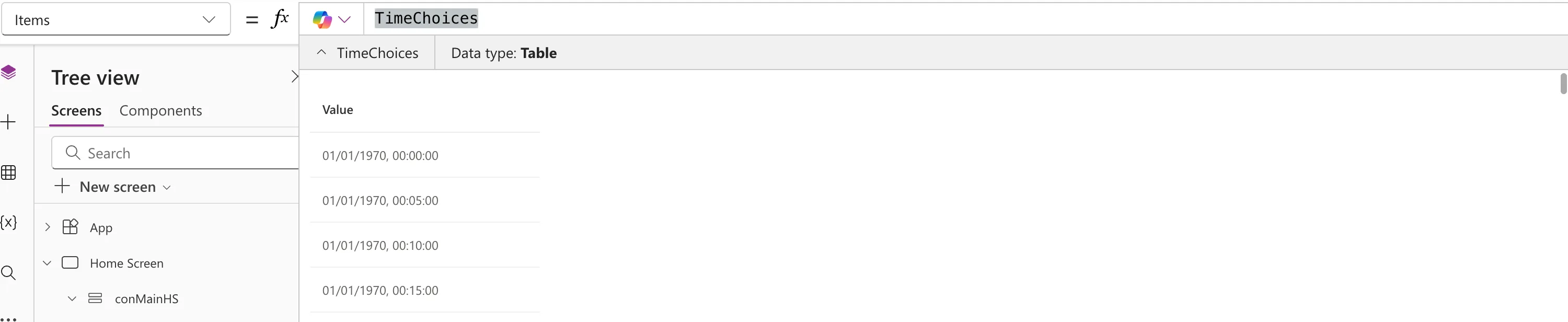
Its single column is Value, because each result was a single value. Expanding the table under the formula bar shows each time on 1 January 1970: Microsoft's data types page says a Time value can carry date information, which is usually January 1, 1970:
A combo box then shows the table as times: How to Let Users Pick a Time in Power Apps.
What ForAll Can't Do
- It isn't delegable. With a data source, Microsoft says only the first portion of the data source will be retrieved. Building a table from Sequence, as here, has no data source, so this doesn't apply.
- Records can run in any order, even in parallel, so the formula mustn't depend on the order. Its result still keeps the order of the input table.
- Some functions aren't allowed inside it, such as UpdateContext and ClearCollect.
Common Mistakes
| Mistake | What happens | Do this instead |
|---|---|---|
| Using ForAll to filter a large data source | Only the first records are processed | Use Filter, which SharePoint can delegate |
| Passing minutes over 59 to Time | Outside the range Microsoft documents | Split with RoundDown(Value / 60, 0) and Mod(Value, 60) |
| Rebuilding the table in every control that needs it | The same formula in many places | Define it once as a named formula |
| Expecting a column called after your formula | Single-value results go in Value | Read Value, or return a record to name columns |
Troubleshooting
| Symptom | Likely cause | Fix |
|---|---|---|
| Fewer records than expected | Some results were blank, and blank results are left out | Make sure every record returns a value |
| Times show as 01/01/1970 | That's how a time is stored | Format it with Text(Value, "hh:mm") |
| A delegation warning on ForAll | It's working on a data source | Filter on the data source first |
FAQ
Is ForAll the same as a loop?
It evaluates the formula for every record, so it can do what a loop does, but Microsoft notes records may be processed in any order and in parallel. Don't rely on one record's result in the next.
Why a named formula and not a collection?
A named formula is calculated when it's needed and can't be changed elsewhere in the app. A collection would need ClearCollect at the start, which this list doesn't need.
Conclusion
ForAll(Sequence(288, 0, 5), Time(RoundDown(Value / 60, 0), Mod(Value, 60), 0)) turns 288 numbers into every time of day. Define it once as a named formula, and every control that needs the list can use it.
Additional Resources
- ForAll function: return value, order and delegation.
- Sequence function: the numbers to start from.
- Date, DateTime, and Time functions: Time and its ranges.
