How to Block Sign-In for a User in Microsoft 365

When someone leaves, the first thing to do with their account is stop it being used. Block sign-in does exactly that: nobody can sign in as the person, and their mailbox, files and data stay where they are. This guide blocks a leaver in the Microsoft 365 admin center, shows what he sees when he tries to sign in, and does the same with PowerShell.
What Blocking Does
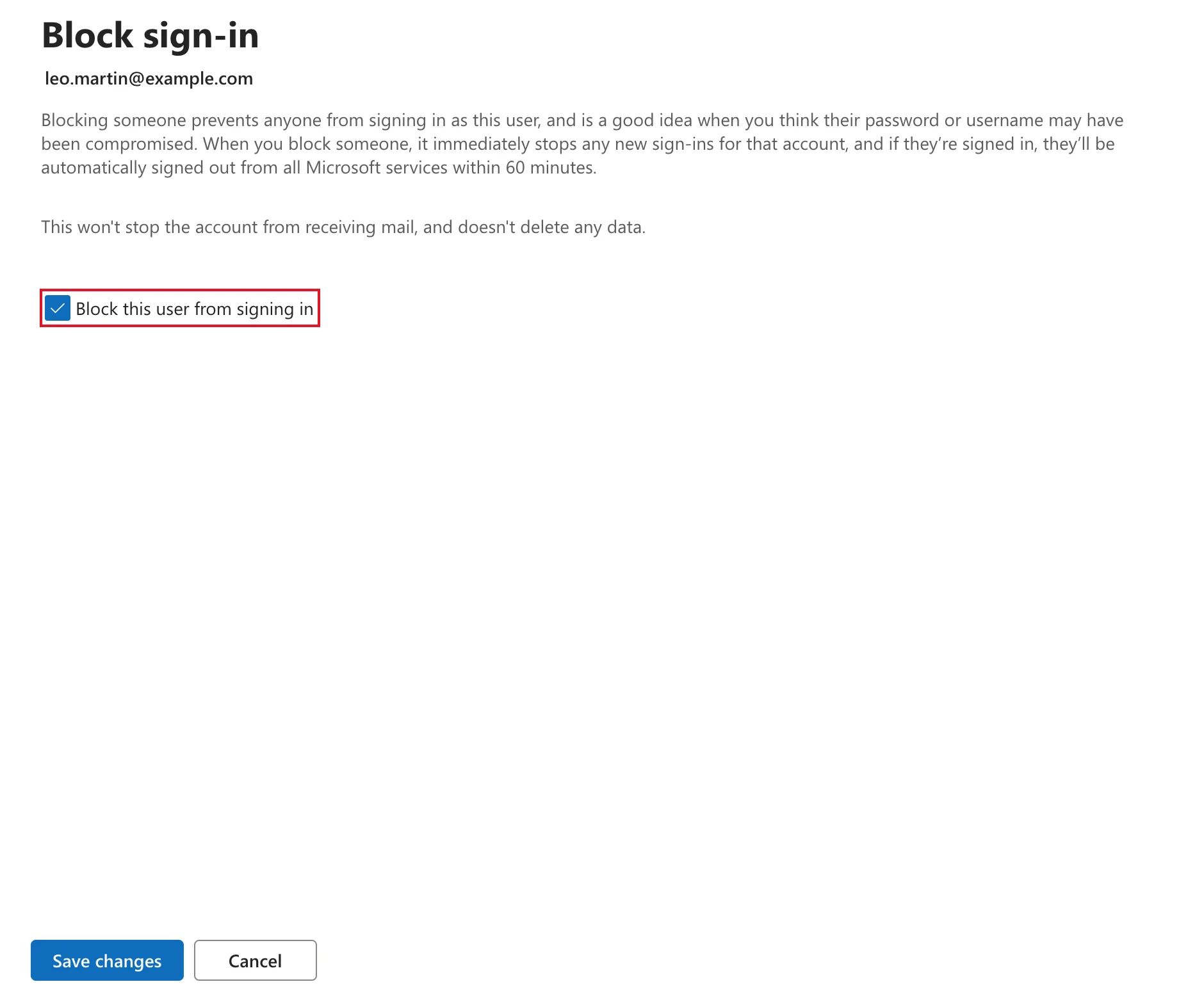
The Block sign-in pane sums it up: blocking prevents anyone from signing in as the user and stops new sign-ins for the account. If the person is signed in, they're signed out of all Microsoft services within 60 minutes. Blocking doesn't stop the account receiving mail, and it doesn't delete any data.
Microsoft's offboarding article, Step 1 - Prevent user sign-in and block access to Microsoft 365, is more cautious about timing: it says a block can take up to 24 hours to take effect. To stop someone straight away, it resets their password and signs them out of all sessions before blocking them. That order matters in the admin center, as Step 2 explains.
Blocking is also what apps see. It turns off the account's Account enabled setting, which the Microsoft Entra admin center shows as Account status: Disabled.
Prerequisites
- An admin role that can manage users. Microsoft's article names User Administrator or Helpdesk Administrator for standard users; signing out other administrators needs Global Administrator.
- The person who's leaving. The example is Leo Martin, a Sales Engineer in the demo company of the Career Development Plan series, who leaves in Part 10.
Step 1: Open Active Users
In the Microsoft 365 admin center, go to Users → Active users and find the person. Select their name, here Leo Martin:
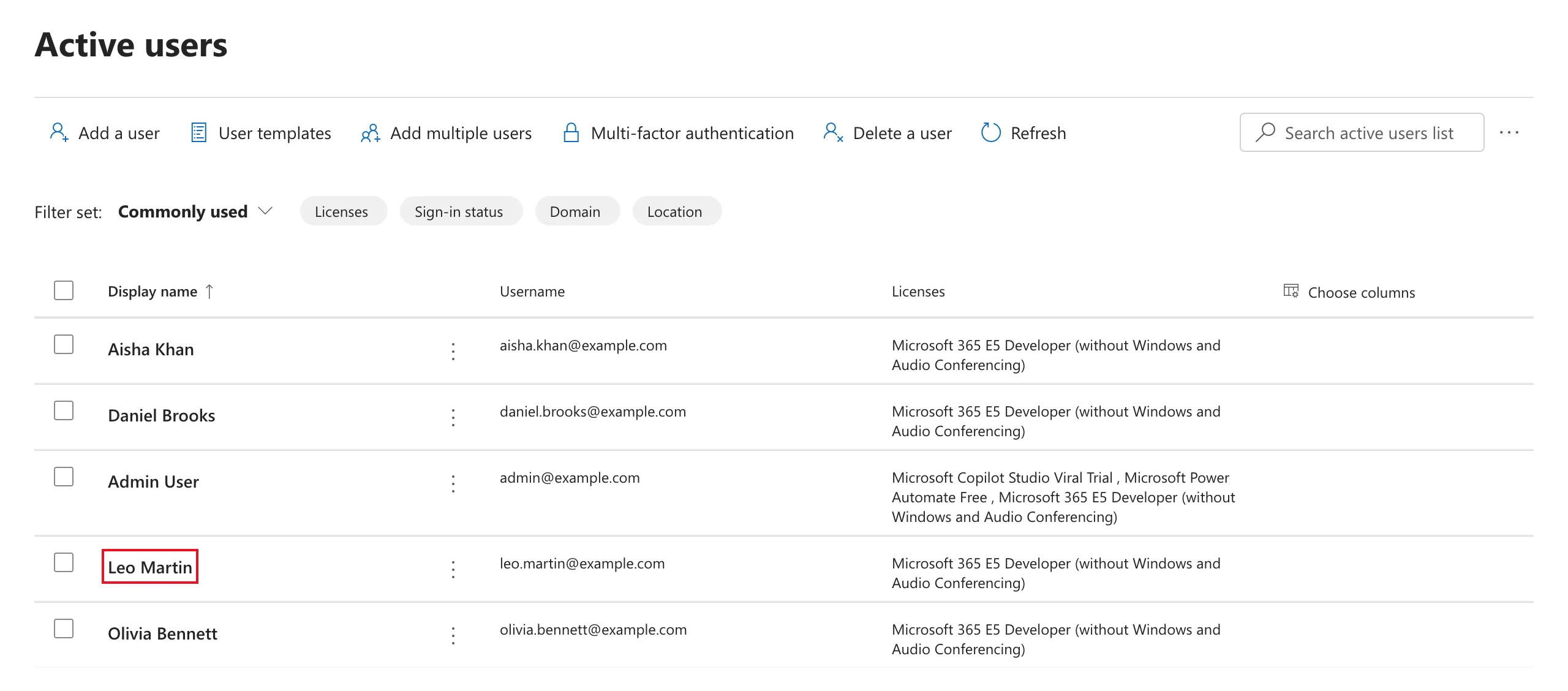
In a long list, use Search active users list at the right of the command bar. The search box at the top of the page searches the whole admin center instead: I typed into it by mistake, and it opened a separate search results page.
Step 2: Select Block Sign-In
The person's details open with Reset password, Block sign-in and Delete user under their name. Select Block sign-in:
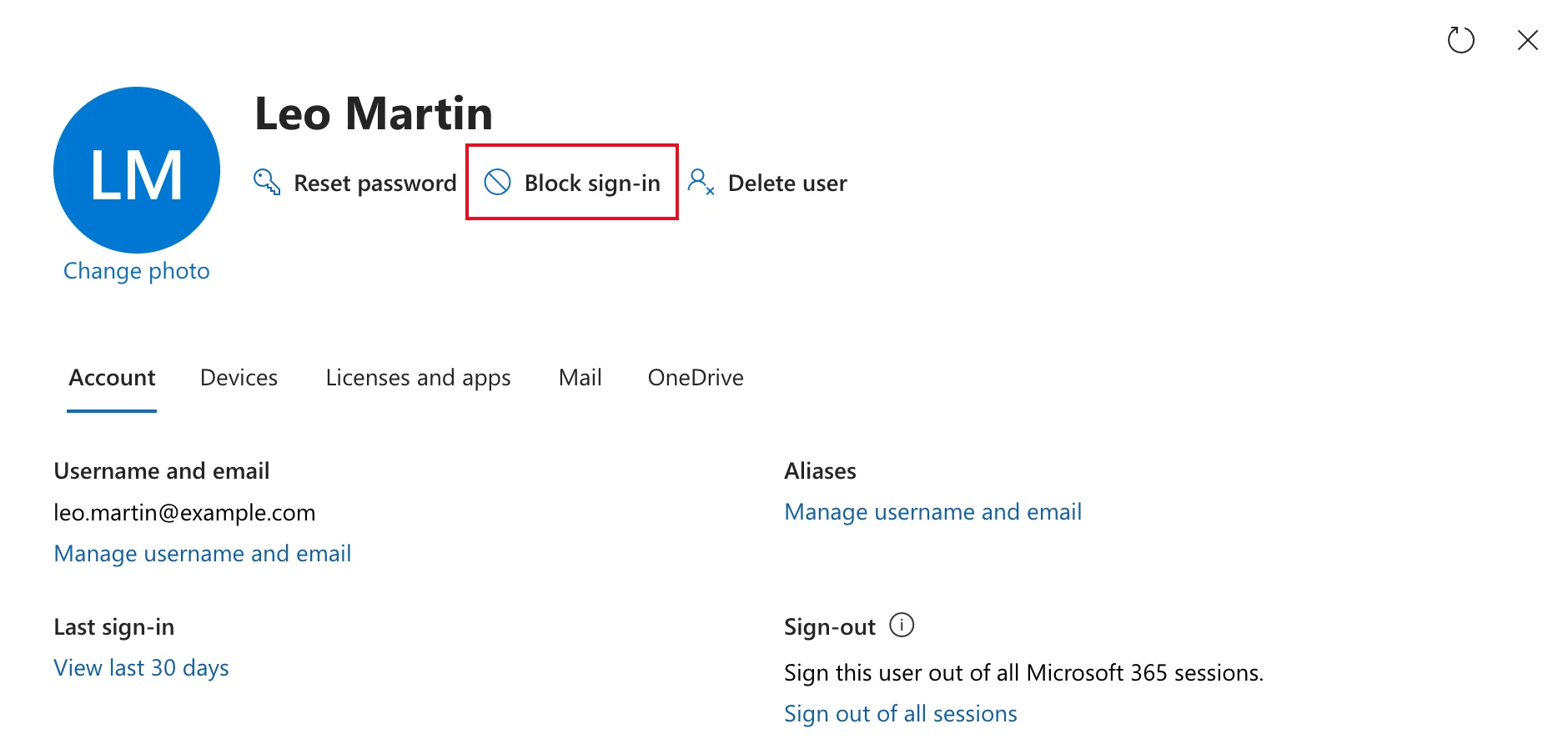
Notice the Sign-out section on the Account tab. If the person might be signed in, select Sign out of all sessions now, before blocking, as Microsoft's article does. Once the user is blocked, the admin center no longer shows that section. I blocked first, and signed Leo out from Microsoft Entra afterwards (Fixed: "Sign Out of All Sessions" Missing After Blocking a User).
Step 3: Block the User
The Block sign-in pane explains what will happen. Tick Block this user from signing in, then select Save changes:
Step 4: Check the Result
The pane confirms it: Leo Martin is now blocked from signing in. They'll automatically be signed out of all Microsoft services within 60 minutes.
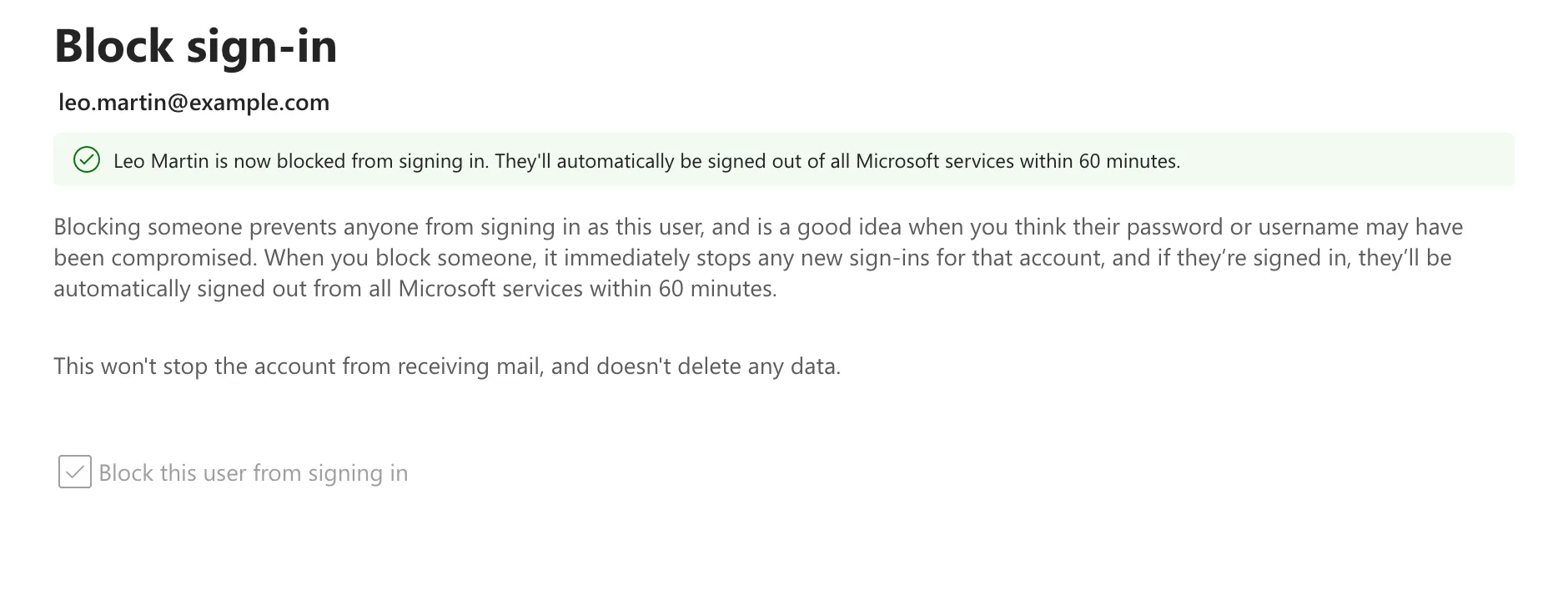
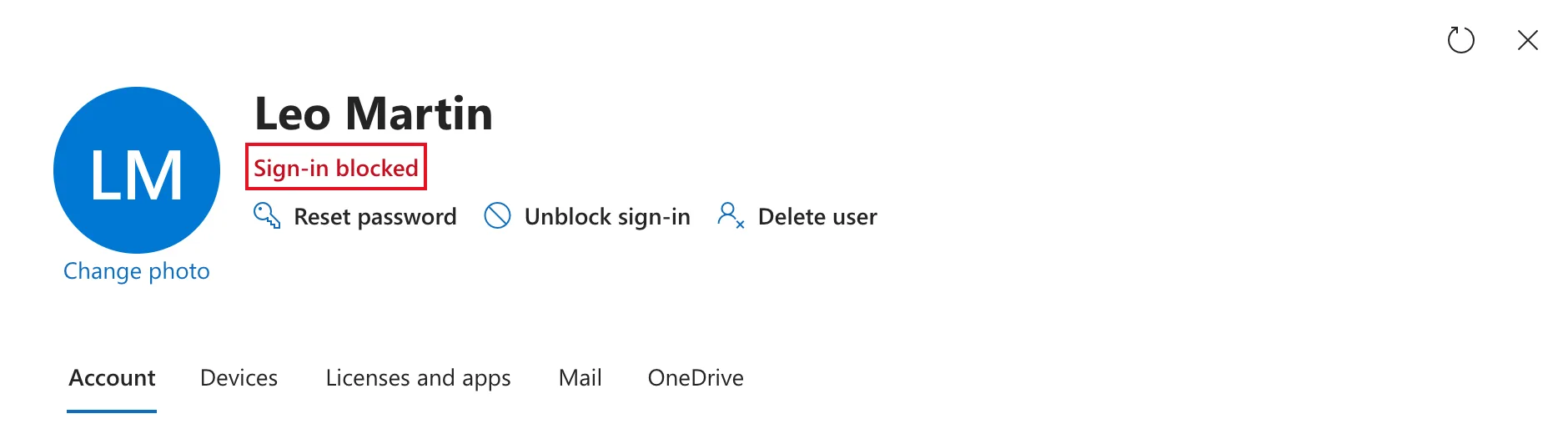
Back on the person's details, Sign-in blocked appears under their name, and Block sign-in has become Unblock sign-in, which reverses it:
What the Person Sees
About an hour after the block, Leo tried to sign in. After his password, Microsoft refused:
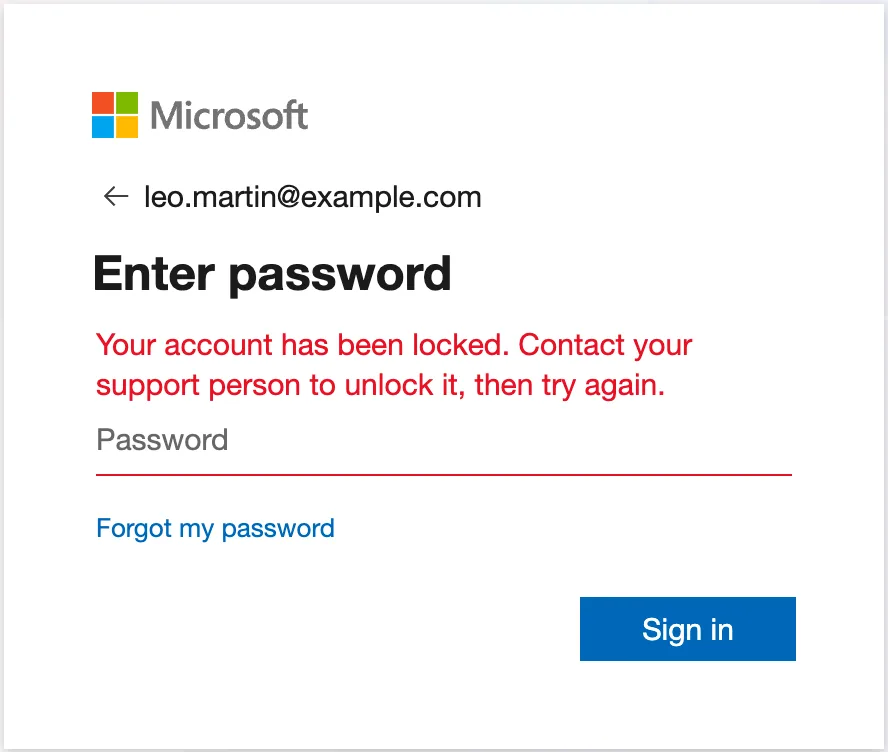
Your account has been locked. Contact your support person to unlock it, then try again. His data was untouched. In the Career Development Plan app, he dropped off his manager's team the next time the manager opened it (Part 10).
Sign Them Out After a Block
If you've already blocked someone, the Account tab no longer offers Sign out of all sessions. Use Revoke sessions on their Overview page in the Microsoft Entra admin center. Microsoft's article Revoke user access in Microsoft Entra ID does it in that order: disable the account, then revoke sessions. The fixes post has the steps and screenshots.
Do It with PowerShell
Every command here was run for this guide, and the output is real, with the address masked. I ran it after blocking Leo in the admin center, so it changed nothing: Update-MgUser doesn't complain when the account is already blocked.
Install the module
The commands are in the Microsoft.Graph.Users module. Install it as shown in How to Set a User's Manager and Job Title.
Sign in
Connect-MgGraph -Scopes "User.ReadWrite.All" -UseDeviceCode -ContextScope Process -NoWelcome
- User.ReadWrite.All is the permission Microsoft's article Block Microsoft 365 user accounts with PowerShell uses for blocking and unblocking.
- -UseDeviceCode prints a code instead of opening a browser. Open
https://login.microsoft.com/devicein any browser, enter the code and sign in as an admin. - -ContextScope Process keeps the sign-in for this PowerShell window only, instead of saving it for later sessions.
Block the user
$params = @{ accountEnabled = $false }
Update-MgUser -UserId "leo.martin@example.com" -BodyParameter $params
accountEnabled = $false is the same switch the admin center turns off. -UserId takes the person's sign-in name. Update-MgUser prints nothing when it works. Microsoft's article unblocks with the same command and $true.
Check it
Get-MgUser -UserId "leo.martin@example.com" -Property DisplayName,UserPrincipalName,AccountEnabled |
    Select-Object DisplayName, UserPrincipalName, AccountEnabled | Format-List
DisplayName       : Leo Martin
UserPrincipalName : leo.martin@example.com
AccountEnabled    : False
List everyone who's blocked
Get-MgUser -Filter "accountEnabled eq false" -Property DisplayName,AccountEnabled |
    Select-Object DisplayName, AccountEnabled | Format-Table
DisplayName AccountEnabled
----------- --------------
Leo Martin           False
-Filter asks Microsoft Graph for blocked accounts only, so the list stays short in a large organization.
When you're done, sign out:
Disconnect-MgGraph
Common Mistakes
| Mistake | What happens | Do this instead |
|---|---|---|
| Blocking before signing the person out | The admin center no longer offers Sign out of all sessions | Sign out first, or use Revoke sessions in Microsoft Entra |
| Deleting the account straight away | A deleted user can only be restored for 30 days | Block first; delete once their work is handed over |
| Expecting the block to free the license | The license stays assigned to the account | Remove the license, or delete the user when you're ready |
Troubleshooting
| Symptom | Likely cause | Fix |
|---|---|---|
| The person can still use something after the block | Signed-in sessions get up to 60 minutes; Microsoft allows up to 24 hours for the block | Reset their password and revoke their sessions |
| Sign out of all sessions is missing | The user is already blocked | Use Revoke sessions in Microsoft Entra |
| Typing a name opens a search results page | You used the admin center's search box | Use Search active users list |
FAQ
Does blocking delete anything?
No. The pane says so, and Leo's account, group membership and license were all still there afterwards.
Can the person still receive email?
Yes. The pane says blocking doesn't stop the account receiving mail. Microsoft's offboarding articles cover what to do with a leaver's mailbox.
How do I undo it?
Select Unblock sign-in on the person's details, or run the PowerShell command with accountEnabled = $true.
Does blocking free the license?
No. As How to Add a User and Assign a License explains, the license is freed when you delete the user or remove it from them.
Conclusion
To stop a leaver's access: sign them out, then select Block sign-in, tick Block this user from signing in and save. The account stays intact and can't be used, and apps that check Account enabled stop listing the person. In PowerShell, it's one Update-MgUser with accountEnabled = $false.
Additional Resources
- Step 1 - Prevent user sign-in and block access to Microsoft 365
- Overview: Remove a former employee and secure data
- Block Microsoft 365 user accounts with PowerShell
- Revoke user access in Microsoft Entra ID
