How to AutoFit Columns with an Office Script

After a script writes long text, the column usually stays at its old width and the text is cut off by the next cell. autofitColumns() does what double-clicking a column's edge does: it makes each column as wide as its longest value.
Syntax
<range>.getFormat().autofitColumns();
From Microsoft's ExcelScript.RangeFormat reference:
<range>: the columns to fit, such assheet.getRange("A:A")for column A orsheet.getRange("A:C")for three.getFormat(): the range's formatting.autofitColumns(): changes the width of the columns of the current range to achieve the best fit, based on the current data in the columns. Note the last words: the data in the columns, not only in the range.
The Example
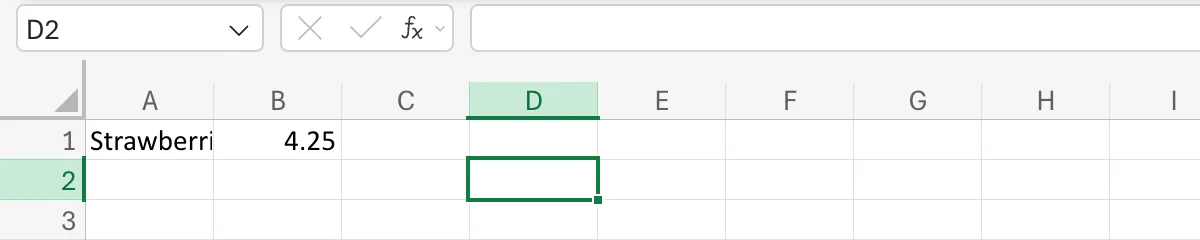
A1 holds Strawberries and cream and B1 the price 4.25. Column A is too narrow, so the text stops at Strawberri:
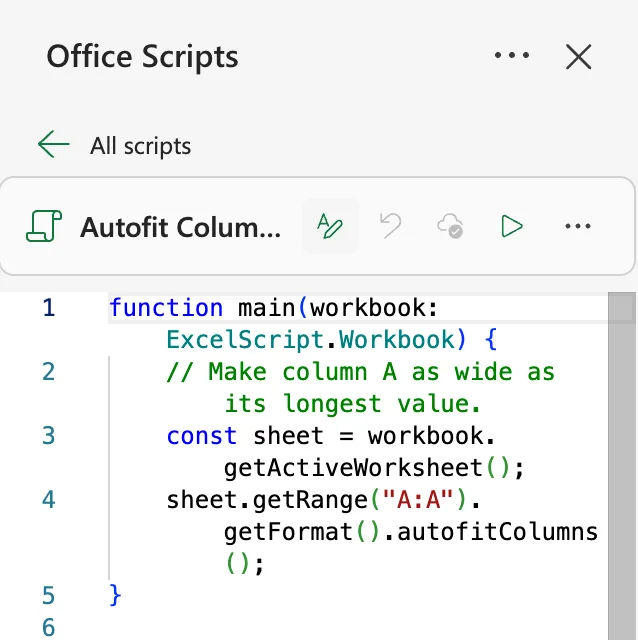
The script Autofit Column A fits column A. Create it as in How to Create and Run an Office Script in Excel:
function main(workbook: ExcelScript.Workbook) {
    // Make column A as wide as its longest value.
    const sheet = workbook.getActiveWorksheet();
    sheet.getRange("A:A").getFormat().autofitColumns();
}
The Result
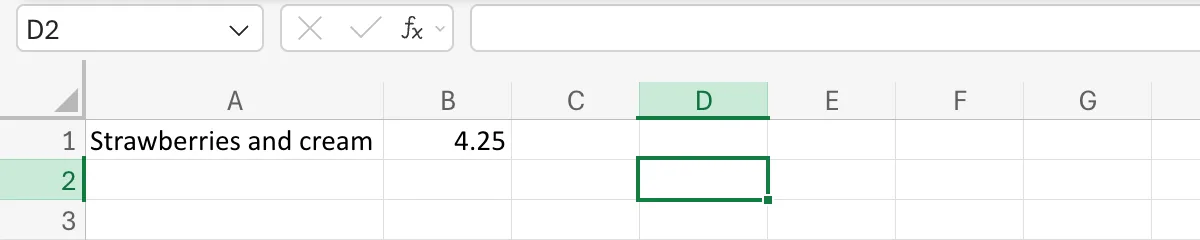
After Run, column A is as wide as Strawberries and cream:
It Measures the Whole Column
autofitColumns() looks at every value in the column, not only the cells in the range you call it on. I found this out in another workbook: autofitting a table's range, getTable("Entries").getRange(), made column A as wide as a long title in A1, above the table. The fix was to run the autofit first and write the title after it. A title written last, with empty cells to its right, still shows in full, because text spills over empty cells.
Common Mistakes
| Mistake | What happens | Do this instead |
|---|---|---|
| Autofitting before writing the data | The width fits the old values | Autofit after the last value is written |
| A long title in the column when the autofit runs | The column fits the title, even if you fit only the data's range | Write the title after the autofit |
autofitRows() to make text fit across | That changes row heights | autofitColumns() for widths |
Troubleshooting
| Symptom | Likely cause | Fix |
|---|---|---|
| The column is much wider than the data | A long value somewhere else in the column | Write that value after the autofit, or set the width with setColumnWidth |
Dates show ######## after the script | The script ran before the dates were written or formatted | Run the autofit last |
| Nothing changes | The column was already the right width | Nothing to fix |
FAQ
How do I fit every column that has data?
sheet.getUsedRange().getFormat().autofitColumns() fits all the columns in the part of the sheet that's in use.
Can I fit a table's columns?
Yes: workbook.getTable("<name>").getRange().getFormat().autofitColumns(). The columns still fit everything in them, including values above or below the table.
Is there a way to set an exact width?
Yes: getFormat().setColumnWidth(<width>) sets a width in points instead of fitting.
Conclusion
<range>.getFormat().autofitColumns() makes each column in the range as wide as the longest value in the column. Run it after the data is written, and write long titles after it.
