How to Assign a Dataverse Security Role to a Microsoft Entra Group

In an environment with Dataverse, people need a security role before they can use its data. Instead of giving the role to each person, give it to a Microsoft Entra group once, with a group team: everyone in the group gets the role, and new members get it automatically. This guide creates one and gives it Basic User.
Why a Group Team
Microsoft's Manage group teams explains the idea. A group team is linked to a Microsoft Entra group, and you give the team a security role. Its members aren't copied in: Team members are dynamically derived (added and removed) when they access the environment based on their Microsoft Entra group membership. So someone added to the group in Microsoft Entra has the role the next time they sign in, and someone removed from it loses it.
The example is the Career Development Plan app from Part 13. Its SharePoint site and lists are stored in environment variables, and Microsoft's environment variables article says people need privileges on the variables' table, which the Basic User and Environment Maker roles include. The Default environment gives everyone those roles. A new environment doesn't, so the app's users get Basic User through their group.
Prerequisites
- The System Administrator role in the environment, or another role Microsoft lists for creating teams (How to Make Yourself System Administrator).
- A Microsoft Entra security group with the people in it (How to Create a Security Group in Microsoft Entra).
- An environment with Dataverse. The example is a trial environment (How to Create a Free Trial Environment).
Step 1: Open the Environment's Teams
In the Power Platform admin center, open Manage → Environments → your environment. In the Access card, select See all under Teams. A new environment already lists a few teams that Dataverse creates itself, such as the default team for its business unit.
Step 2: Create the Team
Select Create team in the command bar. The New team pane asks for:
| Field | Value in the example |
|---|---|
| Team name | Career Development Plan Users, the group's name, so you can find it |
| Description | What the team is for |
| Business unit | The only one, the environment's root business unit |
| Administrator | You |
| Team type | Microsoft Entra ID Security Group |
| Group name | Start typing the group's name and pick it |
| Membership type | Members |
Team type offers Owner, Access, Microsoft Entra ID Security Group and Microsoft Entra ID Office Group. The last two link the team to a Microsoft Entra group, and they add Group name and Membership type.
Membership type decides which of the group's people count, per Microsoft's table: Members and guests (the default), Members, Owners or Guests. Members takes only member accounts from the group's members, which is right for a group without guests.
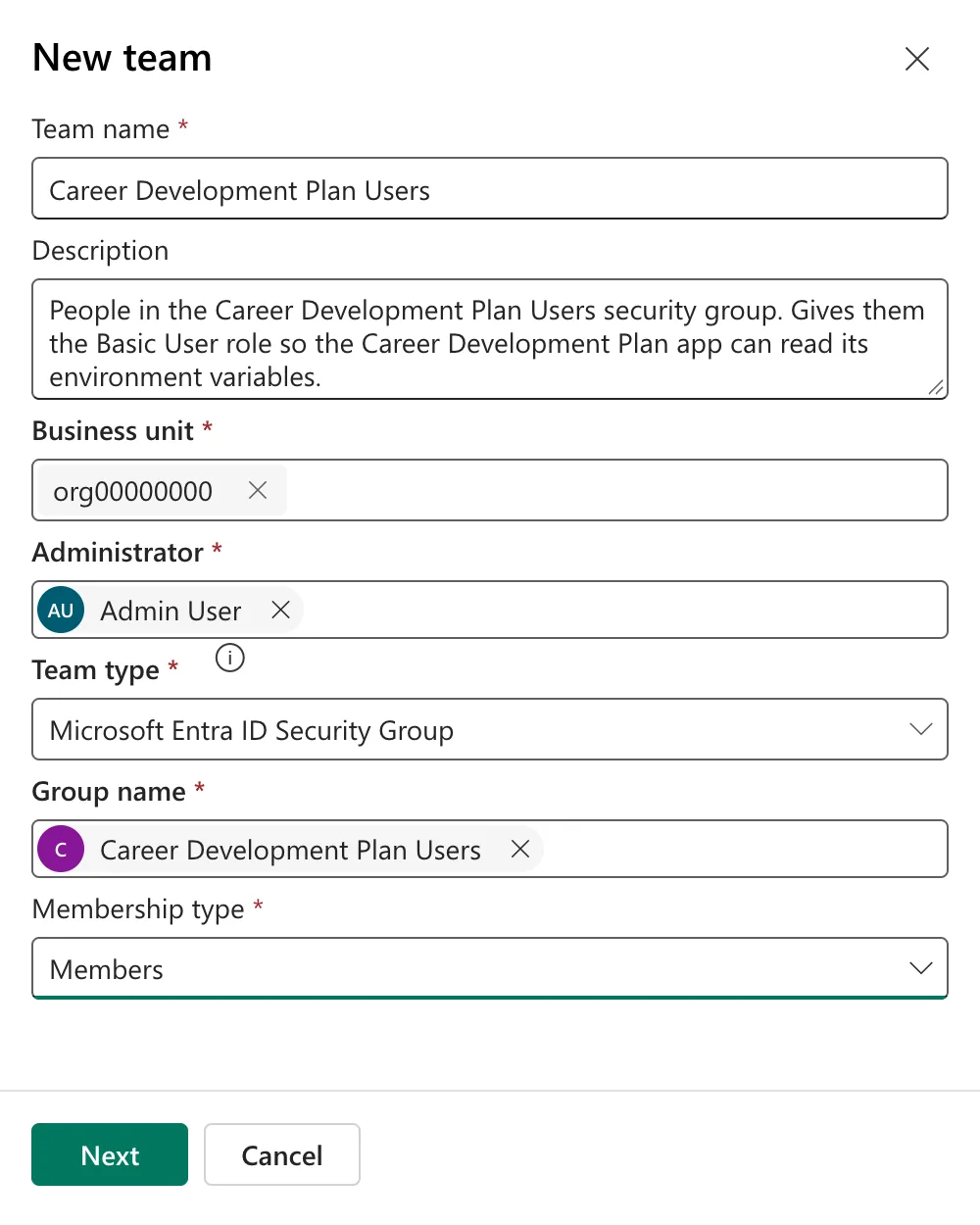
Select Next.
Step 3: Choose the Role and Save Twice
The Manage security roles pane lists every role in the environment, about seventy, without a search box. Tick Basic User:
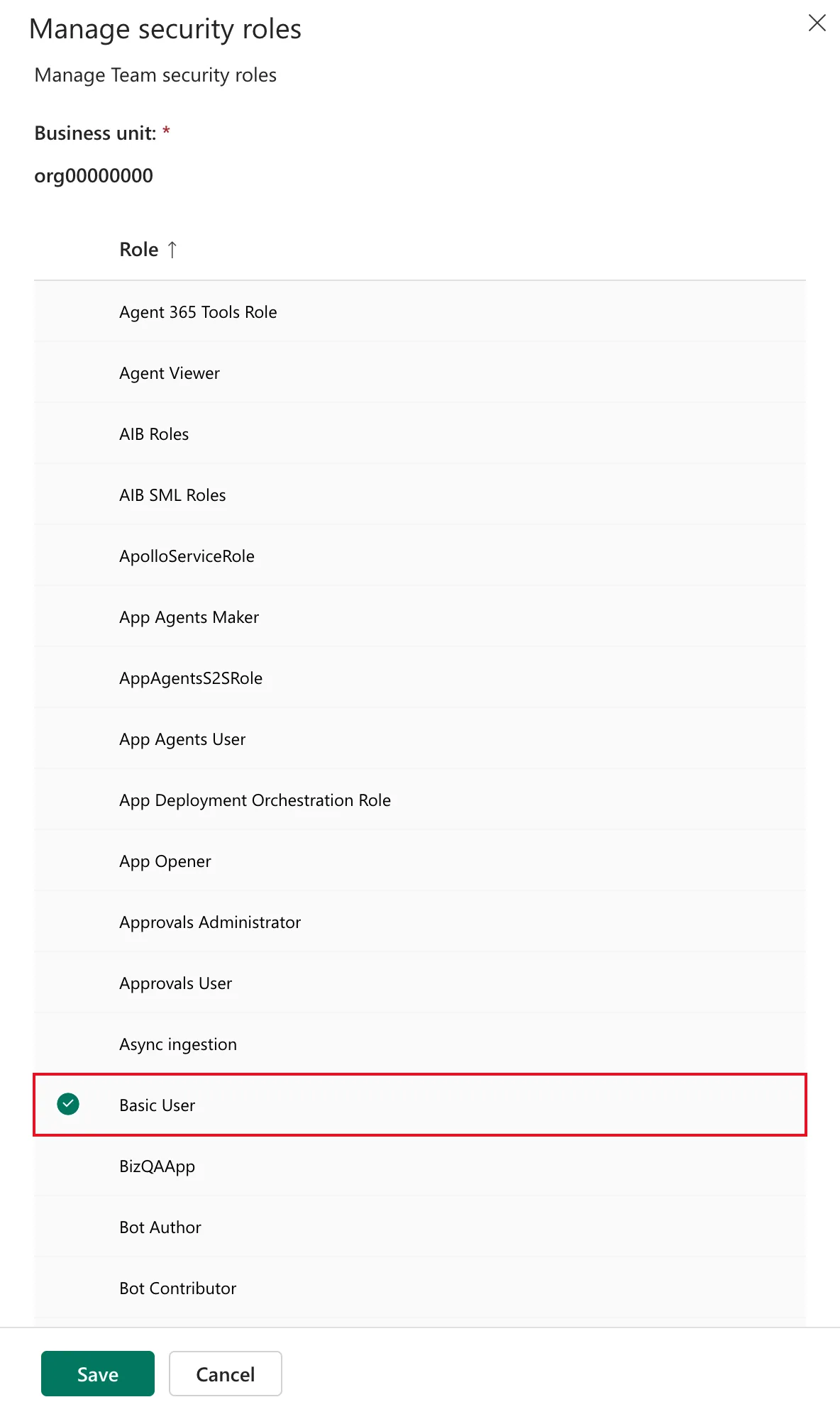
Select Save. A Role assignment confirmation opens, listing the roles to assign:
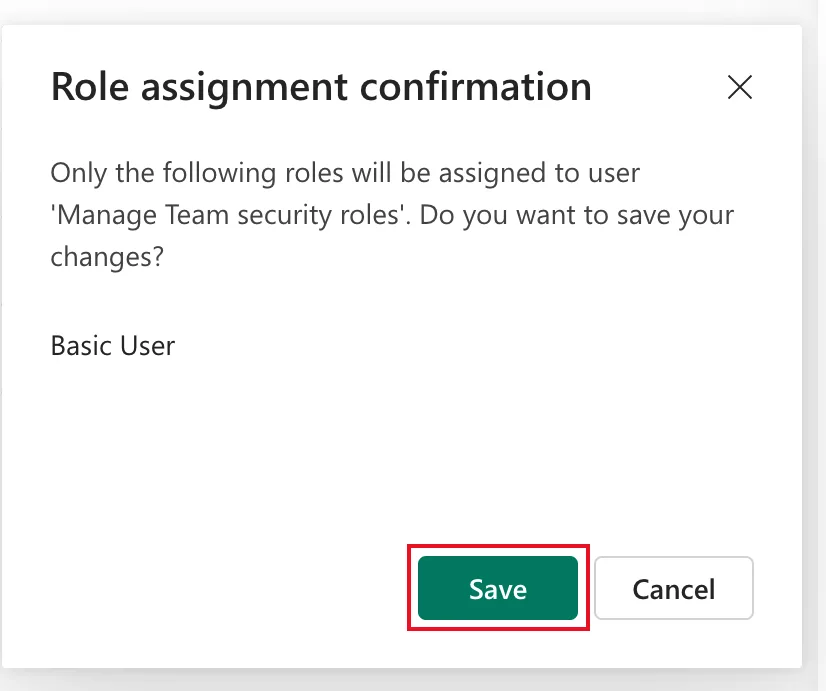
Its text says user, and uses the pane's title as the name, although it's a team. Select Save in it as well: Microsoft's Manage teams article says to select Save twice to confirm.
I missed this dialog the first time, so the team was created without a role. Fixed: Security Role Isn't Assigned After You Create a Team in the Power Platform Admin Center shows how I found that out.
Step 4: Check the Team and Its Role
A green bar says Create of team Career Development Plan Users completed successfully. Reload the page: the team is listed with its type:
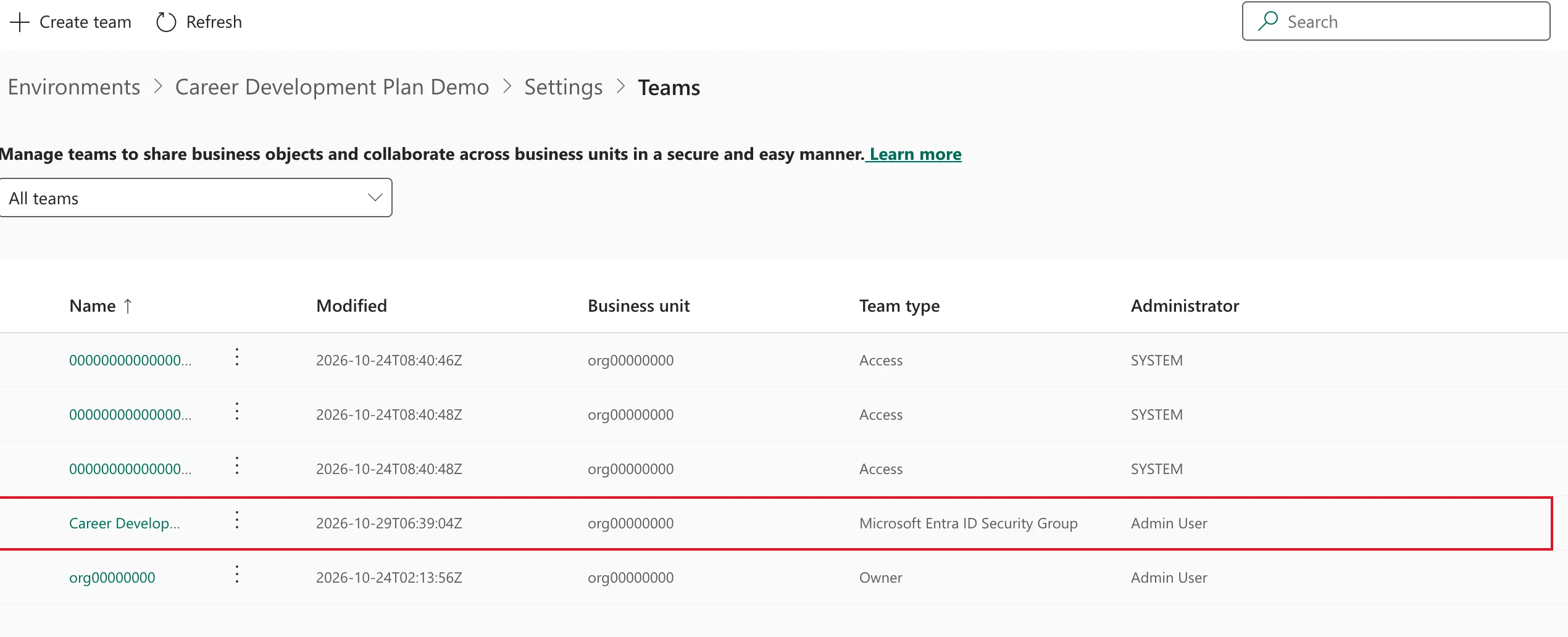
To check the role, select the team's row, then Manage security roles in the command bar. Basic User is ticked, and Save is unavailable because nothing has changed:
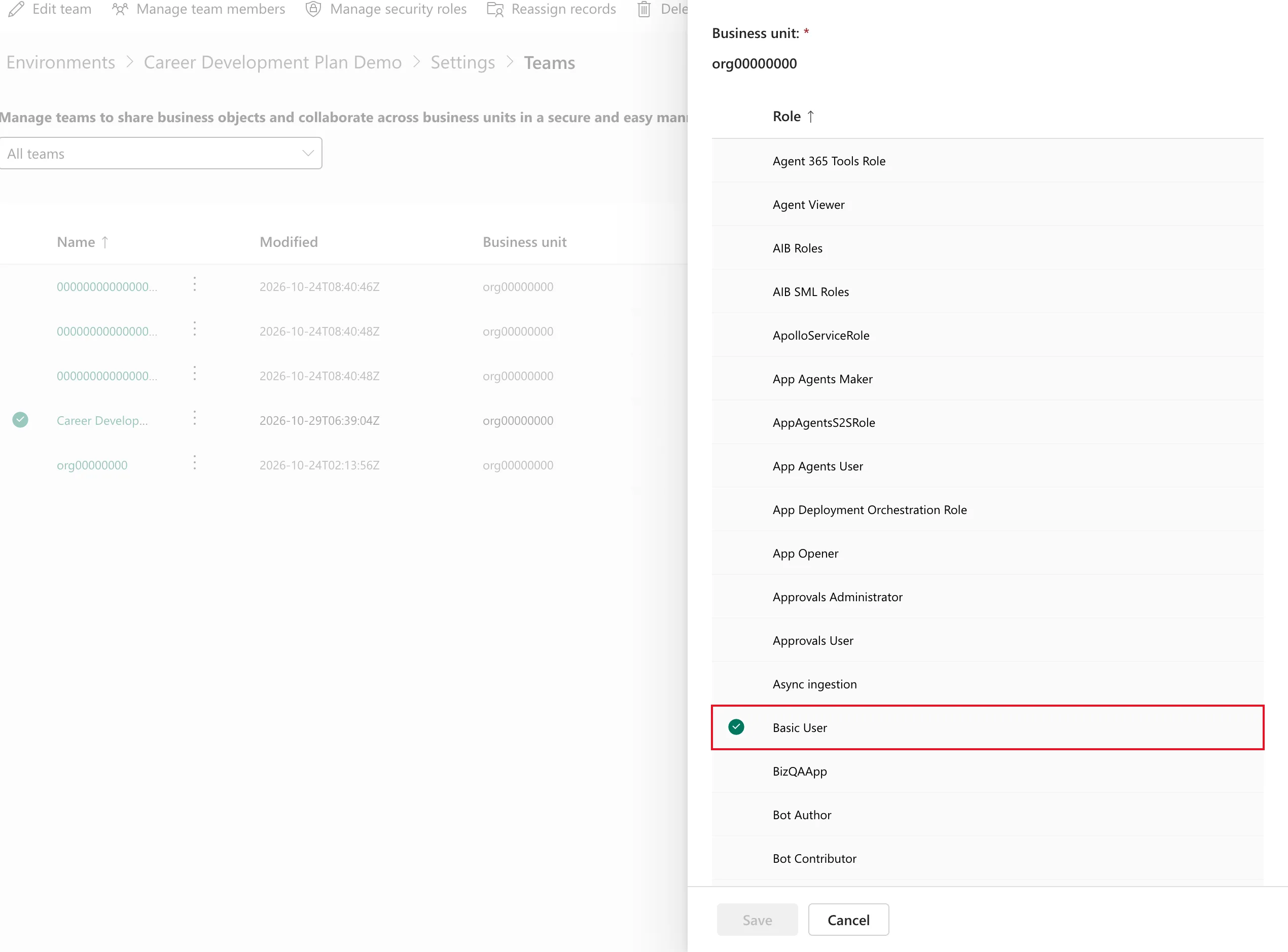
Close it with Cancel.
Who the Team Lists
Don't expect the team to list the group's members right away. Microsoft's article says the team only displays the user members who have accessed the environment. In the example, Daniel appeared in the team after he opened the app for the first time, and his user record listed Career Development Plan Users under Teams, with no role given to him directly.
Two more points from the same article:
- If the environment is limited to a security group, the team's group has to be that group or a member of it, or its people can't get in.
- Microsoft's user diagnostics only count roles given to a person directly, so they report Action needed for people whose role comes from a team (How to Run User Diagnostics).
Common Mistakes
| Mistake | What happens | Do this instead |
|---|---|---|
| Closing the Role assignment confirmation | The team has no role | Select Save in it too |
| Choosing Owner or Access as the team type | The team isn't linked to the group | Choose Microsoft Entra ID Security Group |
| Using a group that isn't allowed into the environment | Its people still can't get in | Use the environment's security group, or a member of it |
| Waiting for members to appear before testing | They only appear after their first visit | Test by signing in as a member |
Troubleshooting
| Symptom | Likely cause | Fix |
|---|---|---|
| Basic User isn't ticked when you reopen the team's roles | The confirmation's Save wasn't selected | Tick it, Save, then Save in the confirmation |
| The team lists no members | Nobody has accessed the environment yet | Expected; members appear as they sign in |
| Diagnostics say a member has no security roles | They only count roles given directly | Expected for team roles |
FAQ
Do the group's members need anything else?
A license and, in an environment limited to a security group, membership of that group. Microsoft's troubleshooting article lists all four requirements.
Can I give the team more than one role?
Yes: tick several roles in Manage security roles. The confirmation lists them all.
Can I do this from the command line?
Microsoft's pac admin assign-group command assigns a group to an environment with a security role. I created this team in the admin center, so I haven't run it.
Conclusion
Teams → Create team, type Microsoft Entra ID Security Group, pick the group and Members, then Next, tick the role, Save, and Save again in the confirmation. Check it with Manage security roles, and let the group's membership decide who has the role from then on.
Additional Resources
- Manage group teams: how group teams and their members work.
- Manage teams: team types, and managing a team's security roles.
- Environment variables: Security: the privileges apps need to read them.
