How to Ask for Confirmation Before an Action in Power Apps

Some actions deserve a second thought, such as removing something many people use. Instead of acting at once, the button asks a question on the same screen, with Yes and Cancel below it. Nothing happens until Yes, and screen readers announce the question.
Prerequisites
- A button for the action. The example is Remove on the Competency screen of the Career Development Plan app, which takes a competency out of the plan of everyone with a job title (Part 9).
- A label that announces the question to screen readers (How to Make Screen Readers Announce a Message).
Step 1: Make the Button Ask
The action button only switches the screen into asking. A context variable says whether it's asking (How to Use Context Variables with UpdateContext):
UpdateContext({locConfirmRemove: true})
The screen's loading formula sets locConfirmRemove back to false, so it never opens in the middle of a question.
While I was building this, the App checker showed a warning under Performance: Unused variable (1) on the screen. The button set locConfirmRemove, but nothing read it yet. It cleared as soon as the question below used it.
Step 2: Show the Question
The question is a classic label whose Live property is Polite, so screen readers announce it when it appears. Its text is the question while asking and empty otherwise:
If(
    locConfirmRemove,
    "Remove " & locCompetency.Competency & " from the plan for " & locJobTitle & "? People with this job title won't see it in their plan anymore. Their responses are kept.",
    ""
)
Say what will happen and to whom. Here, the question names the competency, the job title and what happens to people's responses.
Step 3: Add Yes and Cancel
The screen already had a row of two buttons for Save and Remove, so I copied that container and pasted it into the body, where it landed at the end, after the question (How to Copy and Paste Controls Between Screens). Then I renamed it and its buttons:
| Control | Property | Value |
|---|---|---|
conConfirmCS | Visible | locConfirmRemove && !locIsLoading |
btnConfirmRemoveCS | Text | "Yes, remove" |
| Icon | "Delete" | |
| OnSelect | The action, then Back() | |
btnCancelRemoveCS | Text | "Cancel" |
| Icon | "Dismiss" | |
| OnSelect | UpdateContext({locConfirmRemove: false}) |
In the example, the action marks the competency inactive with Patch, with IfError around it (How to Remove an Item Without Deleting It).
The Result
After Remove, the question and the two buttons appear below the action row:
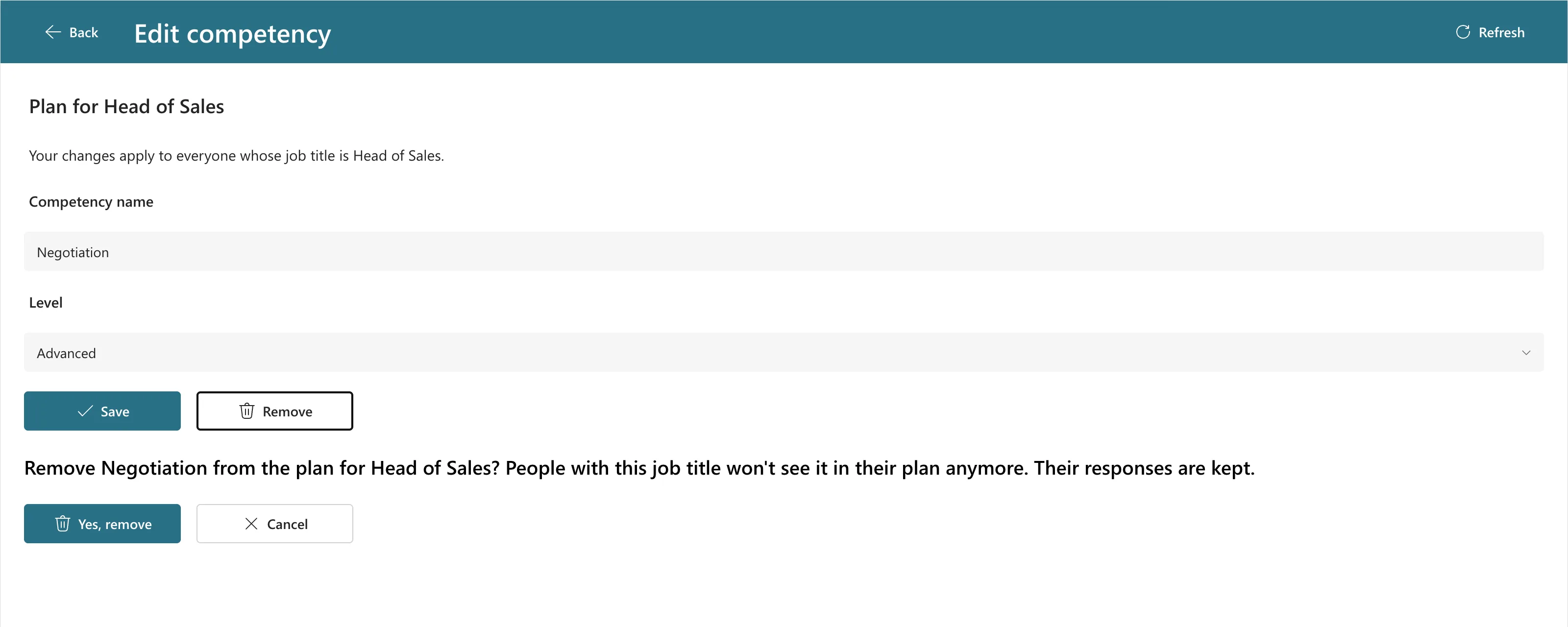
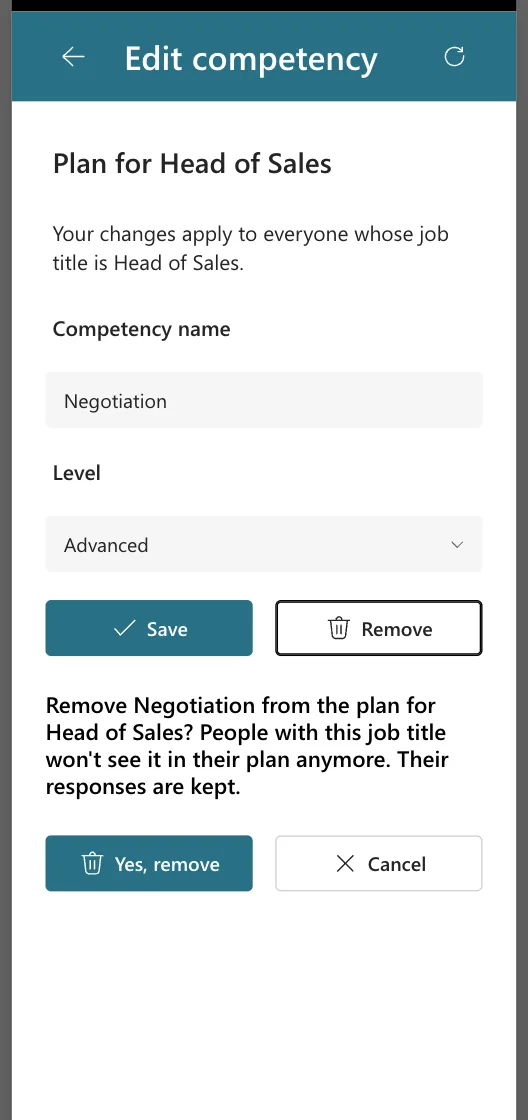
Cancel hid both, and nothing was saved. Yes, remove removed the competency, showed Negotiation is removed from the plan for Head of Sales. and went back. On a 360-pixel phone, each pair of buttons shares its row (Fixed: Text and Buttons Cut Off on Narrow Phones):
Common Mistakes
| Mistake | What happens | Do this instead |
|---|---|---|
| Doing the action in the first button | One click removes it | The first button only asks |
| Hiding the question with Visible | Some screen readers miss it | Keep the label visible and change its text |
| Not resetting the variable when the screen opens | The question is still showing next time | Set it to false in the loading formula |
Troubleshooting
| Symptom | Likely cause | Fix |
|---|---|---|
| Unused variable under Performance | The variable is set but nothing reads it yet | Finish the question and the buttons that read it |
| Yes stays visible after saving | The row's Visible doesn't read the variable | locConfirmRemove && !locIsLoading |
| The question isn't announced | The label isn't a live region | Use a classic Label with Live set to Polite |
FAQ
Why not a pop-up?
A pop-up needs a layer over the screen and a way to move focus into it. In the example, every control sits in a container, and Microsoft's SetFocus reference says it can't set focus to controls in a container. A question in the screen's own flow keeps the reading order and needs no overlay.
Should Yes have the same text as the first button?
Give it a clearer text, such as Yes, remove, so there aren't two identical buttons on the screen.
Conclusion
Split the action into a question and an answer: the first button sets a variable, a live label asks, and Yes or Cancel decide. Nothing changes by accident, and everyone hears the question.
