How to Approve or Reject an Item in a SharePoint List

In a SharePoint list that requires content approval, new and edited items wait as Pending. To approve one, select it, open the … menu in the command bar and choose Approve/Reject. A small dialog lets you set Approved, Rejected or Pending, with an optional comment.
This guide approves an overtime entry in the Overtime Timesheet series, signed in as the site's owner. Later parts approve entries through a flow; this is the manual way, and it's how you check what the flow will do.
Prerequisites
- A list with content approval: How to Turn On Content Approval for a SharePoint List.
- The Approve Items permission. On a communication site, Design and Full Control include it. The site's owners have Full Control.
Step 1: Select the Item and Open the … Menu
Select the item in the list, then … (more) in the command bar. With approval on, the menu has Approve/Reject under Version history:

Step 2: Read the Choices
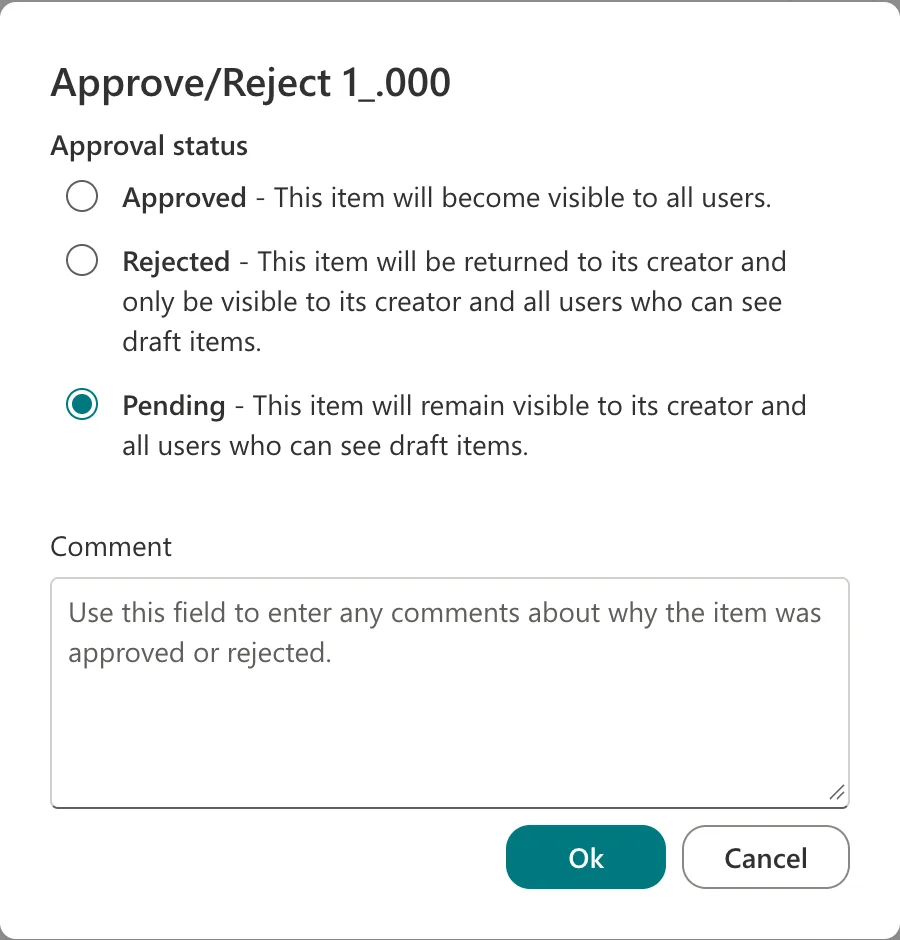
The Approve/Reject dialog opens on the item's current status, here Pending. Each choice says what it does:
| Choice | The dialog's description |
|---|---|
| Approved | "This item will become visible to all users." |
| Rejected | "This item will be returned to its creator and only be visible to its creator and all users who can see draft items." |
| Pending | "This item will remain visible to its creator and all users who can see draft items." |
"All users" means everyone who can read the item. In the Overtime Timesheet list, people can only read items they created, so an approved entry is still visible only to its author and the approvers.
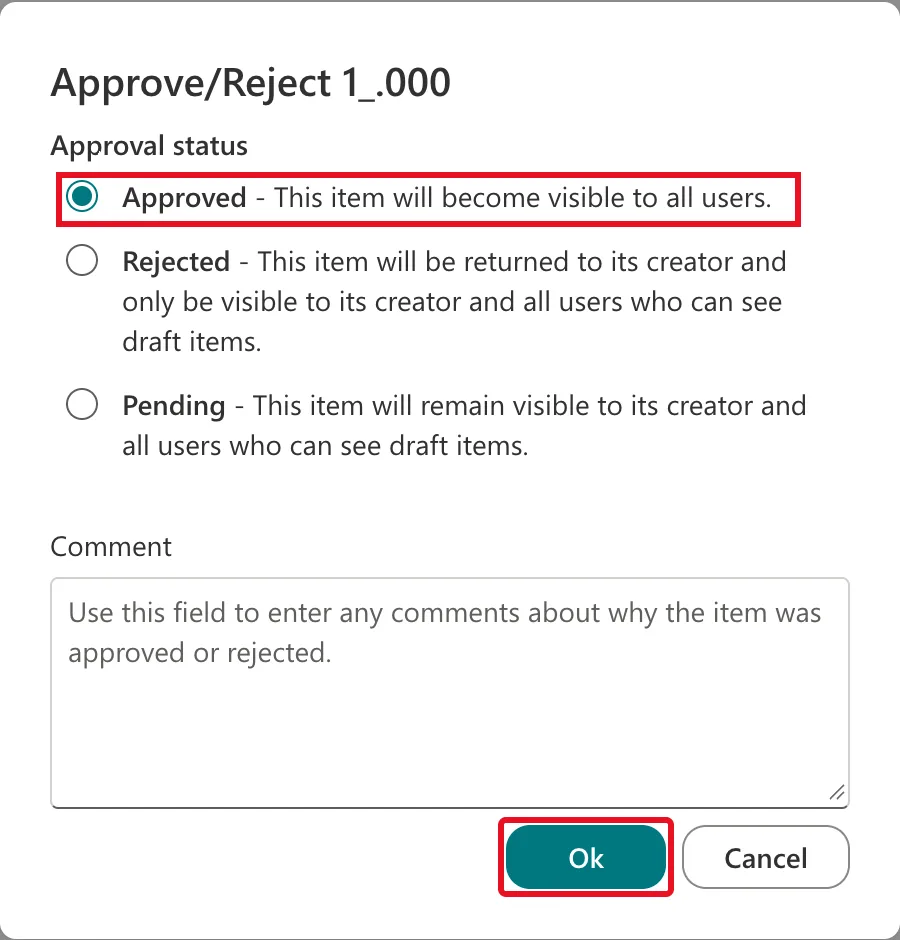
The dialog's title reads Approve/Reject 1_.000 rather than a name because this list doesn't use the Title column.
Step 3: Choose Approved and Select Ok
Select Approved. The Comment box is optional: "Use this field to enter any comments about why the item was approved or rejected." Select Ok:
Step 4: Check the Approval Status
The dialog closes and the item's Approval Status column changes. Aisha Khan's entry now says Approved, while Maya Patel's, not touched, is still Pending:

Approving changes only the Approval Status. A column of your own, like this list's Status, still says Pending: something else has to copy the decision into it. In the Overtime Timesheet series, that's the approval flow.
When the Author Edits It Again
An approved item doesn't stay approved forever. When its author changes it, the Approval Status goes back to Pending and needs approving again; How to Turn On Content Approval for a SharePoint List shows it happening. The item's version history keeps both the approval and the change: How to See the Version History of a SharePoint List Item.
Common Mistakes
| Mistake | What happens | Do this instead |
|---|---|---|
| Approving several items without opening them | You approve content you haven't read | Open each item first |
| Expecting your own Status column to change | It doesn't; only Approval Status does | Copy the decision into it with a flow, or don't keep one |
| Giving submitters Design so they can "see more" | They can approve their own items | Keep approval rights with approvers |
Troubleshooting
| Symptom | Likely cause | Fix |
|---|---|---|
| No Approve/Reject in the … menu | You don't have Approve Items, or the list doesn't require approval | Check your level; check Versioning settings |
| The status reverted to Pending | The item was edited after approval | Approve it again after reading the change |
FAQ
Can I approve several items at once?
Microsoft's Approve or reject items or files in a site list or library says: "Select the item or items and select Approve/Reject from the command bar." This guide approved one.
Where does the comment go?
The My submissions view that content approval adds has an Approver Comments column for it.
Conclusion
Select the item → … → Approve/Reject → Approved (or Rejected) → optional comment → Ok. The Approval Status changes at once, and editing the item later sends it back to Pending.
Additional Resources
- Approve or reject items or files in a site list or library
- Require approval of items in a list or library
