How to Approve or Reject a SharePoint Item in Power Automate

On a SharePoint list with content approval, each item has an Approval Status that only people allowed to approve can change. A flow can set it with Set content approval status: the site, the list, the item's ID, Approve or Reject, a comment, and the item's ETag.
Microsoft's SharePoint connector reference describes it: Sets the content approval status for an item in a list or library that has content approval turned on. You must provide an ETag for pages and files.
The example is the approval flow of the Overtime Timesheet app. Approvers decide in Teams or Outlook, where SharePoint can't see their answer, so the flow sets each entry's approval status from their decision.
Prerequisites
- Content approval turned on for the list (How to Turn On Content Approval for a SharePoint List).
- A SharePoint connection whose account can approve items, such as the site's owner. The flow's actions run with that connection.
- The decision. Here, the outcome of Start and wait for an approval (How to Send an Approval Request in Power Automate).
Step 1: Add the Action
Add an action, search for Set content approval status, and choose the SharePoint one. I named it Set the approval status.
Step 2: Fill It In
| Field | Value here |
|---|---|
| Site Address | The site's environment variable |
| Library Name | The OvertimeEntries list's environment variable |
| Id | The item's ID |
| Action | if(equals(outputs('Ask_for_approval')?['body/outcome'], 'Approve'), 'Approve', 'Reject') |
| Comments | first(outputs('Ask_for_approval')?['body/responses'])?['comments'] |
| ETag | outputs('Record_the_decision')?['body/@odata.etag'] |
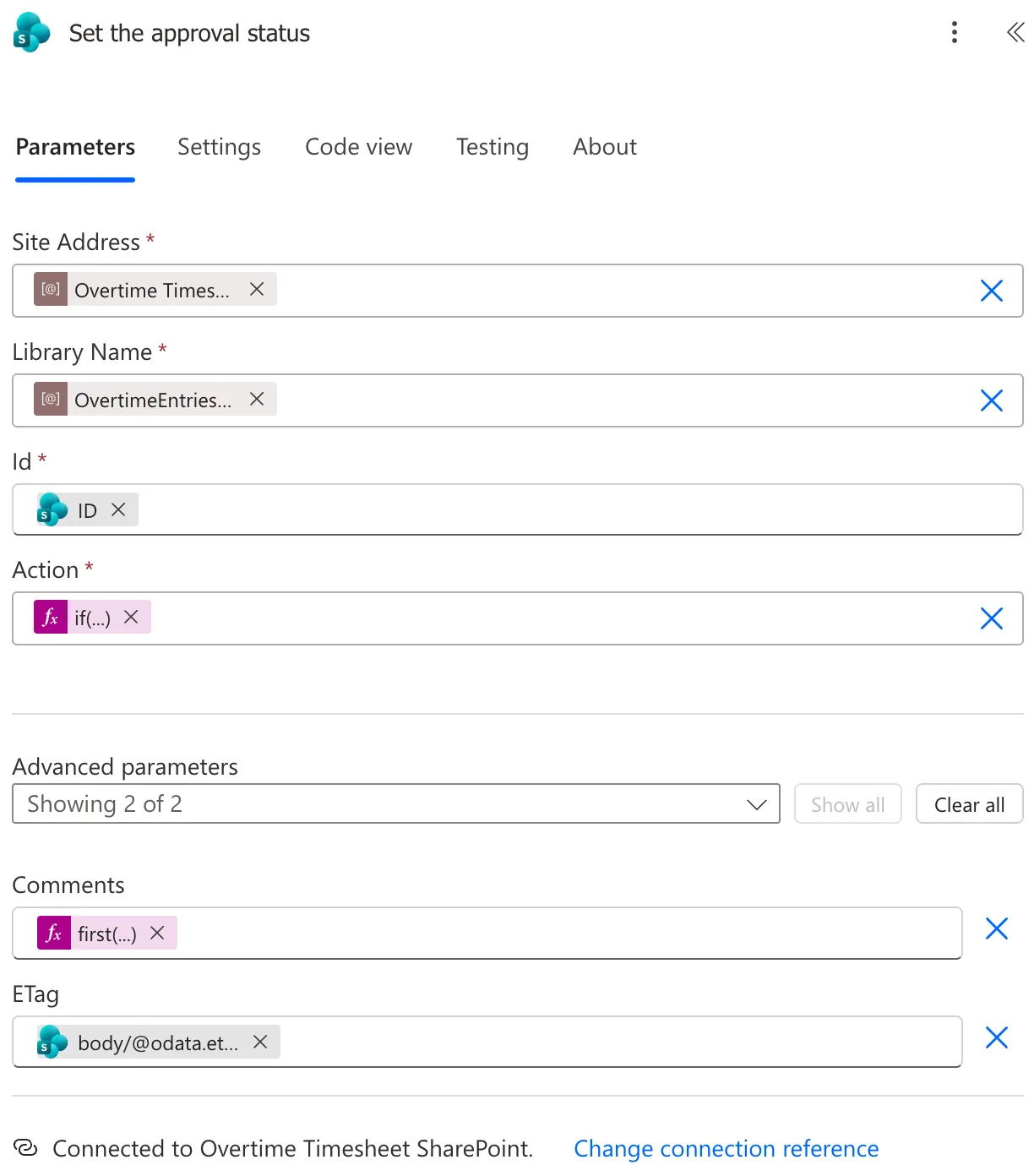
- Library Name took the list's variable, though it says library: the action works on lists and libraries alike.
- Action turns the approval's outcome into the action SharePoint expects.
- Comments becomes the approval comment SharePoint keeps with the item.
- ETag identifies the version of the item being approved. The reference says Add an ETag (required for files and pages). The flow's previous action, Update item, edits the item, so its output has the current ETag (How to Update a SharePoint List Item in Power Automate). The first run, before I added the ETag, worked without one on this list; every run since has used it.
The Result
The list's Approval Status column followed each decision. After Daniel Brooks approved Maya Patel's entry:

And after he rejected an earlier version of it:

Approving didn't add a version to the item's history; it updated its Modified time.
Why Set It After the Update
On a list with content approval, an edit sets the item's approval status back to Pending, and that includes the flow's own Update item. Setting the approval status after the update, with the update's ETag, is the last change, so it stays.
Common Mistakes
| Mistake | What happens | Do this instead |
|---|---|---|
| Setting the status before Update item | The update sets it back to Pending | Set it after the update |
| Using the trigger's ETag after an update | It no longer matches the item | The ETag from the update's output |
| A connection whose account can't approve items | The account needs approval rights on the list | Use the site owner's connection |
Troubleshooting
| Symptom | Likely cause | Fix |
|---|---|---|
| Approval Status stays Pending | An edit after the action | Make this the last change to the item |
| The comment isn't in SharePoint | Comments is empty | Pass the approver's comment |
FAQ
Can staff approve their own entries in SharePoint?
Not in this example: staff have their own permission level without Approve Items. The flow approves with the owner's connection, after a department approver decides.
What about Approval Status vs a Status column?
Approval Status is SharePoint's, and only people with approval rights can change it. A Choice column such as Status can be changed by anyone who can edit the item, so it's for showing the decision, not proving it.
Conclusion
Set content approval status approves or rejects a SharePoint item from a flow: site, list, ID, Approve or Reject, a comment and the ETag. Run it after any update to the item, with the update's ETag, and the item's Approval Status records the decision.
Additional Resources
- SharePoint connector: Set content approval status: the action and its ETag.
