How to Approve a Request in the Microsoft Teams Approvals App

Approval requests from Power Automate flows appear in Microsoft Teams' Approvals app. Open it from the apps menu, find the request on the Received tab, read its details, add a comment if you like, and select Approve or Reject. The flow that sent it carries on with your decision.
Microsoft's Approvals app article describes it: The approvals app in Teams gives you an overview of all the approvals that you have sent or received in your organization's default tenant. And: From here you can either approve or reject an approval you have received, or cancel an approval you have sent out.
The example is a request from the approval flow of the Overtime Timesheet app, answered by Olivia Bennett, who approves overtime for the Emergency Department.
Prerequisites
- An approval request sent to you by a flow (How to Send an Approval Request in Power Automate).
- Microsoft Teams, in the browser or the desktop app.
Step 1: Open the Approvals App
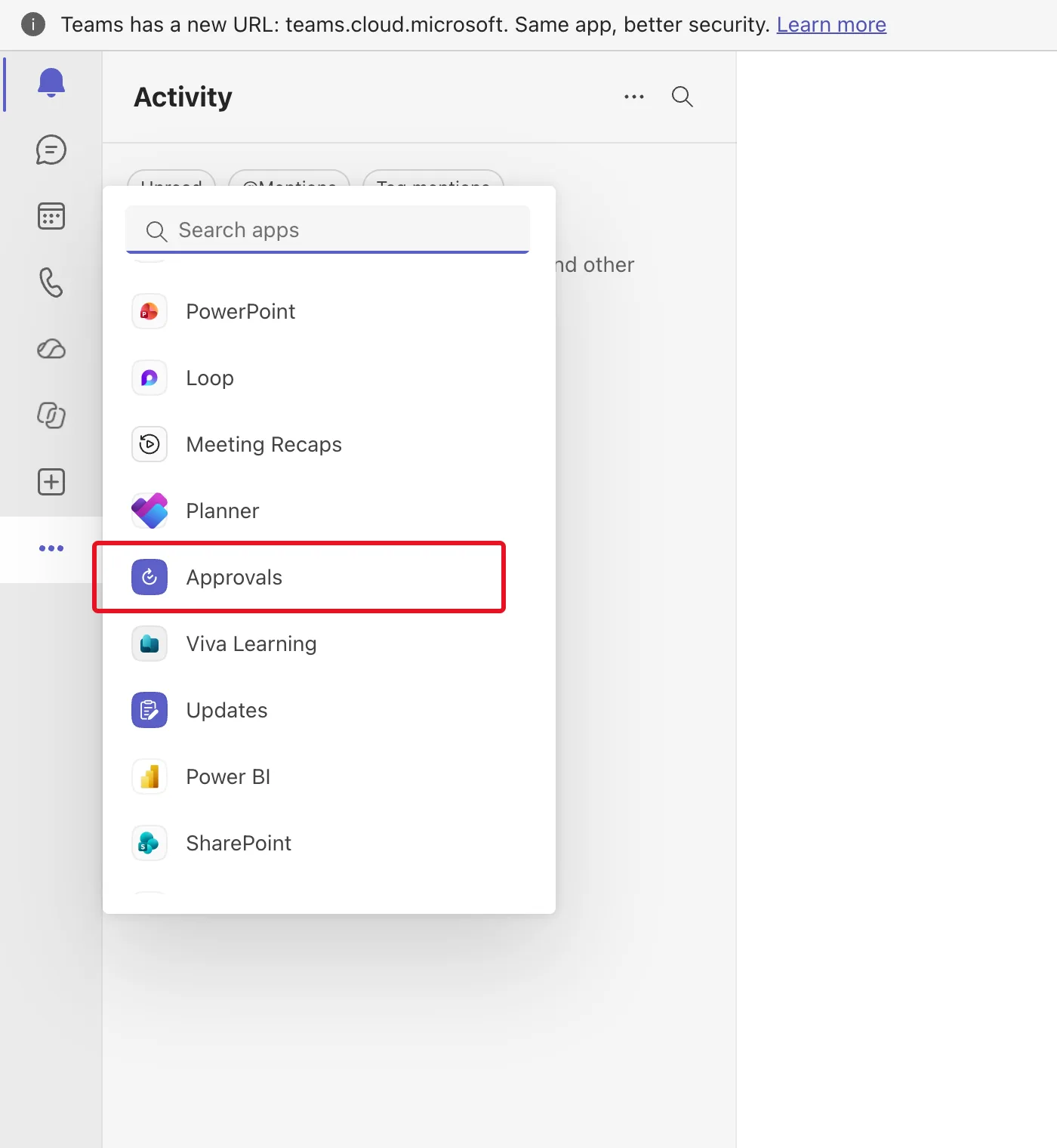
In Teams, select … (View more apps) in the left bar, and choose Approvals:
Step 2: Find the Request
The Received tab lists requests sent to you, with their title, status, when they were created, who sent them and who they're for:

Sent by is the flow's maker; Microsoft's connector reference says The creator of the flow will always be shown in the Approval details. Select the request to open it.
Step 3: Read the Details
The request shows the title and the details the flow wrote, and who still has to respond:
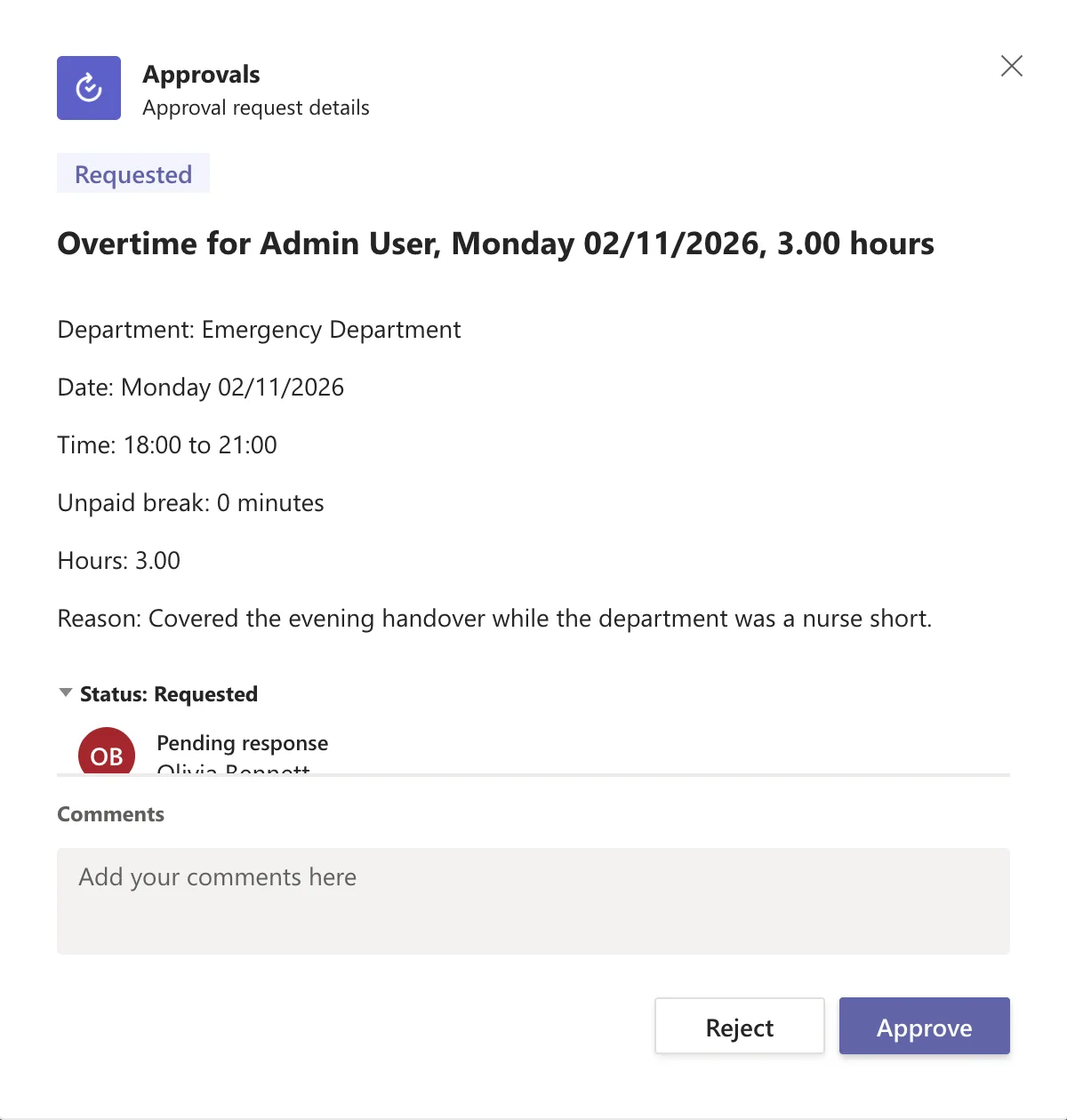
The details were written as separate lines with empty lines between them, and Teams showed them that way.
Step 4: Comment and Decide
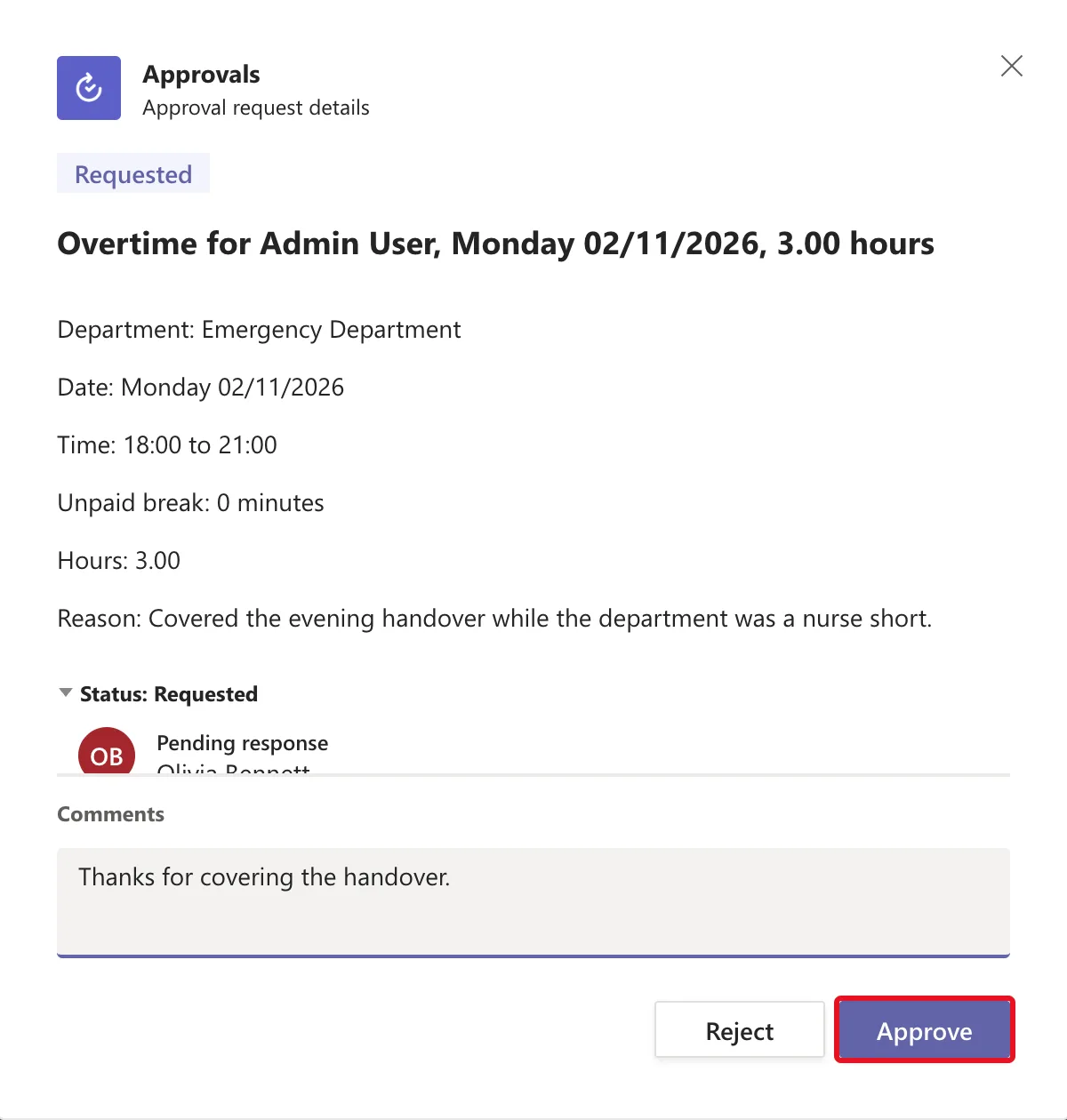
Type a comment in Comments, if you have one; the flow can pass it on to the person who asked. Then select Approve or Reject. Olivia wrote Thanks for covering the handover. and selected Approve:
The Result
The request's status changed to Approved on the Received tab:

The flow's Start and wait for an approval finished, 4 minutes and 19 seconds after it started, and the flow recorded the decision and the comment on the overtime entry.
Common Mistakes
| Mistake | What happens | Do this instead |
|---|---|---|
| Approving without reading the details | You approve what you didn't check | Open the request first |
| Answering an old request for something that changed | The flow may ignore it | Look for a newer request for the same thing |
Troubleshooting
| Symptom | Likely cause | Fix |
|---|---|---|
| Approvals isn't in the apps menu | It isn't added or allowed in your Teams | Search apps for Approvals, or ask your admin |
| The request isn't on Received | It went to a different person or environment | Check the environment filter at the top right |
| No Approve or Reject | Someone else already answered a first-to-respond request | Check its status |
FAQ
Can I answer the same request in Outlook?
Yes. The same request reaches your email too, and the first answer counts (How to Approve a Request from an Outlook Email).
Does Teams show formatting in the details?
Microsoft's Markdown article says Markdown isn't currently supported for the Approvals app on Microsoft Teams. Plain lines with empty lines between them showed as separate lines.
Conclusion
In Teams, Approvals from the apps menu lists the requests you've received. Open one, read its details, add a comment, and select Approve or Reject; the flow carries on with your answer.
Additional Resources
- Manage approvals in the Approvals app in Teams: the app and its tabs.
- Get started with Power Automate approvals: where approvers can respond.
