How to Approve a Request from an Outlook Email

A Power Automate approval request arrives in the approver's inbox with Approve and Reject buttons built in. Select one, add a comment, select Submit, and the flow carries on with the decision. The email then shows the answer in place of the buttons.
These emails are Outlook actionable messages. Microsoft's troubleshooting article says the approvals service sends actionable messages to approval recipients so that they might respond to the requests directly from their inbox.
The examples are requests from the approval flow of the Overtime Timesheet app, answered in Outlook on the web: Olivia Bennett approving a nurse's overtime, and Daniel Brooks rejecting a radiographer's.
Prerequisites
- An approval request sent to you by a flow, with notifications on (How to Send an Approval Request in Power Automate).
- Outlook on the web, or an Outlook that shows actionable messages. Microsoft's Markdown article says one that doesn't displays approval requests in HTML format.
Step 1: Open the Request
The email comes from Microsoft Power Automate, with the request's title as its subject. It shows who created the flow, who the request is for, when it was created, the details, and the two buttons:
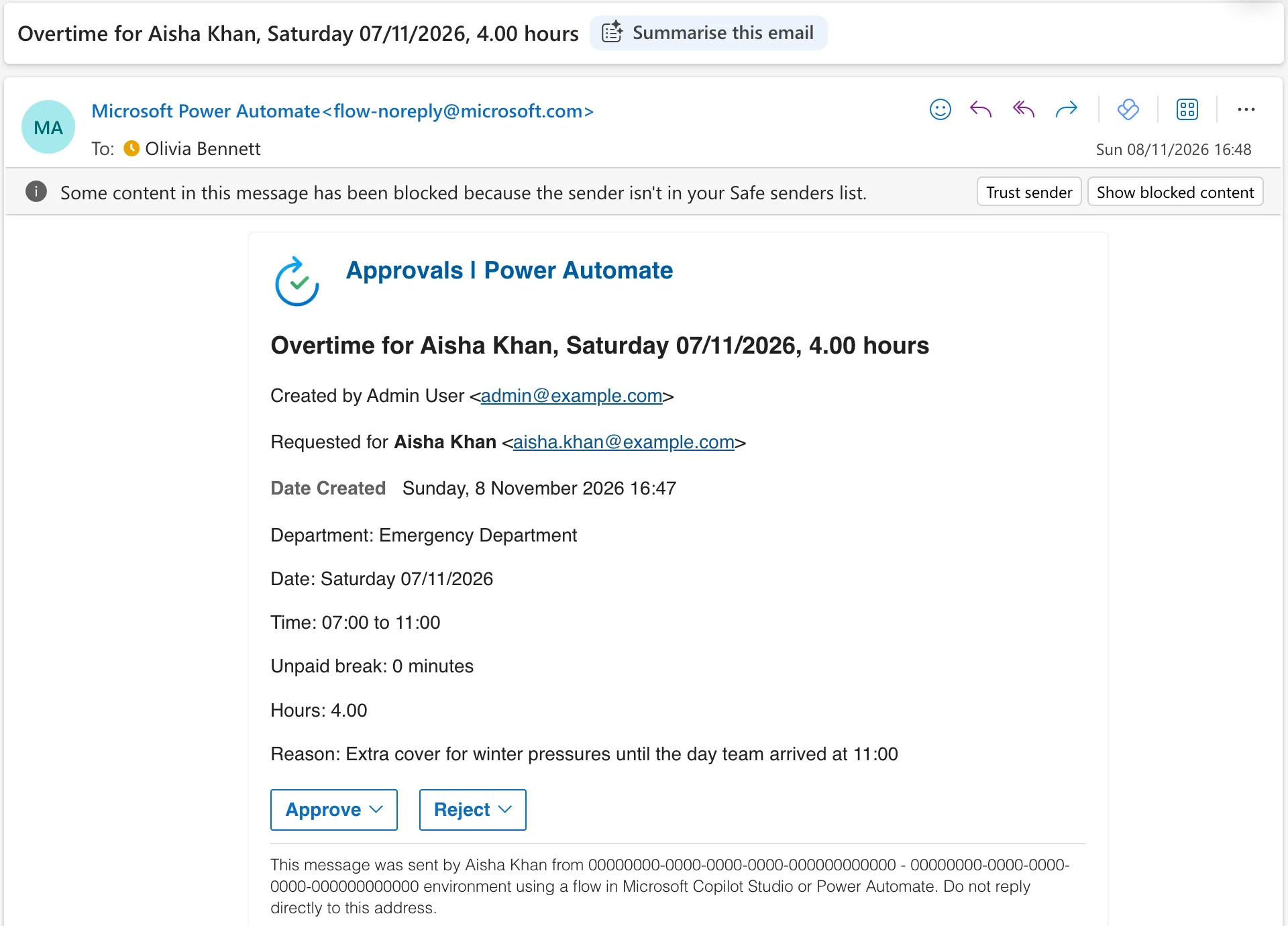
Outlook showed a notice that some content was blocked because the sender isn't in the safe senders list. The buttons worked without trusting the sender.
Step 2: Approve with a Comment
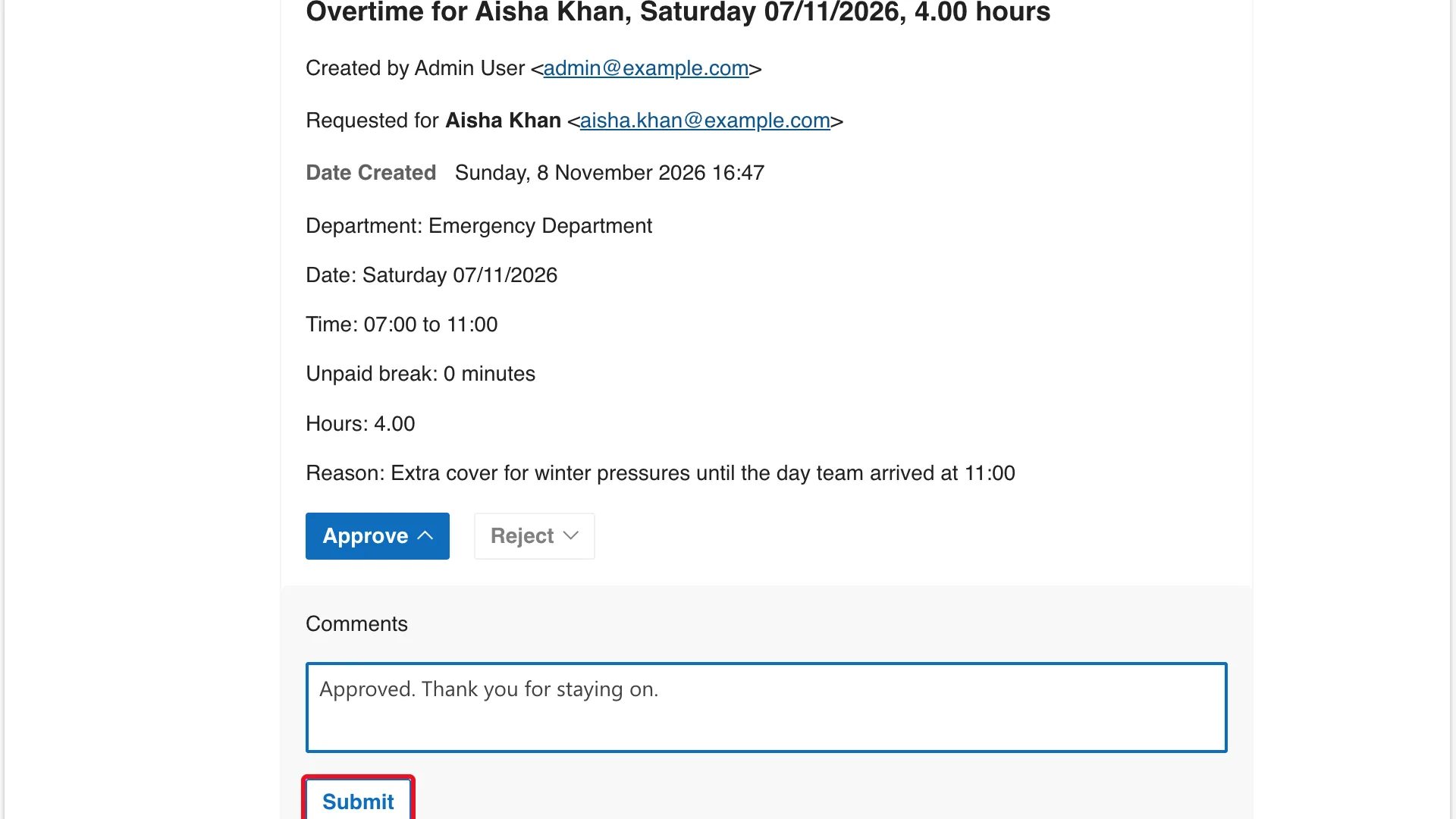
Select Approve. A Comments box opens under the buttons; type a comment and select Submit:
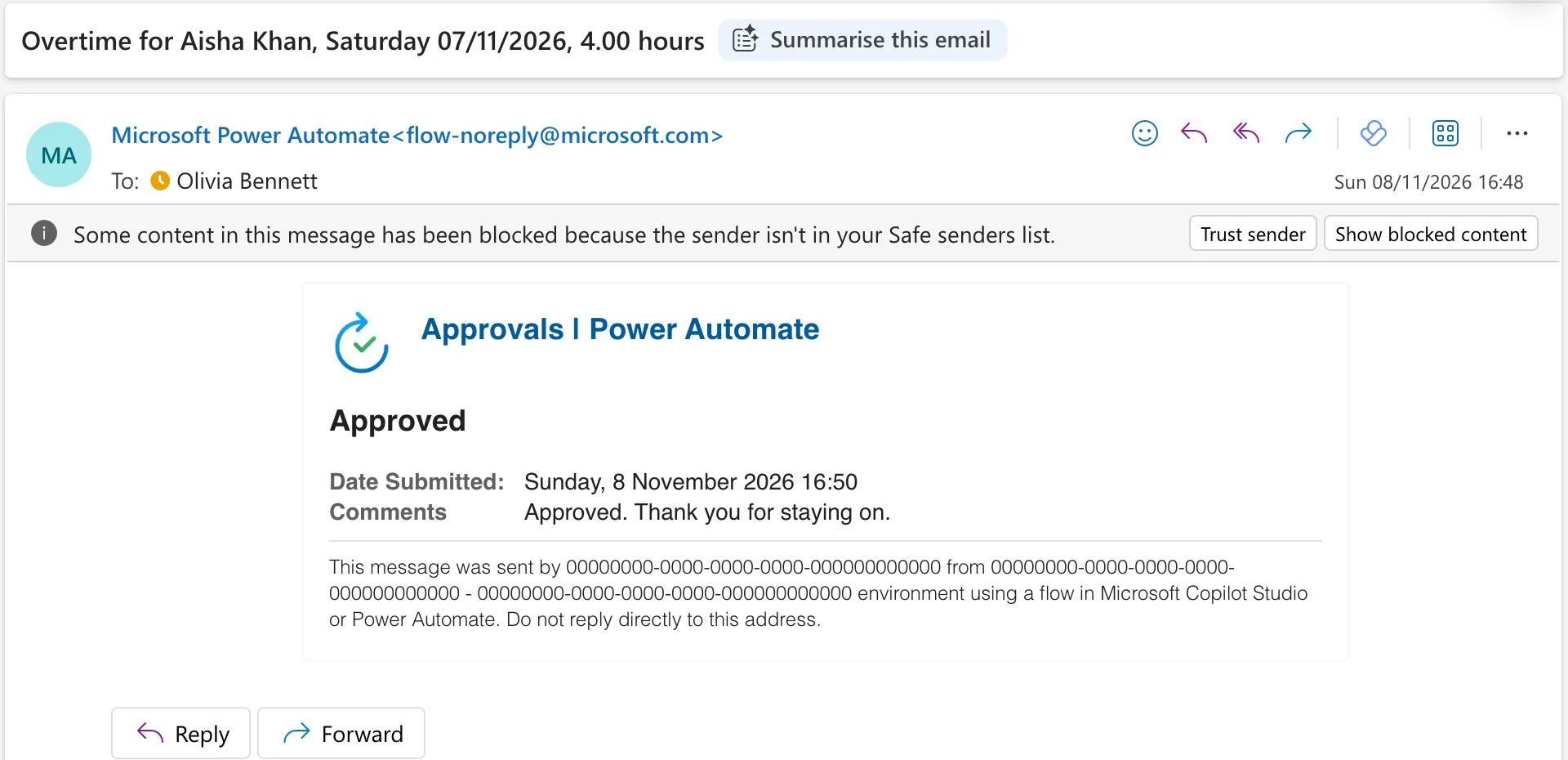
The email changed to show the decision, when it was submitted, and the comment:
Rejecting Works the Same Way
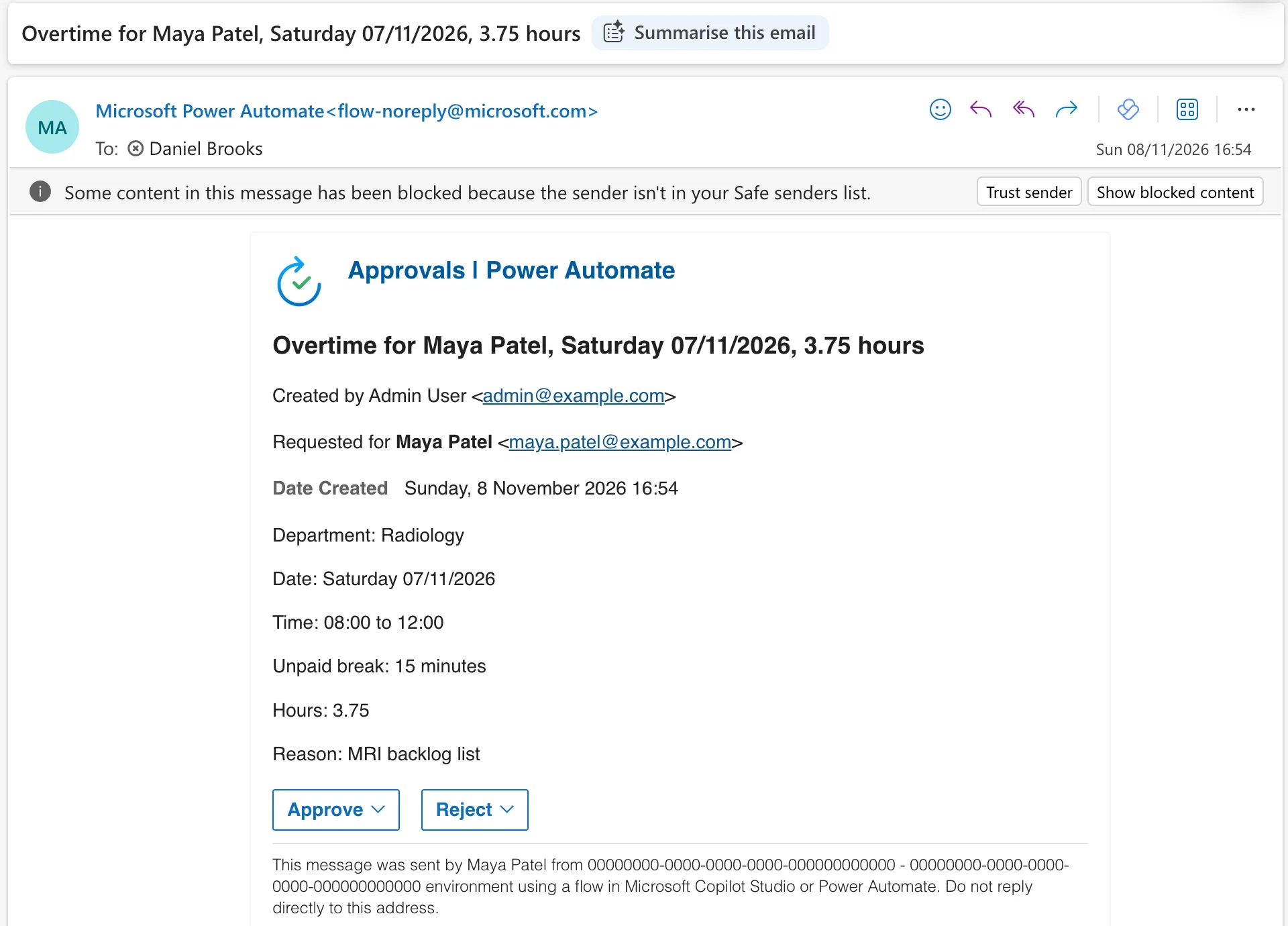
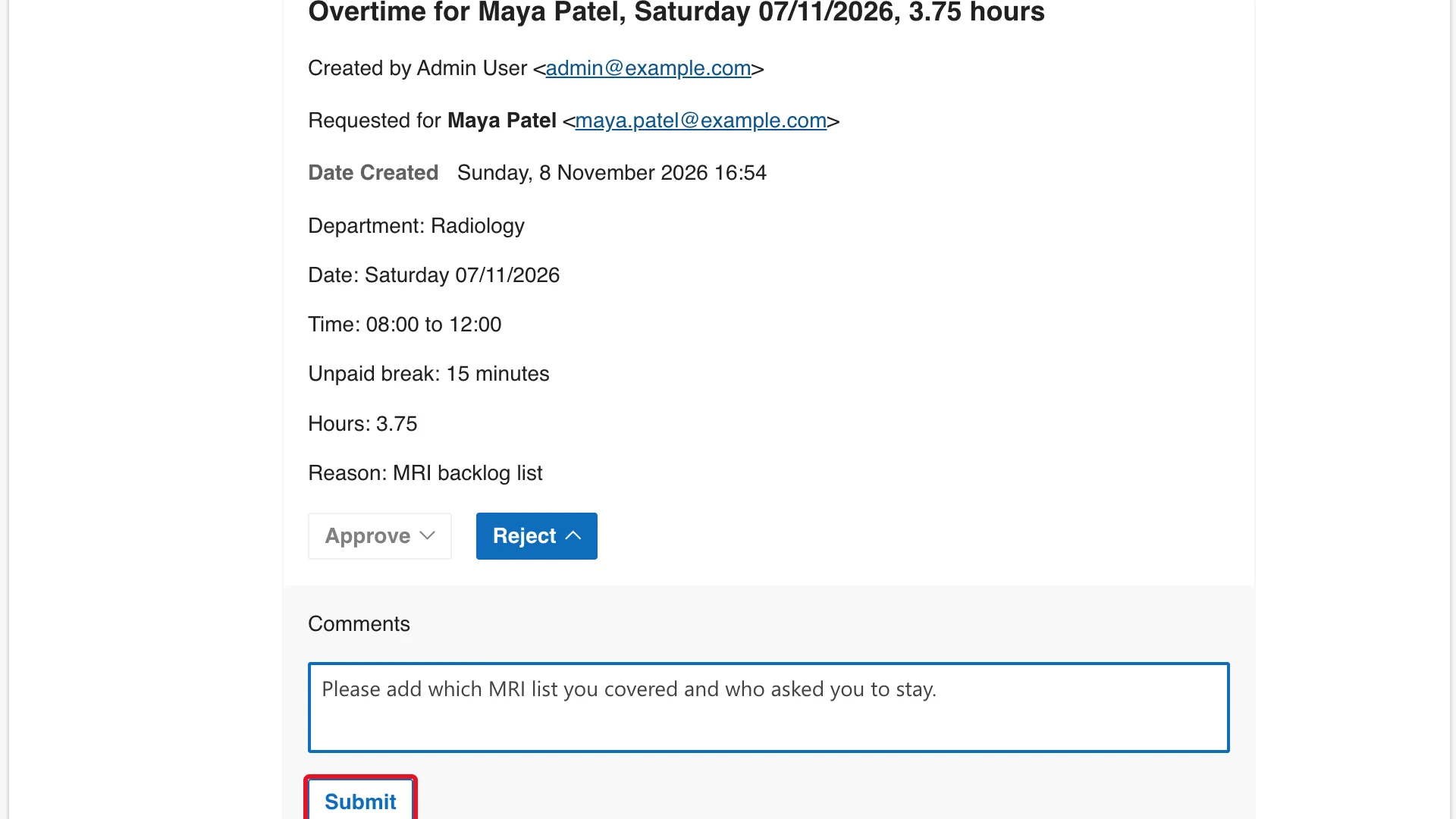
Select Reject, type the reason, and select Submit. Daniel's request was for Maya Patel's Saturday shift:
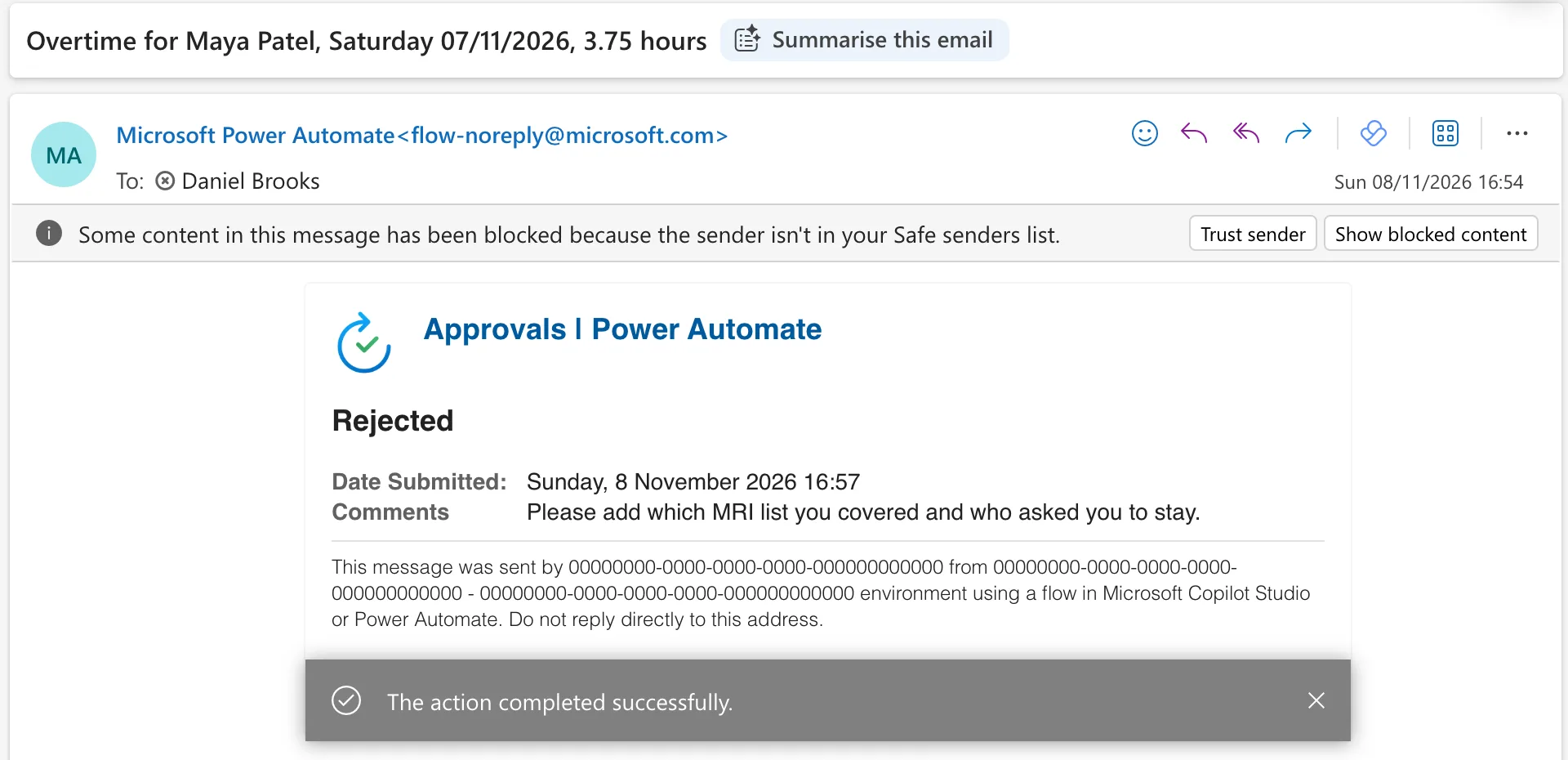
After Submit, Outlook showed The action completed successfully., and the email showed Rejected with the comment:
The Result
Each flow carried on within seconds of Submit: it saved the decision and the comment to the overtime entry and emailed the person who logged it (How to Send an Email in Power Automate).
Common Mistakes
| Mistake | What happens | Do this instead |
|---|---|---|
| Replying to the email | Its footer says not to reply directly, and a reply isn't an answer | Use Approve or Reject |
| A rejection without a comment | The person doesn't know what to fix | Say what's missing |
| Answering an old request after a newer one arrived | The flow may ignore the old answer | Answer the newest request |
Troubleshooting
| Symptom | Likely cause | Fix |
|---|---|---|
| No buttons in the email | Your Outlook doesn't show actionable messages | Use Outlook on the web, Teams or Power Automate |
| The buttons are gone | Someone already answered it | Read the decision in the email |
| Some content in this message has been blocked | The sender isn't in your safe senders | The buttons still work |
FAQ
Who did the email say it was from?
Created by names the flow's maker, and Requested for the person the request is about. Microsoft's connector reference says the flow's creator is always shown, to prevent spoofing of approval sender identities.
Can I answer in Teams instead?
Yes, the same request is in Teams' Approvals app, and the first answer counts (How to Approve a Request in the Microsoft Teams Approvals App).
Conclusion
An approval request email has its answer built in: Approve or Reject, a comment, Submit. The email then shows the decision, and the flow carries on with it.
Additional Resources
- Issues with flow approval emails in Outlook: actionable messages.
- Markdown for approval requests: what Outlook shows.
