How to Apply a Modern Theme in Power Apps

A modern theme sets the colors and font of every modern control in a canvas app at once. Pick a theme, and buttons, avatars and anything else that follows the theme change together. Here's where the themes are, what happens when you pick one, and how to answer the question Studio asks about classic controls.
Prerequisites
- Modern controls and themes turned on for the app. See How to Turn On Modern Controls and Themes in Power Apps.
- Some controls on a screen, so you can see the change. The example is the Home screen of the Career Development Plan app from Part 4 of the series.
Step 1: Open the Themes Pane
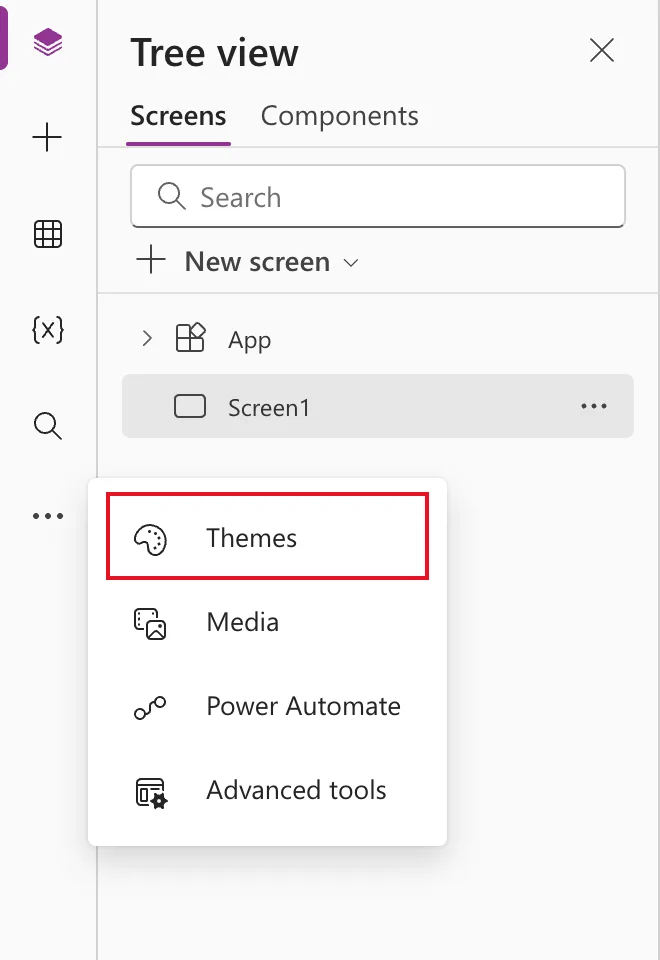
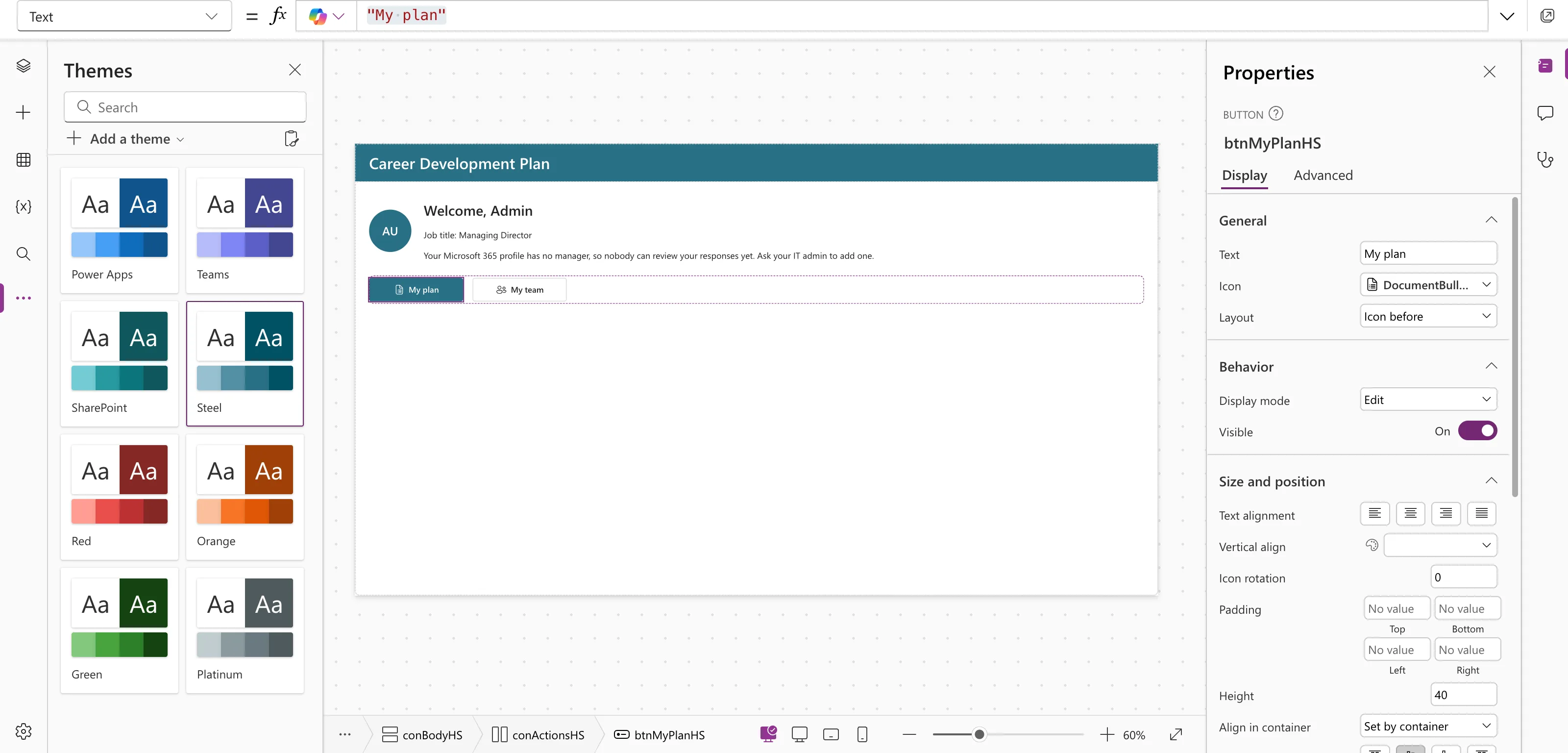
On the left menu of Studio, select More (…), then Themes:
The pane lists the built-in themes: Power Apps, Teams, SharePoint, Steel, Red, Orange, Green and Platinum. The one in use has an outline; for a new app it's Power Apps.
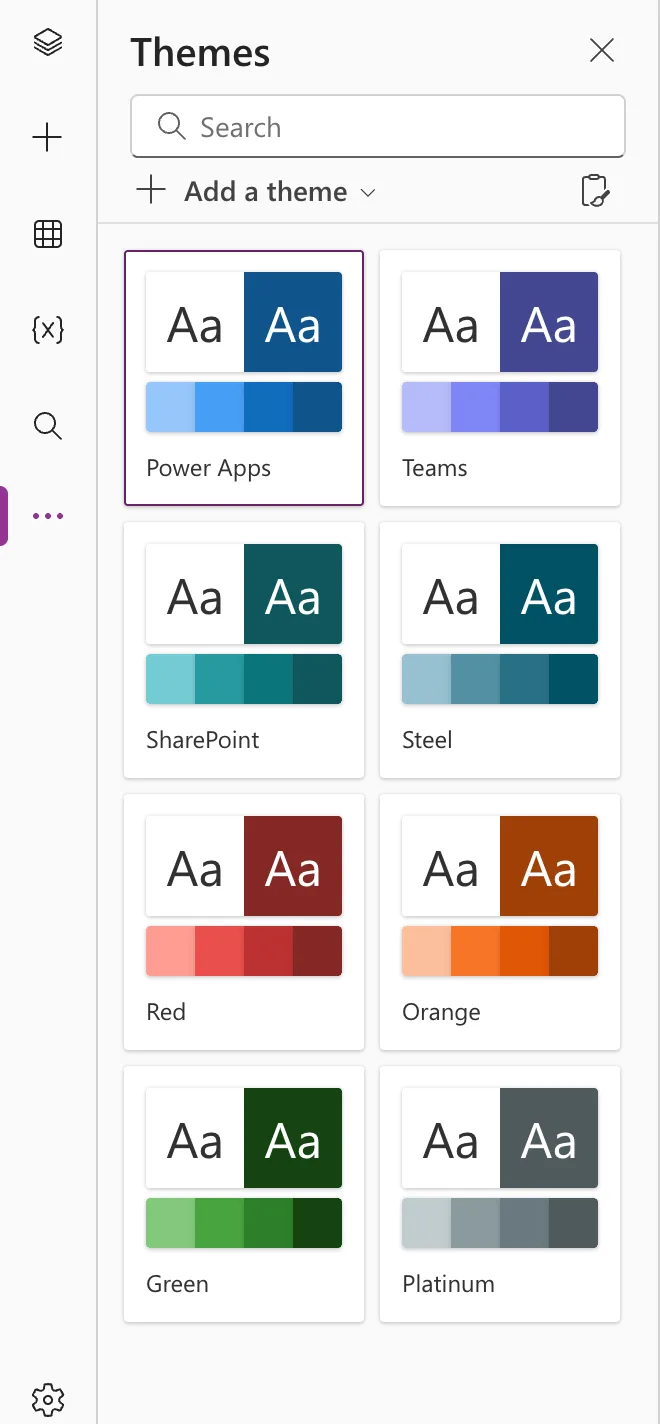
Add a theme offers Create custom theme and Paste theme, for your own brand colors.
Step 2: Pick a Theme
This is the screen before, with the Power Apps theme:
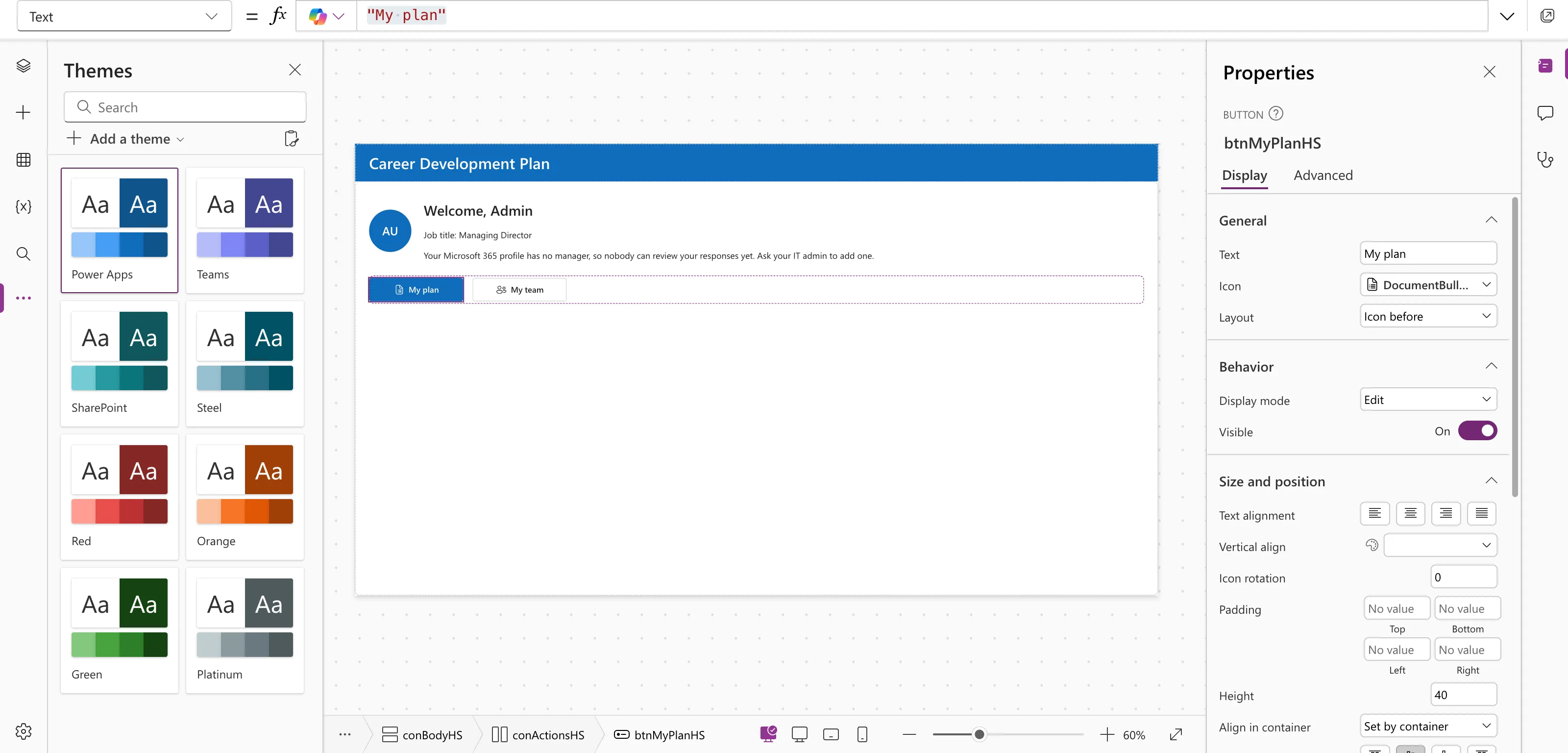
Select a theme tile, such as Steel. If the app has classic controls, Studio asks first:
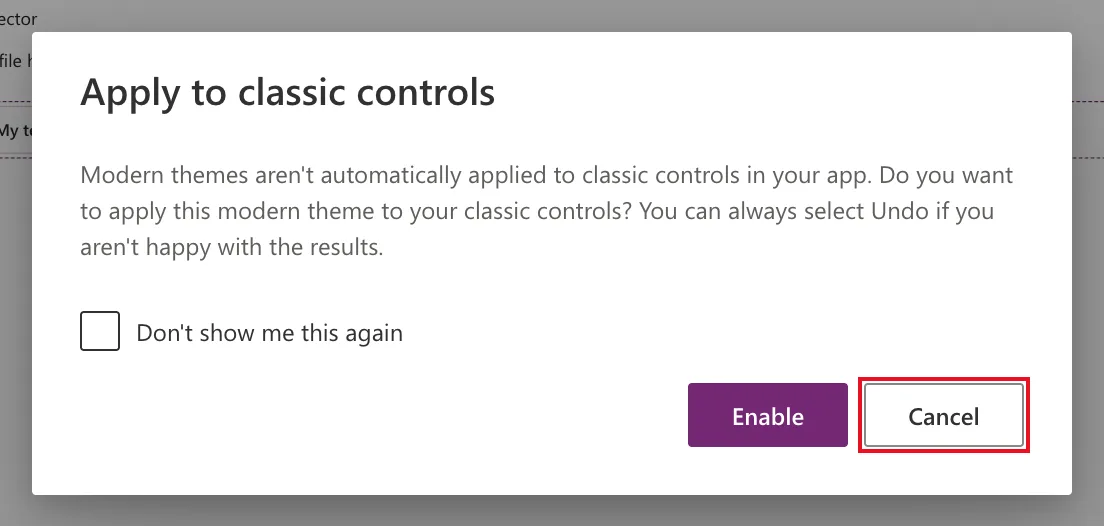
- Enable writes formulas into the classic controls' color and font properties so they follow the theme. Microsoft notes that classic controls "might not align exactly" with modern ones.
- Cancel leaves the classic controls as they are; the theme still applies to the modern ones.
The example selects Cancel. Its only classic control is the white title label in the header, which already gets its font from the theme through a formula; How to Use Theme Colors and Fonts in Power Apps Formulas shows how. Letting Studio rewrite it could have made the title dark on a dark header.
The screen after, in Steel:
Step 3: See Where the Choice Is Stored
Picking a theme sets the Theme property of the App object. Select App in the tree view and choose Theme in the property list:
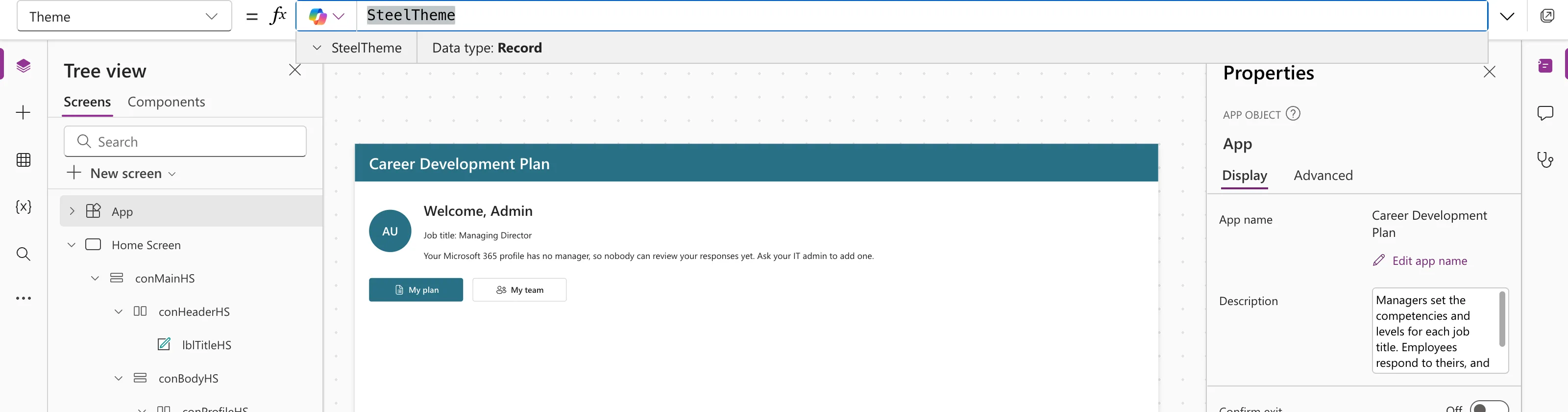
In the example, choosing SharePoint set it to SharePointTheme and choosing Steel set it back to SteelTheme. The value is a record with the theme's colors and font, which your own formulas can read through App.Theme.
SteelTheme
Common Mistakes
| Mistake | What happens | Do this instead |
|---|---|---|
| Selecting Enable without checking your classic controls | Their colors and fonts are replaced by theme formulas | Select Cancel if you've already styled them, or Undo after |
| Hard-coding colors on modern controls | They stop following the theme | Leave color properties empty, or use App.Theme colors |
| Expecting the built-in themes to be editable | They can't be edited | Create or paste a custom theme |
Troubleshooting
| Symptom | Likely cause | Fix |
|---|---|---|
| No Themes in the left menu | Modern controls and themes are off | Turn them on first |
| A label didn't change color | It's a classic control | Apply the theme to it, or set its color with App.Theme |
| You want the old look back | Theme changed by mistake | Select Undo or pick the previous theme |
FAQ
Can I use my company colors?
Yes. Add a theme → Create custom theme builds a theme from one primary color, and Paste theme imports one as YAML.
Does the theme change the screen background?
The screen's own Fill stays as it is. The theme styles the controls.
Is a theme per app or per environment?
Per app. Each app has its own App.Theme.
Conclusion
More → Themes → pick a theme, and every modern control follows. Answer the Apply to classic controls question based on whether your classic controls already have their own styling, and look at App.Theme to see which theme the app uses.
Additional Resources
- Use modern themes in canvas apps: applying, creating, copying and pasting themes.
- Overview of modern controls and themes: turning the feature on.
- App object: the properties of App, including Theme.
