How to Add Up a Row or Column with SUM in Excel

SUM adds up numbers. Give it a range: =SUM(B2:C2) adds a row, =SUM(B2:B4) adds a column, and =SUM(OvertimeLog[Time worked]) adds a whole table column. It's the first function most people learn, and every total in a timesheet uses it.
The examples are from the Monthly totals sheet of the old overtime timesheet in Part 1 of the Overtime Timesheet series.
Prerequisites
- Numbers to add, such as the monthly totals from How to Total Hours by Person and Month in Excel with SUMIFS.
Step 1: Add Up a Row
In D2, each person's total across the months:
=SUM(B2:C2)
B2:C2 means every cell from B2 to C2. Aisha Khan's 16.5 and 9.5 make 26:
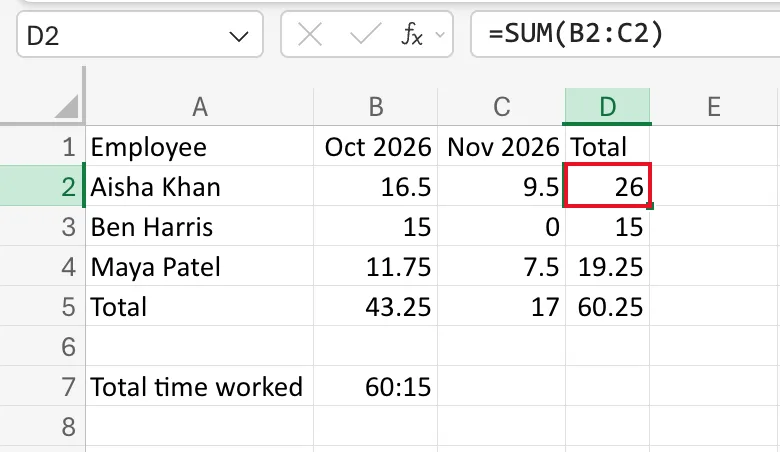
I copied D2 to D3:D4 for the other two people.
Step 2: Add Up a Column
In B5, the month's total for everyone:
=SUM(B2:B4)
October comes to 43.25:
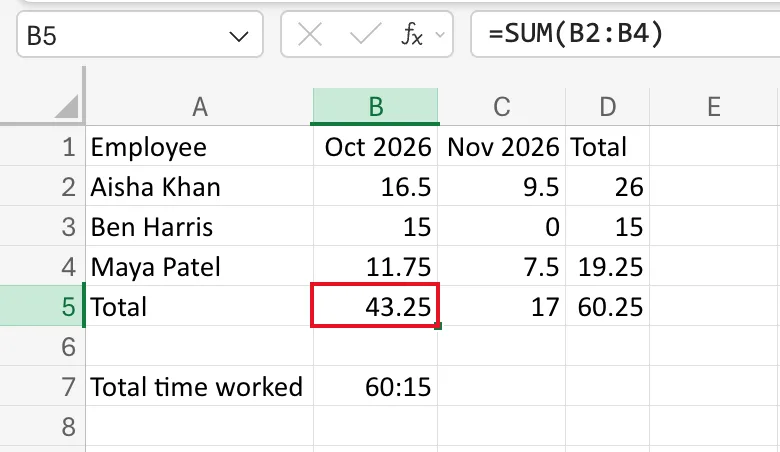
Copied to C5:D5, the last one, D5, is the grand total, 60.25.
Step 3: Add Up a Table Column
A table column can be added up by name, from any sheet:
=SUM(OvertimeLog[Time worked])
It grows with the table, so new rows are counted. Time worked holds times, so the total is a time too, and needs the [h]:mm format to show 60:15: How to Show Total Hours Over 24 in Excel.
Common Mistakes
| Mistake | What happens | Do this instead |
|---|---|---|
| Including the total cell in its own range | The formula refers to itself, a circular reference | Stop the range before the total |
| Adding up numbers stored as text | SUM skips them, so the total is too low | Make sure they're real numbers, right-aligned |
Totalling times with an hh:mm format | The total wraps every 24 hours | Use [h]:mm |
Troubleshooting
| Symptom | Likely cause | Fix |
|---|---|---|
| The total is lower than expected | Some cells hold text, which SUM ignores | Re-enter them as numbers |
| A time total is 24 or 48 hours short | hh:mm format | [h]:mm |
FAQ
Does SUM ignore empty cells?
Yes, and text too. Microsoft's SUM function page says it adds only the numeric values.
Why multiply a time total by 24?
To get decimal hours. The same page notes that Excel calculates times as a fraction of a day, so multiply by 24 for total hours.
Conclusion
=SUM(range) adds a row, a column or a table column. Keep the total outside its own range, and format totals of times with [h]:mm.
