How to Add the Office 365 Users Connector to a Canvas App in Power Apps

The Office 365 Users connector gives a canvas app people's Microsoft 365 profiles: name, email, job title, department, manager and direct reports. It's a standard connector, so it comes with Microsoft 365 licenses that include Power Apps. Adding it takes a minute from Studio's Data pane.
The example adds it to the Overtime Timesheet app, which uses each person's department from their profile.
Prerequisites
- A canvas app open in Power Apps Studio: How to Create a Canvas App Inside a Solution in Power Apps.
- A Microsoft 365 work account, the one you sign in to Power Apps with.
Step 1: Open the Data Pane and Select Add Data
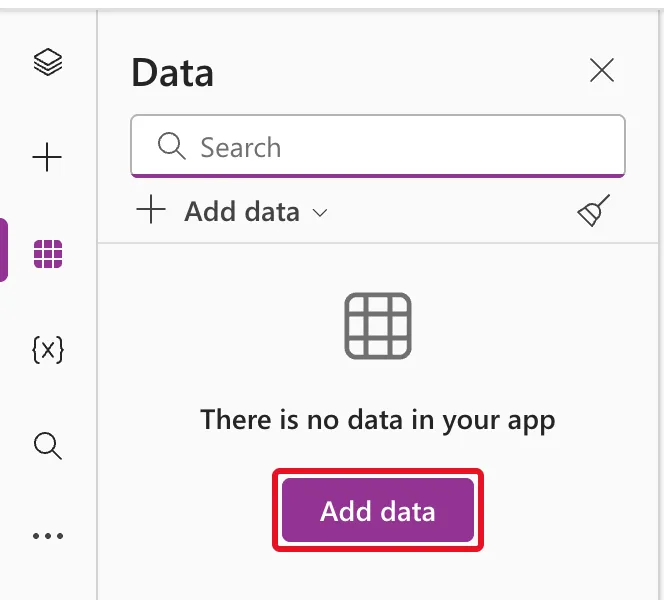
Select Data in Studio's left-hand bar. In a new app it says There is no data in your app. Select Add data:
Step 2: Search for Office 365 Users
Select a data source opens with its search box ready. Type Office 365 Users:
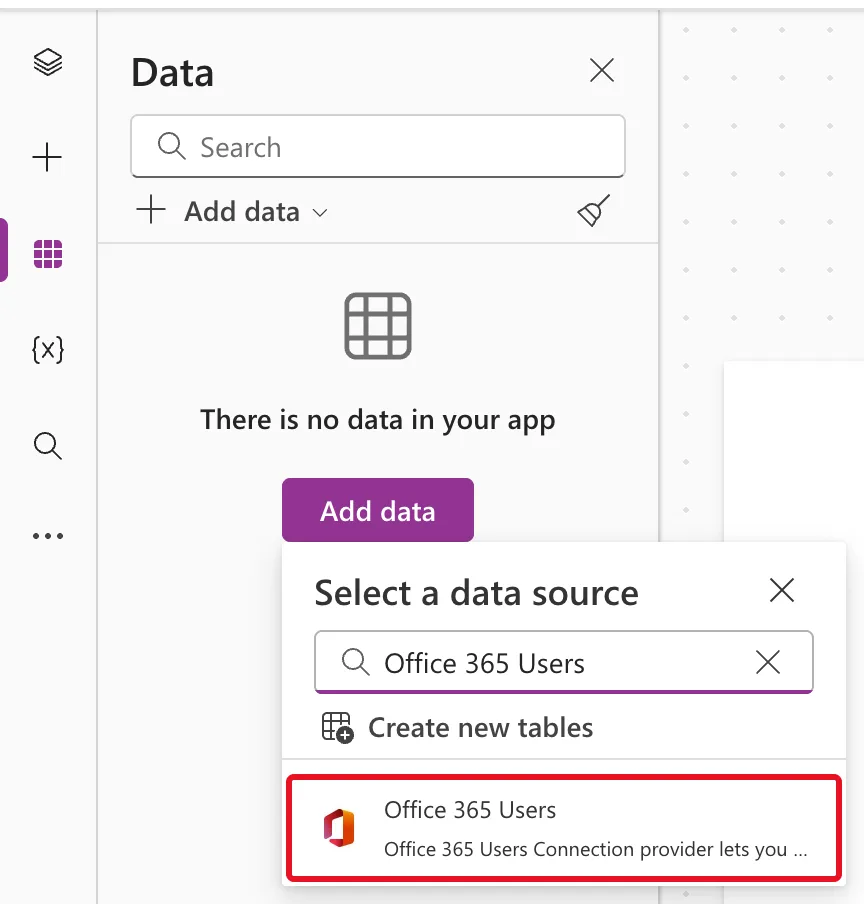
Select Office 365 Users.
Step 3: Choose Your Connection
The flyout lists your connections for this connector. If you already have one, it's listed under + Add a connection with the account it signs in as:
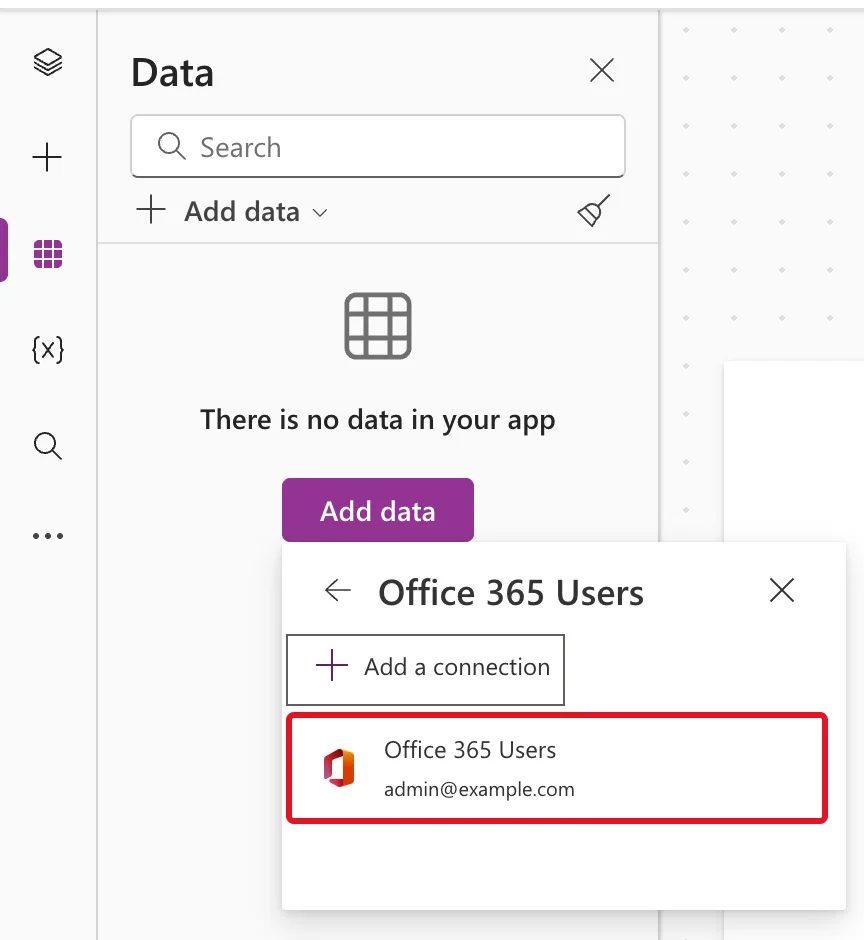
Select it. With no connection yet, select + Add a connection instead; Microsoft's Office 365 Users article says to select Connect and sign in with your work account if asked.
Step 4: Check the Data Pane
The data source is added at once. A banner names it after the connection, here The data source "admin@example.com" was added to your app., while the Data pane lists it as Office365Users, the name formulas use:

Step 5: Use It in a Formula
Type Office365Users. in a formula and Studio lists the connector's operations, such as DirectReportsV2, ManagerV2, MyProfileV2 and SearchUserV2. Here it's in a named formula in App.Formulas:
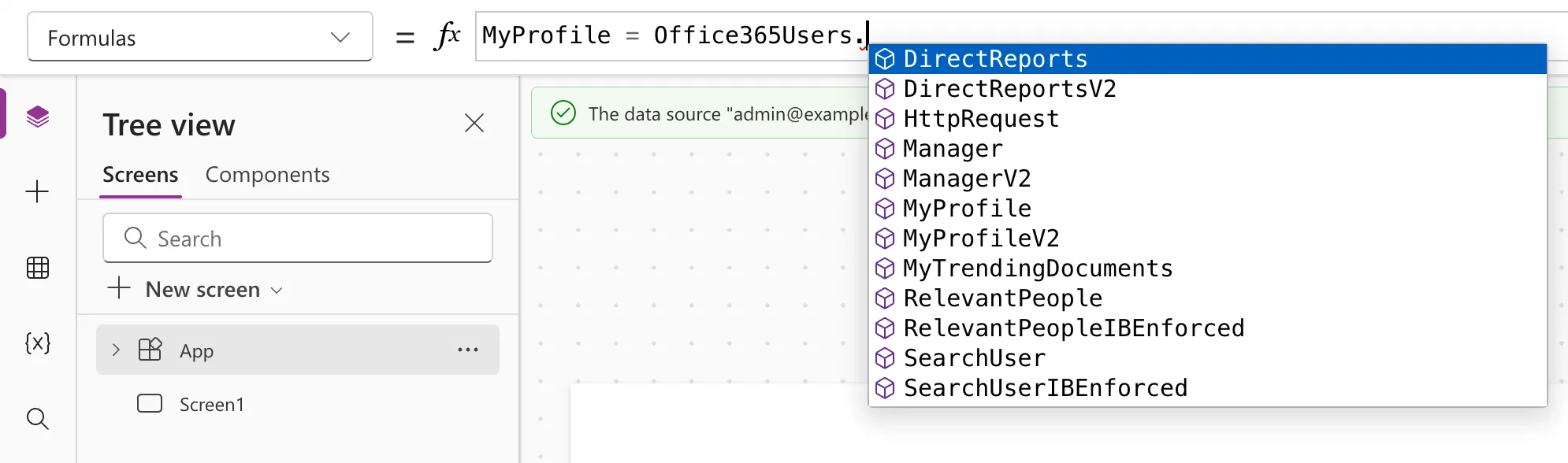
The example only looked at the list and cleared the formula again. These guides use the operations properly:
- How to Get the Current User's Profile and Job Title in Power Apps (MyProfileV2)
- How to Get a User's Manager in Power Apps (ManagerV2)
- How to Get a User's Direct Reports in Power Apps (DirectReportsV2)
Until a formula uses it, the App checker lists Office365Users under Unused data sources: Fixed: "Unused Data Sources".
Who Needs What
- License. Office 365 Users is a standard connector. Studio still attaches a note about a per user plan to it, and the app's license designation is what counts: Fixed: "A Power Apps Per User Plan … Will Be Required During Playback".
- Connections. Each person connects with their own account. The first time someone opens the app, Power Apps asks them to allow it: How to Open a Shared Canvas App for the First Time in Power Apps.
- Solutions. Even in a solution, adding this connector creates no connection reference. Microsoft documents that canvas apps use connection references only for implicitly shared connections, such as SQL Server authentication.
Common Mistakes
| Mistake | What happens | Do this instead |
|---|---|---|
| Using the account name from the banner in formulas | Formulas need Office365Users | Use the name the Data pane shows |
| Selecting + Add a connection when you already have one | You end up with two connections for the same account | Choose the existing connection |
Troubleshooting
| Symptom | Likely cause | Fix |
|---|---|---|
Office365Users is underlined red in a formula | The data source isn't in the app yet | Add it from the Data pane |
No suggestions after typing Office365Users. in App.Formulas | App.Formulas expects Name = formula; | Start with a name, as in MyProfile = Office365Users. |
FAQ
Does it need an admin?
Not in the example: adding it took no admin step, and each person's connection uses their own account. An organization's data policies can still restrict which connectors apps may use.
Which fields can I get?
Name, email, job title, department, office location and more. How to Get the Current User's Profile and Job Title in Power Apps (MyProfileV2) lists the useful ones.
Conclusion
Data → Add data → Office 365 Users → your connection. The app gets an Office365Users data source, and formulas can call its operations, starting with Office365Users.MyProfileV2().
Additional Resources
- Connect to Office 365 Users from Power Apps: adding the connection and examples.
- Office 365 Users connector reference: every operation and its fields.
- Add data connections to canvas apps: the Data pane.
- Use a connection reference in a solution with Microsoft Dataverse: when canvas apps use connection references.
