How to Add the Office 365 Groups Connector to a Canvas App in Power Apps

The Office 365 Groups connector lets a canvas app read and manage the groups in your organization, including who is in a group. Despite its name, it lists the members of security groups too. It's a standard connector, and adding it takes a minute from Studio's Data pane.
The example adds it to the Overtime Timesheet app, which uses it to check whether the signed-in person is in the payroll or admins security group.
Prerequisites
- A canvas app open in Power Apps Studio: How to Create a Canvas App Inside a Solution in Power Apps.
- A Microsoft 365 work account, the one you sign in to Power Apps with.
Step 1: Open the Data Pane and Select Add Data
Select Data in Studio's left-hand bar, then Add data. How to Add the Office 365 Users Connector to a Canvas App in Power Apps shows this step on an empty Data pane.
Step 2: Search for Office 365 Groups
Type Office 365 Groups in the Select a data source search box:
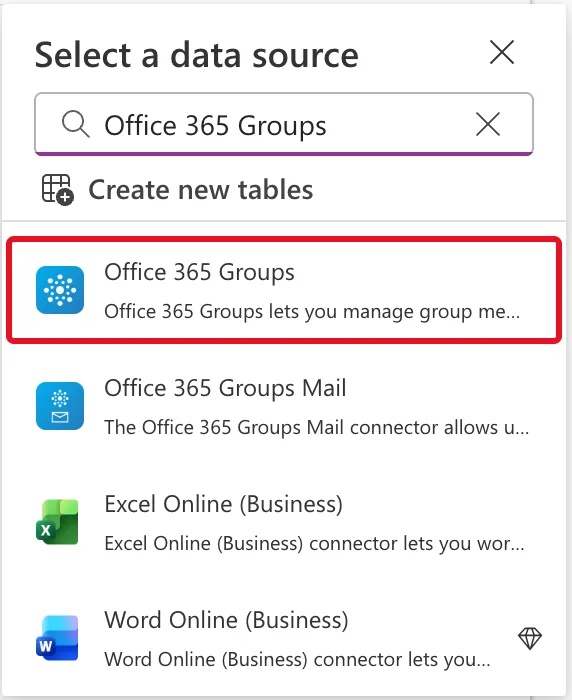
Select Office 365 Groups, not Office 365 Groups Mail, which is a separate connector for group email.
Step 3: Connect
With no connection for this connector yet, the flyout describes it and offers Connect:
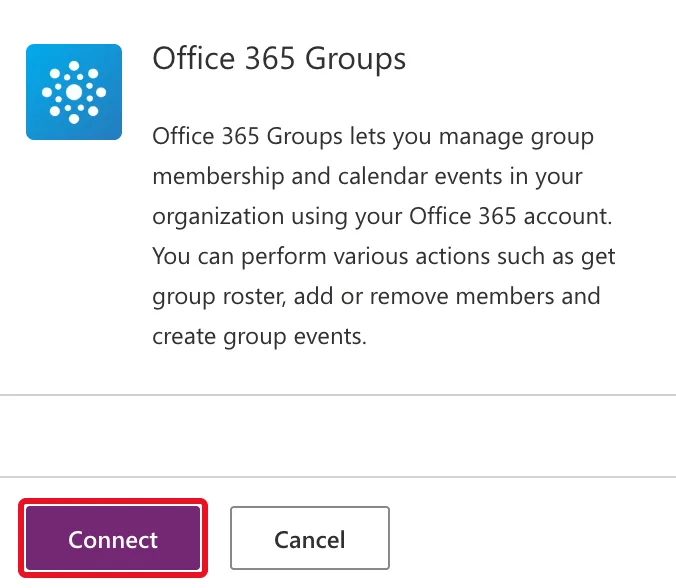
Select Connect. In the example, Power Apps created the connection with the signed-in account straight away, with no sign-in window. If a window does ask you to sign in, use your work account. If you already have a connection, the flyout lists it instead, as for Office 365 Users; choose it rather than adding another.
Step 4: Check the Data Pane
The Data pane lists Office365Groups, with the connection's account under it. Office365Groups is the name formulas use:
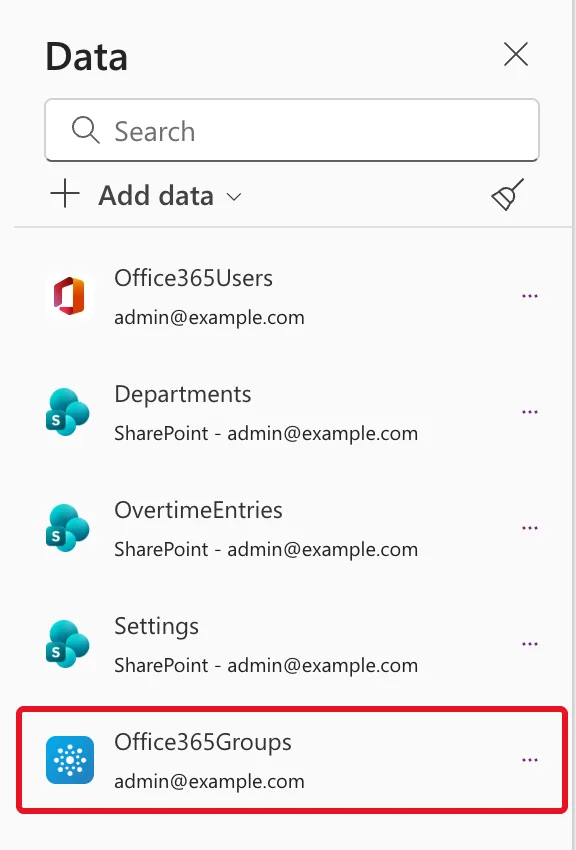
Until a formula uses it, the App checker lists it under Unused data sources: Fixed: "Unused Data Sources" in the Power Apps App Checker.
Step 5: Use It in a Formula
The operation most apps need is ListGroupMembers, the connector's List group members action. It takes a group's Object ID and returns its members in a table called value, one row per person, with columns such as id, displayName, mail and userPrincipalName:
Office365Groups.ListGroupMembers(PayrollGroupId, {'$top': 999}).value
- The first argument is the group's Object ID: How to Find a Group's Object ID in Microsoft Entra. In the example,
PayrollGroupIdcomes from a settings list: How to Store App Settings in a SharePoint List for Power Apps. $topis how many members to return. Microsoft's reference gives from 1 to 999, default is 100, so without it a group with more than 100 members comes back incomplete.
How to Check If the Current User Is in a Security Group in Power Apps builds the whole check with it.
Limits Worth Knowing
All from Microsoft's Office 365 Groups connector reference:
- License. It's Standard in Power Apps. Studio still shows its note about a per user plan under each data source; the app's license designation is what counts: Fixed: "A Power Apps Per User Plan … Will Be Required During Playback".
- Connections aren't shared. The reference says If the power app is shared with another user, another user will be prompted to create new connection explicitly. Each person allows it the first time they open the app: How to Open a Shared Canvas App for the First Time in Power Apps.
- 100 calls per 60 seconds per connection. Call it once per group when the app needs the answer, for example from a named formula, not from every row of a gallery.
- Role-assignable groups aren't supported. Groups created with Microsoft Entra roles can be assigned to the group turned on don't work with the connector.
Common Mistakes
| Mistake | What happens | Do this instead |
|---|---|---|
| Choosing Office 365 Groups Mail | You get the group email connector, without ListGroupMembers | Choose Office 365 Groups |
Leaving out $top | Only the first 100 members come back | Pass {'$top': 999} |
| Calling the connector inside a gallery's rows | Many calls in a burst, against a limit of 100 a minute | Call it once, in a named formula |
Troubleshooting
| Symptom | Likely cause | Fix |
|---|---|---|
Office365Groups is underlined red in a formula | The data source isn't in the app yet | Add it from the Data pane |
| A user is asked to allow Office 365 Groups | Connections aren't shared; each person makes their own | Select Allow, as for every connector in the app |
| The check fails for a role-assignable group | The connector doesn't support groups that can be assigned Microsoft Entra roles | Use a group without role assignment |
FAQ
Does it work with security groups, or only Microsoft 365 groups?
Both, for reading members. The example's groups are security groups, and ListGroupMembers returned their members.
Does it include members of nested groups?
The connector's reference doesn't say. Add people to the group directly; the example's groups have no nested groups.
Can it add or remove members?
Yes, it has AddMemberToGroup and RemoveMemberFromGroup, as the signed-in person. The Overtime Timesheet app only reads members.
Conclusion
Data → Add data → Office 365 Groups → Connect. The app gets an Office365Groups data source, and Office365Groups.ListGroupMembers(groupId, {'$top': 999}).value gives it a group's members, within the limits above.
Additional Resources
- Office 365 Groups connector reference: every operation, the throttling limit and the known issues.
- Add data connections to canvas apps: the Data pane.
