How to Add SSH Key to GitHub and Clone a Repository (Step-by-Step)

A complete walkthrough of generating an SSH key and adding a new SSH key to your GitHub account, then cloning a repository over SSH. Covers macOS, Windows, and Linux with every command you need for passwordless GitHub authentication.
Introduction
If you are tired of entering your GitHub username and password every time you push, pull, or clone a repository, SSH key authentication is the solution. SSH (Secure Shell) lets you authenticate to GitHub using cryptographic keys instead of passwords — it is more secure, faster, and used by millions of developers worldwide.
In this guide, you will learn how to:
- Generate a new SSH key for GitHub on your local machine using
ssh-keygen. - Add your SSH key to the SSH agent so it is available automatically.
- Add a new SSH key to your GitHub account from the SSH and GPG keys settings page.
- Test the SSH connection to verify everything works.
- Run
git cloneover SSH to clone a GitHub repository instead of using HTTPS. - Configure Git to use SSH by default for all GitHub operations.
By the end, you will have a fully working SSH setup for GitHub that works on macOS, Windows, and Linux.
Why Use SSH Keys for GitHub Instead of HTTPS?
Before diving into the setup, here is why SSH is the recommended authentication method for GitHub:
| Feature | SSH Key Authentication | HTTPS with Password/Token |
|---|---|---|
| Security | Strong cryptographic key pair (Ed25519/RSA) | Password or personal access token |
| Convenience | No credentials needed after setup | Must enter or cache token each time |
| Brute-Force Risk | Not vulnerable | Passwords can be guessed |
| Setup Effort | One-time setup | Repeated token management |
| Recommended By | GitHub official docs | Legacy, being phased out |
SSH keys provide stronger security, eliminate brute-force risks, and offer a seamless passwordless workflow once configured.
Prerequisites
Before you begin, make sure you have:
- A GitHub account (free or paid).
- Git installed on your local machine.
- A terminal application:
- macOS: Terminal or iTerm2
- Windows: Git Bash, PowerShell, or Windows Terminal
- Linux: Any terminal emulator (GNOME Terminal, Konsole, etc.)
Step 1: Generate a New SSH Key for GitHub
To generate an SSH key for GitHub you use ssh-keygen, the key generator that ships with every OpenSSH install. It writes a key pair — two files: a private key (stays on your machine, never shared) and a public key (the one you add to GitHub).
Open your terminal and run the following command. Replace "your_email@example.com" with the email address associated with your GitHub account:
ssh-keygen -t ed25519 -C "your_email@example.com"
Here is what each flag does:
-t ed25519— Uses the Ed25519 algorithm, which is the most secure and modern option recommended by GitHub.-C "your_email@example.com"— Adds a comment label (your email) to identify the key.
When prompted:
- File location: Press Enter to accept the default path (
~/.ssh/id_ed25519). - Passphrase: Optionally enter a passphrase for extra security, or press Enter to skip.
After running the command, two files are created:
~/.ssh/id_ed25519— Your private key (keep this secret).~/.ssh/id_ed25519.pub— Your public key (this goes to GitHub).
If your system does not support Ed25519 (older systems), use RSA as a fallback:
ssh-keygen -t rsa -b 4096 -C "your_email@example.com"
The RSA key files will be saved as ~/.ssh/id_rsa and ~/.ssh/id_rsa.pub.
Step 2: Add the SSH Key to the SSH Agent
The SSH agent manages your keys in memory so Git can use them automatically without you having to specify the key file each time.
Start the SSH agent:
eval "$(ssh-agent -s)"
You should see output like Agent pid 12345, confirming the agent is running.
Add your SSH key to the agent:
ssh-add ~/.ssh/id_ed25519
macOS: Persist the Key Across Reboots
On macOS, the SSH agent does not retain keys after a reboot by default. To persist your key in the macOS Keychain, run:
ssh-add --apple-use-keychain ~/.ssh/id_ed25519
You can also add this to your ~/.ssh/config file so macOS loads the key automatically:
Host github.com
  AddKeysToAgent yes
  UseKeychain yes
  IdentityFile ~/.ssh/id_ed25519
Windows: Start the SSH Agent Service
On Windows, if using PowerShell (not Git Bash), you may need to start the SSH agent service first:
Get-Service ssh-agent | Set-Service -StartupType Automatic
Start-Service ssh-agent
ssh-add $env:USERPROFILE\.ssh\id_ed25519
Step 3: Copy the SSH Public Key to Clipboard
Before adding the key to GitHub, you need to copy the public key to your clipboard.
macOS
pbcopy < ~/.ssh/id_ed25519.pub
Windows (Git Bash)
clip < ~/.ssh/id_ed25519.pub
Windows (PowerShell)
Get-Content $env:USERPROFILE\.ssh\id_ed25519.pub | Set-Clipboard
Linux
xclip -selection clipboard < ~/.ssh/id_ed25519.pub
Manual Method (Any OS)
If the above commands do not work, display the key and copy it manually:
cat ~/.ssh/id_ed25519.pub
The output will look like:
ssh-ed25519 AAAAC3NzaC1lZDI1NTE5AAAAIG... your_email@example.com
Select and copy the entire output, including ssh-ed25519 at the start and your email at the end.
Step 4: Adding a New SSH Key to Your GitHub Account
With the public key on your clipboard, you are ready for the step everyone searches for — adding a new SSH key to your GitHub account:
-
Go to github.com and sign in to your account.
-
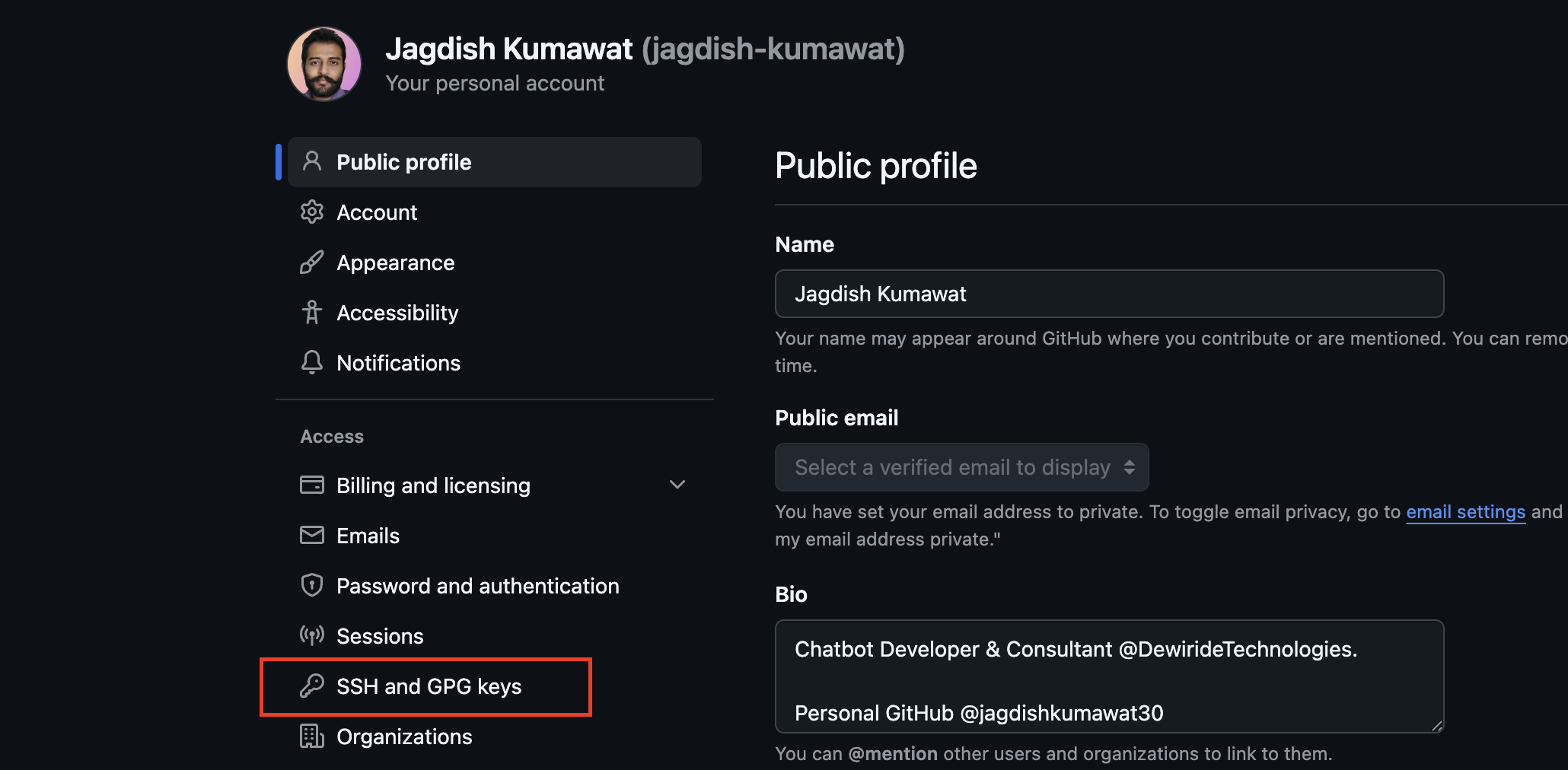
Click your profile icon (top-right corner) → Settings.
-
In the left sidebar, click SSH and GPG keys.
-
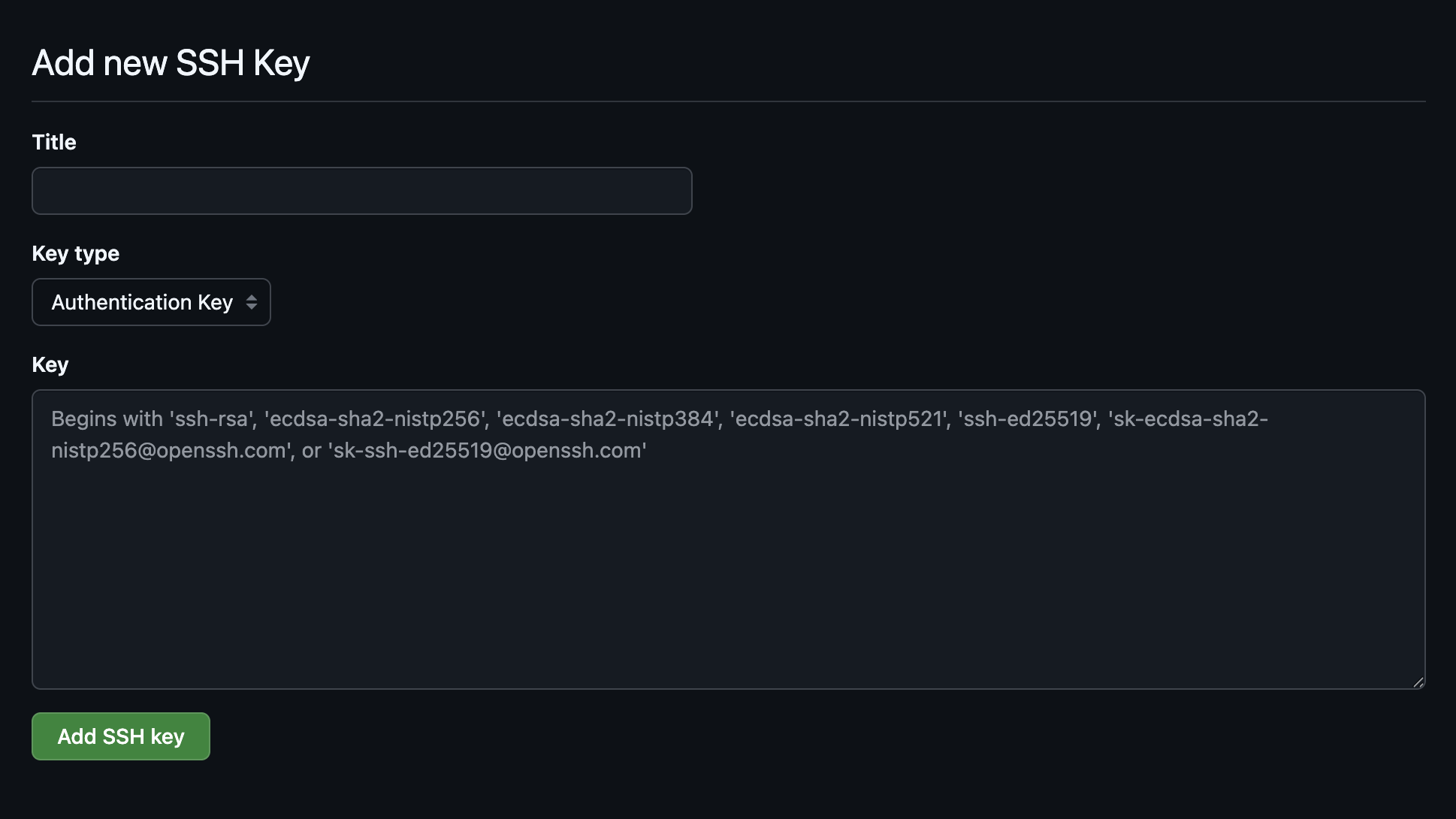
Click the New SSH key button.
-
Fill in the form:
- Title: A descriptive name like
"MacBook Pro","Work Laptop", or"Ubuntu Desktop". - Key type: Select Authentication Key.
- Key: Paste your public key (copied in Step 3).
- Title: A descriptive name like
-
Click Add SSH key.
-
GitHub may ask you to confirm your password. Enter it to save the key.
Your new SSH key is now linked to your GitHub account and ready to use.
Step 5: Test the SSH Connection to GitHub
Before cloning any repository, verify that your SSH authentication is working correctly:
ssh -T git@github.com
If prompted with Are you sure you want to continue connecting (yes/no)?, type yes and press Enter. This happens only the first time you connect.
Success output:
Hi your-username! You've successfully authenticated, but GitHub does not provide shell access.
This confirms GitHub recognizes your SSH key.
If you see Permission denied (publickey), troubleshoot with these steps:
- Verify the SSH agent is running:
Terminaleval "$(ssh-agent -s)"
- Check that your key is loaded:
If the output saysTerminalssh-add -l
The agent has no identities, add your key:Terminalssh-add ~/.ssh/id_ed25519 - Verify the public key in your GitHub account matches
~/.ssh/id_ed25519.pub. - Run SSH in verbose mode to debug:
Terminalssh -vT git@github.com
Step 6: Clone a GitHub Repository Using SSH
With SSH configured, git clone over SSH works against any repository you have access to — no username, no password, and no personal access token.
How to Find the SSH Clone URL
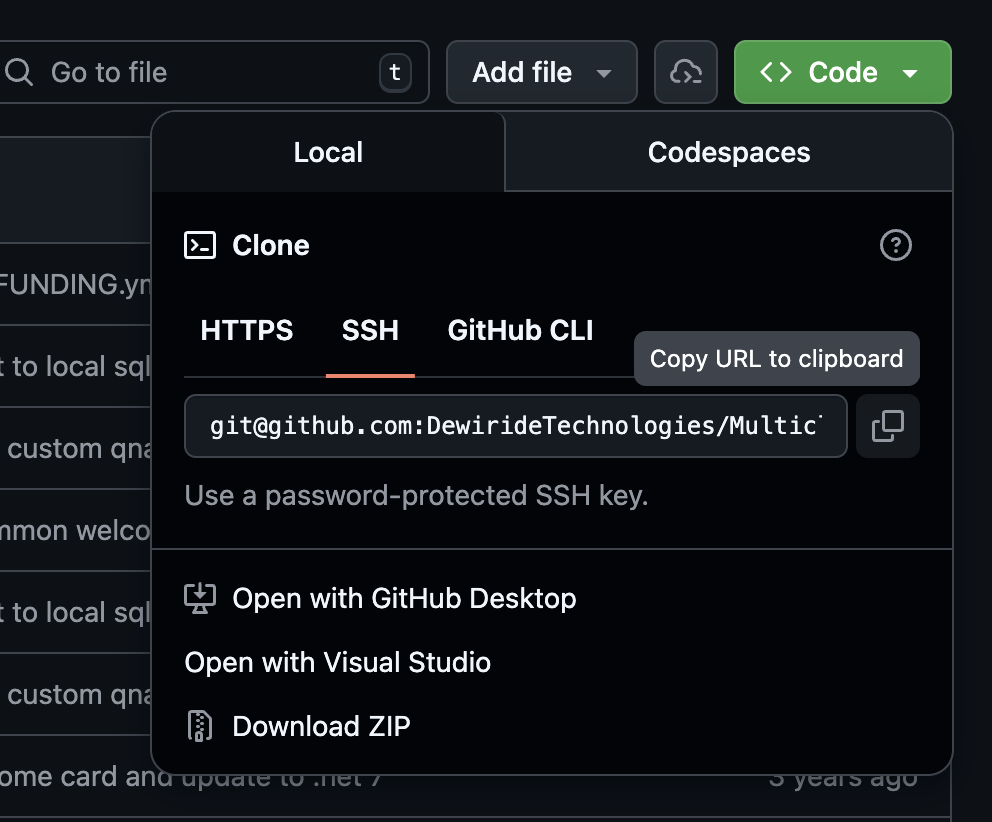
- Go to the repository on github.com.
- Click the green Code button.
- Select the SSH tab.
- Copy the URL (it starts with
git@github.com:).
Run the git clone Command with the SSH URL
Open your terminal, navigate to the folder where you want the repository, and run:
git clone git@github.com:username/repository.git
Replace username/repository.git with the actual path from GitHub. For example:
git clone git@github.com:jagdish-kumawat/my-project.git
The repository will be cloned to a new folder named after the repository. Since SSH authentication is already configured, no username or password is required.
Clone into a Specific Folder
To clone into a custom directory name:
git clone git@github.com:username/repository.git my-custom-folder
Step 7: Configure Git to Always Use SSH for GitHub
If you want Git to automatically use SSH for all GitHub operations — even when you copy an HTTPS URL — you can set a global URL rewrite rule:
git config --global url."git@github.com:".insteadOf "https://github.com/"
This means that when you run a command like:
git clone https://github.com/username/repository.git
Git will automatically convert it to:
git clone git@github.com:username/repository.git
Verify the configuration:
git config --global --get url."git@github.com:".insteadOf
Expected output: https://github.com/
This is especially useful in CI/CD pipelines and team environments where HTTPS URLs are commonly shared.
Summary: Quick Reference Commands
Here is a quick reference of all SSH setup commands in one place:
| Step | Command |
|---|---|
| Generate SSH key | ssh-keygen -t ed25519 -C "email@example.com" |
| Start SSH agent | eval "$(ssh-agent -s)" |
| Add key to agent | ssh-add ~/.ssh/id_ed25519 |
| Copy public key (macOS) | pbcopy < ~/.ssh/id_ed25519.pub |
| Copy public key (Windows) | clip < ~/.ssh/id_ed25519.pub |
| Copy public key (Linux) | xclip -selection clipboard < ~/.ssh/id_ed25519.pub |
| Test SSH connection | ssh -T git@github.com |
| Clone via SSH | git clone git@github.com:user/repo.git |
| Force SSH for GitHub | git config --global url."git@github.com:".insteadOf "https://github.com/" |
Frequently Asked Questions
How do I check if I already have an SSH key?
Run the following command to list existing SSH keys:
ls -al ~/.ssh
If you see files like id_ed25519 and id_ed25519.pub (or id_rsa and id_rsa.pub), you already have an SSH key pair. You can skip Step 1 and proceed directly to adding the public key to GitHub.
Can I use the same SSH key for multiple GitHub accounts?
No, GitHub does not allow the same SSH public key on two different accounts. You will need to generate a separate SSH key for each account and configure your ~/.ssh/config to specify which key to use:
Host github-personal
  HostName github.com
  User git
  IdentityFile ~/.ssh/id_ed25519_personal

Host github-work
  HostName github.com
  User git
  IdentityFile ~/.ssh/id_ed25519_work
Then clone using the custom host alias:
git clone git@github-work:org/repository.git
What is the difference between Ed25519 and RSA SSH keys?
Ed25519 is newer, faster, and produces shorter keys while being more secure. RSA is older and widely supported but requires larger key sizes (4096-bit) for equivalent security. GitHub recommends Ed25519 for all new SSH keys.
How do I remove an SSH key from GitHub?
Go to GitHub Settings → SSH and GPG keys, find the key you want to remove, and click Delete. This revokes SSH access for that specific key immediately.
Why does git push still ask for a password after adding my SSH key?
This usually means your repository is using an HTTPS remote URL instead of SSH. Check with:
git remote -v
If the URL starts with https://, switch it to SSH:
git remote set-url origin git@github.com:username/repository.git
Is it safe to use SSH keys without a passphrase?
An SSH key without a passphrase is still significantly more secure than password authentication. However, if someone gains access to your machine, they can use the key. Adding a passphrase provides an extra layer of protection. For most personal development machines, a passphrase is optional but recommended for shared or work machines.
Conclusion
Setting up SSH key authentication for GitHub is a one-time process that permanently improves your development workflow. By generating an Ed25519 SSH key, adding it to the SSH agent, and linking it to your GitHub account, you get secure, passwordless access to all your repositories.
Whether you are cloning repositories, pushing code, or deploying through CI/CD pipelines, SSH authentication makes every Git operation faster and more secure. Follow the steps above for your operating system — macOS, Windows, or Linux — and you will never need to enter GitHub credentials again.
For official reference, see the GitHub docs on adding a new SSH key to your GitHub account and the wider GitHub SSH documentation.
