How to Add Members to a Security Group in the Microsoft Entra Admin Center

Security groups are how access follows people. Give a group access to an app or a site once, and everyone you add to the group gets it. This guide adds a new joiner to an existing group in the Microsoft Entra admin center, step by step.
Prerequisites
- An existing security group. See How to Create a Security Group in the Microsoft Entra Admin Center.
- The right role. Microsoft's article Manage Microsoft Entra groups and group membership names Groups Administrator or User Administrator. A group's owners can also manage its members.
- The person's account. See How to Add a User and Assign a License in the Microsoft 365 Admin Center.
The example adds Maya Patel, a new Sales Engineer, to Career Development Plan Users, the group that gives access to the Career Development Plan app in Part 10 of its series.
Step 1: Find the Group
In the Microsoft Entra admin center, go to Entra ID → Groups → All groups. If your organization has many groups, type part of the name in the list's Search box. Then select the group:
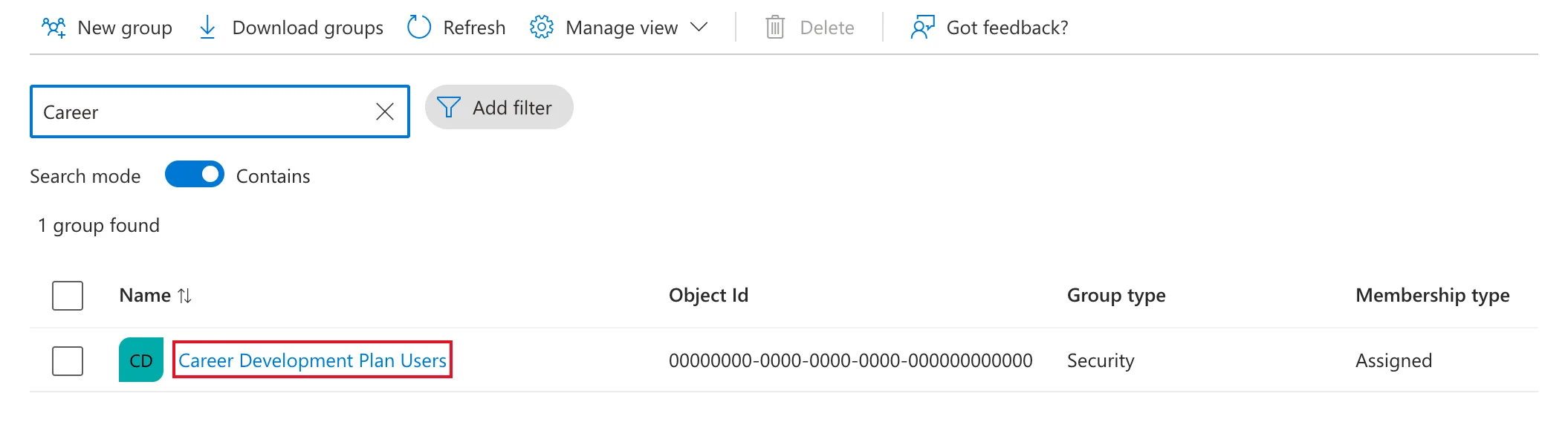
Searching also keeps unrelated groups off your screen, which helps when you share it.
Step 2: Open Members
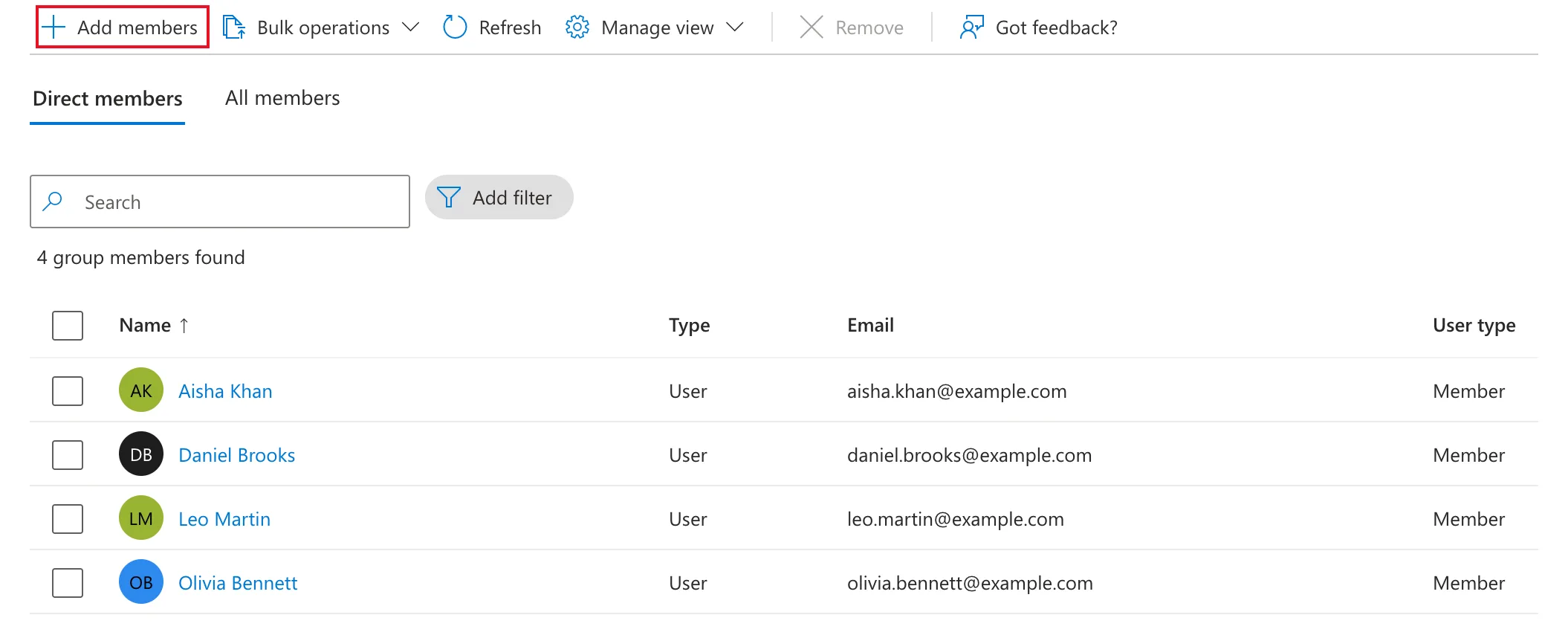
In the group's menu, under Manage, select Members. The Direct members tab lists the people added to this group, four here. Select Add members:
Step 3: Choose the People
The Add members panel opens on its All tab, which mixes users, groups, devices and enterprise applications. In my organization it listed 107 results. Select the Users tab, type part of the person's name in Search, and tick them. They appear under Selected (1) on the right. Then choose Select:
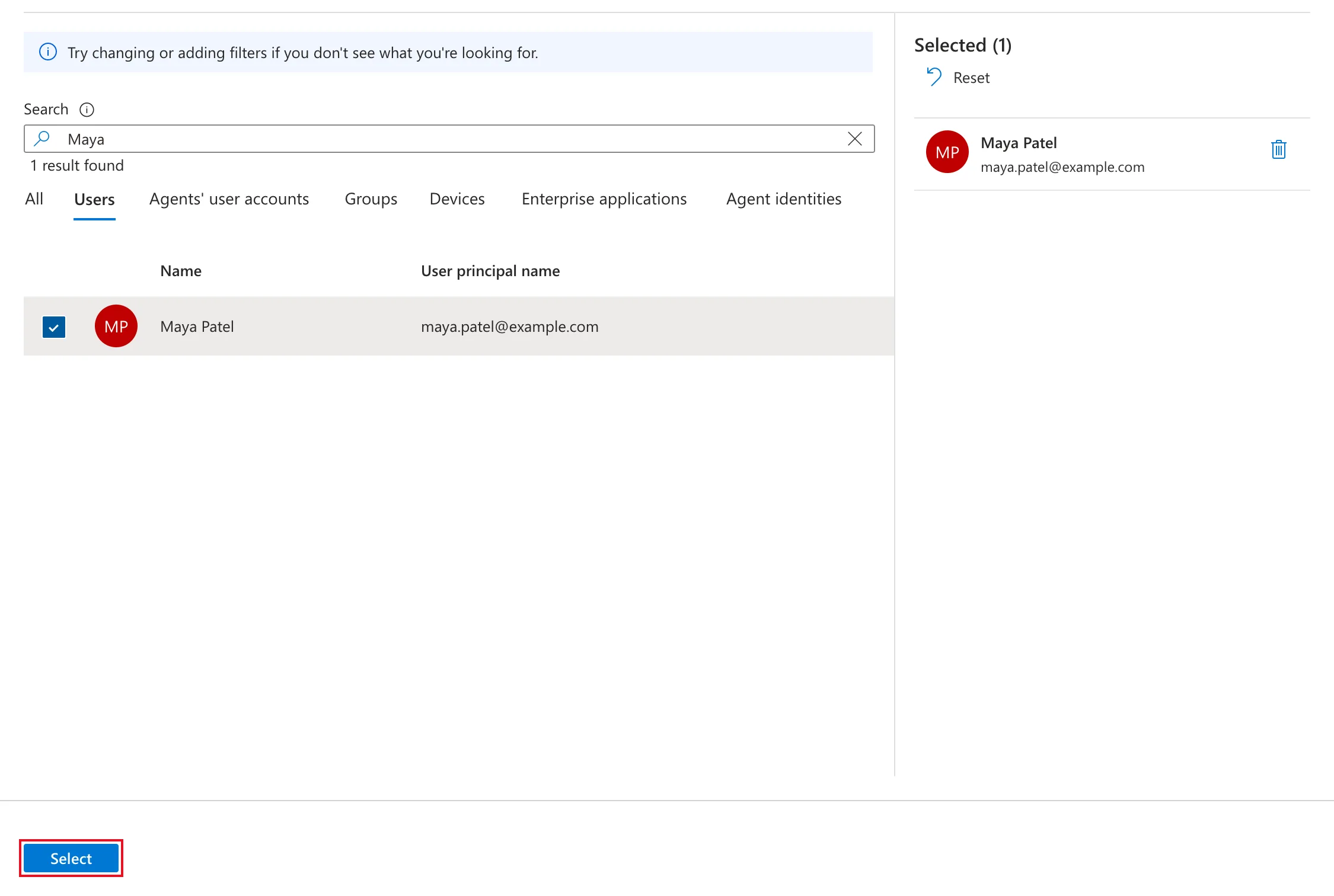
To add several people, tick each of them before selecting Select.
Step 4: Check the List
Back on Members, the list still said 4 group members found. Select Refresh in the command bar, and the new member appears:
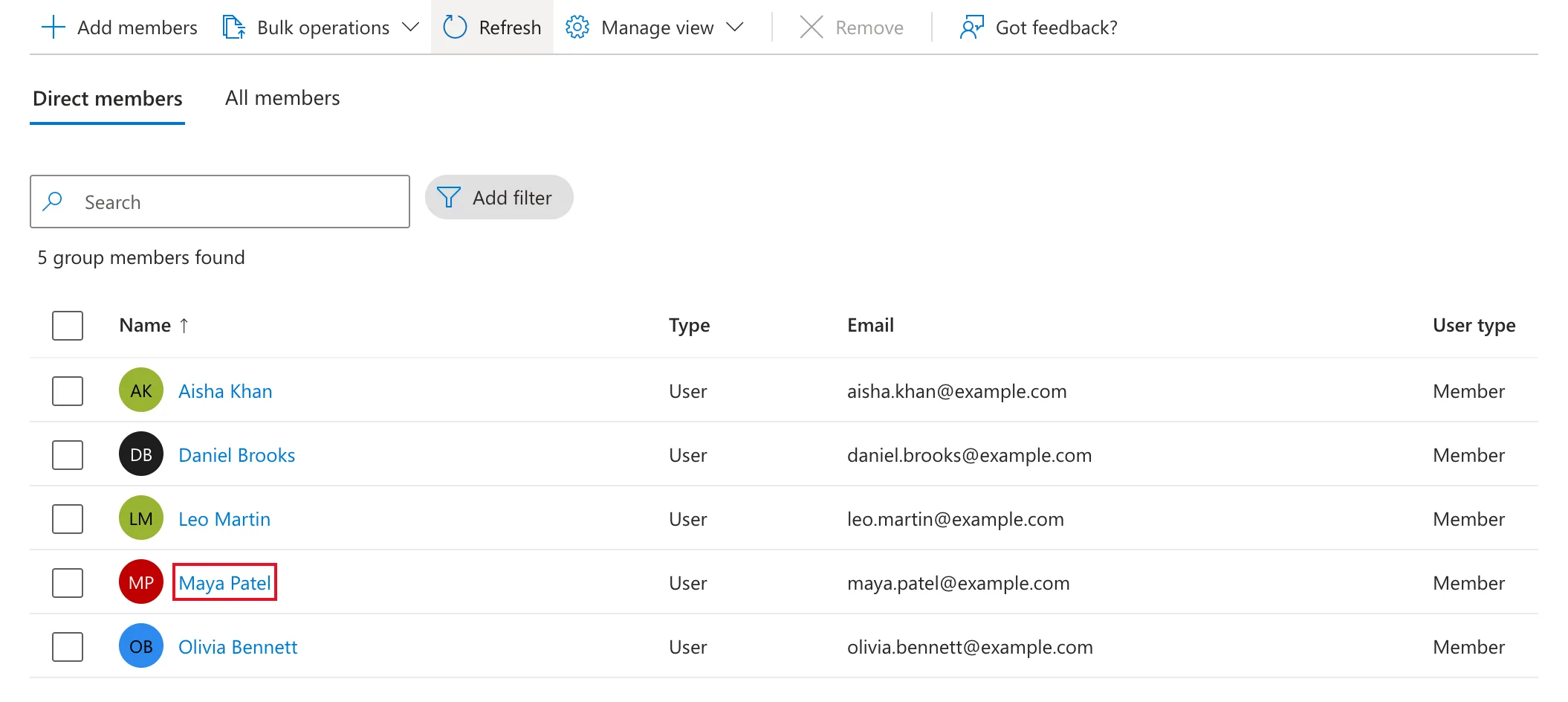
The portal's notifications panel confirms it too: Member successfully added. Maya Patel is now a member.
What Membership Gives
Whatever the group was given. In the example, the app is shared with the group (How to Share a Canvas App with a Security Group), and the group has Contribute on the app's SharePoint site (How to Give a Security Group Access to a SharePoint Site). Nobody shared anything with Maya herself. When she first opened the app, about 18 minutes after being added, it worked.
Leavers Stay in Their Groups
Blocking someone's sign-in doesn't remove their group memberships. Leo Martin, who was blocked earlier in Part 10, is still on the list above. He can't sign in, so the membership gives him nothing, but remove him when you tidy up: the security group guide's FAQ shows how.
Do It with PowerShell
The security group guide adds members with Microsoft Graph PowerShell: see its Add members section. The same commands work for any existing group.
Common Mistakes
| Mistake | What happens | Do this instead |
|---|---|---|
| Choosing from the All tab | Groups, devices and apps are mixed in with people | Use the Users tab and search |
| Thinking the add failed because the count didn't change | The list doesn't update by itself | Select Refresh |
| Adding someone as an owner instead of a member | Owners don't get what the group gives its members | Add them under Members |
Troubleshooting
| Symptom | Likely cause | Fix |
|---|---|---|
| The new member isn't listed | The list hasn't been refreshed | Select Refresh |
| Too many results in Add members | The All tab lists every kind of object | Select Users, then search |
FAQ
Can I add many people at once?
Yes. Tick several people in the panel. For long lists, Microsoft's article Bulk add group members imports them from a CSV file.
Could the group add people automatically?
A group with dynamic membership adds people by rules, but it needs Microsoft Entra ID P1 or P2. An assigned group, like this one, needs you to add each person.
Conclusion
Open the group, select Members → Add members, pick people on the Users tab, choose Select, then Refresh. They get everything the group was given, without you sharing anything with them one by one.
