How to Add List Validation to a SharePoint List with the REST API in Power Automate

List validation is a rule that checks a whole item before SharePoint saves it, such as the end date can't be before the start date. A flow sets it with one REST request that changes two of the list's properties, ValidationFormula and ValidationMessage.
Syntax
The request goes through Send an HTTP request to SharePoint (How to Use Send an HTTP Request to SharePoint). It's a MERGE, which changes only the properties in its body (How to Change SharePoint List Settings with the REST API in Power Automate):
| Field | Value |
|---|---|
| Method | POST |
| Uri | _api/web/lists/getbytitle('<list name>') |
| Headers | Accept: application/json;odata=nometadata |
Content-Type: application/json;odata=verbose | |
IF-MATCH: * | |
X-HTTP-Method: MERGE |
{
  "__metadata": { "type": "SP.List" },
  "ValidationFormula": "<formula>",
  "ValidationMessage": "<message>"
}
<list name>: the list's title.<formula>: a formula that's true when the item is valid, starting with=. It can use several columns: Microsoft's SPList.ValidationFormula reference says the validation formula for a list item can refer to several or even all fields in the item. SharePoint formulas work like Excel's (Examples of common formulas in lists).<message>: what people see when the formula is false.
Both are properties you can set on a list, in Microsoft's List.ValidationFormula and List.ValidationMessage reference.
The Example
A list called Holiday Requests has two date columns, StartDate and EndDate. The rule refuses a request that ends before it starts:
=EndDate>=StartDate
The column names have no spaces, so the formula writes them plainly. The browser's own list validation writes them in square brackets, =[EndDate]>=[StartDate] (How to Add List Validation in SharePoint to Compare Two Columns).
The flow has the trigger Manually trigger a flow and one Send an HTTP request to SharePoint called Add the validation.
Prerequisites
- Permission to change the list's settings, such as Edit or Full Control on the site, for the account the flow's SharePoint connection uses.
Step 1: Add the Request
Add Send an HTTP request to SharePoint, rename it Add the validation, and fill it in:
| Field | Value |
|---|---|
| Site Address | Your site |
| Method | POST |
| Uri | _api/web/lists/getbytitle('Holiday Requests') |
| Headers | Accept: application/json;odata=nometadata |
Content-Type: application/json;odata=verbose | |
IF-MATCH: * | |
X-HTTP-Method: MERGE |
The headers are under Advanced parameters. The body:
{
  "__metadata": { "type": "SP.List" },
  "ValidationFormula": "=EndDate>=StartDate",
  "ValidationMessage": "The end date can't be before the start date."
}
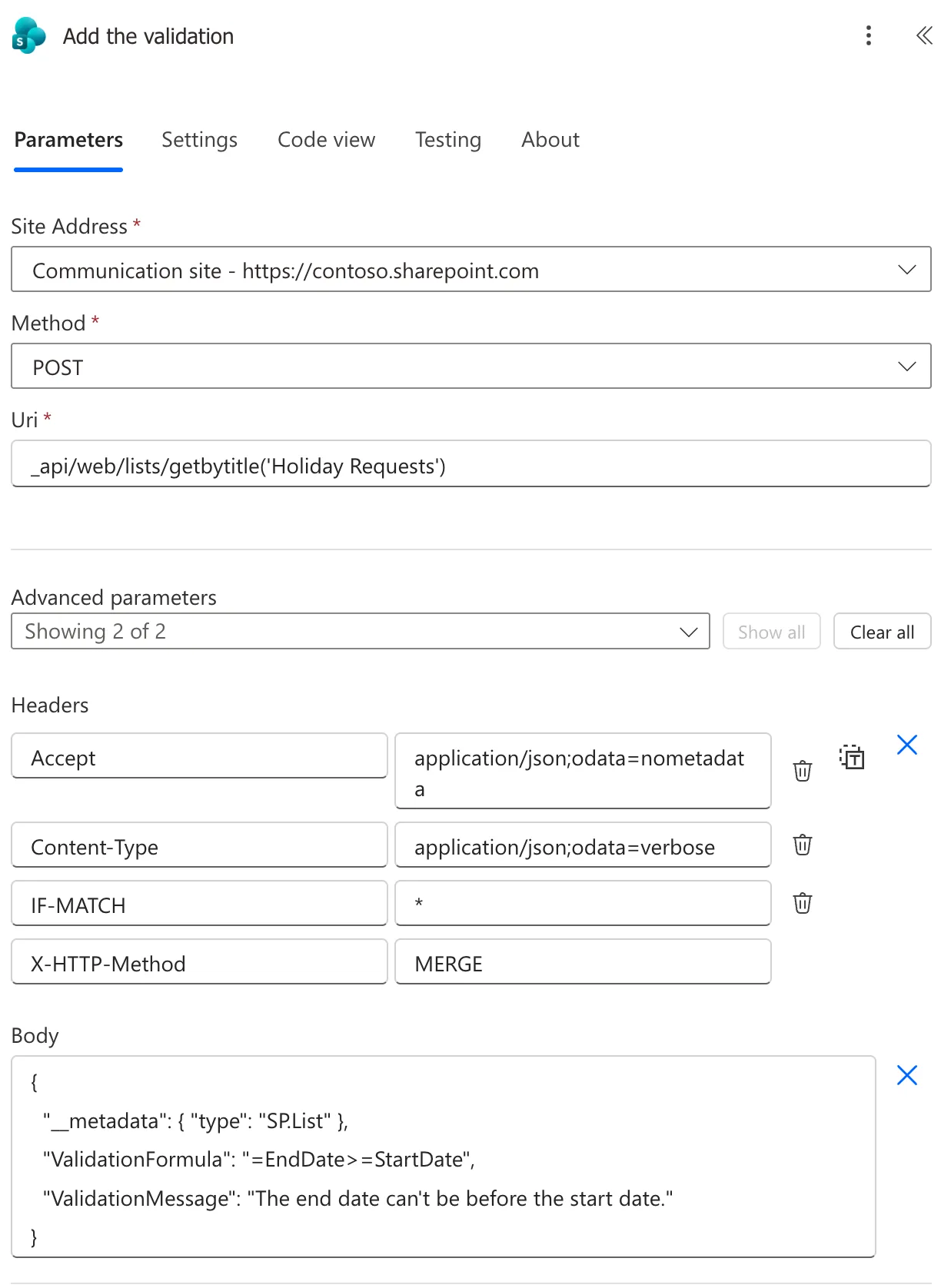
The apostrophe in can't is fine here: the message is a JSON string, in double quotes.
Step 2: Run the Flow
Save the flow and test it manually (How to Test a Cloud Flow Manually in Power Automate). Add the validation succeeded.
The Result
In the list, I added a request for Ada from 12/10/2026 to 12/8/2026, an end two days before the start on this US-format site, and selected Save. SharePoint refused it with the message from the flow:
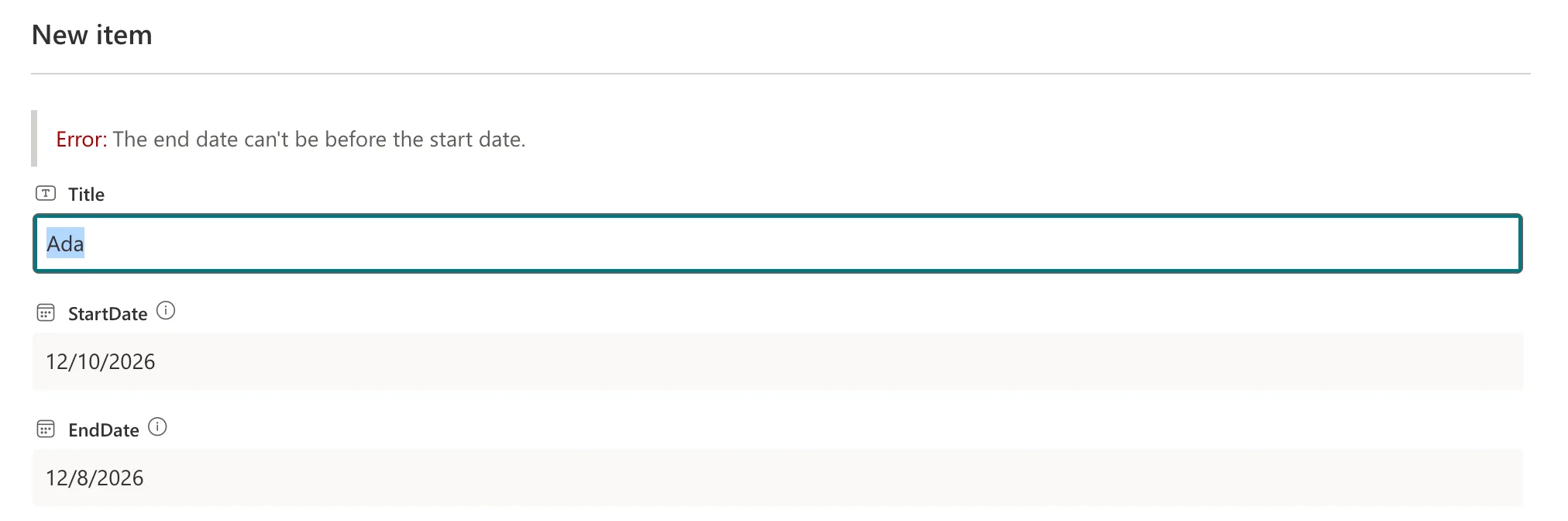
The rule is in the list's settings too: List settings > Validation settings shows the formula and the message.
Common Mistakes
| Mistake | What happens | Do this instead |
|---|---|---|
Leaving out X-HTTP-Method: MERGE | The POST isn't sent as an update of the list | Add it, with IF-MATCH: * |
| Setting the rule before the columns exist | The formula names columns the list doesn't have yet | Create the columns first |
| Two requests for two rules | The second replaces the first: a list has one formula | Put every rule in one AND(…) |
Troubleshooting
| Symptom | Likely cause | Fix |
|---|---|---|
| The request fails | A column in the formula doesn't exist, or the formula has a typo | Check the names against the list's columns |
| Status 404 | No list with that title on the site | Check the title in getbytitle('…') |
| Every item is refused | The formula is false for valid items too | Check it with a valid item, and fix the comparison |
FAQ
Can a rule check one column only?
Yes, but that's column validation, set on the column. List validation is for rules that compare columns, such as two dates.
Does this need a premium licence?
No. Send an HTTP request to SharePoint is part of the standard SharePoint connector.
Conclusion
Send a MERGE to _api/web/lists/getbytitle('<list name>') with ValidationFormula and ValidationMessage in the body. SharePoint then checks every item against the formula and shows the message when it's false, as it did for an end date before the start date.
Additional Resources
- List.ValidationFormula property
- Examples of common formulas in lists
- Get to know the SharePoint REST service: MERGE and the other HTTP methods.
