How to Add List Validation in SharePoint to Compare Two Columns

Column settings can check one column at a time. List validation checks a whole item when it's saved, so it can compare columns: a finish after its start, an end date after a begin date, a discount below the price. If the formula isn't TRUE, SharePoint refuses the item and shows your message.
The OvertimeEntries list of the Overtime Timesheet series holds one item per shift, with StartTime, EndTime and BreakMinutes. Its rule: the finish must be after the start, no more than 24 hours later, and the break must be shorter than the shift.
Prerequisites
- A SharePoint list with the columns to compare, and permission to change its settings.
- Basic formulas. SharePoint formulas work like Excel's. Microsoft's calculatedColumn reference says "SharePoint formulas use a syntax similar to Excel formulas."
Step 1: Open List Settings
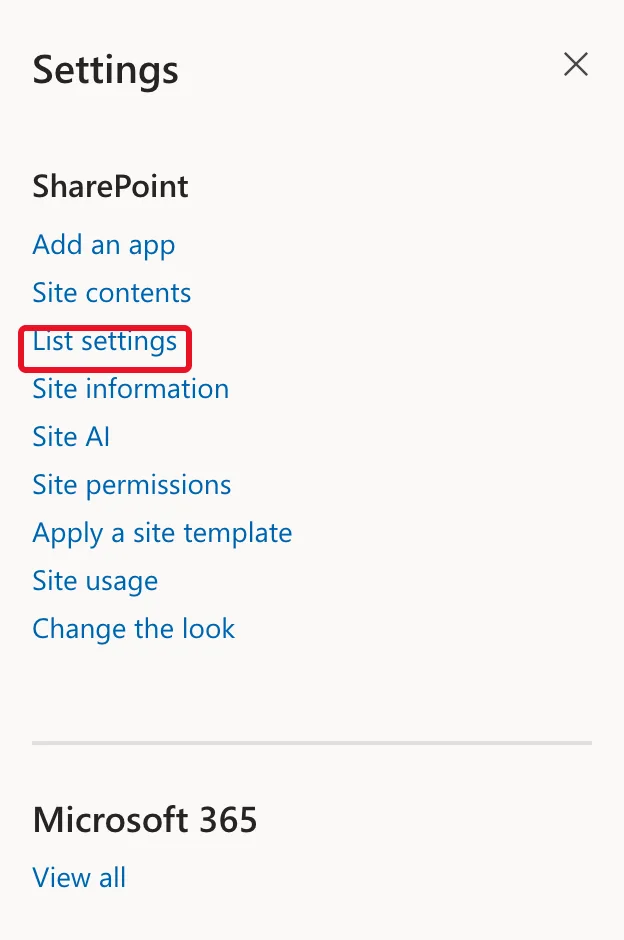
In the list, select Settings (the gear) → List settings:
Step 2: Open Validation Settings
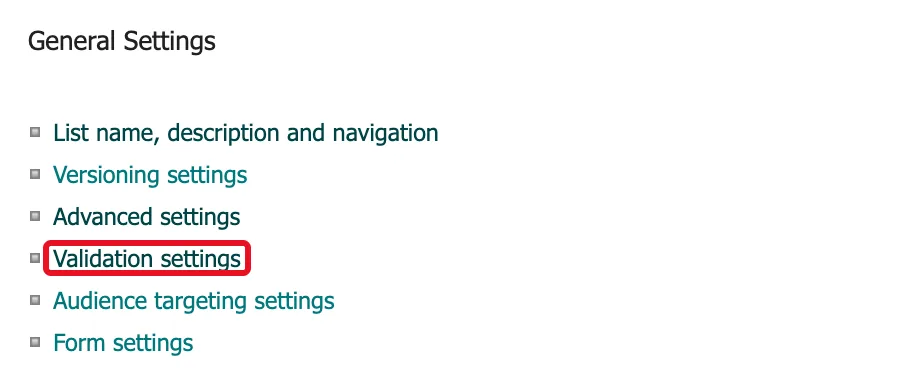
Under General Settings, select Validation settings:
Step 3: Write the Formula and the Message
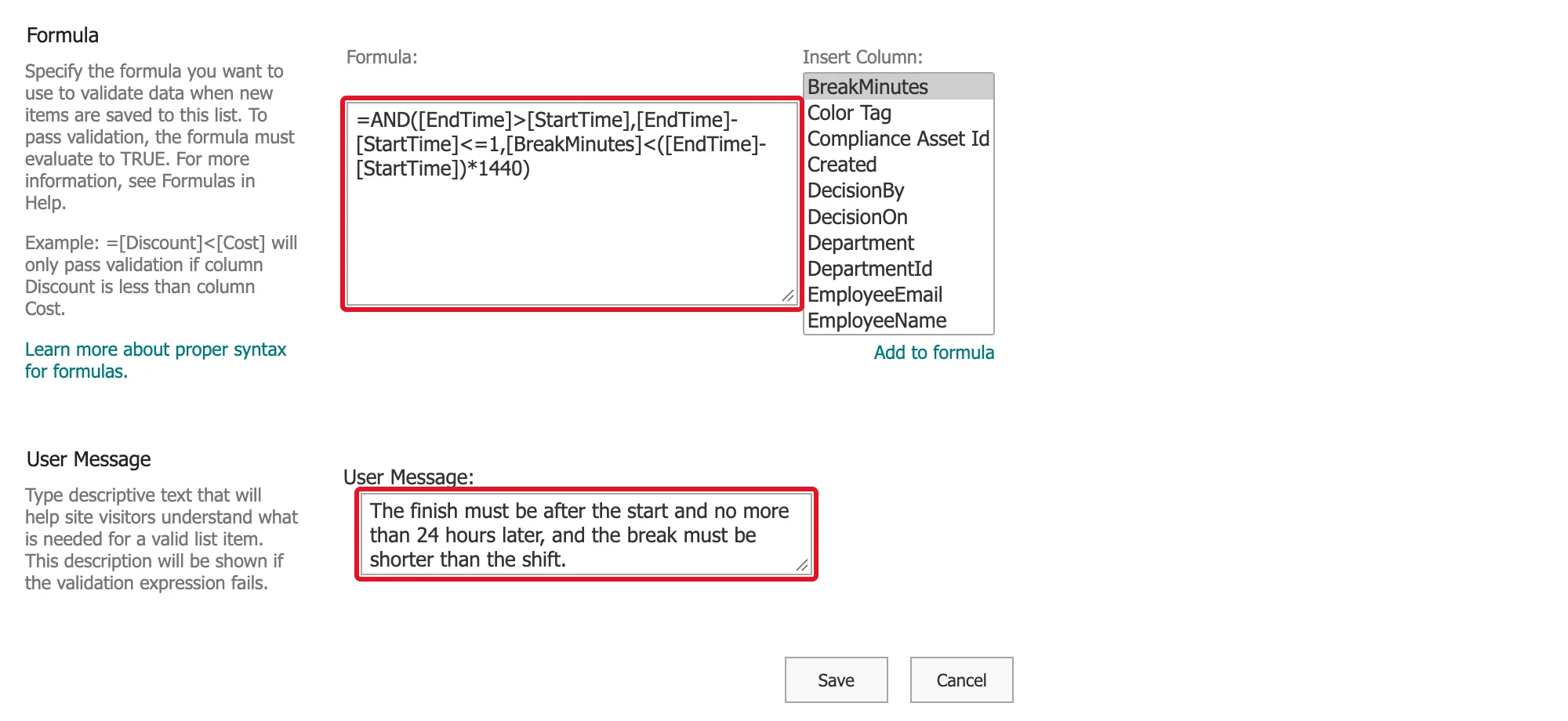
The page has two boxes. Formula: "To pass validation, the formula must evaluate to TRUE." User Message: what people see when it doesn't. The Insert Column list next to the formula adds a column's name for you.
This is the formula for OvertimeEntries:
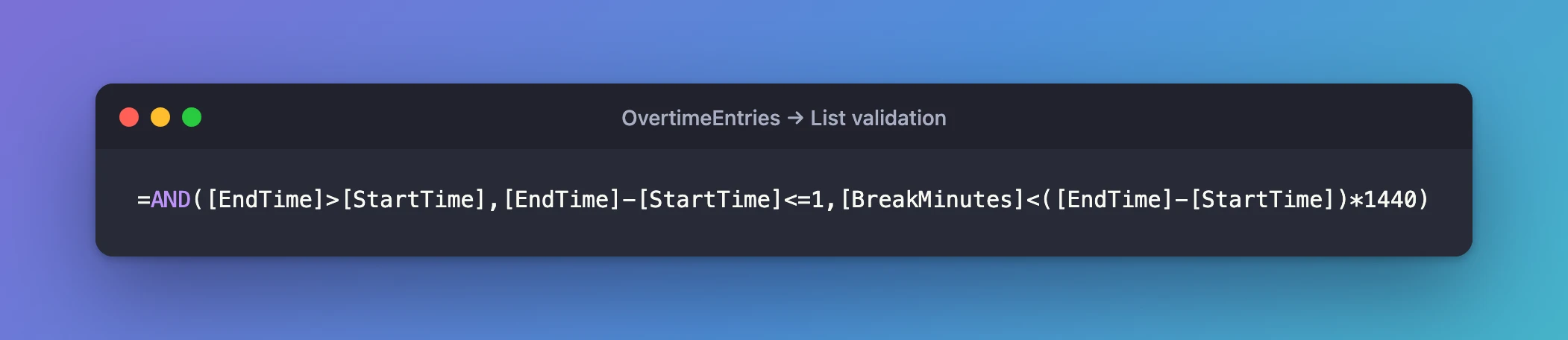
=AND([EndTime]>[StartTime],[EndTime]-[StartTime]<=1,[BreakMinutes]<([EndTime]-[StartTime])*1440)
Read it piece by piece:
- Column names go in square brackets:
[EndTime]is the value of the EndTime column. AND(…)is TRUE only when all three conditions are.[EndTime]>[StartTime]: the shift finishes after it starts. Microsoft's Examples of common formulas in lists uses the same comparison,=[Column1]>[Column2].[EndTime]-[StartTime]<=1: subtracting two dates gives days, so this means no more than 24 hours.[BreakMinutes]<([EndTime]-[StartTime])*1440: a day has 1,440 minutes, so this turns the shift's length into minutes and checks the break is shorter.
The same arithmetic works in Excel, where the overtime workbook of Part 1 used it: How to Calculate Hours Between Two Times in Excel and How to Convert Minutes to a Time in Excel by Dividing by 1440.
In User Message, write what's wrong and how to fix it:
The finish must be after the start and no more than 24 hours later, and the break must be shorter than the shift.
Step 4: Save
Select Save. SharePoint saves the rule and goes back to List settings.
Check the Rule
The most common slip with night shifts is leaving the finish on the same day as the start. I filled in a new item that way, 22:00 to 06:00 both on 7 November, and selected Save. SharePoint refused it and showed the message at the top of the form:
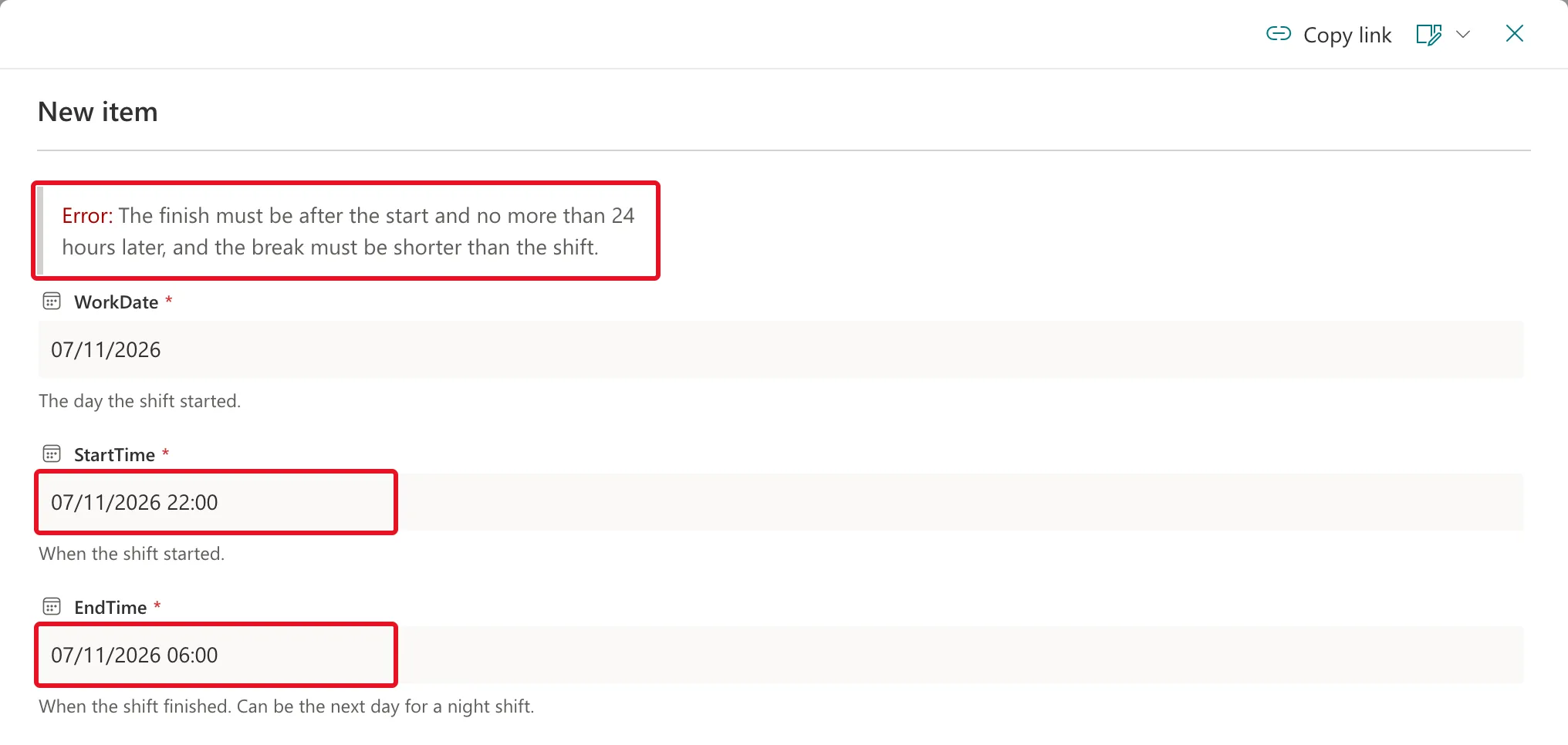
Nothing was saved; the list stayed empty. With EndTime on 8 November, all three conditions are true.
List Validation or Column Validation?
| Column validation | List validation | |
|---|---|---|
| Where | Each column's More options → Column validation | List settings → Validation settings |
| Can use | That column only | Any of the list's columns that the formula supports |
| Use it for | A rule about one value, such as a format | A rule that compares values |
Microsoft's SPList.ValidationFormula reference, written for SharePoint Server 2013, puts it the same way: "the validation formula for a field can refer only to that field, whereas the validation formula for a list item can refer to several or even all fields in the item."
Limits
- One list formula. A list has one validation formula, so combine rules with
AND. - Not every column type. The Insert Column list on this page left out the two Multiple lines of text columns, Reason and ApproverComment.
- Length. The same Server 2013 reference gives "the maximum length of a validation formula string" as 1024 characters.
Common Mistakes
| Mistake | What happens | Do this instead |
|---|---|---|
| Writing the rule as what's wrong | Valid items are refused | Write what must be TRUE for a good item |
| A vague message such as "Invalid data" | People can't tell what to fix | Say which values are wrong and how |
| Forgetting that dates subtract to days | Comparing with hours gives wrong results | Multiply by 24 for hours, 1440 for minutes |
Troubleshooting
| Symptom | Likely cause | Fix |
|---|---|---|
| Your message appears on every save | The formula is FALSE for valid items too | Check each condition on its own with a known good item |
| A night shift is refused | The finish date is the same as the start date | Put the finish on the next day |
| A column you need isn't in Insert Column | It's a type the formula can't use, such as multiple lines of text | Compare other columns, or check that value in the app |
FAQ
Do apps and flows have to pass the rule too?
The rule belongs to the list, and the form showed it as a save error. The Overtime Timesheet app checks the same things before saving, so people see a clear message in the app first.
Can one list have several rules?
It has one formula, so put every rule inside one AND(…), as the overtime rule does with three conditions. The user message should then cover all of them.
Conclusion
List settings → Validation settings → a formula that is TRUE for good items, plus a message that says how to fix a bad one → Save. SharePoint then refuses any item that breaks the rule, with your message at the top of the form.
