How to Add an Item to a SharePoint List with the REST API in Power Automate

To add an item with SharePoint's REST API, the request has to name the list's item type, such as SP.Data.FruitListItem. A flow can read that type from the list, look for the item, and add it only when it's missing, so running the flow again never adds it twice.
Syntax
All three requests go through Send an HTTP request to SharePoint (How to Use Send an HTTP Request to SharePoint), with the header Accept: application/json;odata=nometadata.
Read the item type
| Field | Value |
|---|---|
| Method | GET |
| Uri | _api/web/lists/getbytitle('<list name>')?$select=ListItemEntityTypeFullName |
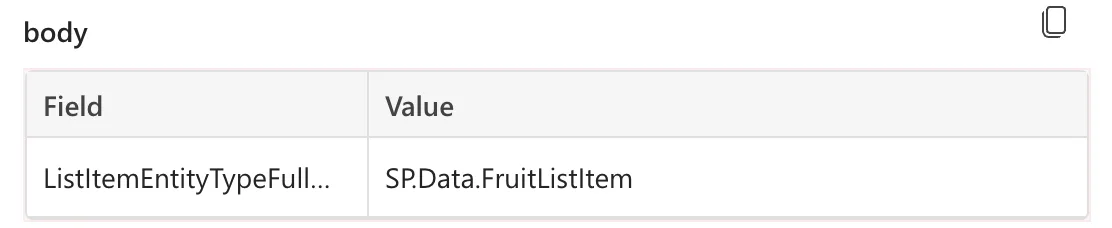
The answer's ListItemEntityTypeFullName is the type every new item needs. Microsoft's Working with lists and list items with REST says that to create an item, you must know the ListItemEntityTypeFullName property of the list and pass that as the value of type, and gives this request to read it.
Look for the item
| Field | Value |
|---|---|
| Method | GET |
| Uri | _api/web/lists/getbytitle('<list name>')/items?$filter=<column> eq '<value>'&$select=Id |
The answer's value array is empty when no item has that value.
Add the item
| Field | Value |
|---|---|
| Method | POST |
| Uri | _api/web/lists/getbytitle('<list name>')/items |
| Headers | Content-Type: application/json;odata=verbose, as well as Accept |
{
  "__metadata": { "type": "<item type>" },
  "<column>": "<value>"
}
<list name>: the list's title.<item type>: theListItemEntityTypeFullNamefrom the first request.<column>: a column's internal name, such asTitle. Add one line per column to fill.
The Example
A list called Fruit gets an item with the title Apples. The flow, Add an Item, has five parts:
- Manually trigger a flow.
- Get the item type, the first GET.
- Find the item, the second GET.
- If the item is missing, a condition.
- Add the item, the POST, in the condition's True branch.
Prerequisites
- Permission to add items to the list, such as Contribute or Edit, for the account the flow's SharePoint connection uses.
Step 1: Read the Item Type
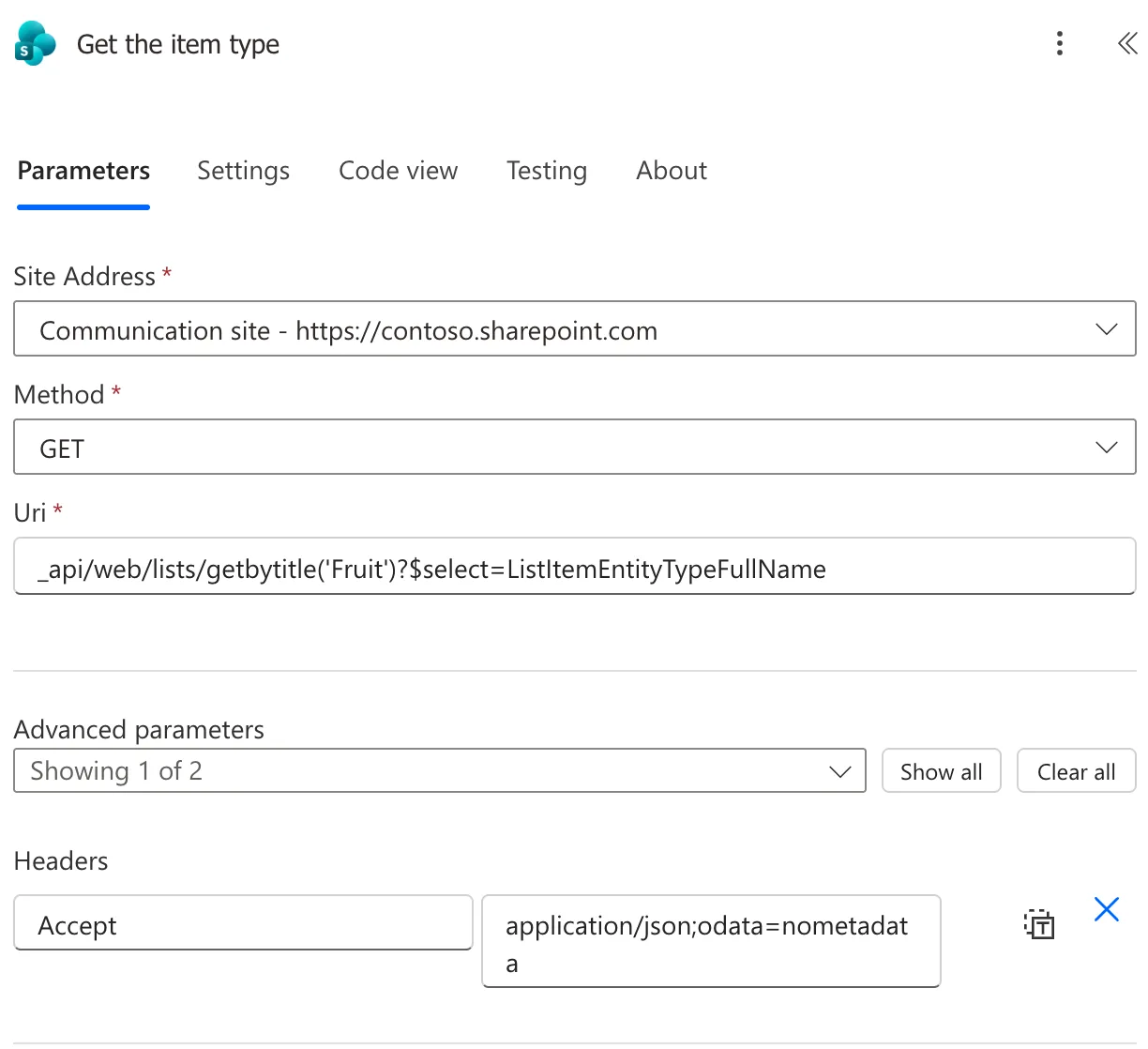
Add Send an HTTP request to SharePoint and rename it Get the item type:
| Field | Value |
|---|---|
| Site Address | Your site |
| Method | GET |
| Uri | _api/web/lists/getbytitle('Fruit')?$select=ListItemEntityTypeFullName |
| Headers | Accept: application/json;odata=nometadata |
In a run, its body has one field:
Step 2: Look for the Item
Add Find the item:
| Field | Value |
|---|---|
| Site Address | Your site |
| Method | GET |
| Uri | _api/web/lists/getbytitle('Fruit')/items?$filter=Title eq 'Apples'&$select=Id |
| Headers | Accept: application/json;odata=nometadata |
Then add a Condition called If the item is missing (How to Add a Condition in Power Automate). On the left, add this expression; choose is equal to; on the right, add the expression true:
empty(body('Find_the_item')?['value'])
empty() is true when no item matched (How to Check If an Array Is Empty in Power Automate).
Step 3: Add the Item
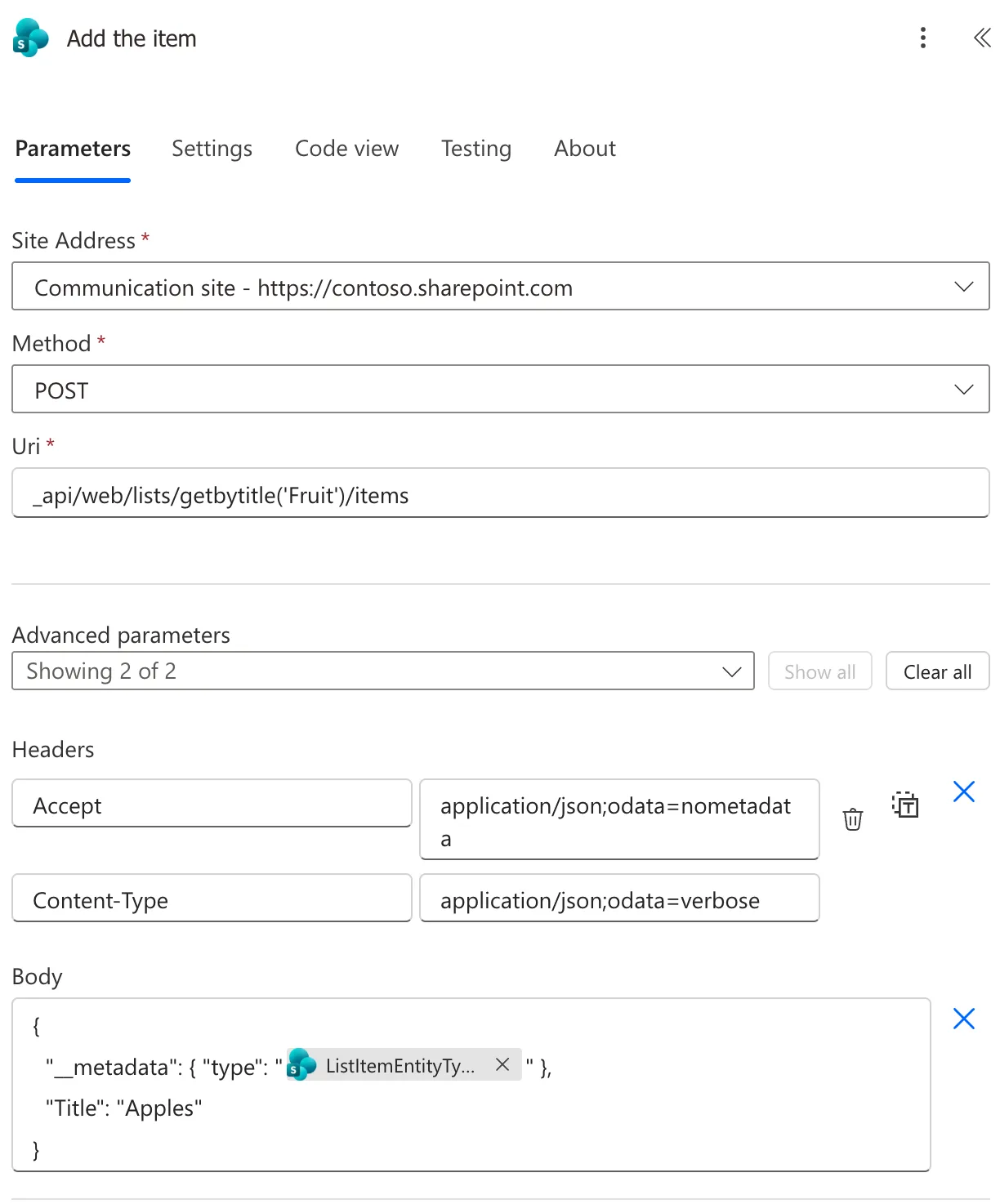
In the True branch, add Add the item:
| Field | Value |
|---|---|
| Site Address | Your site |
| Method | POST |
| Uri | _api/web/lists/getbytitle('Fruit')/items |
| Headers | Accept: application/json;odata=nometadata |
Content-Type: application/json;odata=verbose |
In Body, type the JSON, and put this expression between the quotes after "type": (How to Add an Expression in Power Automate):
body('Get_the_item_type')?['ListItemEntityTypeFullName']
{
  "__metadata": { "type": "@{body('Get_the_item_type')?['ListItemEntityTypeFullName']}" },
  "Title": "Apples"
}
The designer shows the expression as a token:
Step 4: Run the Flow Twice
Save the flow and test it manually (How to Test a Cloud Flow Manually in Power Automate). The first run added Apples. A second run, with Test > Automatically > With a recently used trigger (How to Rerun a Cloud Flow with the Same Inputs in Power Automate), found it and skipped Add the item.
The Result
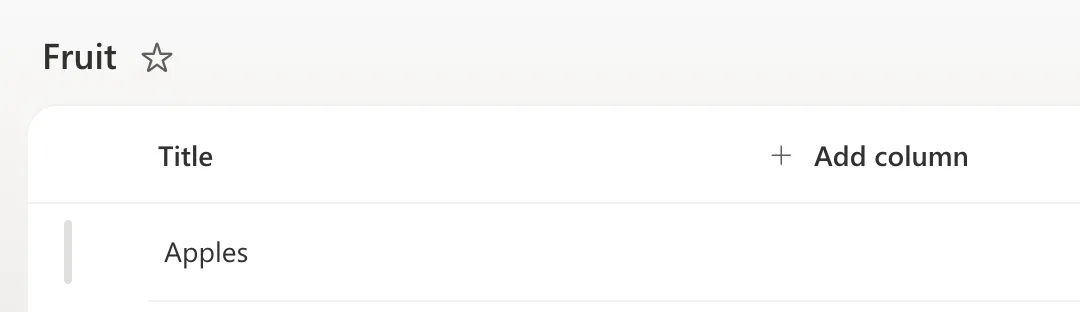
The Fruit list has one Apples after two runs:
Common Mistakes
| Mistake | What happens | Do this instead |
|---|---|---|
Leaving out __metadata | SharePoint doesn't know the item's type | Read the type and put it in __metadata |
| Typing the type by hand | The flow breaks if the type isn't exactly the list's | Read ListItemEntityTypeFullName from the list |
| A column's display name in the body | The body needs internal names | Use the internal name, such as Title |
| Adding without looking first | Every run adds another copy | Look for the item and add it only when it's missing |
Troubleshooting
| Symptom | Likely cause | Fix |
|---|---|---|
| Status 400 on Add the item | The type or a column name in the body is wrong | Check the type from Get the item type and the internal names |
| Status 404 | No list with that title on the site | Check the title in getbytitle('…') |
| A second item on the next run | The filter didn't match the first one | Check the column and value in $filter |
FAQ
Why not use the Create item action?
Create item is simpler when the list exists while you build the flow: it shows a field for each column (How to Create an Item in a SharePoint List in Power Automate). The REST request needs nothing at design time, so it also works when the site comes from the flow's input or the same flow creates the list, as in the Overtime Timesheet setup flow.
How do I fill other columns?
Add a line per column to the body, with its internal name, such as "Value": "Some text". How to See a SharePoint Column's Internal Name and SchemaXml in the Browser shows how to find a column's internal name.
Does this need a premium licence?
No. Send an HTTP request to SharePoint is part of the standard SharePoint connector.
Conclusion
Read the list's ListItemEntityTypeFullName, look for the item with $filter, and when the value array is empty, POST the item to _api/web/lists/getbytitle('<list name>')/items with that type in __metadata. The flow then adds each item once, however often it runs.
Additional Resources
- Working with lists and list items with REST: creating, updating and deleting items.
- Get to know the SharePoint REST service: how REST requests are built.
