How to Add an Item to a SharePoint List

To add a row to a SharePoint list by hand, select + New, fill in the New item form and select Save. It's how you add the first few items to a list that an app will read, such as its settings or its reference data.
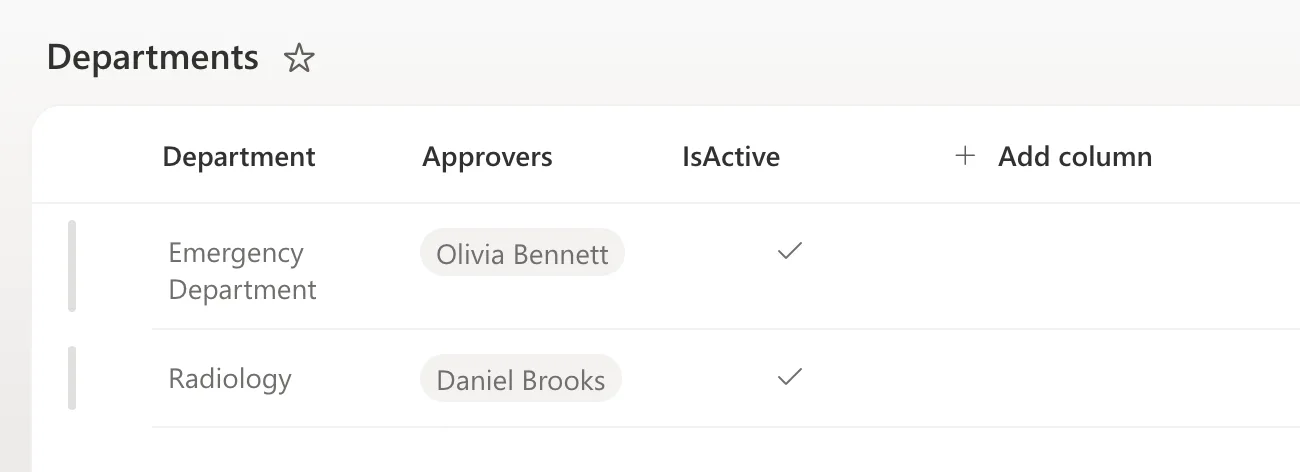
The Overtime Timesheet series adds its two departments this way: Emergency Department, approved by Olivia Bennett, and Radiology, approved by Daniel Brooks.
Prerequisites
- A list with its columns: How to Create a List and Add Columns in SharePoint Online.
- Permission to edit the list. Microsoft's Add, edit, or delete list items says "to add, edit, or delete list items, you must have edit permissions."
Step 1: Select New
Open the list and select + New at the start of the command bar:

Step 2: Fill In the Form
The New item form lists the list's columns. Fields with a red asterisk are required, and the grey text under each one is the column's description.
For a text field, type the value: Emergency Department.
For a Person field, type part of the person's name. SharePoint suggests matching people, with their job titles:

Select the person. They appear in the field as a name with an X to remove them. If the column allows several people, type the next name.
A Yes/No field is a box, already ticked here because the column defaults to Yes.
Step 3: Save
Check the form and select Save at the bottom:
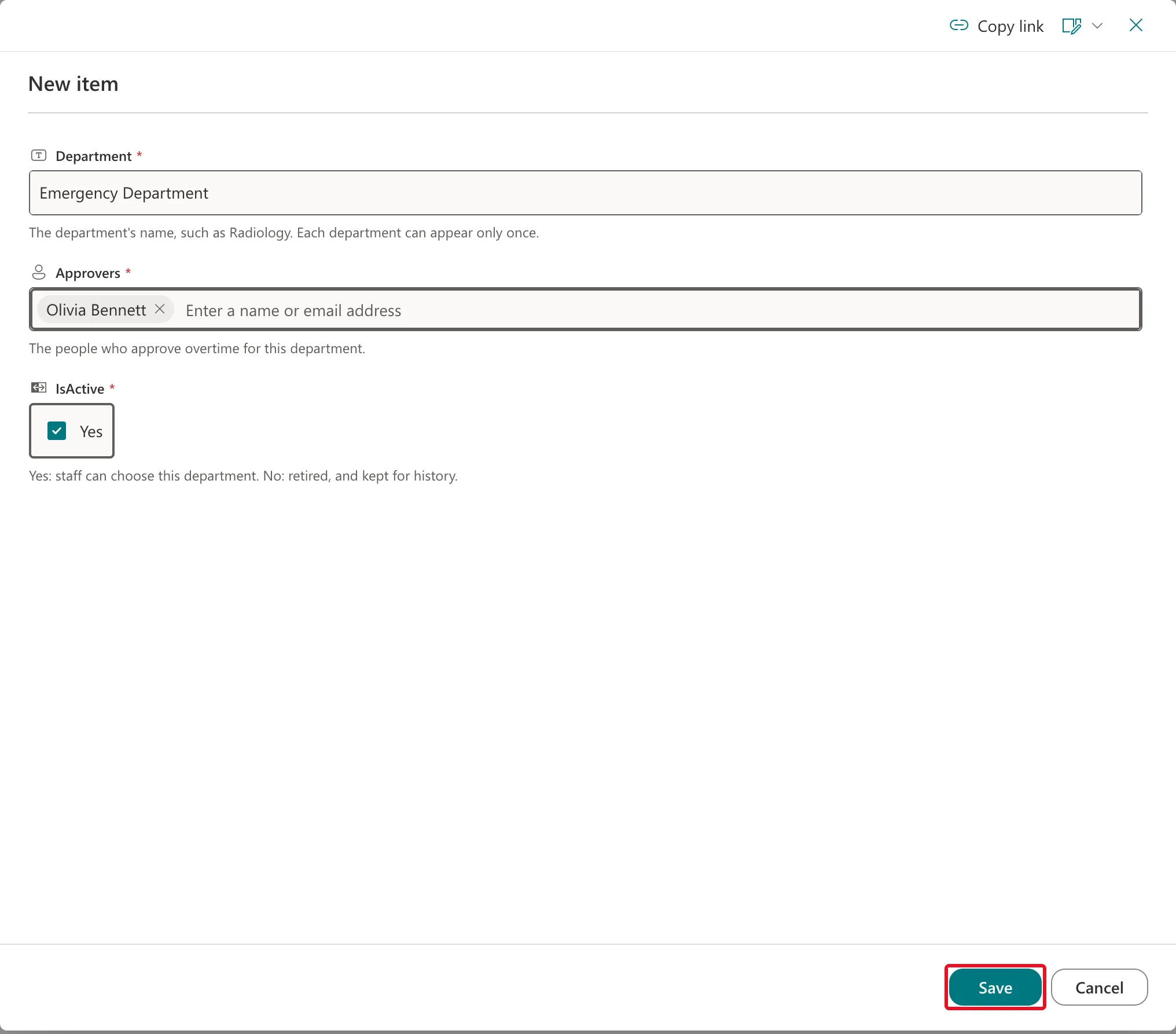
If a required field is empty, the form shows You can't leave this blank. under it and doesn't save. If a column's rule isn't met, such as a unique value that already exists, the message appears at the top of the form.
Step 4: See It in the List
The form closes and the item appears in the list. After the second department, the list looks like this:
Common Mistakes
| Mistake | What happens | Do this instead |
|---|---|---|
| Typing a full name and expecting it to be saved as text | Nothing is added until you pick a suggestion | Select the person from the list |
| Adding the same item twice | Duplicate rows, unless the column is unique | Check the list first, or make the key column unique |
| Closing the form with Cancel | Nothing is saved | Select Save |
Troubleshooting
| Symptom | Likely cause | Fix |
|---|---|---|
| You can't leave this blank. | A required field is empty | Fill in every field with an asterisk |
| This value already exists in the list. | The column is unique and the value is taken | How to Enforce Unique Values in a SharePoint List Column |
| The person's job title looks out of date | SharePoint's copy of their profile hasn't updated | Fixed: SharePoint People Picker Shows a User's Old Job Title |
| A typed date is saved in the wrong month | The form read it month first | Fixed: SharePoint Saves a Typed Date in the Wrong Month |
FAQ
Can I add several items at once?
Yes. Edit in grid view on the command bar lets you type into the list like a spreadsheet.
How do I change an item later?
Select it and choose Edit: How to Edit an Item in a SharePoint List.
Conclusion
+ New → fill in the form, picking people from the suggestions → Save. The item appears in the list straight away.
