How to Add an Input to the Power Apps (V2) Trigger in Power Automate

A flow that a canvas app runs often needs a value from the app: a month, a name, an ID. The When Power Apps calls a flow (V2) trigger takes inputs of six types, and the app passes a value for each when it runs the flow. This guide adds a Date input and uses it.
The example is Get Overtime Report, a flow of the Overtime Timesheet app. The app's Reports screen shows one month at a time, and the flow needs to know which month: any day in it will do.
Step 1: Choose the Type of Input
Select the trigger card, When Power Apps calls a flow (V2), then + Add an input on its Parameters tab. The pane asks for the type of input:
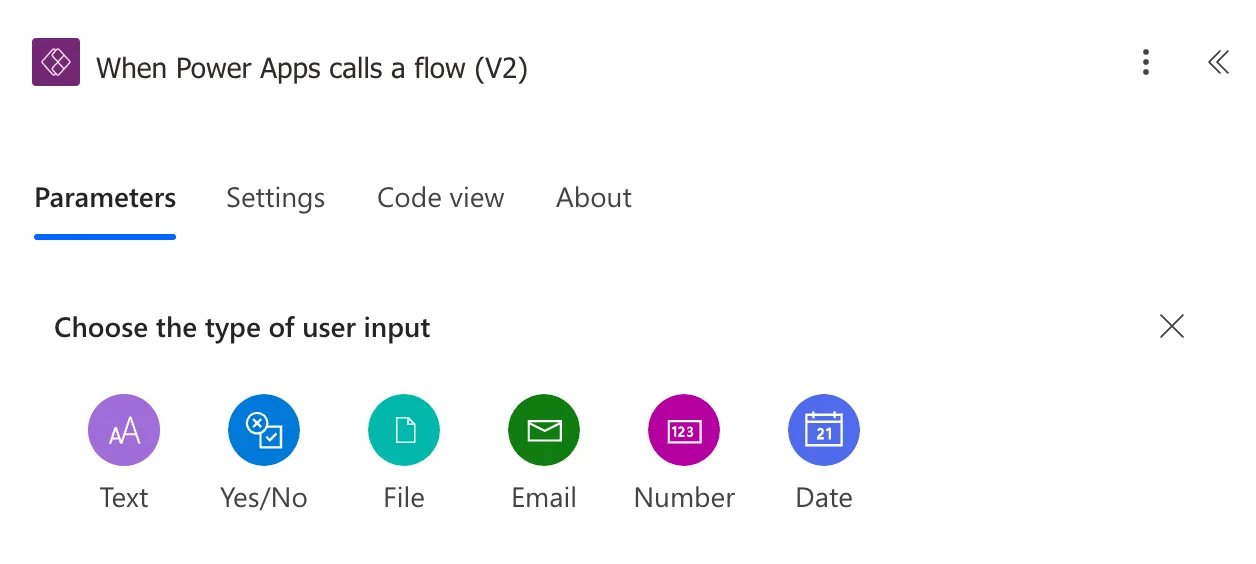
| Type | What the app passes |
|---|---|
| Text | Any text |
| Yes/No | true or false |
| File | A file |
| An email address | |
| Number | A number |
| Date | A date, written as yyyy-mm-dd |
Select Date.
Step 2: Name the Input and Describe It
The input appears with the name Date, and its description box shows the format it expects, Please enter or select a date (YYYY-MM-DD):
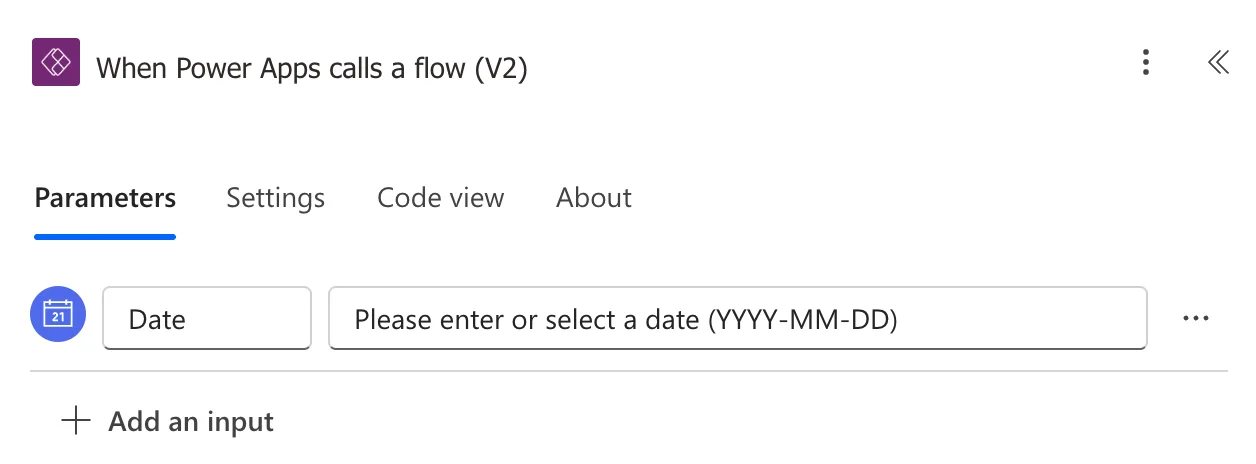
Type a name that says what the value is, and a description that tells whoever calls the flow what to send. Here, Month and Any day in the month to report:
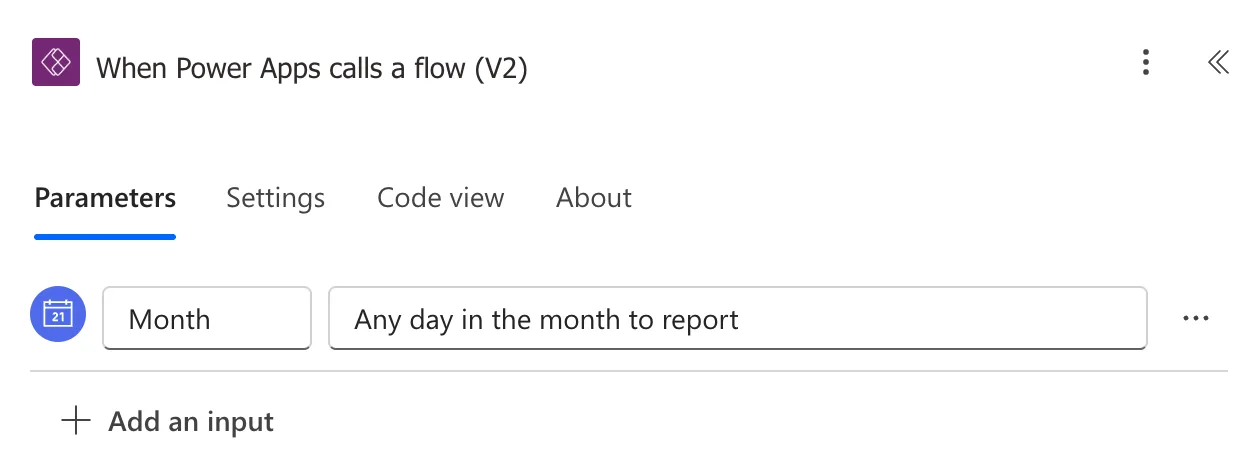
A new input is required: Step 3 shows where that's set.
Step 3: Find the Input's Key
The flow refers to an input by its key, not its name. Open the trigger's Code view:
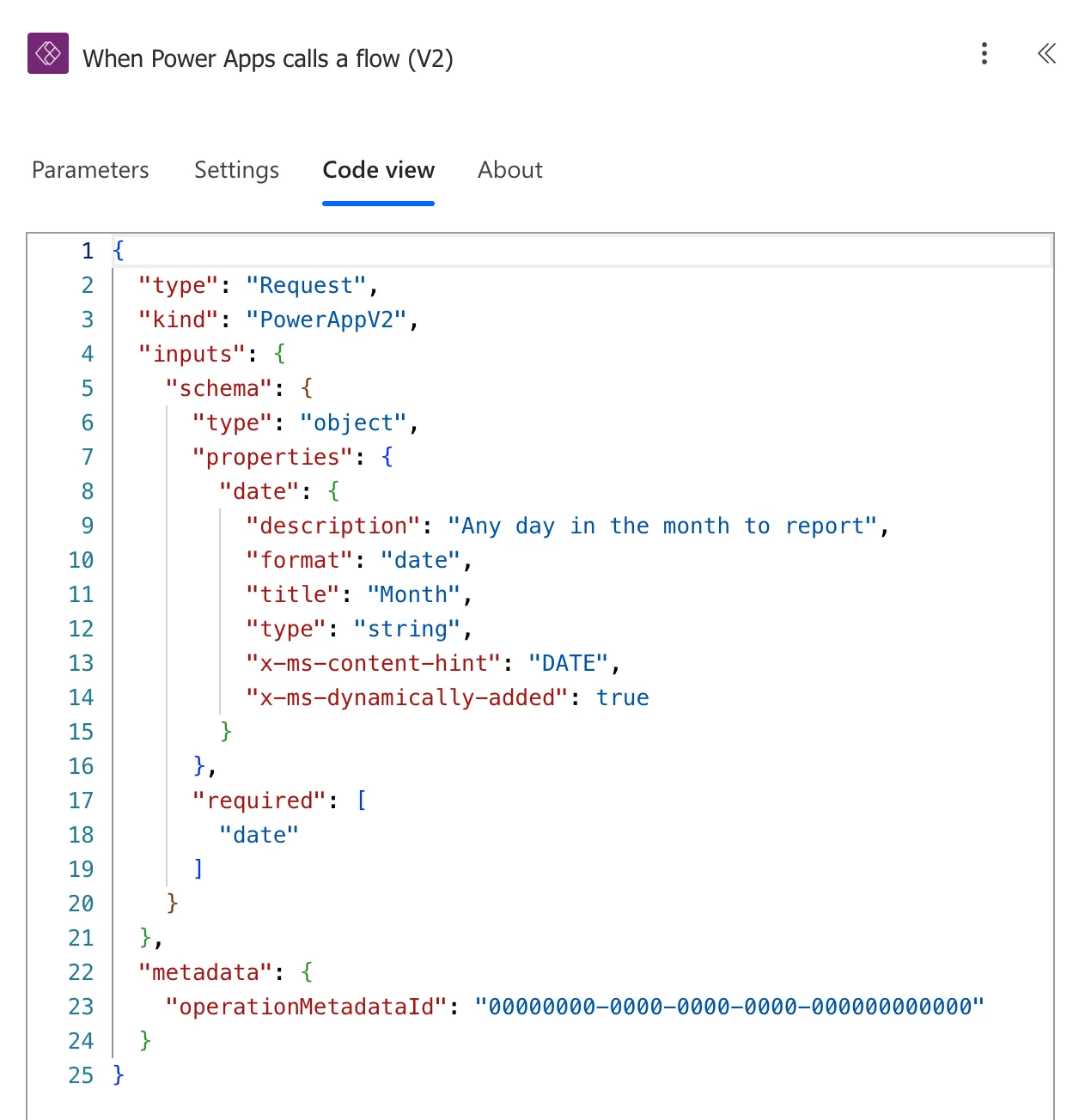
Under properties, the key is date, and Month is its title: the key was set when the input was added, and renaming the input changed only the title. The schema also says what the trigger accepts: a string in date format, which is required.
Step 4: Use the Input in the Flow
In any field, pick Month from the trigger's dynamic content, or write an expression with the key (How to Add an Expression in Power Automate):
triggerBody()?['date']
The report flow uses it to pick the month: formatDateTime(triggerBody()?['date'], 'yyyy-MM') turns 2026-11-01 into 2026-11 (How to Format a Date in Power Automate with formatDateTime).
Save the flow.
Step 5: Test It with Run Flow
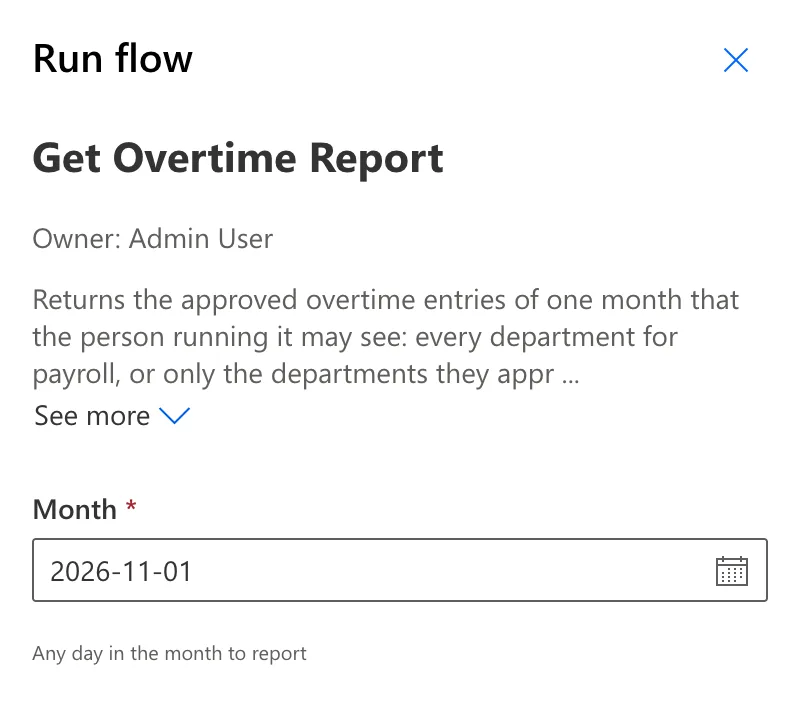
Test the flow manually: the Run flow pane asks for the input, with a date picker for a Date input (How to Run an Instant Cloud Flow in Power Automate):
Step 6: Pass the Value from the App
In the app, the flow's Run takes a value for each input (How to Run a Flow and Use Its Result in Power Apps). If the flow was already in the app, refresh it there first, so the app knows about the new input (How to Refresh a Flow in a Canvas App in Power Apps).
For a Date input, send the date as yyyy-mm-dd text:
GetOvertimeReport.Run(Text(locMonthRS, "yyyy-mm-dd"))
Passing the Date variable on its own failed: Power Apps sent it in the user's own format, and the trigger refused it (Fixed: TriggerInputSchemaMismatch "String … Does Not Validate Against Format 'date'" When Power Apps Runs a Flow and How to Send a Date to a Flow from Power Apps).
The Result
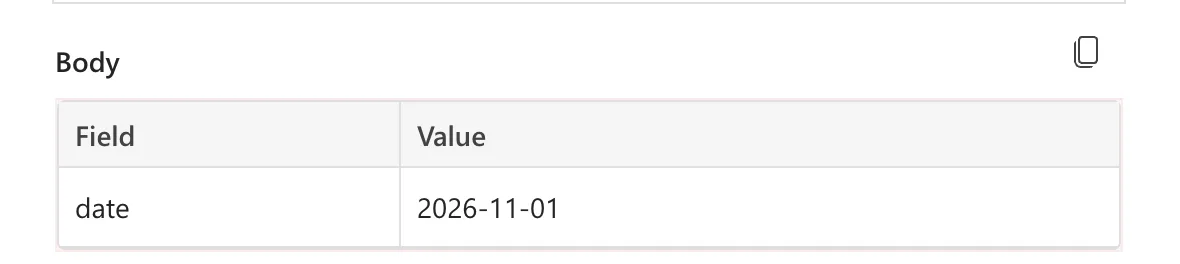
In a run started from the app, the trigger's outputs show the value under the input's key:
Common Mistakes
| Mistake | What happens | Do this instead |
|---|---|---|
| Using the input's name in an expression | The name isn't the key, and the expression returns nothing | triggerBody()?['key'], with the key from Code view |
| Changing inputs without refreshing the flow in the app | The app's Run doesn't match the flow | Refresh the flow in the app |
| Passing a Power Apps Date straight to a Date input | The trigger refuses the call | Text(date, "yyyy-mm-dd") |
| A Text input for a date | Any text gets through | A Date input, which checks the format |
Troubleshooting
| Symptom | Likely cause | Fix |
|---|---|---|
| does not validate against format 'date' | A date sent in another form | Send yyyy-mm-dd |
| The app's Run asks for the wrong number of values | The flow's inputs changed | Refresh the flow in the app |
| An expression with the input is empty | Wrong key | Check the key in Code view |
FAQ
Can a flow have several inputs?
Yes: each + Add an input adds one, and the app's Run takes a value for each.
Is a new input required?
Yes. Code view lists its key under required, and Run flow marks it with an asterisk.
Why is the key date when the input is called Month?
The key comes from the input when it's added. Renaming it changes its title, which is what Run flow and Power Apps show; expressions keep using the key.
Conclusion
Add an input with + Add an input on the trigger, give it a name and a description, and read it in the flow with triggerBody()?['key'], using the key from Code view. For a Date input, send yyyy-mm-dd from the app.
Additional Resources
- Customize or format date and time values in a flow: a Date input in an instant flow
- Use Power Automate pane: adding, running and refreshing flows in a canvas app
- Reference guide to functions in expressions: triggerBody
