How to Add an Icon to a Button in Power Apps

An icon next to a button's text helps people find the right button at a glance. The modern Power Apps Button has an Icon property built in, so you don't need a separate icon control. Here's how to pick one, where to put it, and how to handle buttons that show only an icon.
Prerequisites
- A modern button. See How to Add a Button in Power Apps. The example adds icons to the My plan and My team buttons of the Career Development Plan app's Home screen, from Part 4 of the series.
Step 1: Pick an Icon from the List
Select the button. In the properties pane, under General, select the Icon box (it says No value). A picker opens with a search box and a grid of icons; in the example, the unfiltered list had 181. Type part of a name to narrow it down:
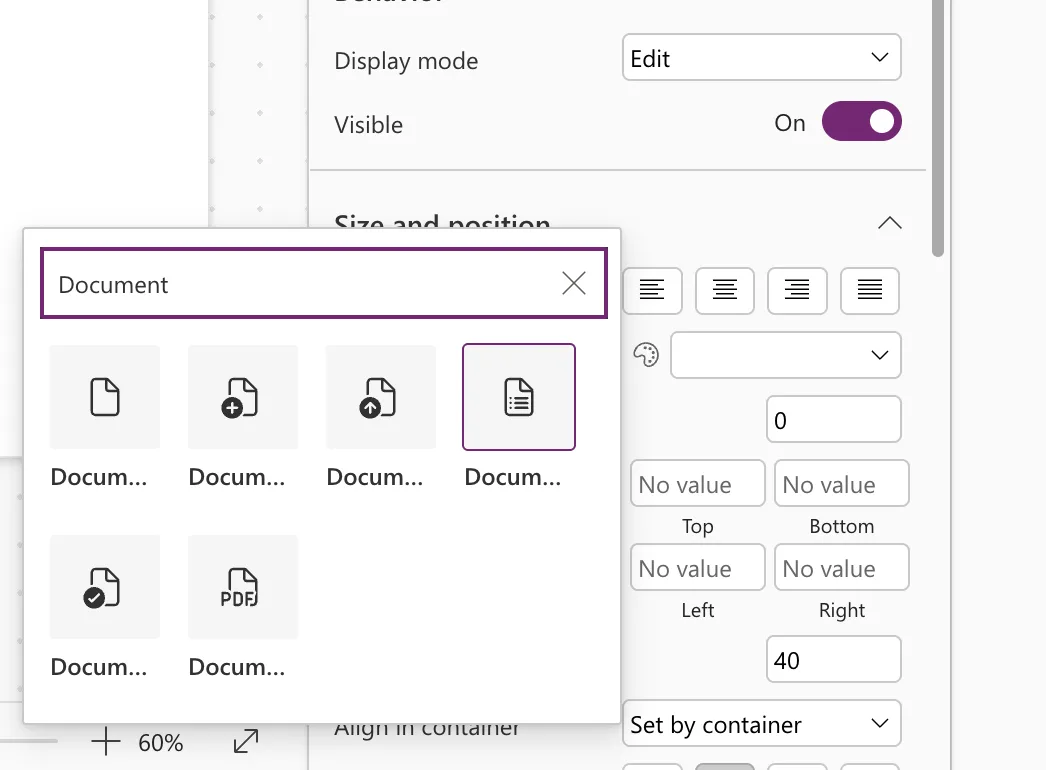
The picker shortens long names, such as "Docum…". Select the icon you want.
Step 2: See It as a Formula
The choice is stored as the icon's name, in quotes, in the Icon property:
"DocumentBulletList"
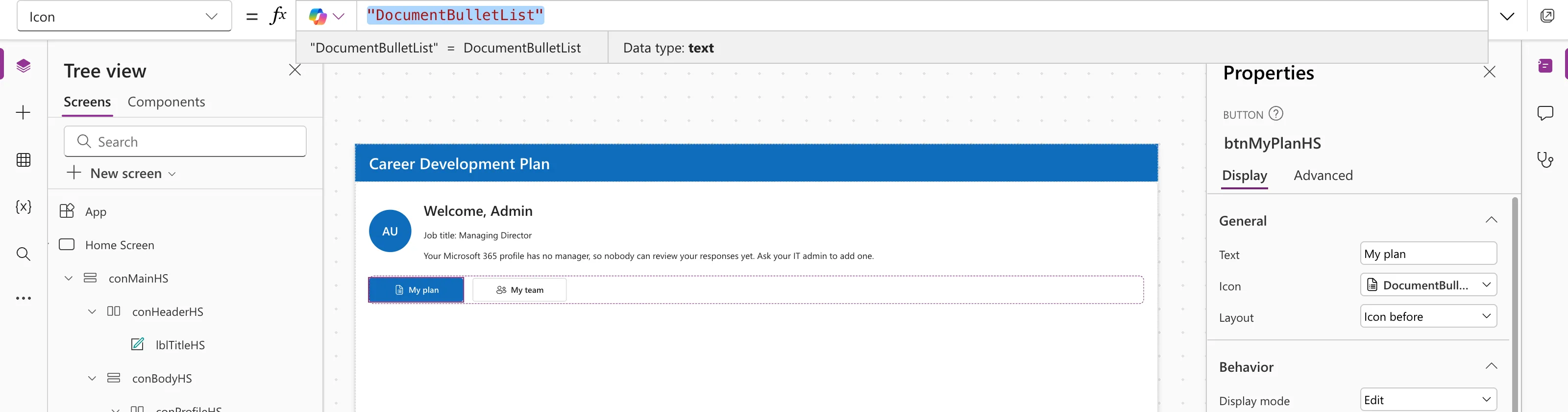
If you know the name, type it straight into the formula bar. The example's My team button uses:
"People"
Step 3: Choose Where the Icon Goes
Layout sets the icon's position:
| Layout | Result |
|---|---|
ButtonLayout.IconBefore (default) | Icon on the left of the text |
ButtonLayout.IconAfter | Icon on the right |
ButtonLayout.IconOnly | Just the icon |
And IconStyle sets its look: IconStyle.Outline (default) or IconStyle.Filled.
Step 4: Make Icon-Only Buttons Accessible
A button with ButtonLayout.IconOnly has no visible words, so a screen reader has nothing to read unless you add one. Microsoft's Button documentation calls out exactly this case for AccessibleLabel:
"Back to the home screen"
Even with text, Studio's App checker asks for an AccessibleLabel; see Fixed: Missing Accessible Label in the Power Apps App Checker.
Common Mistakes
| Mistake | What happens | Do this instead |
|---|---|---|
| Typing an icon name without quotes | An error | "People" |
| Guessing an icon name | It may not match any icon in the list | Pick it from the picker |
| An icon-only button without AccessibleLabel | Screen readers announce nothing useful | Describe the action |
Troubleshooting
| Symptom | Likely cause | Fix |
|---|---|---|
| Text wraps after adding an icon | The button is too narrow | Increase Width |
| Not the icon you expected | A different name in Icon | Choose it from the picker and check the formula bar |
| Can't see the full name in the picker | Names are shortened | Select it, then read the name in the formula bar |
FAQ
Where do the icon names come from?
They're Fluent icon names, such as Add, ArrowLeft, People and DocumentBulletList, shown in the button's icon picker.
Can the icon change with a formula?
Yes. Icon is a formula like any other, so If(IsManager, "People", "Person") works.
Should every button have an icon?
No. Use them where they help recognition; a screen full of icons is harder to scan.
Conclusion
Select the button, pick an icon from the Icon box (or type its name in quotes), choose Layout and IconStyle, and give icon-only buttons an AccessibleLabel.
Additional Resources
- Button modern control: Icon, IconStyle, Layout and AccessibleLabel.
