How to Add an Expression in Power Automate

Dynamic content gives you values from earlier steps as they are. When you need to work with a value, such as reading one property of a loop's current item, you write an expression. This guide adds one to an action's field in the new designer, and checks what the flow saved.
What an Expression Is
Power Automate's expressions use Microsoft's Workflow Definition Language, the same one as Azure Logic Apps. They're built from functions, such as items(), body() or empty(), and Microsoft's functions reference lists them all. This one reads the title of the current item in a loop called For each list:
items('For_each_list')?['title']
Prerequisites
- An action with a field to fill. The example is Find the list, from the setup flow in Part 11 of the Career Development Plan series. Its Uri looks for a list by the title from the expression above.
Step 1: Open the Expression Editor
Select the field and put the cursor where the expression goes. Then either:
- select the fx button that appears at the edge of the field, under the lightning button for dynamic content; or
- type / and choose Insert expression.
Both open the expression editor beside the pane.
Step 2: Type the Expression
Type the expression into the editor. As you type, the editor suggests functions and names. Press Esc to close the suggestion list when you don't want a suggestion: a keypress can otherwise accept one and replace what you typed. The Function tab lists functions by type, and Dynamic content inserts tokens from earlier steps:
![The Find the list pane with the cursor in the Uri after _api/web/lists?$filter=Title eq ', the lightning and fx buttons at the field's edge, and the expression editor beside it containing items('For_each_list')?['title'], with Create an expression with Copilot, the Function and Dynamic content tabs, String functions, and the Add button](https://strdewiridedevblogsprod.blob.core.windows.net/images/blog/power-platform/power-automate/2026/pa-items-01-expression-editor.webp)
Step 3: Add It
Select Add. The editor closes, and the field shows the expression as a token, in the middle of any text around it:
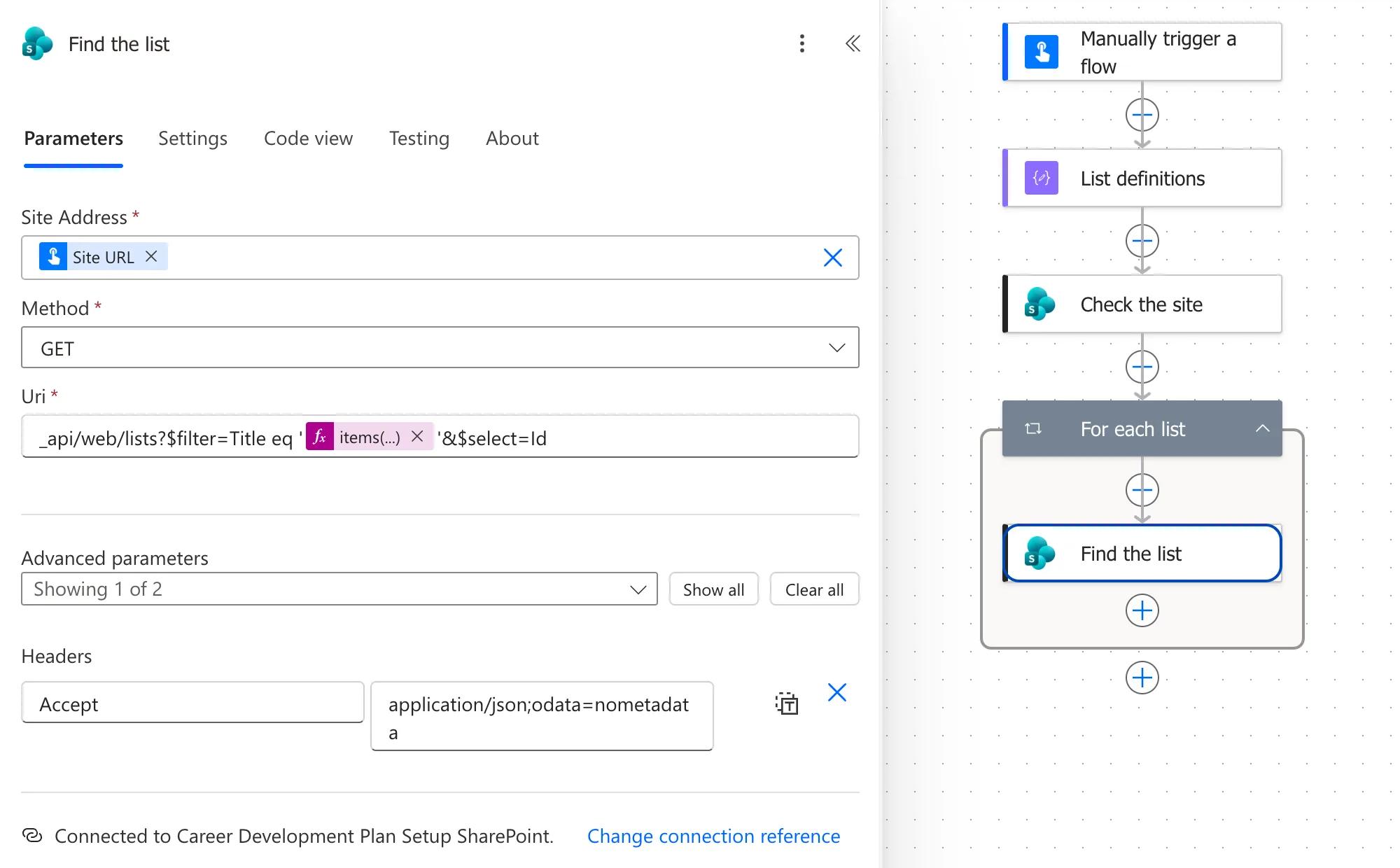
After the flow is saved and reopened, the same token can show the property's name, title, instead.
If the editor stays open with This expression has a problem although the expression is right, select Add again. It sometimes takes two or three tries (Fixed: "This Expression Has a Problem" for a Valid Expression).
Step 4: Check What Was Saved
Select the action's Code view tab. An expression on its own is saved with an @ in front. An expression in the middle of text is saved inside @{...}:
_api/web/lists?$filter=Title eq '@{items('For_each_list')?['title']}'&$select=Id
Reading Code view catches the two problems the editor doesn't show: a suggestion that replaced your text, and an expression that didn't make it in.
Expressions Inside Text Become Text
@{...} always turns the result into text, as Microsoft's Workflow Definition Language reference says. That's what you want in an address. In a JSON body, a true-or-false value then arrives as True or False, which isn't JSON (Fixed: "Invalid JSON. A Token Was Not Recognized in the JSON Content" shows the fix).
Common Mistakes
| Mistake | What happens | Do this instead |
|---|---|---|
| Typing the expression straight into the field | It's saved as plain text, not run | Use the expression editor |
| Accepting a suggestion by accident | Your expression is replaced | Press Esc to close suggestions |
| Skipping Code view | A wrong expression goes unnoticed | Check it after Add |
Troubleshooting
| Symptom | Likely cause | Fix |
|---|---|---|
| This expression has a problem for a correct expression | The editor's check lags behind | Select Add again |
| The token is in the wrong place | The cursor was elsewhere when you opened the editor | Remove it and add it again at the right spot |
| A run fails on the field's value | The saved expression isn't what you meant | Read Code view |
FAQ
Should I use Create an expression with Copilot?
It's there for describing what you want in words. When you know the expression, typing it is quicker and exact.
Where can I see which functions exist?
On the editor's Function tab, grouped by type, such as String functions, and in Microsoft's functions reference, with an example for each.
Conclusion
Put the cursor in the field, select fx or type / → Insert expression, type the expression, close any suggestions with Esc, and select Add. Then check Code view: on its own an expression starts with @, and inside text it sits in @{...}.
Additional Resources
- Reference guide to functions in expressions: every function.
- Schema reference guide for the Workflow Definition Language: how expressions and
@{...}work.
