How to Add an .editorconfig to a .NET C# Project with dotnet new editorconfig

An .editorconfig file holds a project's formatting and code-style rules: indentation, var or explicit types, readonly fields, naming. Editors such as Visual Studio and VS Code read it, so everyone gets the same style, and the .NET compiler reads it for analyzer settings. dotnet new editorconfig writes Microsoft's defaults for .NET in one command. This guide creates it, explains how to read it, and shows the part most people miss: the build ignores most of it unless you ask.
Prerequisites
- The .NET SDK, any recent version. This guide uses .NET 10.
- A project or solution folder. Put the file at the root, so it applies to everything below. Microsoft's configuration files page: "You can apply EditorConfig file conventions to a folder, a project, or an entire repo by placing the file in the corresponding directory."
Step 1: Create It
In the solution's root folder:
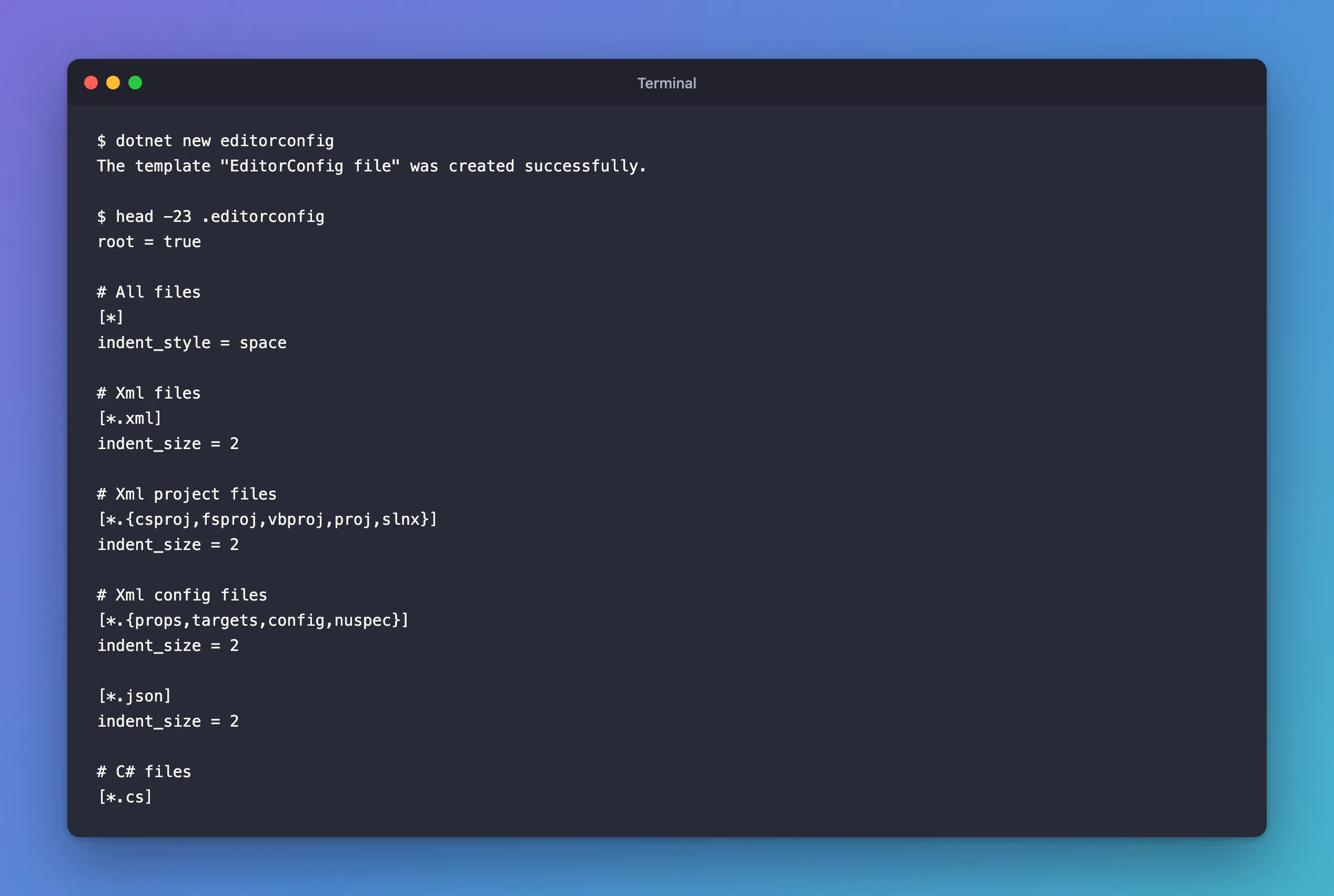
dotnet new editorconfig
The template "EditorConfig file" was created successfully.
The template "Creates an .editorconfig file for configuring code style preferences." It's long: 389 lines here. It starts like this:
root = true

# All files
[*]
indent_style = space

# Xml files
[*.xml]
indent_size = 2

# Xml project files
[*.{csproj,fsproj,vbproj,proj,slnx}]
indent_size = 2

# Xml config files
[*.{props,targets,config,nuspec}]
indent_size = 2

[*.json]
indent_size = 2

# C# files
[*.cs]
Step 2: Read Its Structure
root = true tells editors to stop looking for .editorconfig files in parent folders. The Visual Studio docs: "If you want to ensure that no settings from any higher-level .editorconfig files are applied to this part of the codebase, add the root=true property to the lower-level .editorconfig file."
Section headers in brackets choose files. The .NET docs explain the C# one: "[*.cs] is an editorconfig section header to select all C# files with .cs file extension within the current folder, including subfolders." [*.{cs,vb}] means C# and Visual Basic files. Every line below a header applies to the files it matches, until the next header.
Entries are name = value, and many code-style entries add a severity after a colon:
# this. and Me. preferences
dotnet_style_qualification_for_event = false:silent
dotnet_style_qualification_for_field = false:silent

# Language keywords vs BCL types preferences
dotnet_style_predefined_type_for_locals_parameters_members = true:silent
dotnet_style_prefer_inferred_tuple_names = true:suggestion

# Field preferences
dotnet_style_readonly_field = true:warning
dotnet_style_qualification_for_field = false:silent: prefercountoverthis.count, but don't show anything about it.dotnet_style_prefer_inferred_tuple_names = true:suggestion: a hint in the editor, the dotted underline.dotnet_style_readonly_field = true:warning: preferreadonlyon fields that are never reassigned, and show a warning when one isn't. That's rule IDE0044.
Step 3: Know Which Rules Warn
In this template only two code-style preferences are set to warning:
82:dotnet_style_readonly_field = true:warning
121:csharp_prefer_static_local_function = true:warning
The rest are suggestion or silent. The severities mean, in the .NET docs' words: a warning appears "as build warnings but do not cause builds to fail (unless you have an option set to treat warnings as errors)", a suggestion "as build messages and as suggestions in the Visual Studio IDE", and silent "Violations aren't visible to the user."
But those build-related words come with a condition: for code-style rules, the build only checks them when you turn that on. The code analysis overview: "Code-style analysis is disabled, by default, for all .NET projects on command-line builds." With this file in place and a field that should be readonly, dotnet build still said "Build succeeded". How to Enforce .NET Code Style Rules on Build with EnforceCodeStyleInBuild changes that.
Step 4: Check One Default You May Not Want
Under [*.cs], the template sets:
# New line preferences
insert_final_newline = false
That asks for C# files without a newline at the end. Most editors and dotnet new templates write one, so tools that apply the .editorconfig want to remove it. dotnet format --verify-no-changes on this solution reported error FINALNEWLINE: Fix final newline. Delete 1 characters. for every C# file. If your files end with a newline, change it to true before anyone runs a formatter.
Step 5: Or Start Empty
If you'd rather build your own rule set, --empty "Creates an empty .editorconfig instead of the defaults for .NET":
dotnet new editorconfig --empty
root = true
One line: a root marker and nothing else. Add sections as you decide on rules.
Common Mistakes
| Mistake | What happens | Do this instead |
|---|---|---|
| Putting the file inside one project in a multi-project solution | Only that project gets the rules | Put it at the solution root |
Expecting :warning entries to fail the build | Code-style rules aren't checked on build by default | Set EnforceCodeStyleInBuild |
Two .editorconfig files, both with root = true | The inner one stops inheritance from the outer | Use root = true only at the top |
FAQ
Does the .editorconfig change how my code compiles?
No. It configures formatting and analyzer rules, the warnings and suggestions about code, not what the code does.
Can I keep both editor settings and analyzer severities in it?
Yes. That's what the template does: indentation for every file type at the top, C# rules below.
Conclusion
dotnet new editorconfig writes Microsoft's default style rules for .NET into one file at the solution root. Read it as sections of files, [*.cs], with option = value:severity entries; in the default template only two code-style preferences are warnings, and the build checks none of them until code-style enforcement is on. Use --empty to start from a blank file instead.
