How to Add an Avatar Control in Power Apps

The modern Avatar control shows a person as a round picture, or as their initials when there's no picture. Out of the box it shows the signed-in user, which makes it an easy way to personalise a home screen. It also ships with an Available presence badge you probably don't want. Here's how to add it and set it up properly.
Prerequisites
- Modern controls turned on. See How to Turn On Modern Controls and Themes in Power Apps.
- A place for it, such as a horizontal container next to some text. The example is the profile row of the Career Development Plan app's Home screen, from Part 4 of the series.
Step 1: Insert an Avatar
Select the container, open Insert, expand Display and select Avatar:
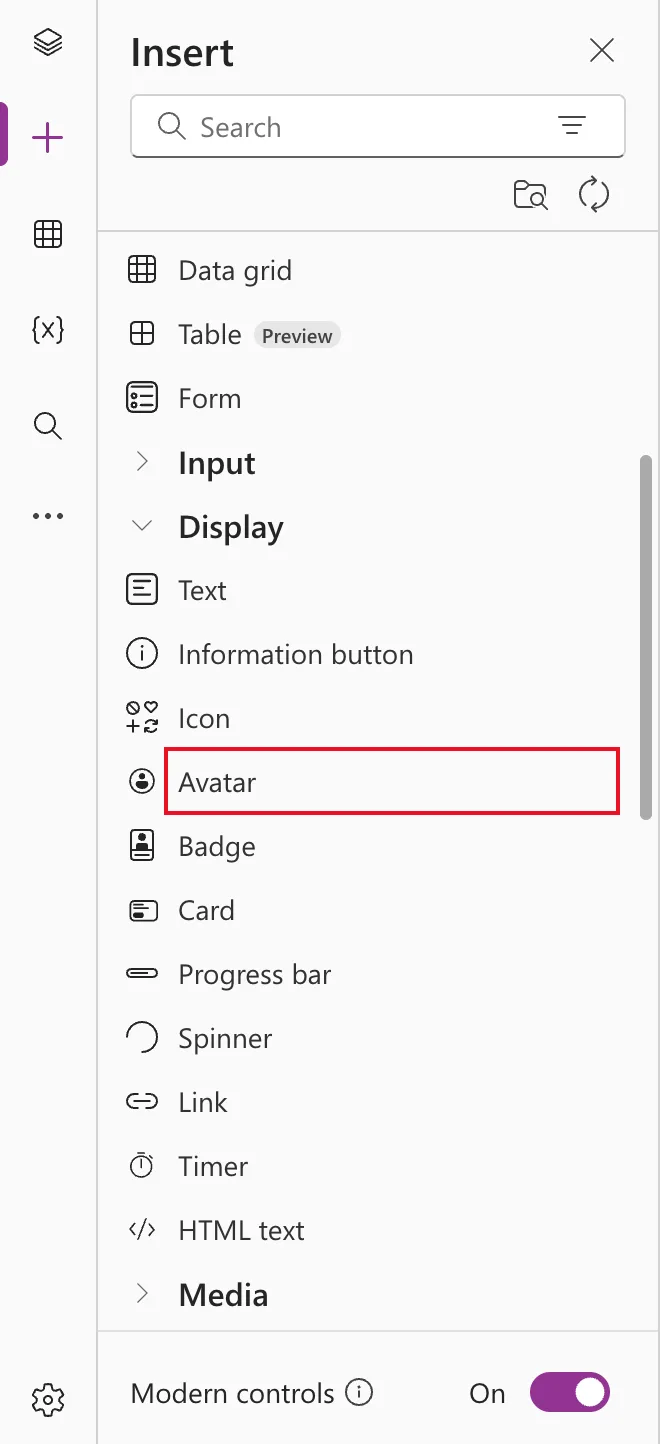
Rename it; the example uses avtMeHS.
Step 2: Know Its Defaults
A new Avatar already points at the signed-in user:
| Property | Default | Meaning |
|---|---|---|
| Image | User().Image | The user's Microsoft 365 picture |
| Name | User().FullName | Used for the initials and for screen readers |
| Badge | PresenceBadge.Available | A green "available" dot |
| Shape | AvatarShape.Circular | Round |
| Width × Height | 64 × 64 |
![The formula bar with the Image property of avtMeHS set to User().Image, the preview strip showing [Image] with Data type image, and a grey person icon in the avatar on the canvas](https://strdewiridedevblogsprod.blob.core.windows.net/images/blog/power-platform/power-apps/2026/pa-avatar-02-avatar-image-user-image.webp)
How to Get the Current User in Power Apps with the User Function explains User().
Step 3: Remove the Presence Badge
The app doesn't know whether the person is available, so the green dot would be misleading. Remove it:
Blank()
The Avatar documentation says to use a blank value when no badge should appear.
Step 4: Size It
The example uses 72 × 72:
| Property | Value |
|---|---|
| Width | 72 |
| Height | 72 |
Step 5: Initials Instead of a Grey Icon
Notice the grey person icon in Step 2: the example's admin account has no photo, yet the Avatar didn't fall back to initials. That's because User().Image returns a default picture. Fixed: Power Apps Avatar Shows a Grey Person Icon Instead of Initials shows the one-line fix.
Step 6: Label It for Screen Readers
Studio's App checker flags a new Avatar with Missing accessible label. Describe it:
"Profile picture of " & User().FullName
See Fixed: Missing Accessible Label in the Power Apps App Checker.
Common Mistakes
| Mistake | What happens | Do this instead |
|---|---|---|
| Keeping the default badge | Everyone shows as Available | Set Badge to Blank() |
| Assuming initials appear when there's no photo | A grey icon instead | Check for a photo first, as in the fix post |
| Leaving AccessibleLabel empty | An App checker error | Describe whose picture it is |
Troubleshooting
| Symptom | Likely cause | Fix |
|---|---|---|
| A grey person icon | No photo, and User().Image returns a default image | Use the fix in Step 5 |
| The badge won't go away | Badge still set to a value | Blank() |
| Wrong person shown | Image or Name points at someone else | Check both formulas |
FAQ
Can the Avatar show someone other than me?
Yes. Set Name to that person's name, and Image to their photo or Blank() for initials. Part 7 of the series shows each of a manager's direct reports this way, with Name ThisItem.displayName.
Can it be square?
Yes: AvatarShape.Square in Shape.
Can it be clicked?
Yes. Give it an OnSelect formula, and it behaves like a button for keyboards and screen readers.
Conclusion
Insert Avatar, remove the Available badge with Blank(), size it, make sure people without a photo get initials, and give it an AccessibleLabel. It's a small touch that makes the app feel personal.
Additional Resources
- Avatar modern control: every property and the badge values.
- User function:
User().ImageandUser().FullName.
