How to Add an App to a Group Chat in Microsoft Teams

An app with a bot can join a Teams group chat, where everyone in the chat can use it together. You add it from the app's own dialog: select Add, then choose the chat it should join.
Microsoft's guide for agents in group chats describes what that gives people: installing an app in a team or group chat "allows all members of the conversation to interact with your agent." Only the person who adds the app needs to do anything.
The Example
Card Demo is a custom app with one bot, uploaded from its package, CardDemo.zip, and added to a group chat called Lunch Club. The steps are the same for any app whose bot works in group chats.
Prerequisites
- An app that works in group chats. Its manifest lists
groupChatin the bot'sscopes. Card Demo listspersonalandgroupChat. - Permission to upload custom apps, for an app that isn't in your organization's store yet. Your Teams admin decides who has it.
- The group chat, already created, with you in it.
Step 1: Open Manage Your Apps
In the left rail, select the Store icon, a plus sign in a square:
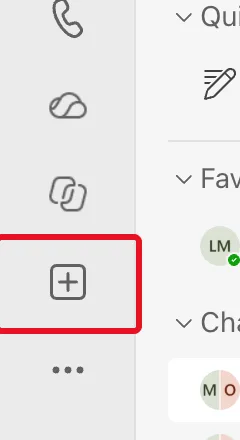
At the top right of the store, select the settings icon, Manage your apps:

Step 2: Upload the App
Select Upload an app:
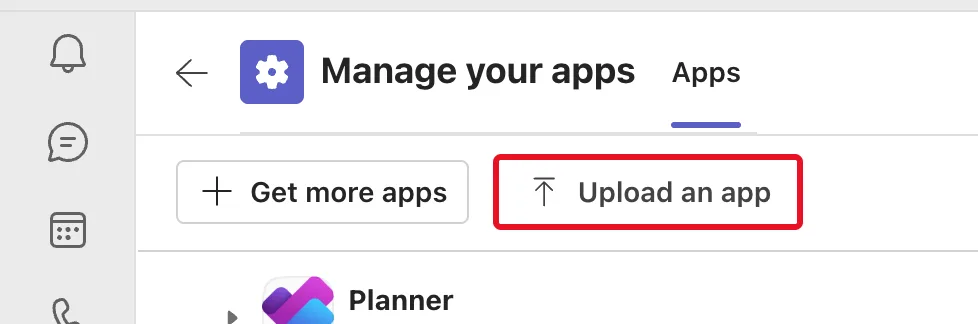
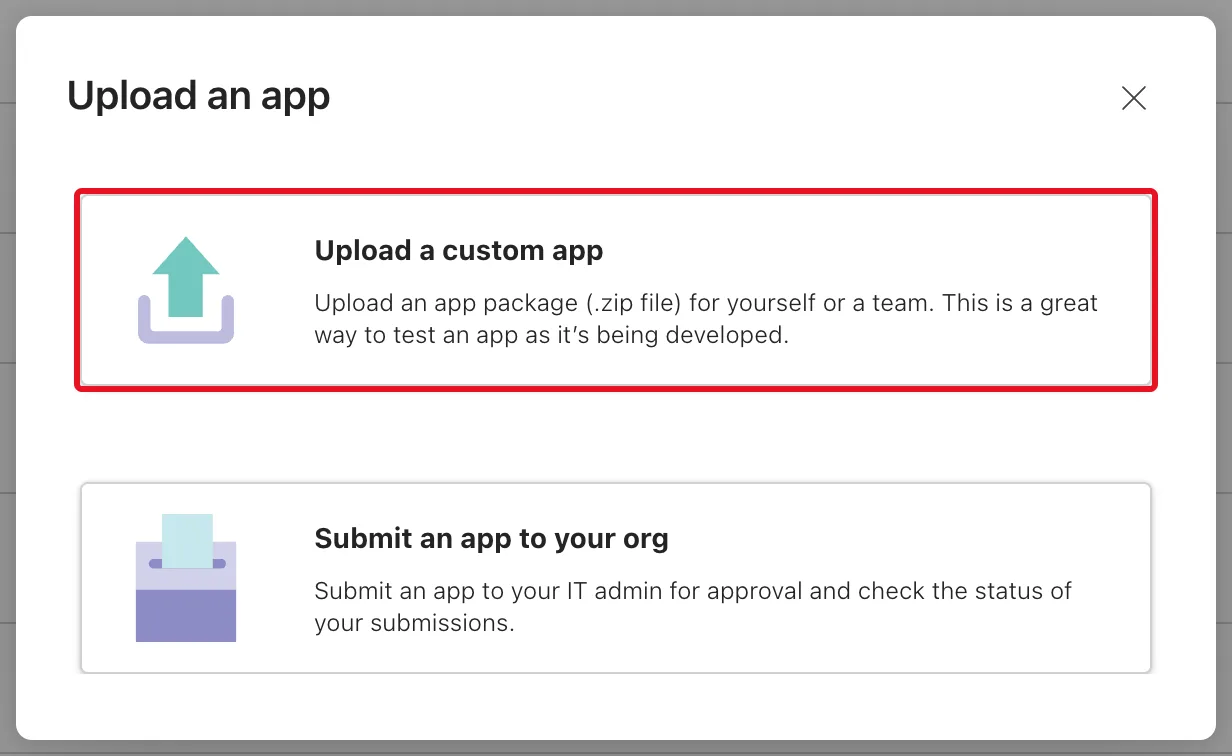
Then Upload a custom app, and pick the app package, here CardDemo.zip:
Step 3: Select Add
Teams shows the app's details. Select Add:
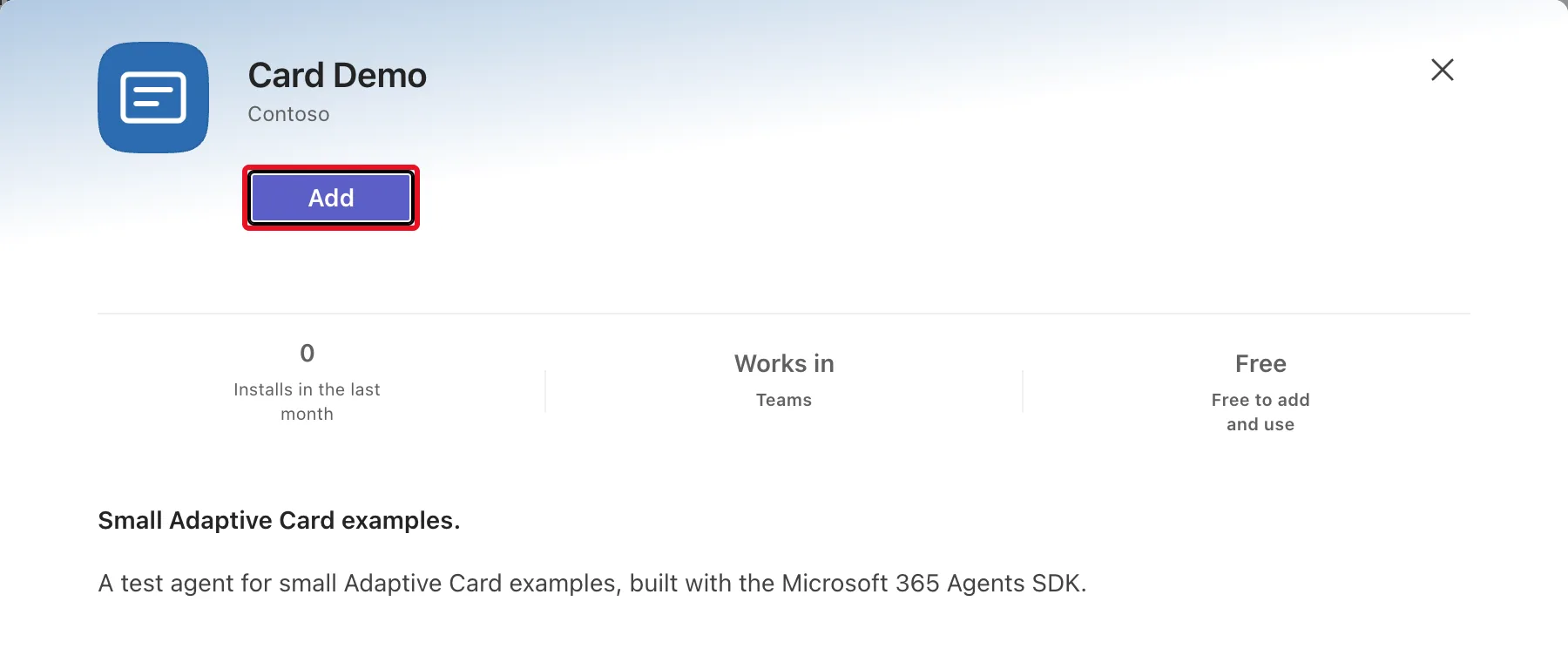
Step 4: Choose the Chat
What comes next depends on where the app works.
Card Demo also works one to one, so Teams first adds it for you and says Added successfully!. Under Open, it offers Or choose a place to use the app, with a search box and a few recent chats:
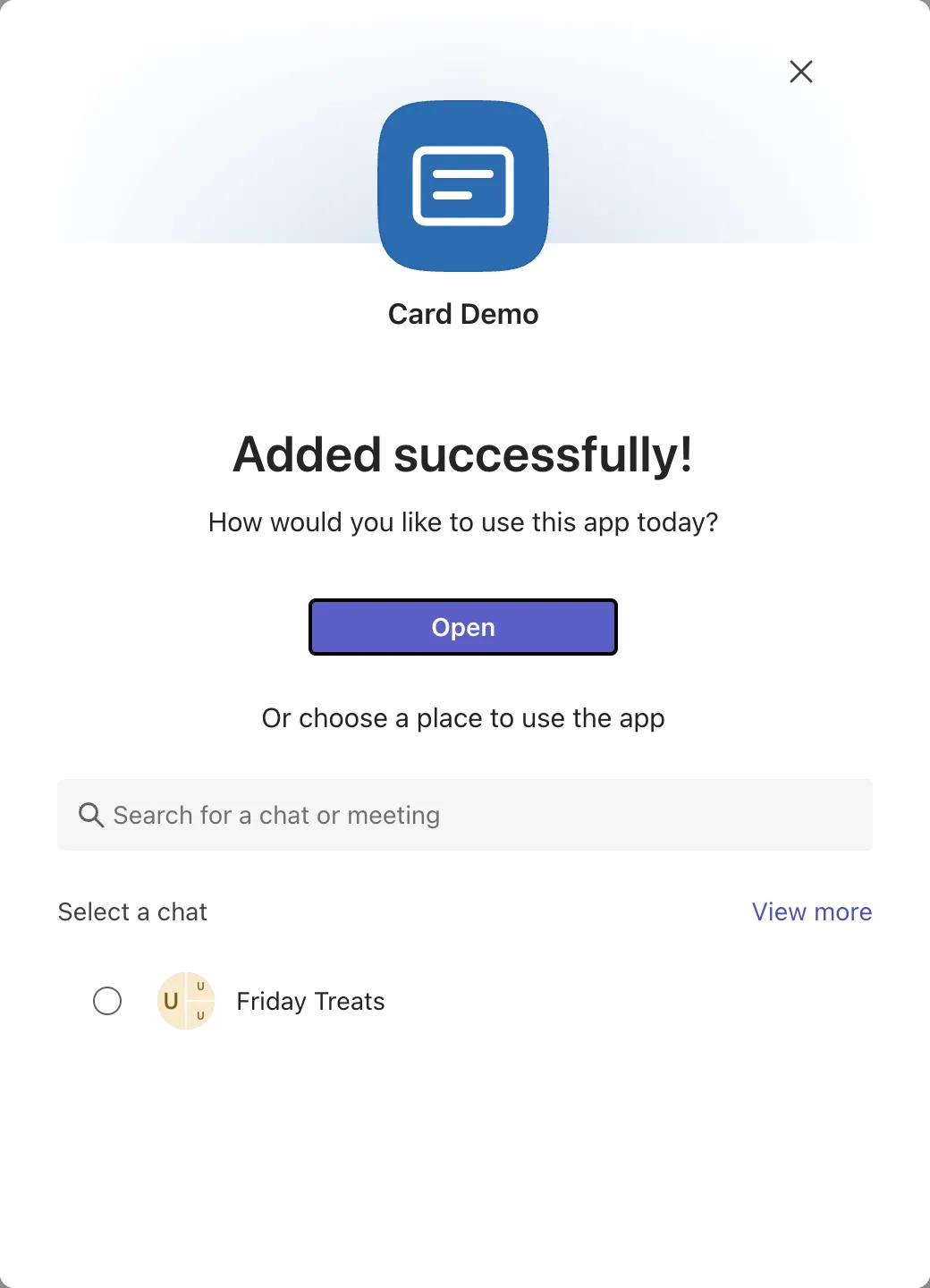
For an app that works only in group chats, the same dialog says Let's go and Choose a place to use the app, without Open.
If the chat isn't in the list, type its name in the search box. Select it:
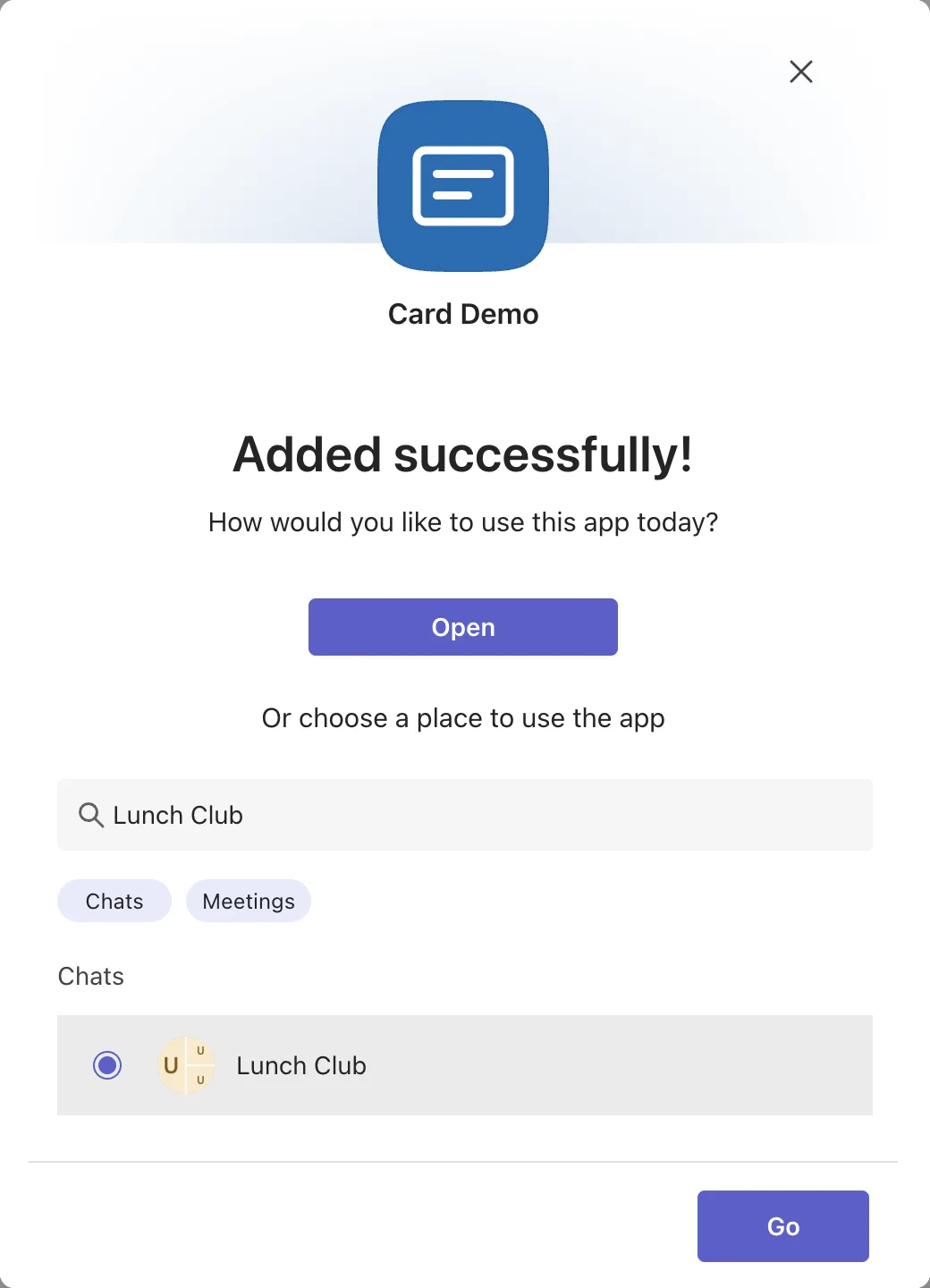
Then select Go.
Step 5: Check the Chat
Teams opens the chat, with a note for everyone in it:

Everyone in the chat can now use the app. To talk to its bot, @mention it: type @, then the app's name, and pick it from the list. In group chats, an app's bot gets only the messages that @mention it.
Common Mistakes
| Mistake | What happens | Do this instead |
|---|---|---|
The bot's scopes in the manifest don't include groupChat | The app can't be used in the chat | Add groupChat to the scopes, and upload the package again |
| Messaging the bot without an @mention | The bot never receives the message | Start the message with @ and the app's name |
Troubleshooting
| Symptom | Likely cause | Fix |
|---|---|---|
| The chat isn't in Select a chat | Only a few recent chats are listed | Search for the chat by name |
| Upload an app is missing | Your account isn't allowed to upload custom apps | Ask your Teams admin to allow it |
| The bot doesn't answer in the chat | No @mention, or the bot's service isn't running | @mention the app, and check its service |
FAQ
Do the other people in the chat have to install the app?
No. Microsoft's guide for agents in group chats: adding the app "allows all members of the conversation to interact with your agent."
Can the bot read every message in the chat?
Not by default. The same guide: "agents in group chats and channels only receive messages when they're directly @mentioned." An app can ask for every message with resource-specific consent (RSC) permissions in its manifest, and Microsoft's guide adds: "The team or chat owner must consent to the requested RSC permissions during installation."
Conclusion
To add an app to a group chat, upload or open it, select Add, and choose the chat under Choose a place to use the app, then Go. Everyone in the chat can then @mention it.
Additional Resources
- Channel and group chat conversations for agents, on Microsoft Learn.
- Agent scopes, on Microsoft Learn:
personal,groupChatandteam.
