How to Add a Vertical Gallery in Power Apps and Connect It to a SharePoint List

A gallery shows a list: one row per record, all with the same design. You design the first row, the template, and the gallery repeats it for every record. Here's how to add a vertical gallery, connect it to a SharePoint list and set it up properly.
Prerequisites
- A canvas app with a SharePoint list as a data source. The example uses the
RoleCompetencieslist in the Career Development Plan app (Part 2 and Part 3 of the series). - A container for the gallery to sit in, here the vertical container
conBodyMPS(How to Add a Vertical Container in Power Apps).
Step 1: Insert a Vertical Gallery
Select the container, then Insert → Layout → Vertical gallery:
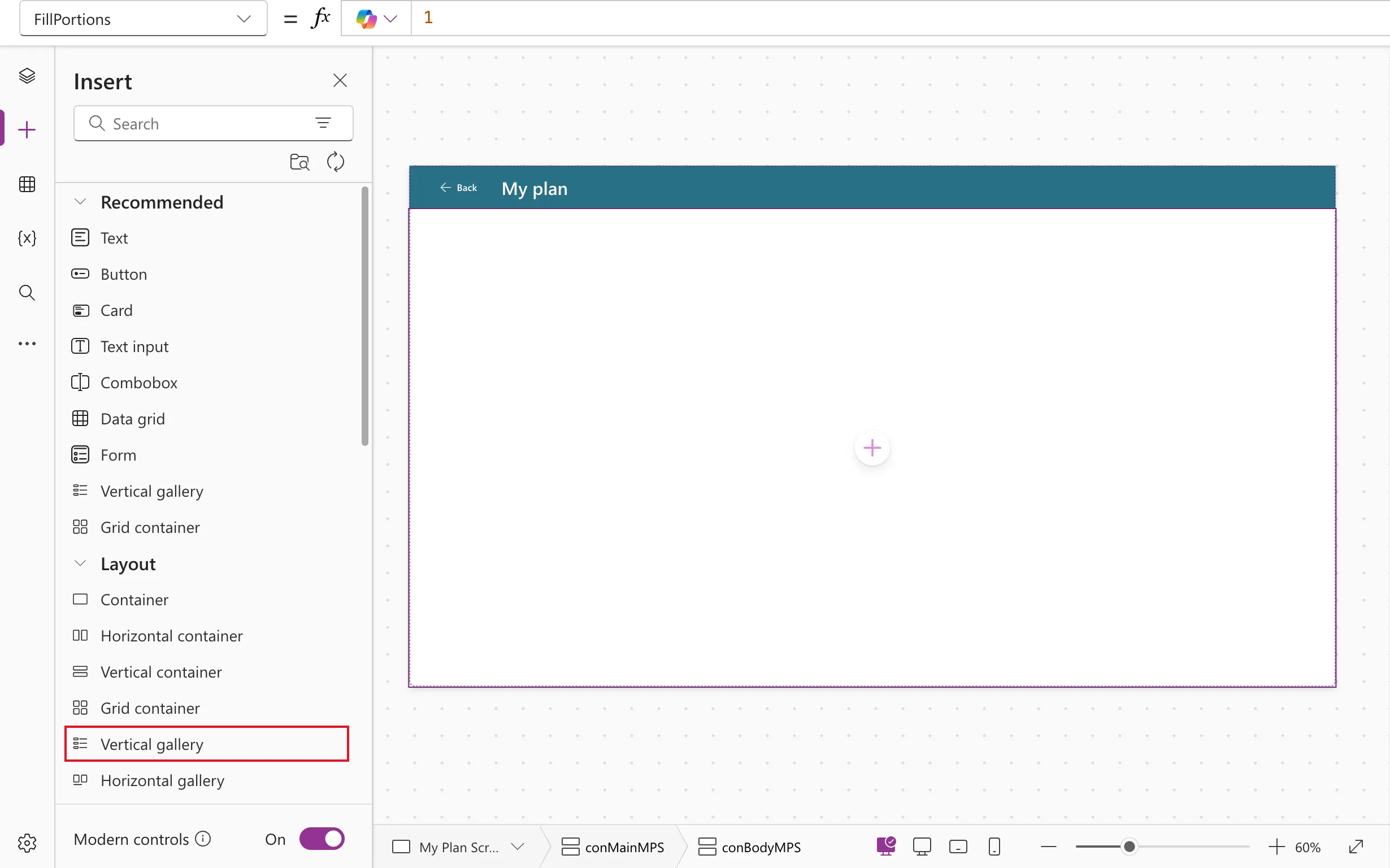
The gallery starts with sample rows: its Items is CustomGallerySample, and the rows read Lorem ipsum.
Step 2: Choose the Data Source
A Select a data source flyout opens next to the gallery. Under In your app are the data sources the app already has; pick the list:
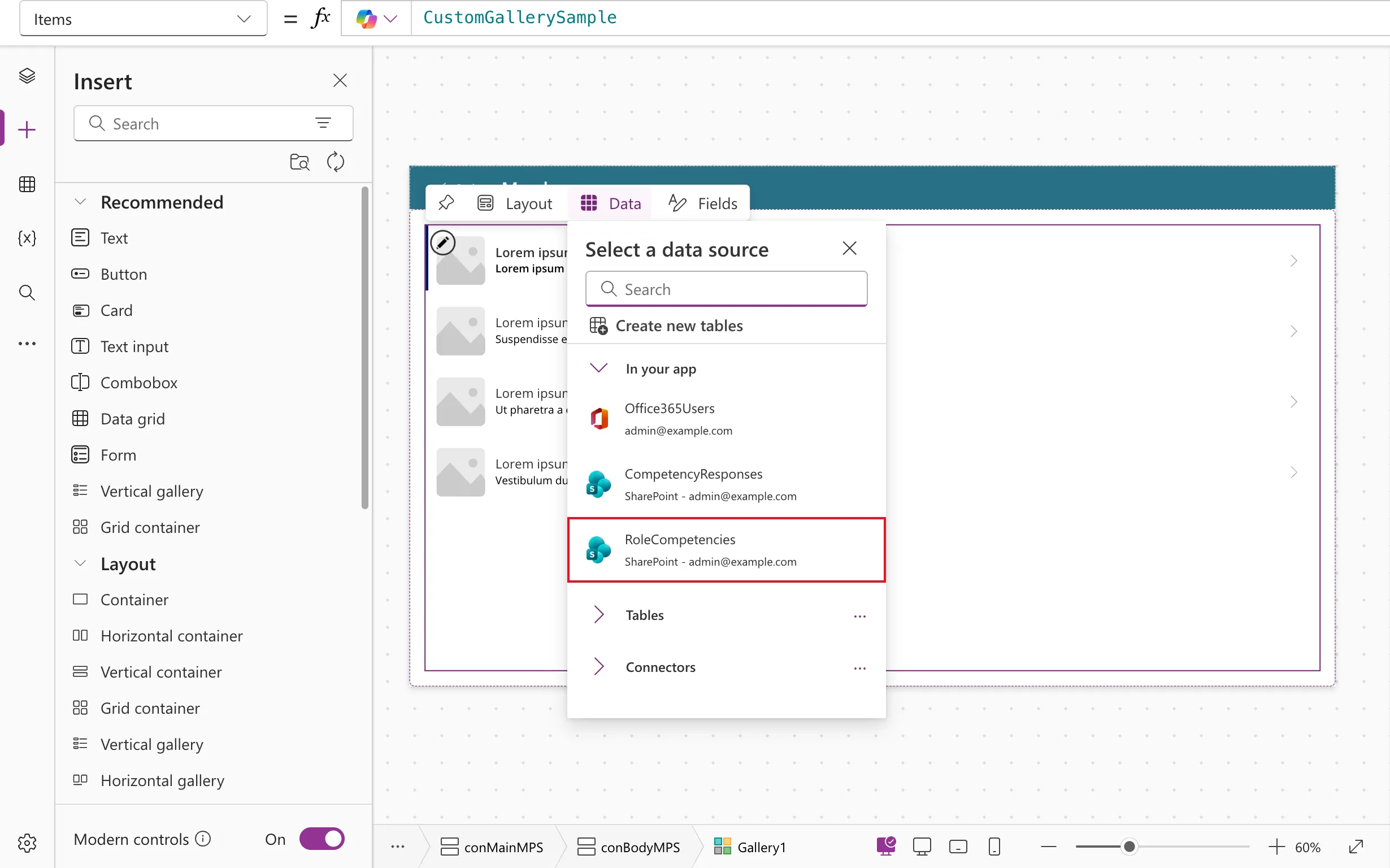
Items becomes RoleCompetencies, and the gallery shows the list's items. Later you'll usually replace Items with a formula, such as a Filter of the list.
Step 3: Choose the Layout
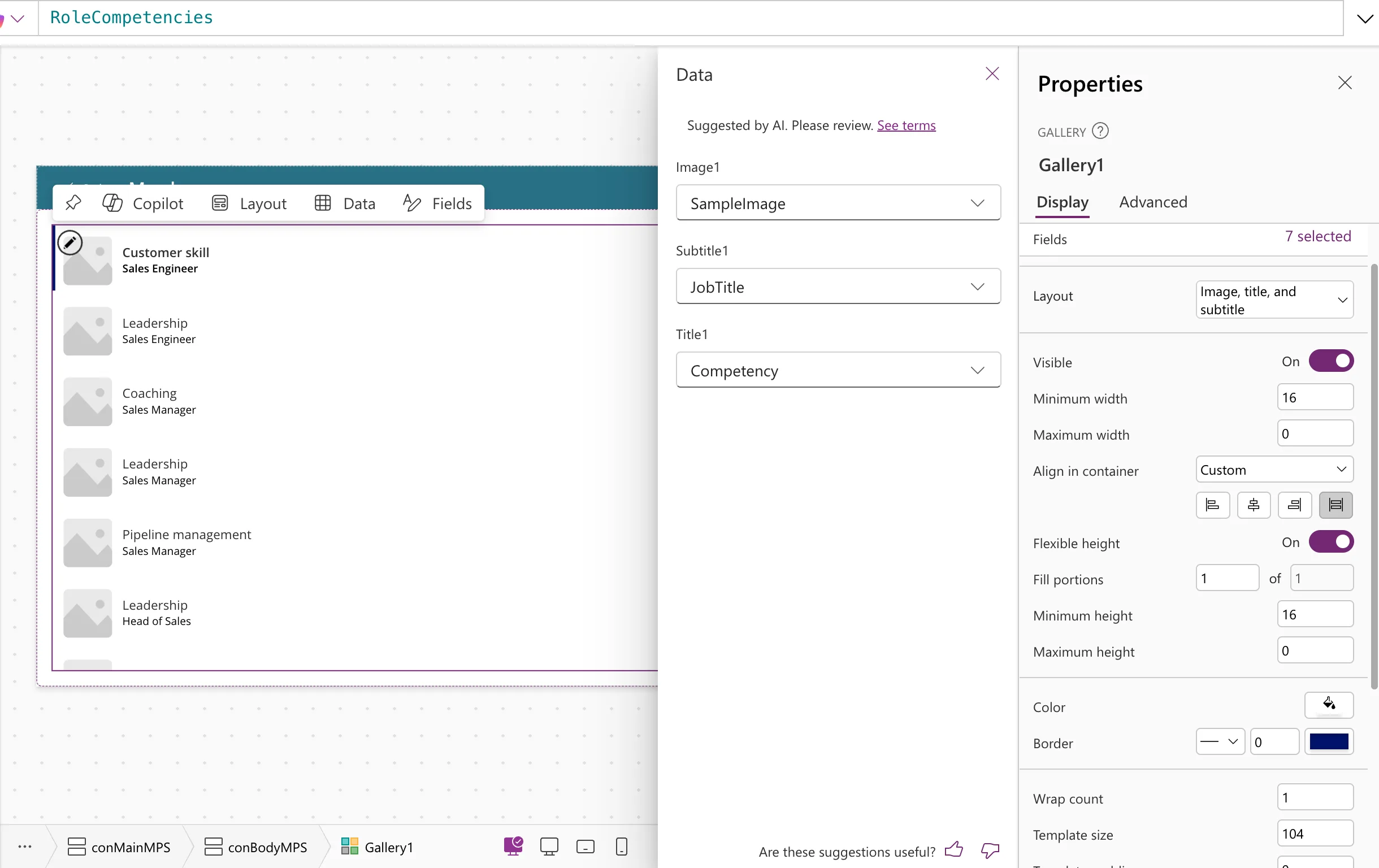
The default layout, Image, title, and subtitle, adds an image, two labels, an arrow, a separator and a rectangle to the template. Its Fields pane fills them in for you; in the example the suggestions were marked Suggested by AI. Please review.:
To design the row yourself, open Layout in the properties pane and choose Blank. The list layouts are Blank, Title, Title and subtitle, Title, subtitle, and body, Image and title, Image, title, and subtitle and Image, title, subtitle, and body:
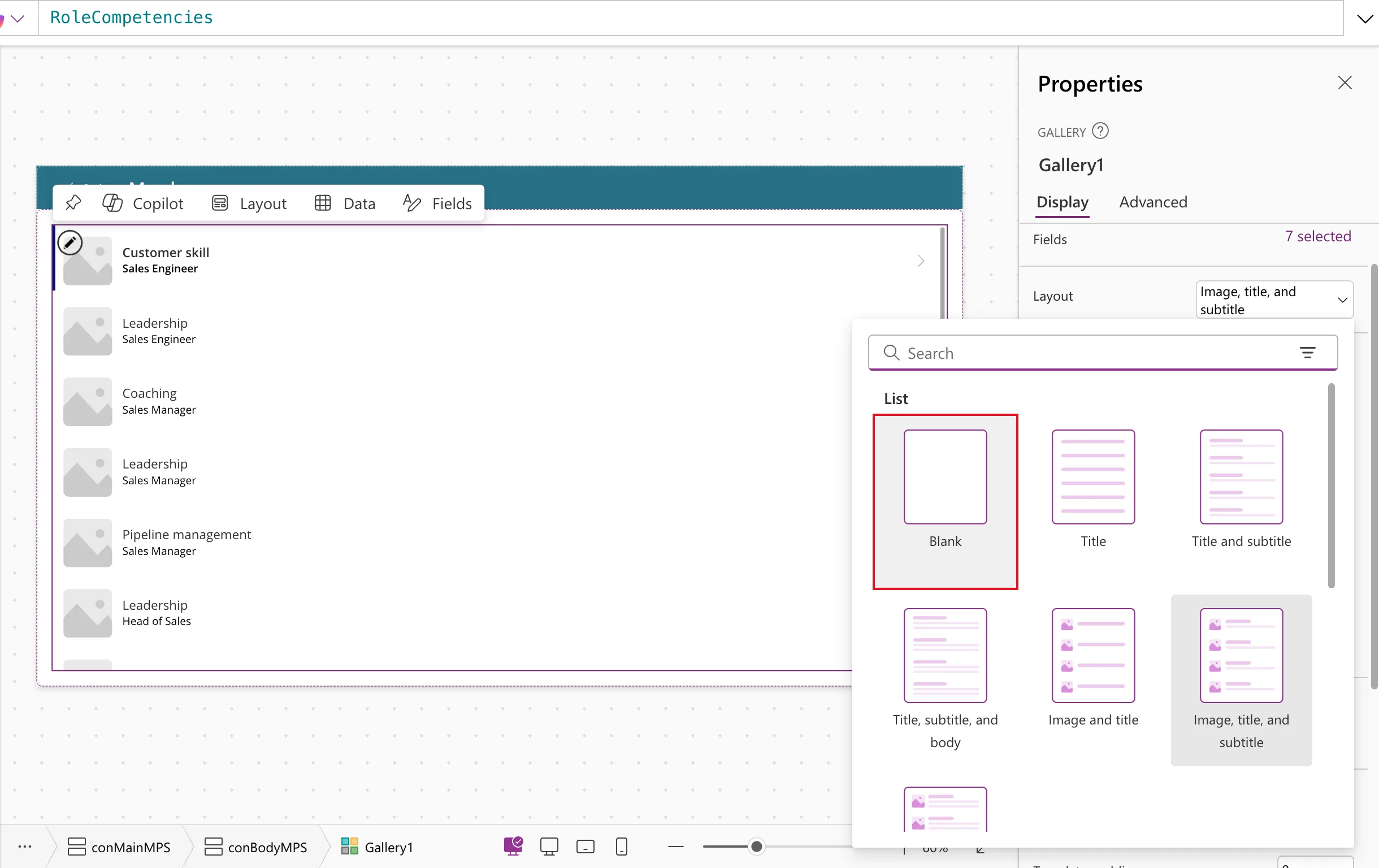
Blank removes the template's controls, leaving an empty row to fill.
Rename the gallery with the gal prefix (Power Apps Naming Conventions). The example's is galMyPlanMPS.
Step 4: Make It Fill the Container
In the example, the gallery came out at a fixed 640 by 575. To fill the space below the other controls in a vertical container:
| Property | Value |
|---|---|
| Flexible height | On, fill portions 1 |
| Align in container | Set by container (with the container's Align set to Stretch) |
The gallery then grows and shrinks with the screen, and scrolls when its rows don't fit.
Step 5: Edit the Template
Select the gallery, then the pencil icon at the top left of its first row, Edit gallery. That selects the template (Show a list of items):
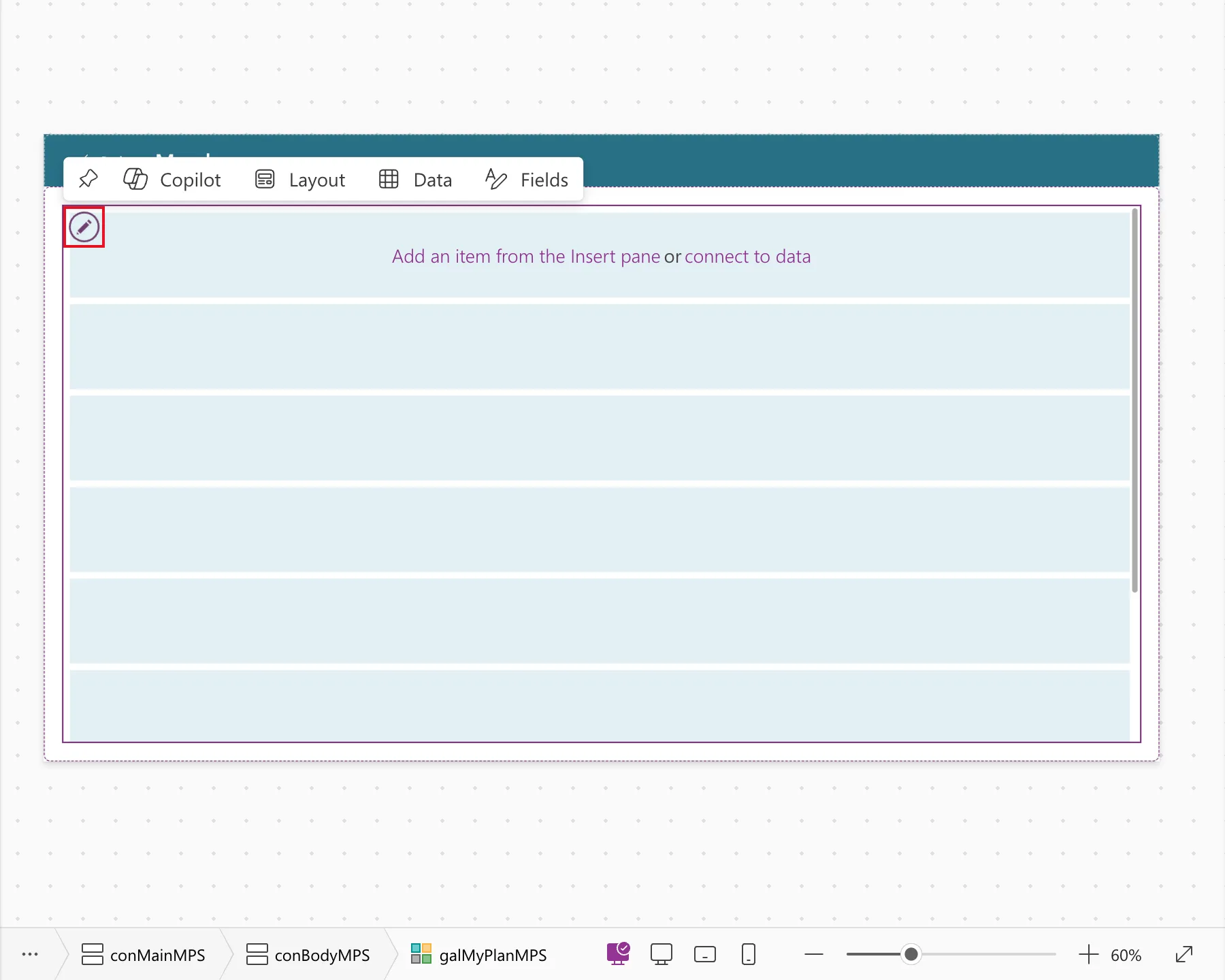
Controls you insert now go into the template and repeat on every row. With the gallery itself selected instead, they land next to it; see Fixed: New Control Lands Outside the Gallery. In the template, refer to the row's columns with ThisItem.
Size the rows with these properties (Gallery control):
| Property | Default in the example | What it does |
|---|---|---|
| TemplateSize | If(Self.Layout = Layout.Horizontal, Min(280, Self.Width - 60), Min(280, Self.Height - 60)) | Height of each row |
| TemplatePadding | 5 | Space between rows |
| TemplateFill | Transparent | Background of each row |
The example uses 120, 8 and App.Theme.Colors.Lighter80, a light shade of the theme's color (How to Use Theme Colors and Fonts in Power Apps Formulas).
Step 6: Set the Accessibility Properties
| Property | Value in the example | Why |
|---|---|---|
| AccessibleLabel | "Competencies for your job title" | Microsoft says it must be present: it names the list for screen readers |
| ItemAccessibleLabel | ThisItem.Competency & ", level " & ThisItem.Level.Value & ", " & ThisItem.StatusText | A summary of each row when it has several controls (StatusText is a column the example adds with AddColumns) |
| Selectable | false | The rows aren't meant to be selected, so screen readers treat it as a plain list |
| TabIndex | 0 | So keyboard users can reach the list; see Fixed: "Missing Tab Stop" |
A new gallery had Selectable true and TabIndex -1 in the example. Microsoft's accessibility guidelines for galleries explain each property.
Common Mistakes
| Mistake | What happens | Do this instead |
|---|---|---|
| Inserting controls with the gallery selected | They land outside the gallery | Select the template with the pencil first |
| Leaving a fixed size in a container | The gallery doesn't follow the screen | Flexible height On |
Showing a Choice column as ThisItem.Level | Expected Text value | ThisItem.Level.Value (how) |
Troubleshooting
| Symptom | Likely cause | Fix |
|---|---|---|
| The gallery shows Lorem ipsum | No data source chosen yet | Set Items |
| Rows cut off their content | TemplateSize too small | Increase it |
| A delegation warning on Items | The formula can't be sent to SharePoint | See What Is Delegation in Power Apps? |
FAQ
Vertical gallery or Flexible height gallery?
A vertical gallery gives every row the same height. A flexible height gallery lets each row grow with its content. Microsoft notes that a flexible height gallery can jump if the user scrolls before all items have loaded.
Why start from Blank?
So the template has only the controls you add, with names you choose.
Conclusion
Insert a vertical gallery, pick the data source, switch to Blank, and let it fill its container. Edit the template through the pencil icon, and set its accessible label, item label, Selectable and TabIndex.
Additional Resources
- Gallery control: properties, limitations and accessibility guidelines.
- Show a list of items in canvas apps: adding and customizing a gallery.
