How to Add a Vertical Container in Power Apps

A vertical container stacks the controls inside it, top to bottom, and works out their positions for you. You never type an X or Y for them. Put one around a whole screen and set it to the screen's size, and everything inside follows when the window gets wider or narrower. It's the starting point of a responsive canvas app.
Prerequisites
- A canvas app set to a responsive layout, so screens resize with the window. In current Studio this is Settings → Display → App layout: Responsive; see Part 3 of the Career Development Plan series for where it is.
- A screen to add it to. The example is the Home screen of the Career Development Plan app, from Part 4 of the series.
Step 1: Insert a Vertical Container
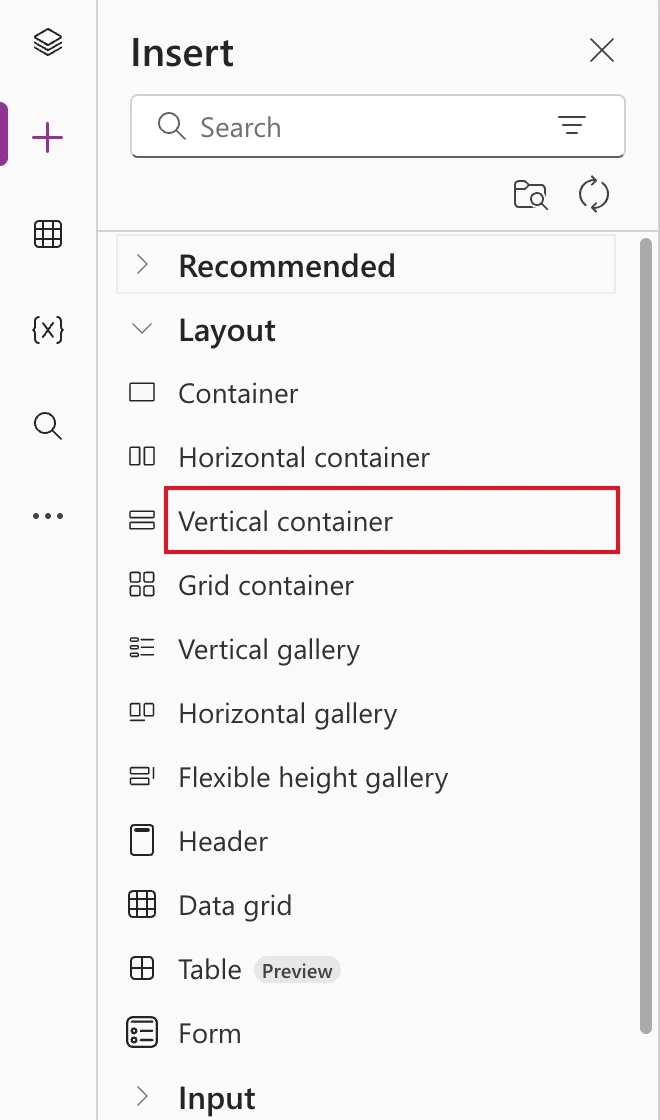
Select the screen, open Insert (+), expand Layout and select Vertical container:
It lands near the top left, 500 × 200, and the properties pane shows its layout settings:
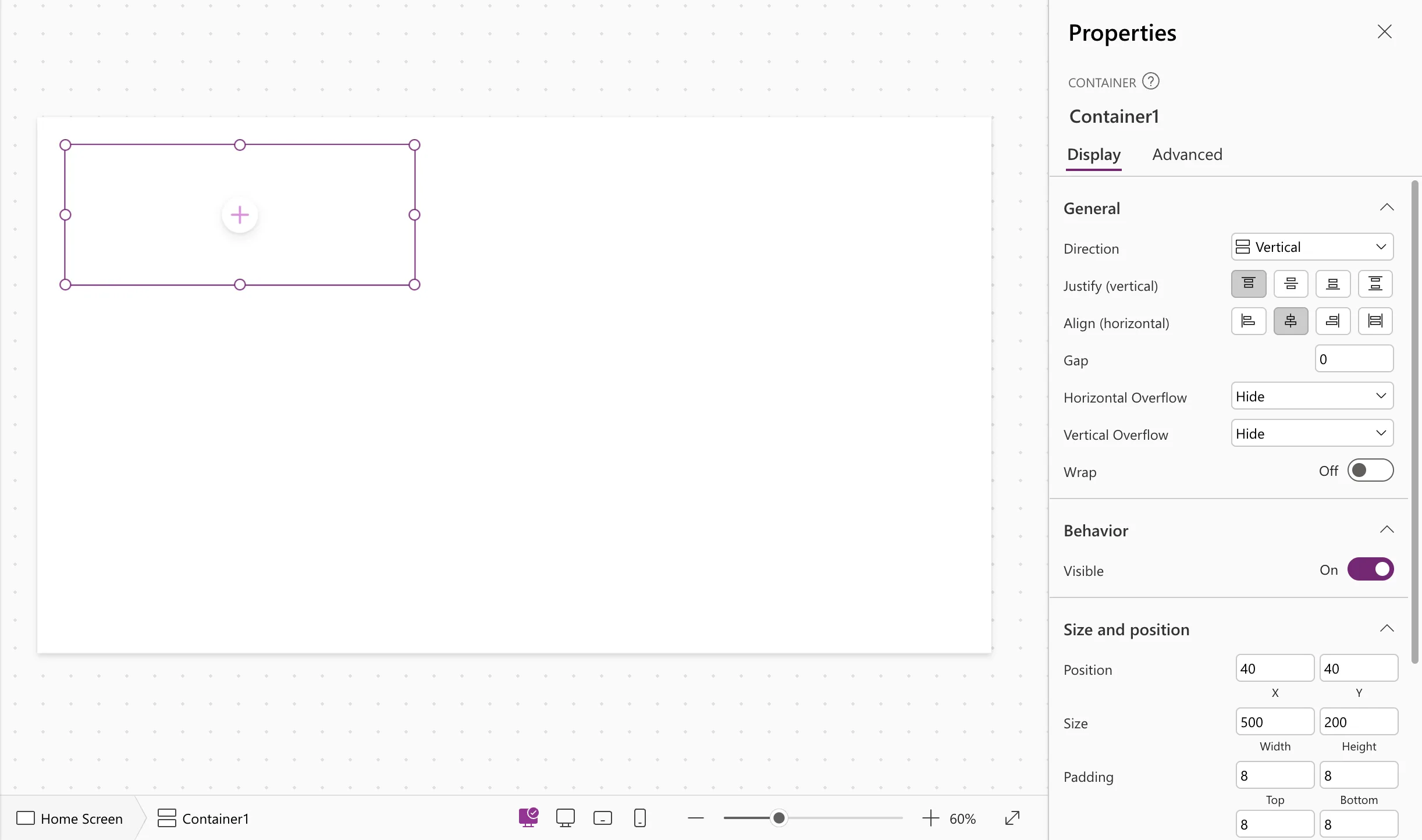
Rename it straight away; the example uses conMainHS. See How to Rename a Screen or Control in Power Apps.
Step 2: Make It Fill the Screen
Set its position and size with formulas, in the formula bar:
| Property | Value |
|---|---|
| X | 0 |
| Y | 0 |
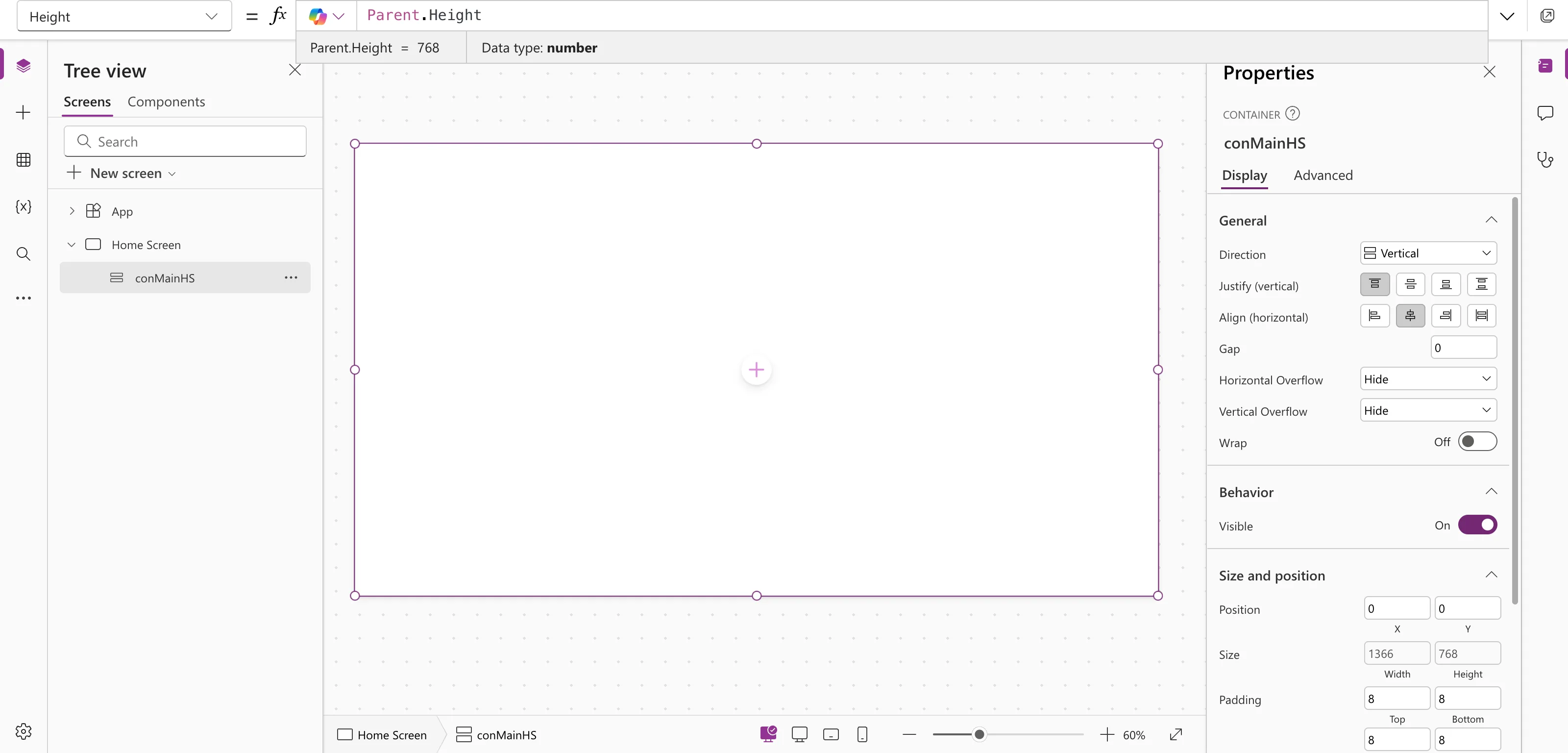
| Width | Parent.Width |
| Height | Parent.Height |
Parent is the screen the container sits on, so the container is always exactly the screen's size. The preview strip confirms the value at the default canvas size:
Step 3: Set How It Arranges Its Children
| Setting (properties pane) | Formula property | What it does | Screen-level container |
|---|---|---|---|
| Direction | LayoutDirection | Stacks children vertically or horizontally | Vertical |
| Justify (vertical) | LayoutJustifyContent | Where children sit along the stack | Start |
| Align (horizontal) | LayoutAlignItems | How children use the width | LayoutAlignItems.Stretch |
| Gap | LayoutGap | Space between children | 0 |
| Padding | PaddingTop and so on | Space inside the edges | 0 |
| Vertical Overflow | LayoutOverflowY | What happens when children don't fit | Hide, or Scroll for scrolling content |
Stretch makes every child as wide as the container, which is usually what you want for full-width sections. For a container whose content can be taller than the screen, such as a page body, set Vertical Overflow to Scroll:
LayoutOverflow.Scroll
A new container also has a light drop shadow and rounded corners. For a screen-level container, turn those off:
DropShadow.None
and set the four Radius properties to 0.
Step 4: Add Controls Inside It
Select the container, then insert a control: it goes inside. If a control inside a container is selected when you insert, the new control goes into that control's container. Check where it landed in the tree view, by its indent, and Undo if it's in the wrong place.
Inside a vertical container, each child gets a Flexible height switch. On, it shares the leftover height (its share is Fill portions); off, it keeps a fixed Height. A fixed header with a flexible body below it is the classic pattern; How to Add a Horizontal Container in Power Apps builds that header.
Common Mistakes
| Mistake | What happens | Do this instead |
|---|---|---|
| Typing numbers for Width and Height | The container doesn't resize with the window | Use Parent.Width and Parent.Height |
| Leaving Align on Center | Children keep their own widths, centered | Use Stretch for full-width sections |
| Inserting with the wrong control selected | The control lands in the wrong container | Select the target container first |
Troubleshooting
| Symptom | Likely cause | Fix |
|---|---|---|
| The container doesn't resize | App layout is Fixed | Set it to Responsive |
| Content is cut off at the bottom | Overflow is Hide | Set Vertical Overflow to Scroll, or let the container grow |
| Can't drag a child to a new position | Containers place children themselves | Change the order in the tree view or the container's settings |
FAQ
Vertical container or plain Container?
A plain Container lets you place children anywhere with X and Y. A vertical (or horizontal) container places them for you, which is what makes a layout responsive.
Can containers go inside containers?
Yes. Responsive screens are usually a vertical container with horizontal and vertical containers nested inside.
Does the order in the tree view matter?
Yes. The container stacks its children in that order, and screen readers read them in that order too.
Conclusion
Insert a Vertical container, set it to Parent.Width by Parent.Height at 0, 0, choose Stretch, and nest the rest of the screen inside. It's the foundation of a layout that works from a phone to a wide monitor.
Additional Resources
- Building responsive canvas apps: auto-layout containers.
- Vertical container control: every property.
- Create responsive layouts: formulas such as
Parent.Width.
