How to Add a User to a Power Platform Environment

Before someone can open an app in an environment with Dataverse, they need a user record in that environment. Many people get one automatically, but not everyone and not in every environment. This guide adds one person by hand in the Power Platform admin center, so their first visit just works.
When You Need to Add Someone
Microsoft's Create users describes how people get into an environment's Dataverse: a background sync adds qualifying users, people are added when they first attempt to access the environment, and admins can add them on demand. Some people are only ever added on demand:
- Everyone in a trial environment. Microsoft's Control user access says automatic user assignment to an environment isn't supported for trial environments. For trial environments, users must be assigned manually.
- People who only have a Microsoft 365 license, whose free Dataverse plan is honored only when they're added on demand.
The people in the Career Development Plan series have only Microsoft 365 licenses, and the app was installed in a trial environment, so both apply. When Daniel opened the app there before anyone had added him, his first try failed with a message that he wasn't a member of the environment's security group (Fixed: "You Can't Open Apps in This Environment"). Adding people first avoids that.
The Access Requirements
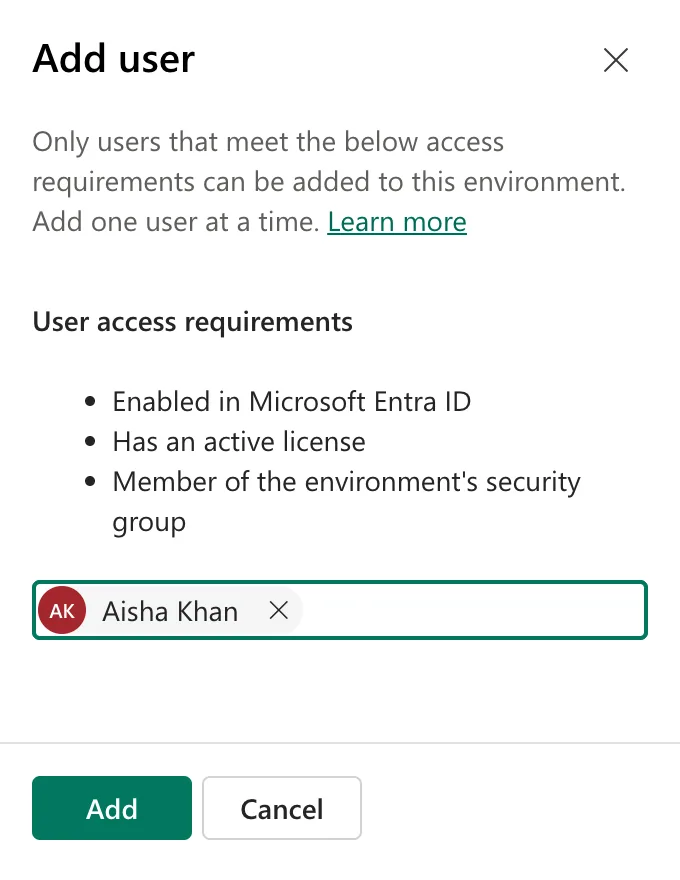
The Add user pane lists them, and only people who meet all three can be added:
- Enabled in Microsoft Entra ID: allowed to sign in.
- An active license, such as Microsoft 365 with Power Apps.
- A member of the environment's security group, if it has one (How to Add Members to a Security Group in Microsoft Entra).
Prerequisites
- Admin access to the environment: System Administrator, or a Power Platform admin.
- The person meets the three requirements.
Step 1: Open the Environment's Users
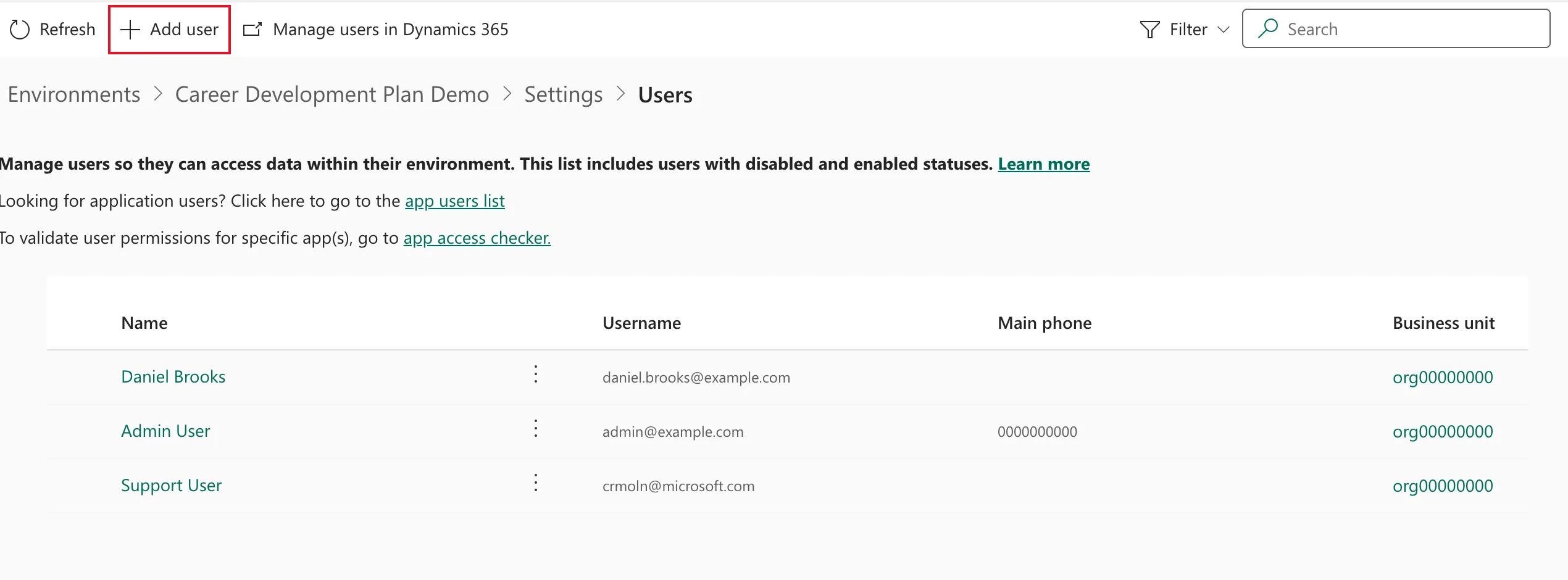
In the Power Platform admin center, open Manage → Environments → your environment. In the Access card, select See all under Users. Microsoft's article opens the same page from Settings → Users + permissions → Users.
The page lists the environment's users, enabled and disabled. In the example trial environment: Daniel, who was already listed after his first try at opening the app, the admin who created the environment, and Dataverse's own Support User:
Step 2: Add the Person
Select Add user. The pane says Only users that meet the below access requirements can be added to this environment. Add one user at a time. Type the person's name or email address and pick them:
Select Add.
Step 3: Decide About the Security Role
A green bar says Aisha Khan has been added to this environment, but a security role is required in order to access data. Please use manage security role panel to manage roles., and the Manage security roles pane opens for her:
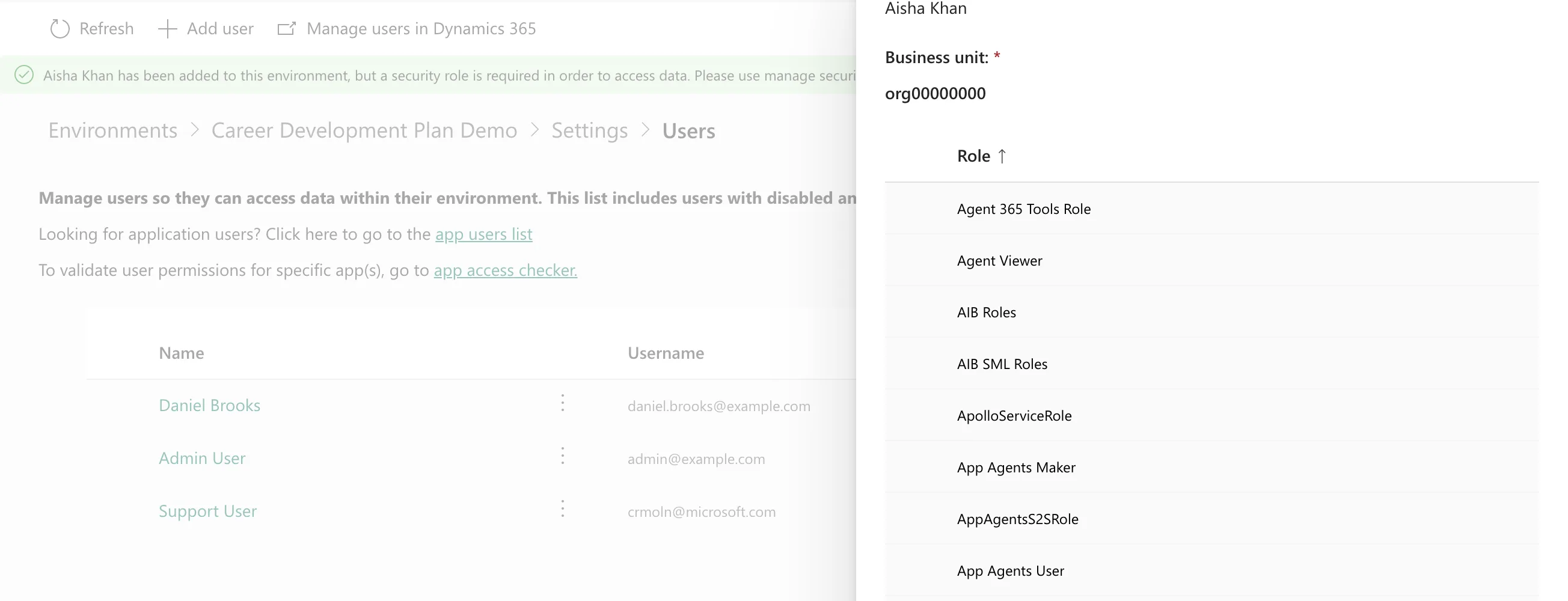
You have two choices:
- Give her a role directly: tick it and Save.
- Let a group team give it. In the example, everyone in Career Development Plan Users gets Basic User from the group's team (How to Assign a Dataverse Security Role to a Microsoft Entra Group), so I selected Cancel.
Step 4: Check the List
The list now starts with her:
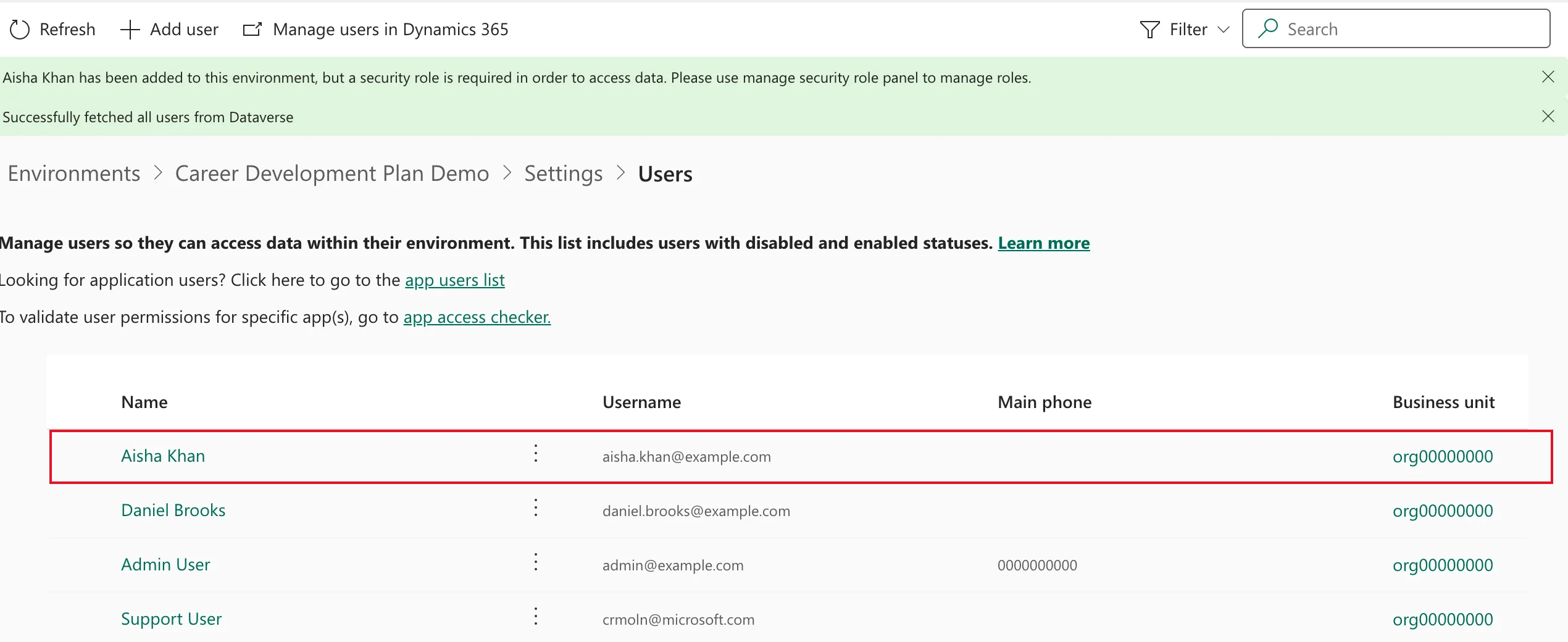
When Aisha opened the app for the first time a few minutes later, it went straight to its permissions dialog, with no error.
Common Mistakes
| Mistake | What happens | Do this instead |
|---|---|---|
| Adding someone who isn't in the environment's group | The pane won't add them | Add them to the group first |
| Giving everyone a role one by one | Every new person needs the same steps | Give the role to a group team once |
| Expecting a trial environment to add people itself | Their first visit can fail | Add them before they open the app |
Troubleshooting
| Symptom | Likely cause | Fix |
|---|---|---|
| The person can't be added | The pane only adds people who meet all three requirements | Check sign-in, license and group membership |
| They're added but can't use the app's data | No security role, directly or from a team | Assign one, or check the team's role |
| Something else is wrong | Not obvious from the list | Run user diagnostics on them |
FAQ
Can I add several people at once?
Not in this pane: it adds one at a time. Microsoft's troubleshooting article lists other on-demand ways, including PowerShell and a Power Automate template.
Does adding someone give them access to the apps?
No. Microsoft's article says it gives access to the environment, not to its apps and data: share the app with them, and give them a security role.
Do I need this in the Default environment?
Not in this series: everyone there already had a user record and roles.
Conclusion
Users → Add user, pick the person, Add, then give them a role or leave it to their group's team. In a trial environment, do it before they open anything.
Additional Resources
- Add users to an environment: the steps and what adding does.
- Create users: Add users to Dataverse: how people get in automatically and on demand.
- Control user access to environments: security groups and trial environments.
