How to Add a User and Assign a License in the Microsoft 365 Admin Center

Before anyone can sign in to Microsoft 365, they need their own user account. An account on its own isn't enough, though: until it has a license, the person can't use Outlook, Teams, SharePoint or Power Apps. The Microsoft 365 admin center creates the account and assigns the license in one short wizard. You'll use it here.
What You Will Build
In this guide you will add four people to your organization in the Microsoft 365 admin center, the web console where admins manage users, licenses and billing:
- Add one person, Olivia Bennett, with the Add a user wizard. You'll fill in every page: her name and username, how her first password is created, her license, and her job title.
- Add three more people, Daniel Brooks, Aisha Khan and Leo Martin, in one go with Add multiple users.
By the end, all four will appear in Active users, each with a Microsoft 365 license.
These four are the fictional sales team used throughout the Career Development Plan app series. The steps are the same for any real person you add.
Prerequisites
- An admin account with the User Administrator role. Microsoft's guide says you need to be a license or user administrator to add users and assign licenses. Global Administrator also works, but Microsoft recommends keeping that highly privileged role for emergencies and using the least-privileged role that does the job.
- A spare license for each person. The wizard shows how many you have left. Each license is charged per user in a normal subscription. Adding the account itself costs nothing; it's the license that has a price.
- Your organization's domain, such as
contoso.com. It becomes the second half of each person's sign-in name. The screenshots showexample.comin its place.
A developer sandbox comes with 25 Microsoft 365 E5 Developer licenses at no cost, which is what this guide uses. Developer sandboxes are for building and testing, not for running a real business.
Step 1: Open Active Users
Sign in to the Microsoft 365 admin center with your admin account. In the left-hand menu, select Users, then Active users.
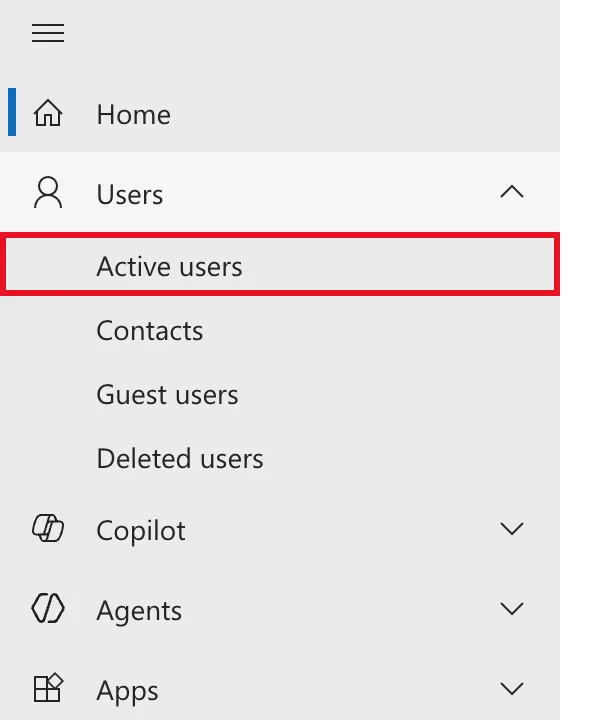
The admin center has two layouts: Simplified view and Dashboard view. Simplified view also shows an Add user button on its home page. Users → Active users is in the menu in both layouts, so this guide uses it.
Step 2: Start the Add a User Wizard
The Active users page lists everyone who can sign in. At this point the only person on it is you, the admin. Select Add a user in the command bar above the list.
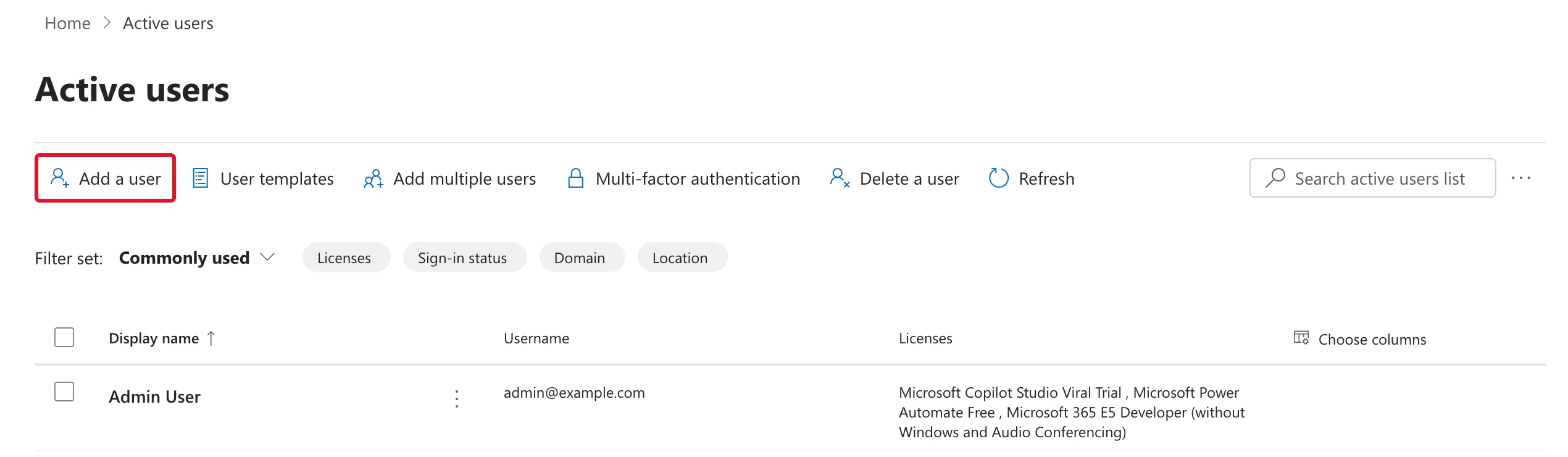
A panel slides in from the right. Down its left side are the four pages of the wizard: Basics, Product licenses, Optional settings and Finish. You move through them with Next, and Back takes you to earlier pages without losing what you typed.
Step 3: Set Up the Basics
The Set up the basics page asks who the person is and how they'll sign in. Fill it in like this:
| Field | What to enter | Example |
|---|---|---|
| First name | The person's first name | Olivia |
| Last name | The person's last name | Bennett |
| Display name | The name everyone sees in Outlook and Teams | Olivia Bennett |
| Username | The part before the @ | olivia.bennett |
| Domains | Your organization's domain | example.com |
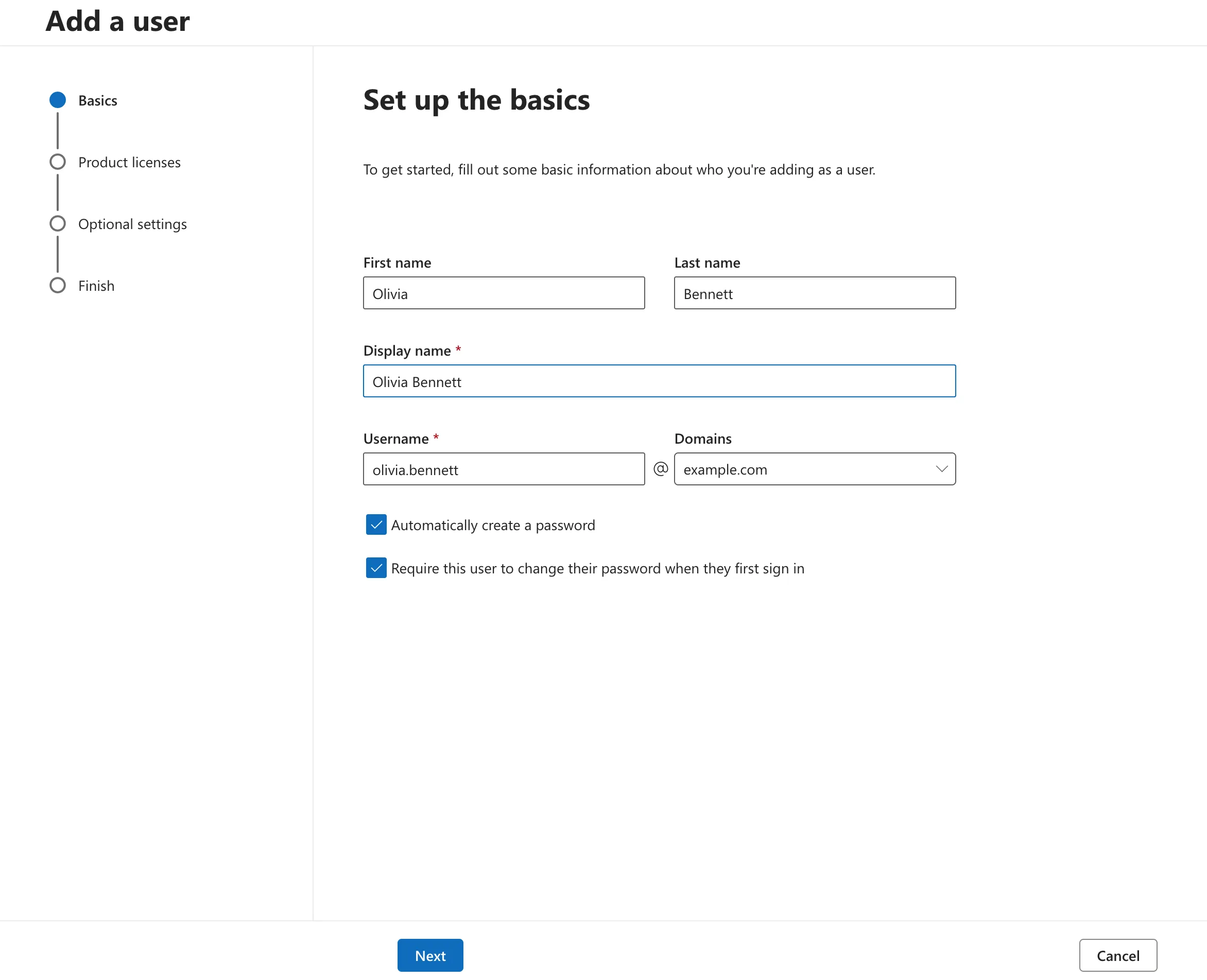
A few things are worth knowing on this page:
- Display name fills itself in. It's built from the first and last name a moment after you type them, so check the box before typing into it. If you type as well, you can end up with the name twice:
Olivia BennettOlivia Bennett. - Username plus domain is the sign-in name. Here that's
olivia.bennett@example.com. Microsoft calls it the user principal name (UPN). It's usually the person's email address too, so pick a pattern your organization can keep to, such asfirst.last. - Automatically create a password is ticked by default. Microsoft 365 generates a strong temporary password and shows it to you at the end. If you clear it, you have to type a password yourself.
- Require this user to change their password when they first sign in is also ticked by default. Keep it ticked. The temporary password then only works once, and from then on only the person knows their password, not you.
Select Next.
Step 4: Assign a Product License
On Assign product licenses, choose where the person works and which license they get:
- Select location is their country or region. Microsoft 365 needs it before it can assign a license, because the services available differ from country to country. It starts on your organization's own location.
- Under Licenses, leave Assign user a product license selected and tick the license. This guide uses Microsoft 365 E5 Developer (without Windows and Audio Conferencing).
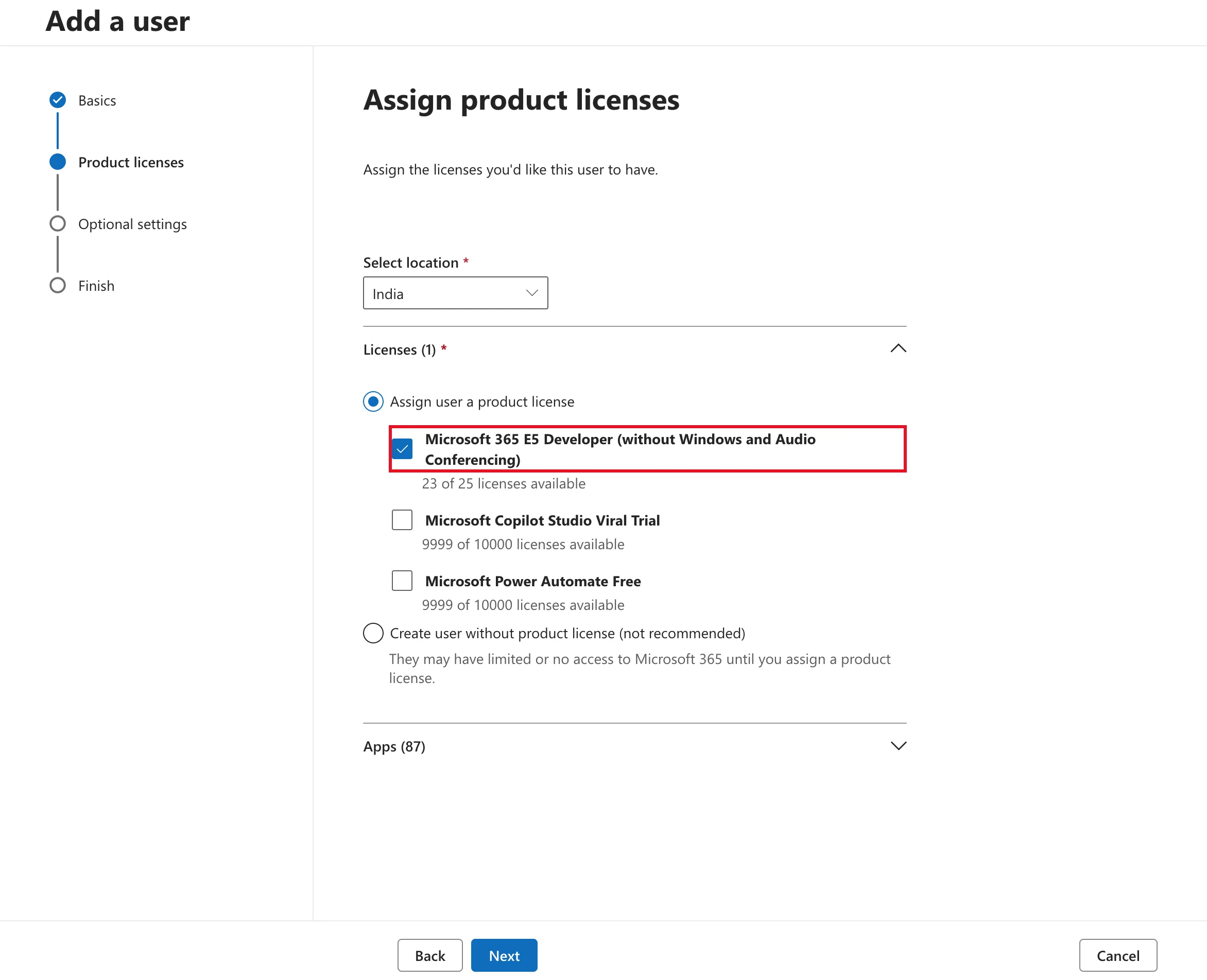
The count under the license goes down by one as soon as you tick it. Here it changed from 24 to 23 of 25 available. Apps (87) at the bottom lists each service inside the license, such as Exchange Online, SharePoint and Power Apps. Leave them all switched on unless you have a reason to hold one back.
Avoid Create user without product license. The account can then sign in but can't use the Microsoft 365 apps: no mailbox, no Teams, no Power Apps.
Select Next.
Step 5: Add a Job Title
Optional settings has two sections you open by selecting them:
- Roles (User: no administration access). Leave it as it is. Ordinary people should never get an admin role by default.
- Profile info. Select it to open it, then fill in at least Job title and Department. For Olivia that's
Head of SalesandSales.
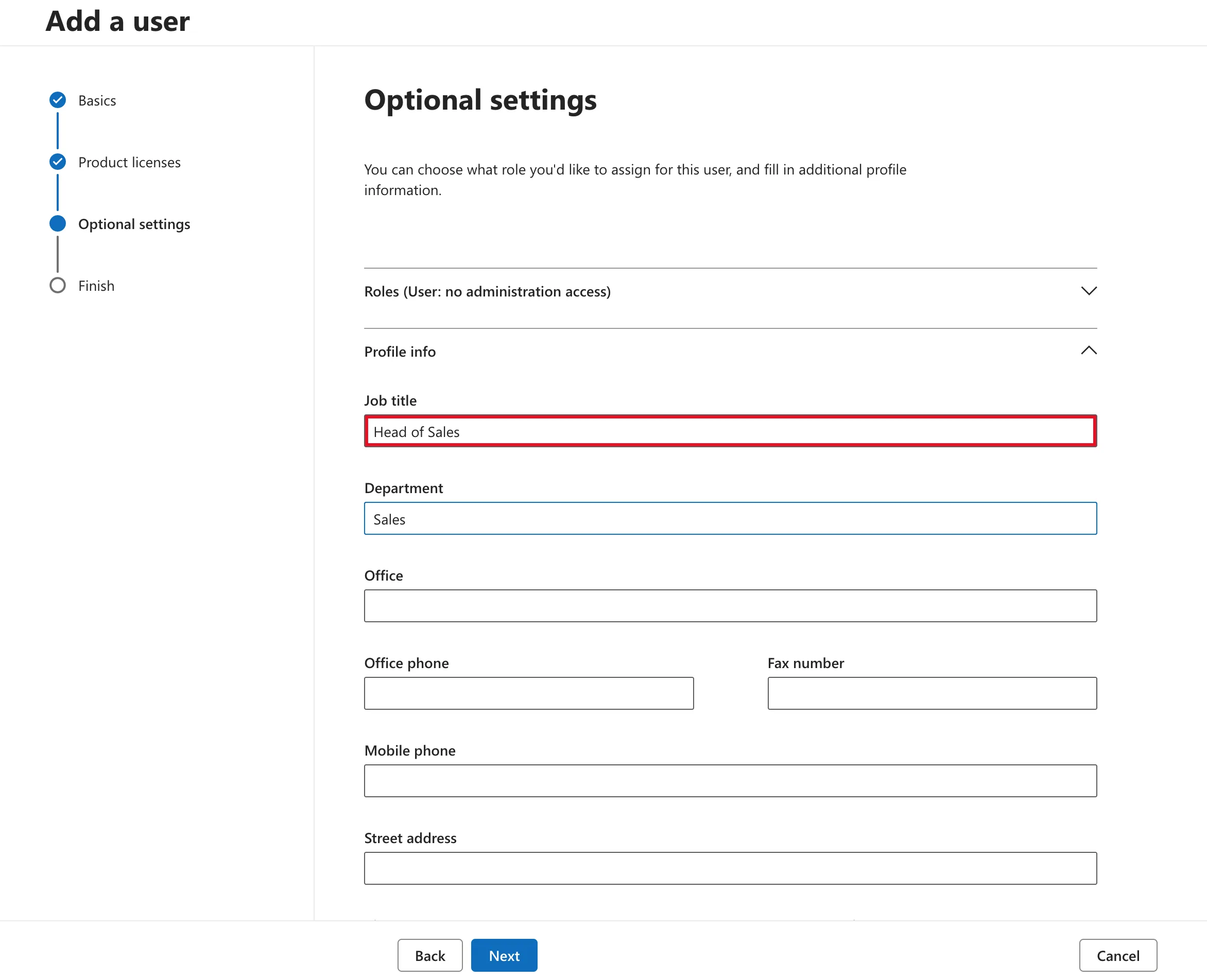
The job title is optional for the account to work, but plenty of things read it. Outlook and Teams show it on the person's profile card. Org charts use it. Apps built on Microsoft 365 data use it too: the Career Development Plan app decides what each person should learn from their job title. Type titles the same way every time. To an app, Sales Engineer and Sales engineer are two different titles.
Select Next.
Step 6: Review and Finish
The last page, Review and finish, sums up everything you chose, with an Edit link under each part. Note that Password only shows Type: Auto-generated. The password itself appears on the next screen.
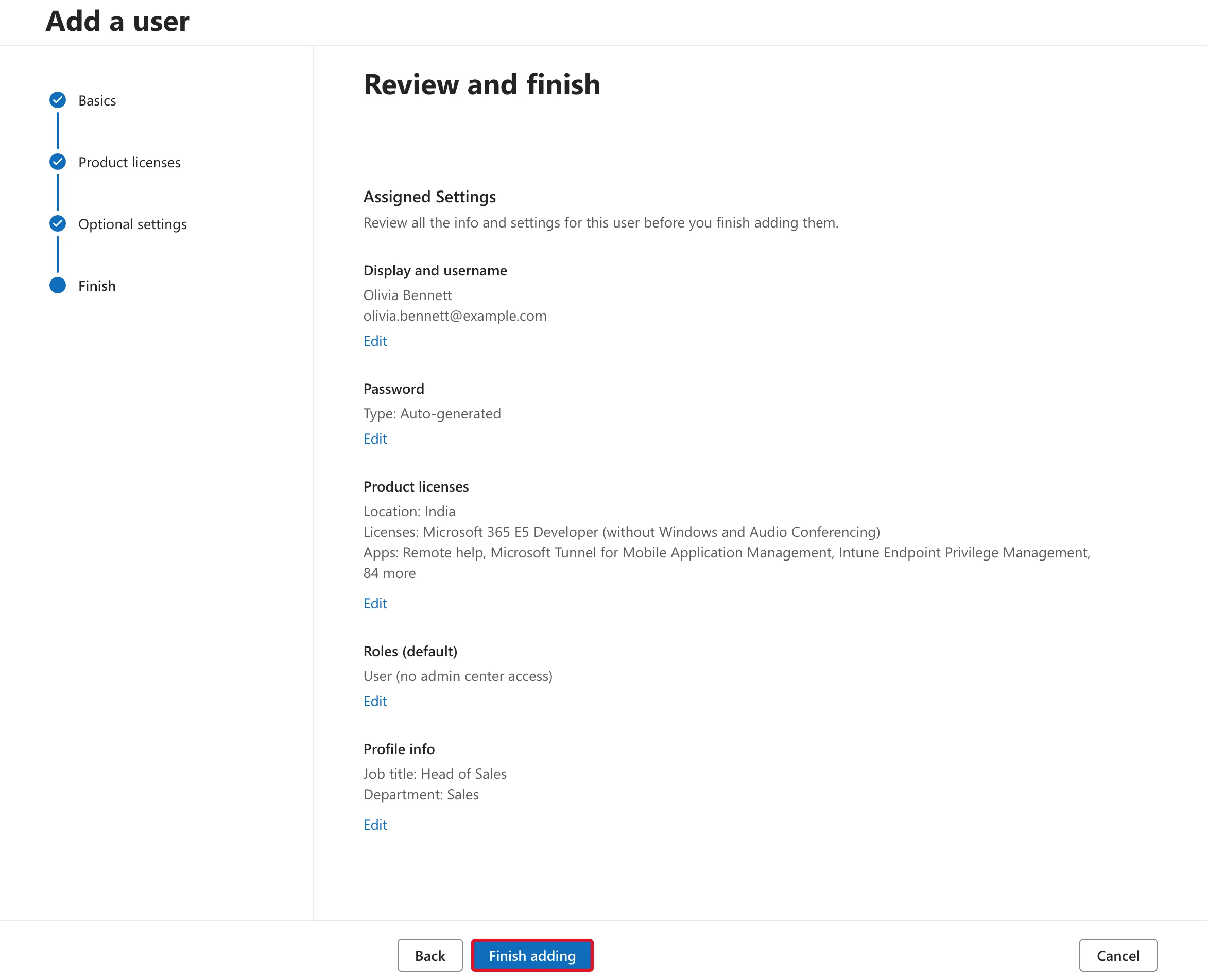
When everything is right, select Finish adding.
The buttons sit at the very bottom of the panel. On a small screen or a small browser window they can be cut off. Maximize the window or zoom out with Ctrl + − (⌘ + − on a Mac) until they appear.
Step 7: Save the Temporary Password
The confirmation page says Olivia Bennett added to active users. Under User details you'll see her display name, her username and her temporary password, which is hidden behind asterisks until you select Show.
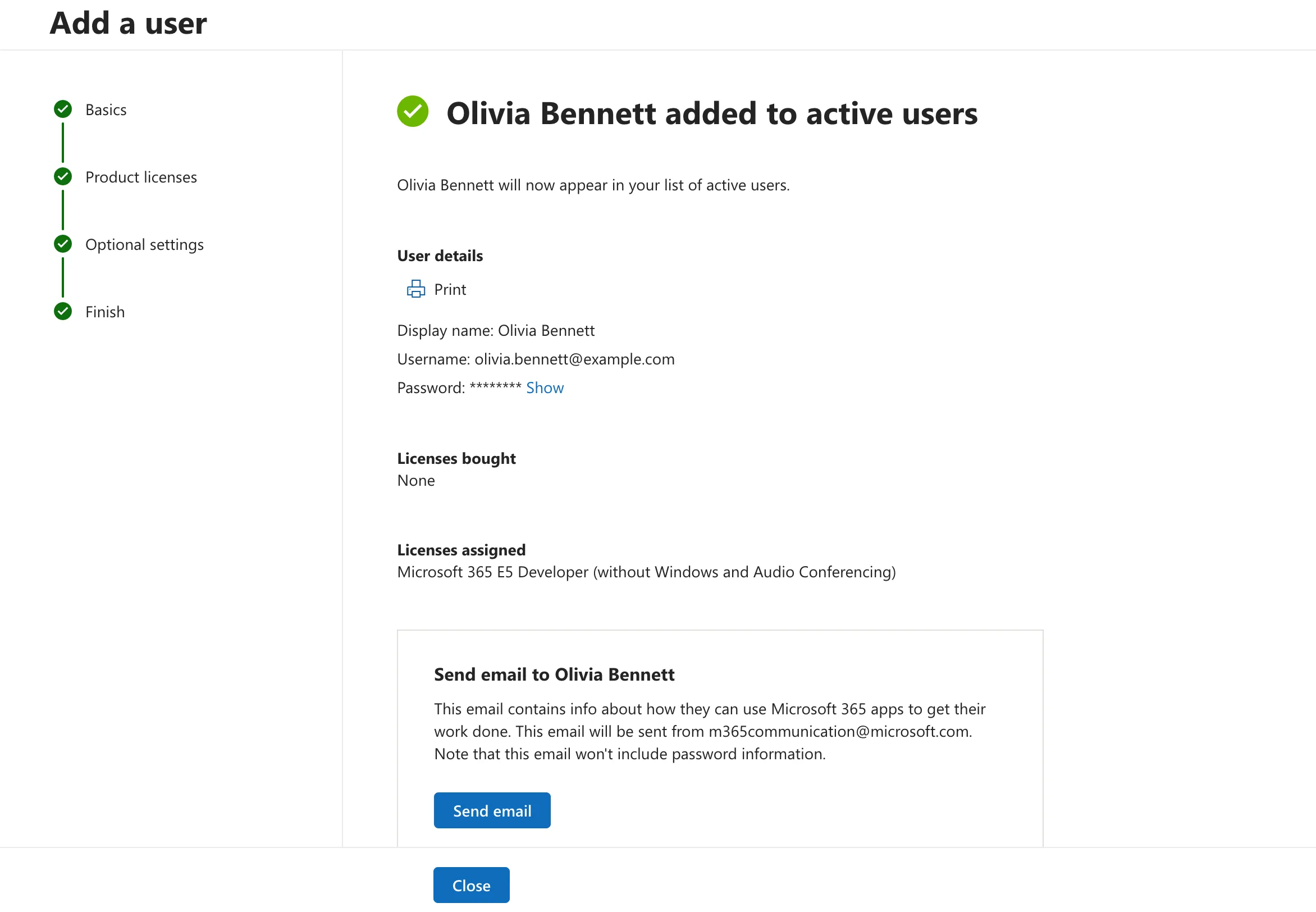
This is the only time the admin center shows this password, so save it before you close the page:
- Print produces a printout, or a PDF, of the user details, password included.
- Or select Show and copy the password into your password manager.
Get the password to the person in a safe way, such as in person or through a channel your organization trusts. The Send email box sends a welcome message from m365communication@microsoft.com about getting started with the Microsoft 365 apps. As the page says, it doesn't include the password.
Select Close. If you lose the password before the person signs in, there's no harm done. Select their name in Active users and use Reset password to get a new temporary one.
When they first sign in, Microsoft asks them to choose their own password. If your organization uses Microsoft Entra security defaults, which are on by default in new tenants, they'll also be asked to set up multifactor authentication, usually with the Microsoft Authenticator app.
Add Several Users at Once
The wizard handles one person at a time. For a team, use Add multiple users on the same Active users command bar. Here it adds Daniel, Aisha and Leo together.
Add list of users gives you a few rows to type into, and Add row adds more. Fill in a First name, Last name and Username for each person, and check the Domain. The page says you can enter up to 249 users, and every one of them gets a temporary password.
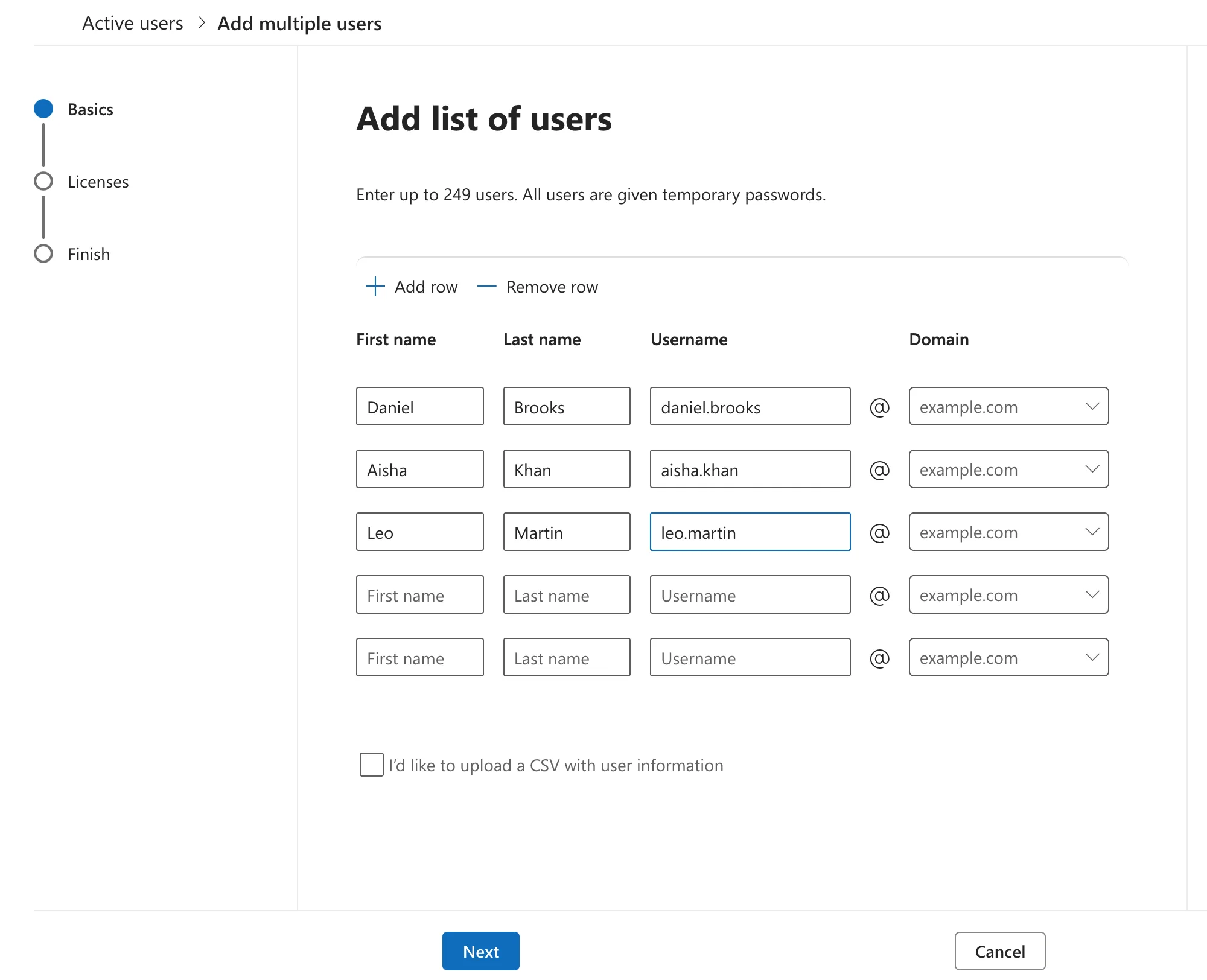
Leave the empty rows as they are; they're ignored. For a large list, tick I'd like to upload a CSV with user information instead. The page then offers a template to download, fill in and upload.
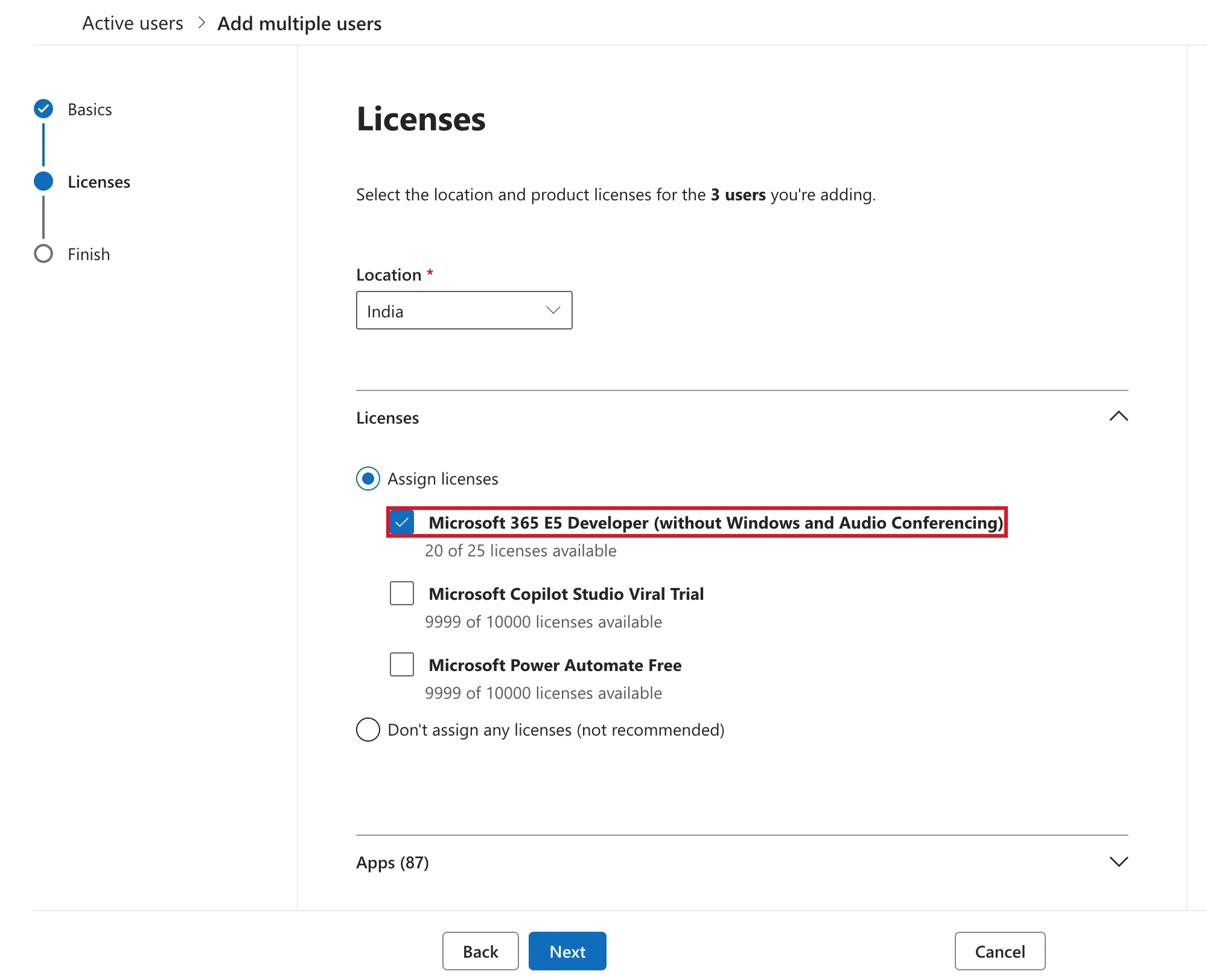
Select Next. Licenses works like Step 4, but applies to everyone on the list at once: it says 3 users at the top. Keep the location, tick the license and select Next.
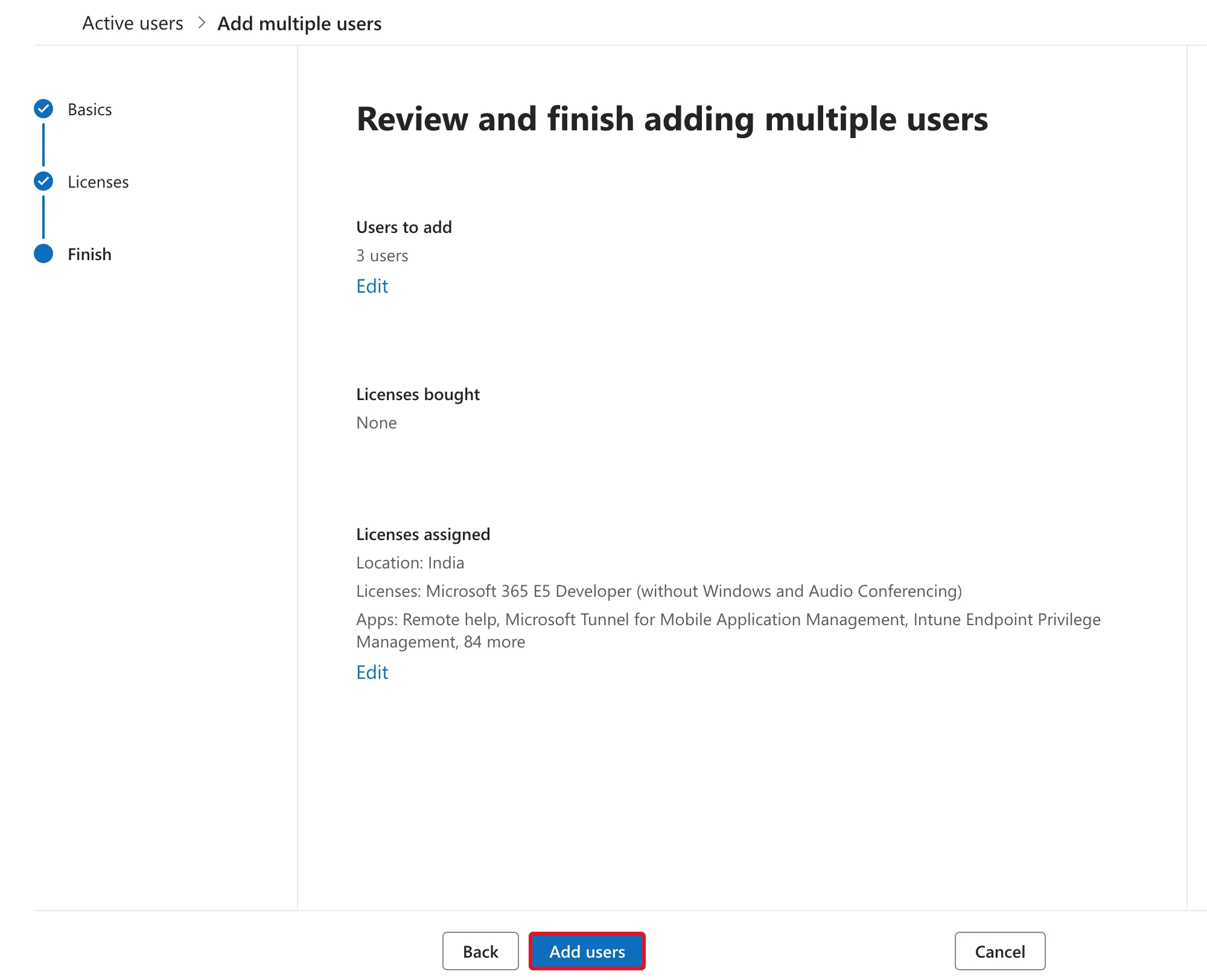
Review and finish adding multiple users shows 3 users and the license they'll get. Select Add users.
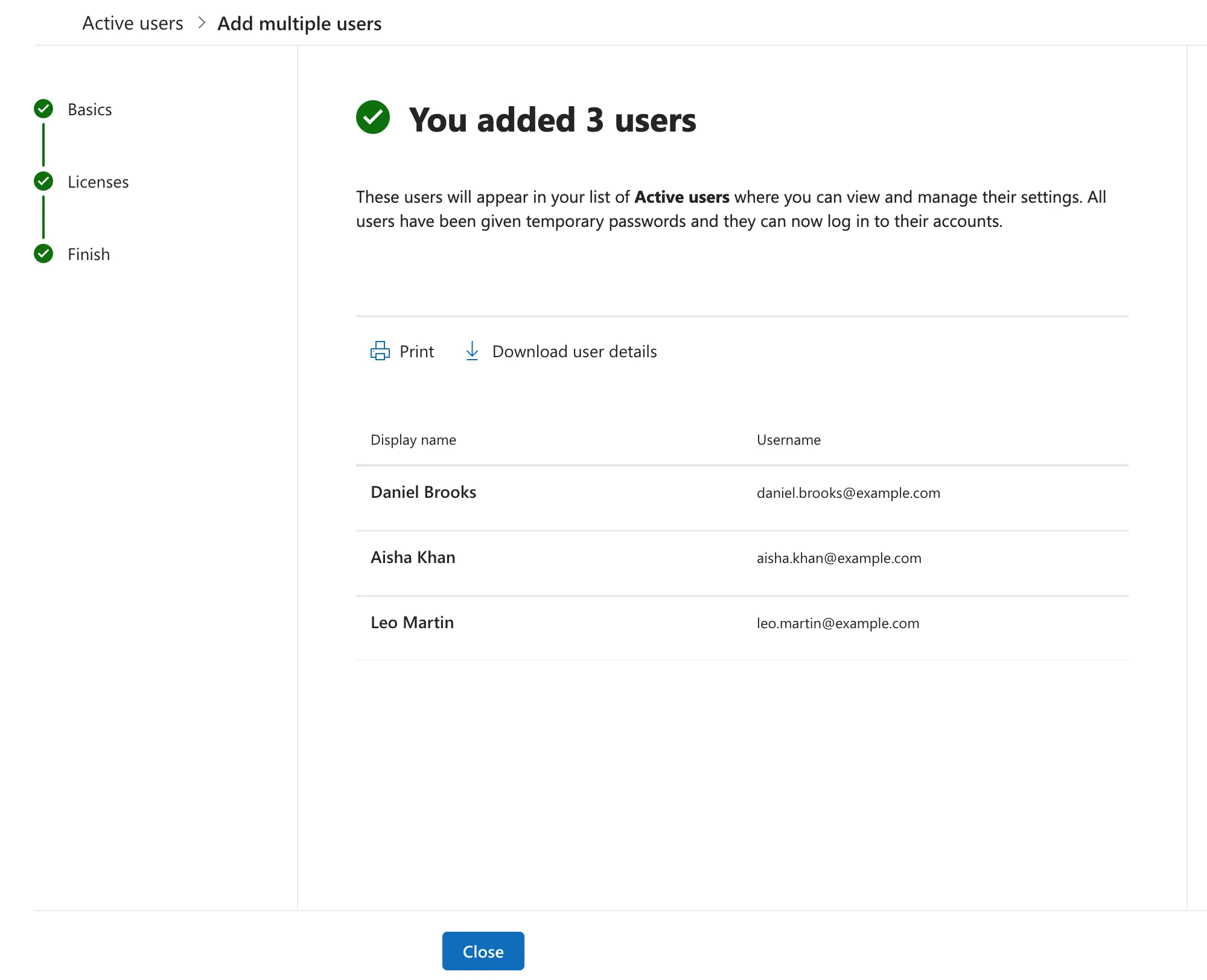
The result page, You added 3 users, lists each new user. Their temporary passwords are hidden, as in Step 7. Use Download user details or Print to keep the passwords before you select Close.
Add multiple users doesn't ask for job titles or departments. Add those afterwards, one person at a time, as shown in How to Set a User's Manager and Job Title in the Microsoft Entra Admin Center.
Check the New Users
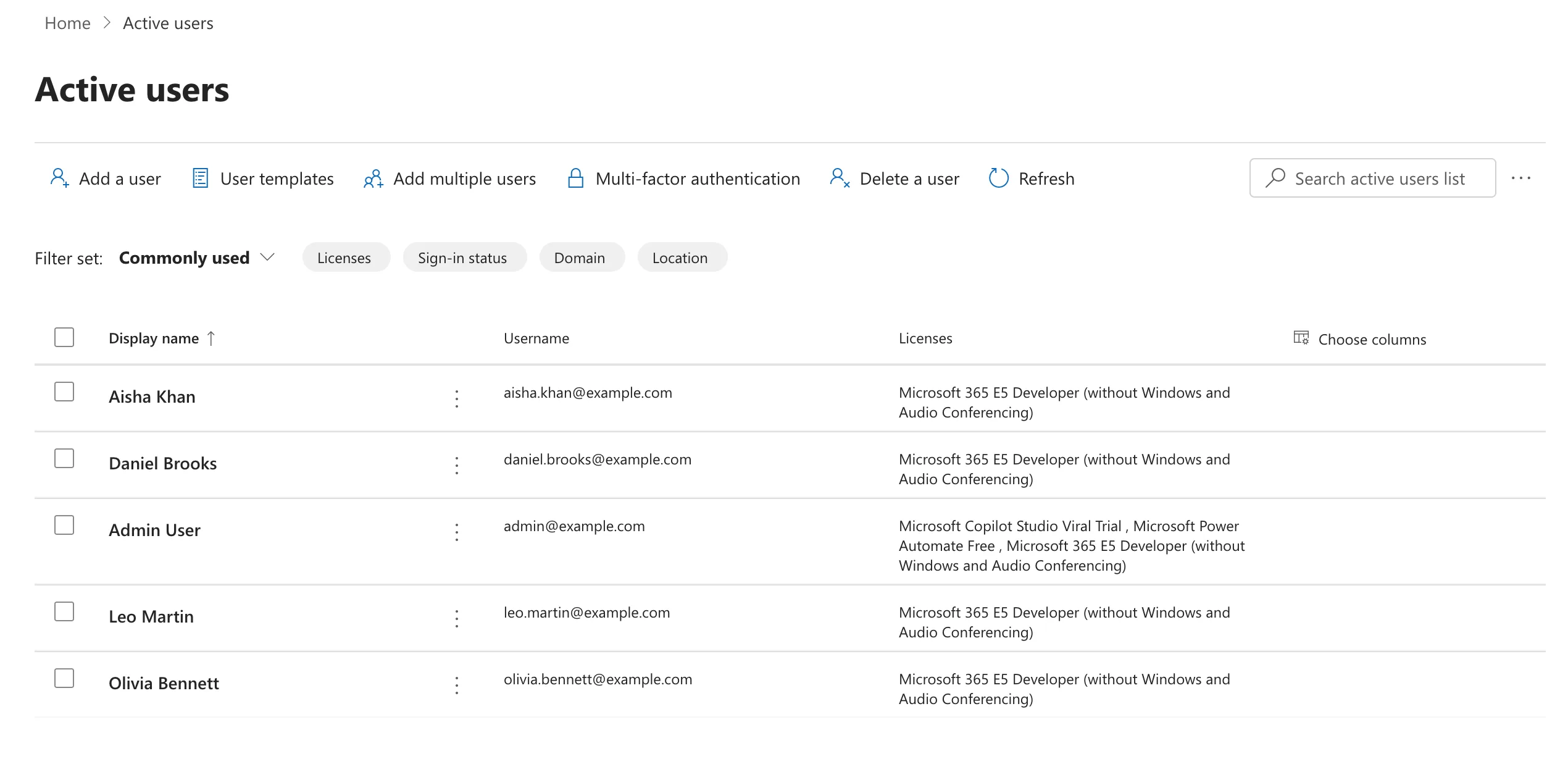
Back on Active users, select Refresh. All four new people appear next to your admin account, each with the license you assigned.
Some services take a while to catch up with brand-new accounts. Right after adding these users, a search for Daniel Brooks in Outlook's People page found nothing yet. The accounts themselves were ready, because the admin centers listed them straight away. Search tools across Microsoft 365 pick up new people later.
Removing a User When Someone Leaves
Select the person in Active users to open their details. When someone leaves, the usual order is:
- Block sign-in first. They can't sign in from that moment, and their data stays where it is.
- Move or hand over anything they owned.
- Delete user (on the person's ⋮ menu or the command bar) when you no longer need the account. A deleted user stays in Users → Deleted users for 30 days, and you can restore them during that time.
Deleting a user frees their license for someone else. Until then, the license stays assigned to them and you keep paying for it.
Common Mistakes
| Mistake | What happens | Do this instead |
|---|---|---|
| Creating the user without a license | They can sign in but have no mailbox, Teams or Power Apps | Tick a license in Step 4, or assign one later from the user's Licenses and apps tab |
| Typing the display name as well as the first and last name | The display name contains the name twice | Check the Display name box before typing; it fills itself in |
| Clearing Require this user to change their password | The person keeps the password you know | Leave it ticked so only they know their password after the first sign-in |
| Giving everyone an admin role | Ordinary users can change organization settings | Leave Roles on User (no administration access) |
| Typing job titles inconsistently | Apps and org charts treat Sales Engineer and Sales engineer as different titles | Agree a list of titles and type them exactly |
| Closing the confirmation page without saving the password | Nobody knows the temporary password | Use Reset password on the user to get a new one |
Troubleshooting
| Symptom | Likely cause | Fix |
|---|---|---|
| Finish adding or Next isn't visible | The browser window is too small and the bottom of the panel is cut off | Maximize the window or zoom out until the buttons appear |
| Add a user isn't on the command bar | Your account doesn't have a role that can add users | Ask a Global Administrator to give you the User Administrator role |
| The license shows 0 of N licenses available | Every license is already assigned | Free one by removing it from someone who doesn't need it, or buy more |
| The wizard won't accept the username | Someone or something in the organization already uses that address | Pick a different username, or find out what already owns it |
| The new user doesn't come up in Outlook or Teams search | Search across Microsoft 365 takes a while to pick up new accounts | Wait, then search again. The account itself works straight away |
| The temporary password is lost | It's shown only once | Select the user in Active users and choose Reset password |
FAQ
How many users can I add at once?
Add multiple users says you can enter up to 249 users on its page. For more than that, or to automate it, Microsoft documents creating accounts with Microsoft Graph PowerShell. There's a link under Additional Resources.
Does adding a user cost anything?
The account itself doesn't. Licenses are what you pay for, per user. In a Microsoft 365 Developer Program sandbox, 25 E5 Developer licenses are included at no cost.
What's the difference between the username and the display name?
The username, or user principal name, is what the person signs in with, such as olivia.bennett@example.com. It's usually their email address too. The display name is what other people see in Outlook, Teams and apps, such as Olivia Bennett.
Why does Microsoft 365 need a location?
Licenses can only be assigned to someone with a location, because Microsoft 365 services and their rules differ from country to country.
Can I add the job title later?
Yes. Open the person in the Microsoft Entra admin center and edit their Job Information, as shown in How to Set a User's Manager and Job Title in the Microsoft Entra Admin Center. The same guide sets each person's manager.
Can I give someone their password by email?
Not to their new mailbox, because they can't open it yet. The wizard's Send email option only sends a getting-started message without the password. Hand the password over in person, or through a channel your organization trusts.
Conclusion
Adding someone to Microsoft 365 is a single wizard in the admin center:
- Basics for their name and sign-in name, with an auto-generated password they must change.
- Product licenses for what they're allowed to use.
- Optional settings for a job title that apps and org charts can rely on.
For several people at once, Add multiple users does the same in one pass. You then add job titles afterwards.
Olivia, Daniel, Aisha and Leo now have licensed accounts. Next, give each of them a job title and a manager in How to Set a User's Manager and Job Title in the Microsoft Entra Admin Center. Those two fields are what make "my manager" and "my direct reports" work across Microsoft 365.
Additional Resources
- How to Set a User's Manager and Job Title in the Microsoft Entra Admin Center: the next step for the users you just added.
- Add users and assign licenses in Microsoft 365: Microsoft's own walkthrough of the wizard and of Add multiple users.
- Assign or unassign licenses for users: changing licenses after the user exists.
- Create user accounts with Microsoft 365 PowerShell: adding users from a script.
- Restore a deleted user: getting a deleted account back within 30 days.
- Security defaults in Microsoft Entra ID: why new users are asked to set up multifactor authentication.
