How to Add a Trigger Condition in Power Automate

A trigger condition lets a flow start only when an expression is true. Add it in the trigger's Settings, under Trigger conditions, as an expression that starts with @. It's also how a flow that updates the item it was triggered by avoids starting itself again.
Microsoft's Customize your triggers with conditions puts it simply: Sometimes, you might need to customize a trigger so that it fires only when certain conditions are met. And when the condition isn't met, the flow isn't triggered, and no run history is logged.
The example is the approval flow of the Overtime Timesheet app. It runs when an overtime entry is created or changed, and it writes the approver's decision back to the same entry.
Prerequisites
- A flow with a trigger, open in the new designer. Here, SharePoint's When an item is created or modified (How to Run a Flow When a SharePoint Item Is Created or Modified in Power Automate).
- An idea of the expression: How to Add an Expression in Power Automate.
Why the Example Needs One
The flow updates the entry it was triggered by, and that update is a change too. Microsoft's anti-patterns guidance describes the risk: Cloud flows can trigger themselves, creating an infinite loop. Its advice: put conditions on the trigger or stop the flow if it detects a condition that would cause an infinite loop.
The entry's Status column is Pending when someone saves it, and the flow only ever sets it to Approved or Rejected. So the condition is: run only when Status is Pending.
Step 1: Open the Trigger's Settings
Select the trigger, then the Settings tab. Trigger conditions is at the bottom of General.
Step 2: Add the Condition
Select + Add under Trigger conditions, and type the expression in the box that appears:
@equals(triggerOutputs()?['body/Status/Value'], 'Pending')
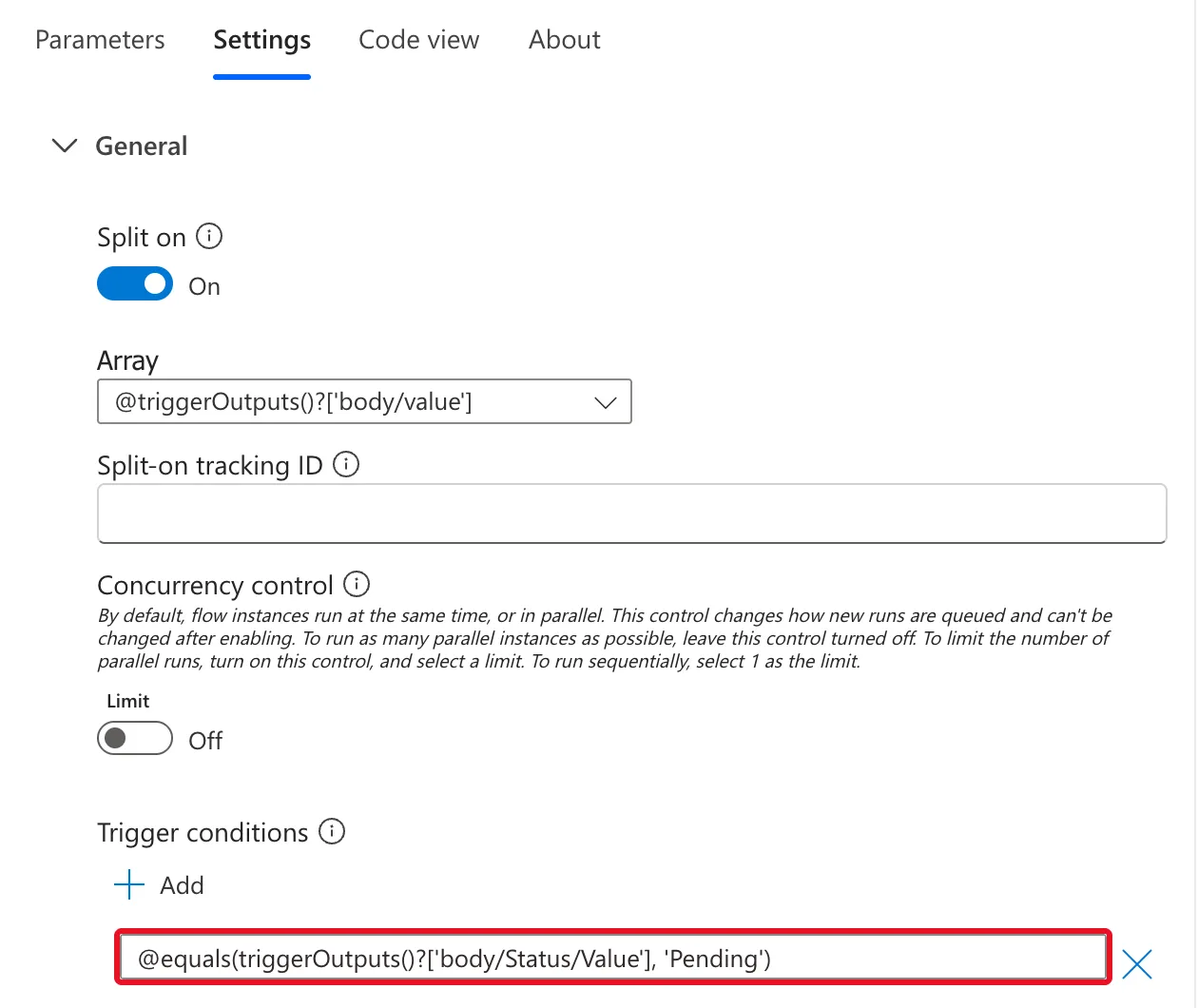
How it reads:
@starts the expression. Microsoft's article says: Every trigger condition must start with the @ symbol.triggerOutputs()?['body/Status/Value']is the text of the item's Status choice column, as the trigger received it.equals(..., 'Pending')is true when that text is Pending.
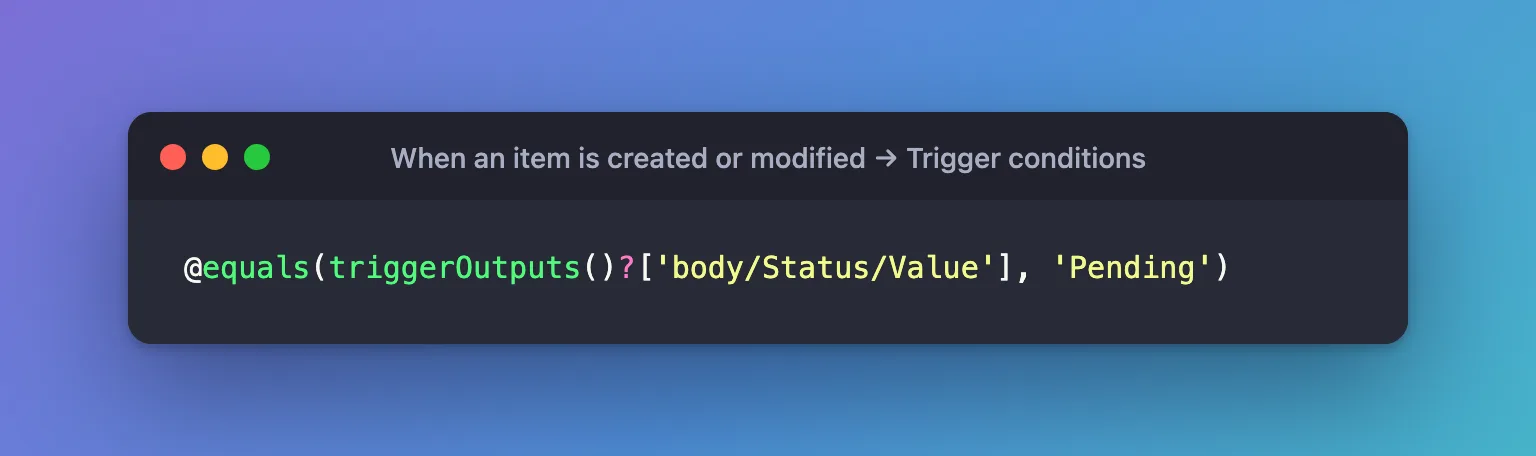
The box isn't the expression editor: there's no dynamic content here, and no check as you type, so copy the expression in exactly.
Step 3: Check and Publish
Open Flow checker from the toolbar. For this flow it showed Errors (0) and Warnings (0) (How to Check a Flow for Errors with Flow Checker in Power Automate). Then Publish: a trigger condition, like any change, has an effect only once the flow is published.
The Result
Over an afternoon of tests, people saved overtime entries eight times, and the flow ran eight times. Each of those runs wrote a decision back to its entry, eight more changes to the list, and none of them started a run. The run history after the first five runs:
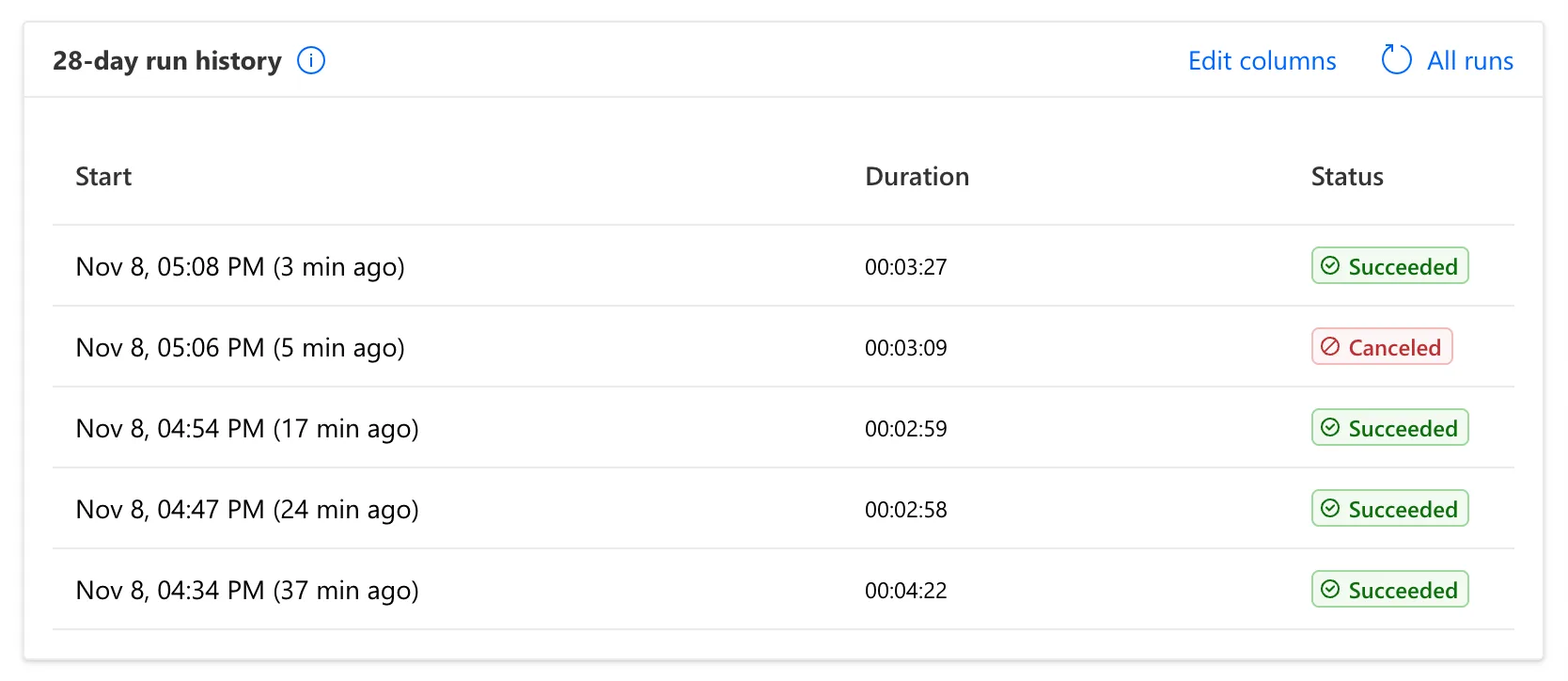
The changes the condition stopped don't appear anywhere in the run history, as Microsoft's article says.
Common Mistakes
| Mistake | What happens | Do this instead |
|---|---|---|
Leaving out the @ | The condition isn't valid: Microsoft's article says every condition starts with it | Start with @ |
| Testing a column the flow itself writes | The flow's update can match and start it again | Test a value only people set, such as Pending |
triggerBody()?['Status'] for a choice column | Compares an object with text | Read Status/Value |
| Expecting the condition to run in a draft | Drafts don't run | Publish |
Troubleshooting
| Symptom | Likely cause | Fix |
|---|---|---|
| The flow never runs | The condition is never true, or has a typo | Check the column's exact text and the path |
| The flow starts itself again | The condition matches the flow's own update | Test a value the flow never writes |
| No runs, no error | That's what a false condition looks like | Test with an item that matches |
FAQ
Where do I see the runs a condition stopped?
Nowhere: If the trigger condition isn't met, the flow isn't triggered, and no run history is logged. Test with an item that matches.
Can I use a Condition action instead?
A Condition inside the flow runs after the flow has started, so every change still starts a run. A trigger condition stops the run from starting.
Conclusion
A trigger condition is an @ expression in the trigger's Settings that must be true for the flow to start. Test something only people change, such as Status being Pending, and a flow can update its own item without starting itself again.
Additional Resources
- Customize your triggers with conditions: trigger conditions and the
@rule. - Avoid anti-patterns: avoid infinite loops: flows that trigger themselves.
