How to Add a Toggle in Power Apps

A toggle is an on/off switch with a label beside it. In Power Apps, the modern Toggle control starts on or off from a value you choose, and tells your formulas which way it's set through its Checked property: true when on, false when off.
The example below is an Active switch on a form that adds and edits departments: a new department starts active, and an existing one shows its saved value.
Prerequisites
- Modern controls turned on (How to Turn On Modern Controls and Themes in Power Apps).
- An app open in Power Apps Studio.
Step 1: Insert the Toggle
Select where the toggle should go: a container, or the screen. Open the Insert pane and search for toggle. It finds two:
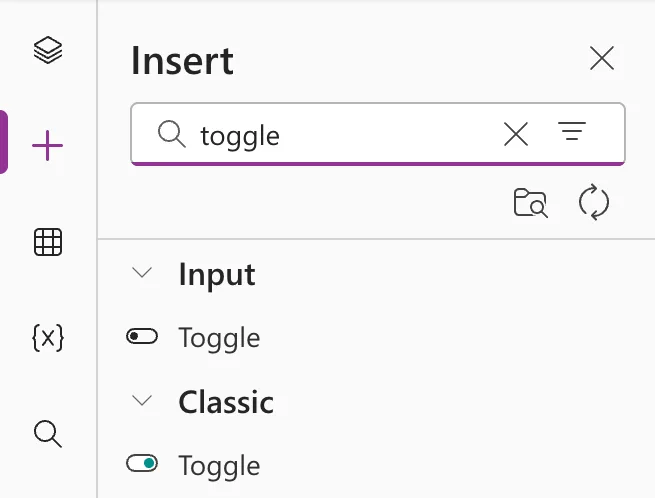
Select the one under Input: that's the modern control. The one under Classic is the older toggle.
In the example, I had the form's container selected, and the toggle went in at the end of it, under the Save button, as Toggle1:
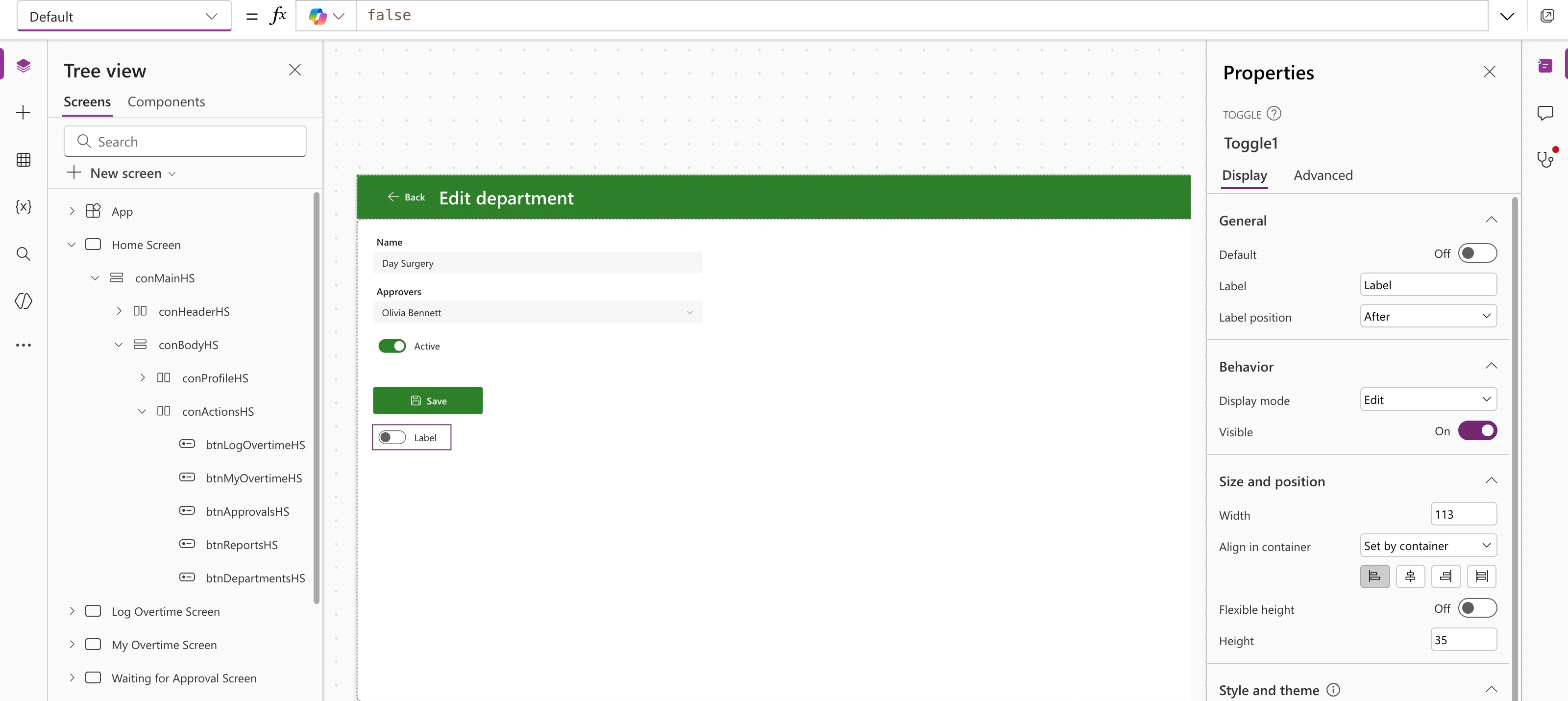
Its starting values:
| Property | Value |
|---|---|
| Default | false: off |
| Label | "Label" |
| Label position | After: the text after the switch |
| Width, Height | 113, 35 |
Rename it with the tgl prefix, such as tglActiveED (Power Apps Naming Conventions). If it landed in the wrong place in a container, move it with Reorder (How to Reorder Controls in a Container in Power Apps).
Step 2: Set What It Says
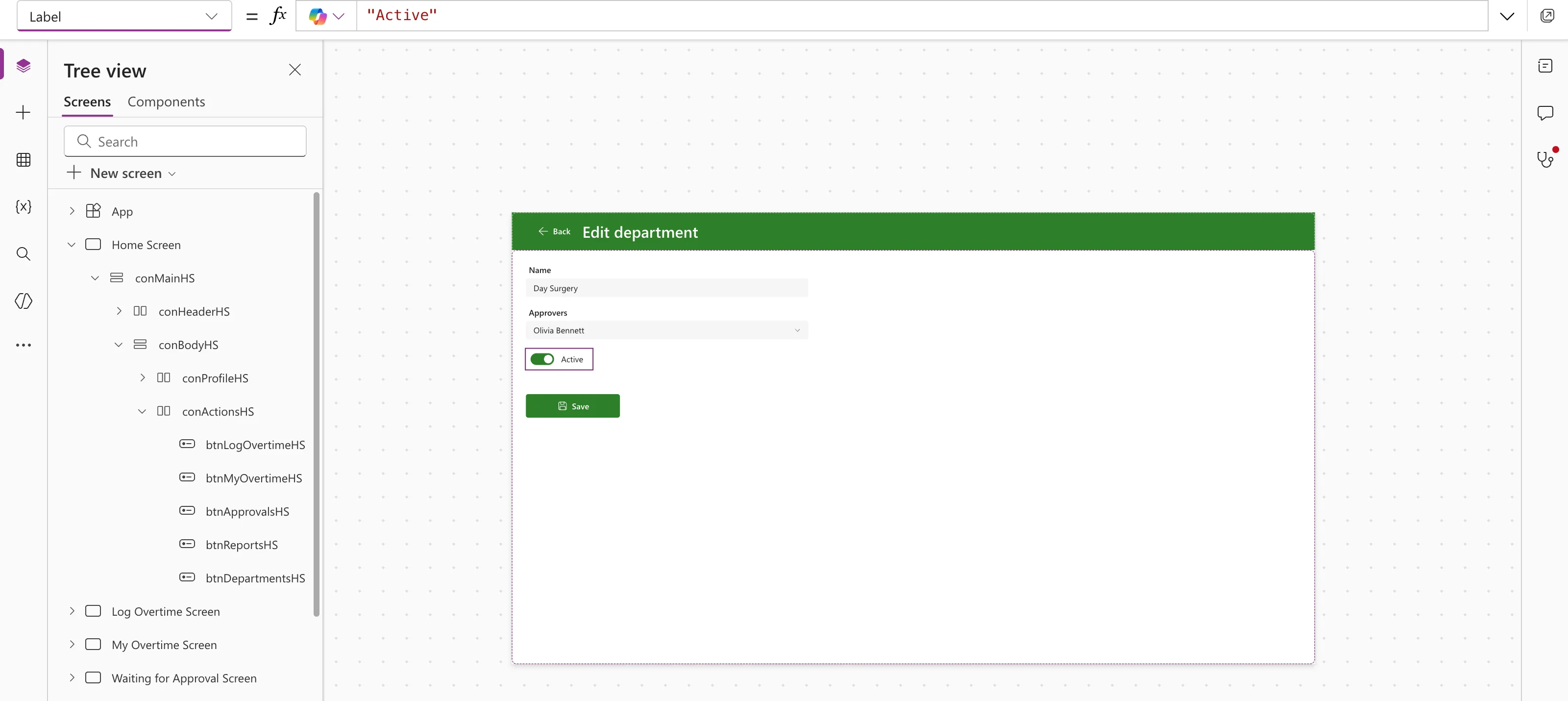
Label is the text beside the switch. Make it the setting the switch turns on, here "Active":
AccessibleLabel is what screen readers announce. Say what on means, not just the label:
"Active: staff can choose this department when they log overtime"
Step 3: Set How It Starts
Default decides whether the toggle starts on or off: true, false, or a formula. The example form adds new departments and edits existing ones, so a new department starts active and an existing one shows its saved value:
If(IsBlank(locDepartment), true, locDepartment.IsActive)
locDepartment is the department being edited, and blank for a new one.
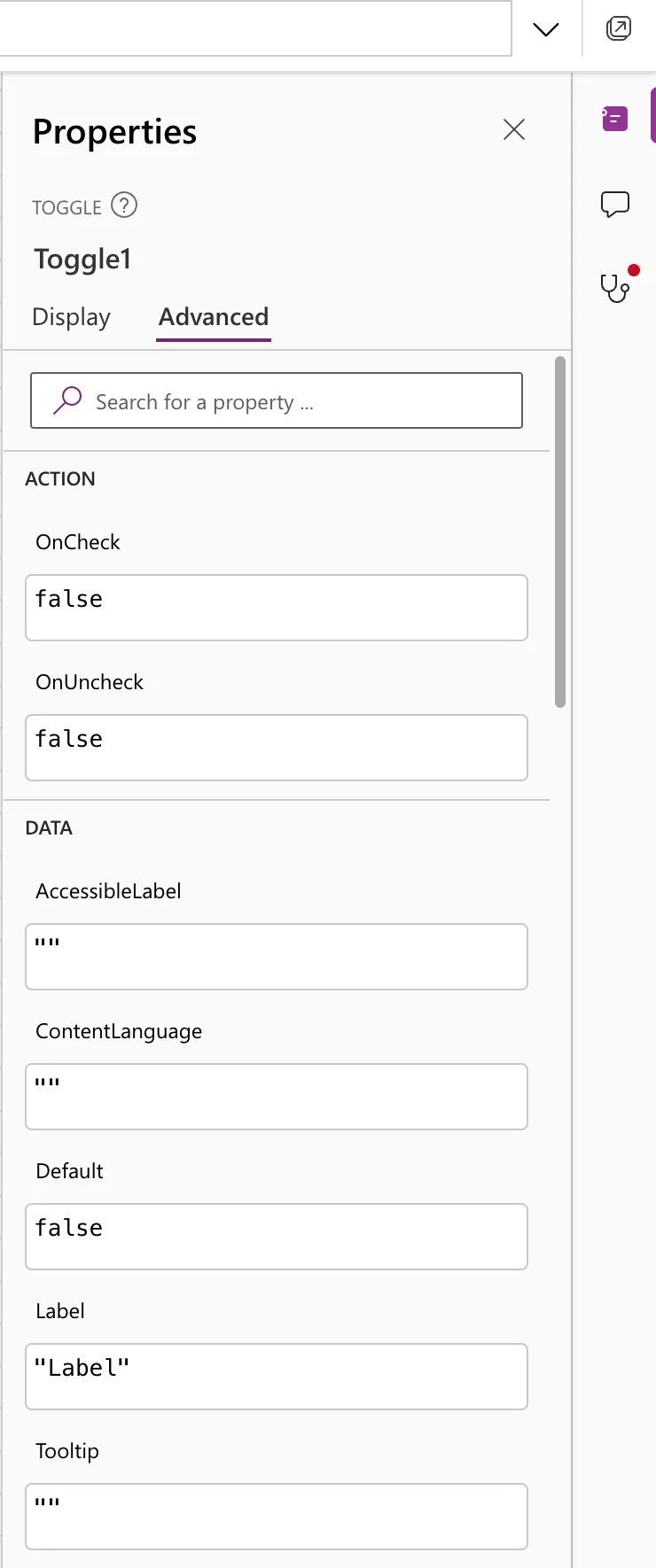
Microsoft's page for the control calls this starting value Checked: The initial value of a control before it's changed by the user. In Studio, the toggle (ModernToggle 1.0.1 in its code) lists it as Default, on the Advanced tab too, together with OnCheck and OnUncheck:
Step 4: Use Its Value
In other formulas, tglActiveED.Checked is true while the toggle is on and false while it's off. The example's Save button reads it when it's selected, and stores it in a SharePoint Yes/No column (How to Save a Toggle to a SharePoint Yes/No Column in Power Apps).
The form in Preview, with the toggle switched off:
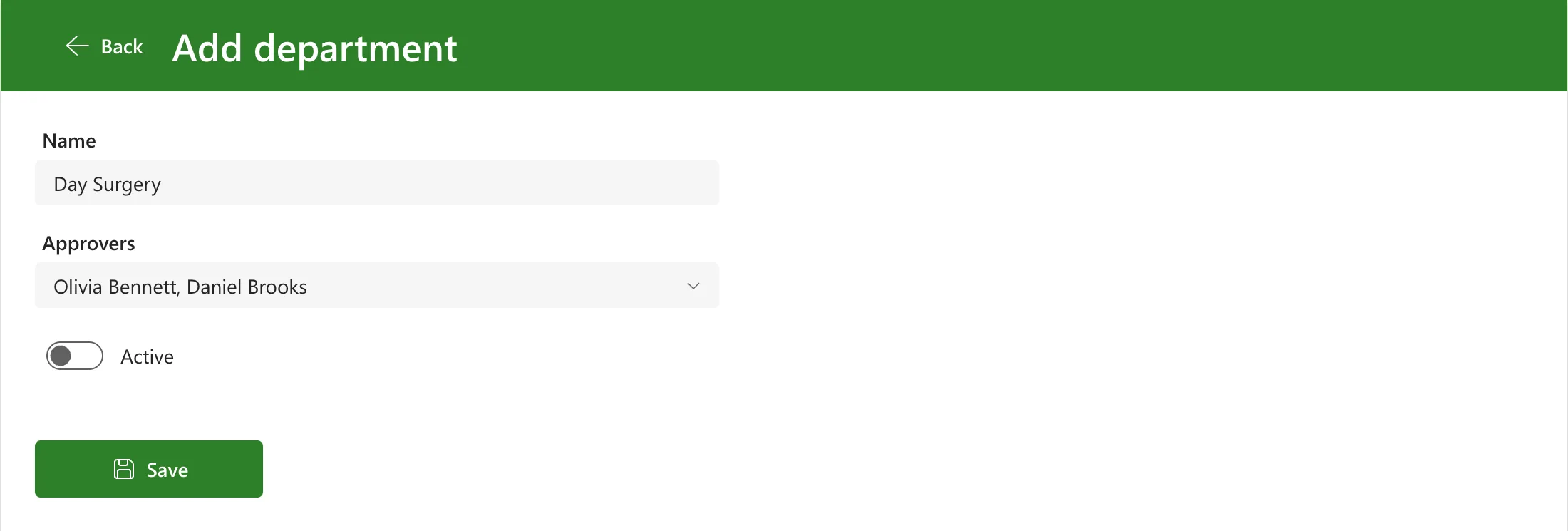
To run something the moment it's switched, use OnCheck (when it changes to on) and OnUncheck (when it changes to off). For a form that saves with a button, as here, they aren't needed: Save reads Checked when it's selected.
Common Mistakes
| Mistake | What happens | Do this instead |
|---|---|---|
| Inserting the toggle under Classic | You get the older control | Use Toggle under Input |
Reading Default in another formula | You get the starting value, not what the user set | Read .Checked |
Leaving Label as "Label" | The switch says Label | Name the setting it turns on |
| An empty AccessibleLabel | Screen readers don't say what the switch is for | Describe what on means |
Troubleshooting
| Symptom | Likely cause | Fix |
|---|---|---|
| No Checked property in the list | Checked is what the toggle returns; it's set with Default | Set Default, read .Checked |
| The toggle shows the last value when the screen opens again | Controls keep their value until reset | Reset(tglActiveED) when the screen opens (How to Reset a Control to Its Default Value in Power Apps with Reset) |
FAQ
Why does Microsoft's page say Checked when Studio shows Default?
The page describes Checked as the starting value. Studio's version of the control has Default for that, and Checked is the value you read. Use what Studio shows; formulas with .Checked worked as expected in the example.
Can the label go before the switch?
Yes. Label position has Before and After. In formulas, Studio writes it as ToggleLabelPosition.After.
Conclusion
Insert Toggle from Input, set Label, AccessibleLabel and Default, and read Checked wherever you need to know whether it's on.
Additional Resources
- Toggle modern control: properties and recent changes.
