How to Add a Text Input to a Manually Triggered Flow in Power Automate

An instant flow can ask for a value every time someone starts it: a site address, a date, a name. You add the question to the Manually trigger a flow trigger as an input, and the rest of the flow uses the answer. This guide adds a text input and gives it a name and a description people understand.
Prerequisites
- A flow that starts with Manually trigger a flow. See How to Create an Instant Cloud Flow Inside a Solution.
The example is the setup flow from Part 11 of the Career Development Plan series. It asks for the address of the SharePoint site to create its lists on.
Step 1: Choose the Type of Input
In the designer, select the Manually trigger a flow card. On its Parameters tab, select + Add an input. Power Automate asks what type of value you want:
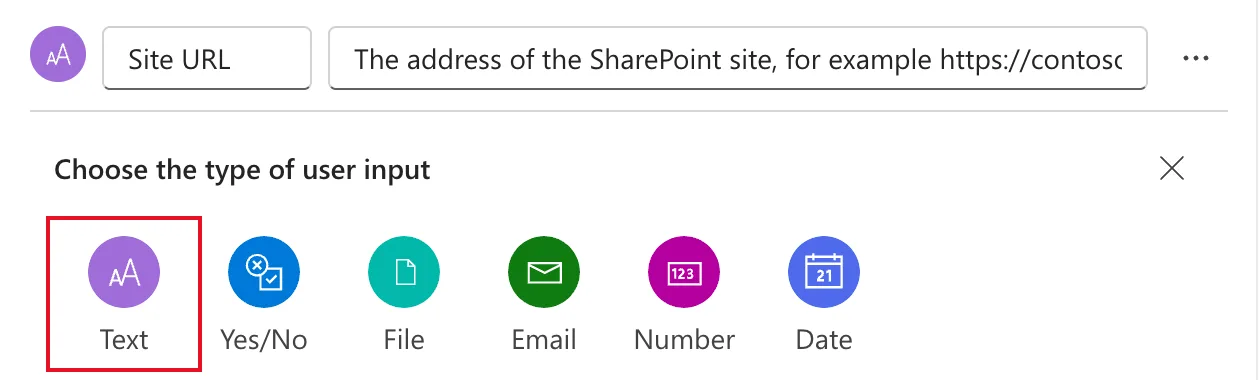
Choose Text. The other types give the person a matching box, such as a date picker for Date.
Step 2: Name It and Describe It
The new input has two boxes. The first is its name. When I added mine, the name was Input and the second box said Please enter your input. I added this input when the flow first opened in the classic designer. Microsoft says the steps are similar in both designers, and the new designer shows the same two boxes.
Replace both:
| Box | Example | What it's for |
|---|---|---|
| Name | Site URL | The label of the box when the flow starts, and the name of the value in later actions |
| Description | The address of the SharePoint site, for example https://contoso.sharepoint.com/sites/CareerDevelopmentPlan | The hint under the box |
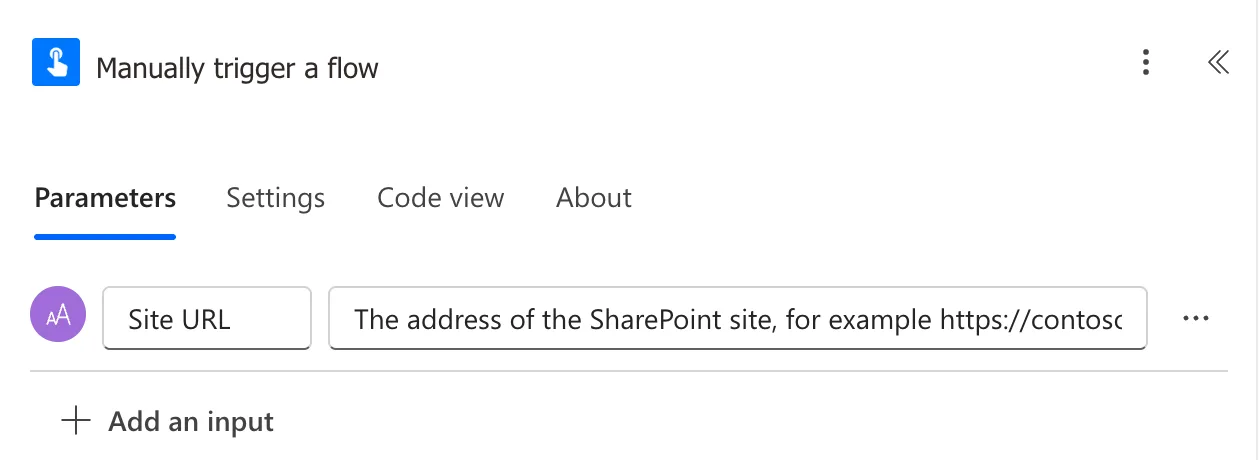
An example in the description saves people from guessing the format.
Step 3: Use the Value
Later actions can use the value in two ways:
-
Dynamic content. Select a field, then the lightning button or / → Insert dynamic content, and pick Site URL under Manually trigger a flow. How to Use Send an HTTP Request to SharePoint uses it for Site Address.
-
An expression. The flow stores a text input under a generated name. I saw
textfor the first text input in Code view, so the expression is:ExpressiontriggerBody()?['text']
Save the flow. When someone runs it, the Run flow panel shows a Site URL box with your description under it (How to Test a Cloud Flow Manually shows the panel).
Common Mistakes
| Mistake | What happens | Do this instead |
|---|---|---|
| Keeping the name Input | People don't know what to type, and later actions show Input | Name it after the value |
| No example in the description | People type the wrong format | Add an example |
| Choosing Text for a date or number | The box accepts any text | Choose the matching type |
Troubleshooting
| Symptom | Likely cause | Fix |
|---|---|---|
triggerBody()?['text'] returns nothing | The input's internal name is different | Read the trigger in Code view |
| People type a site's page address | The description doesn't show the format | Put an example address in the description |
FAQ
Is the person forced to fill it in?
The input I added was required: the Run flow panel marked Site URL with an asterisk.
Can I ask for more than one value?
Yes. Select + Add an input again for each value. Each one gets its own box in the Run flow panel.
Conclusion
Select the trigger, + Add an input, pick a type, then give the input a clear name and a description with an example. Later actions use it as dynamic content, or as triggerBody()?['text'] in an expression.
Additional Resources
- Triggers in Power Automate cloud flows: the trigger for instant flows.
- Classic designer vs. new designer for cloud flows: how the two designers differ.
