How to Add a Text Control in Power Apps

The Text control is the modern way to show words on a canvas app screen: a heading, a message, or the result of a formula, such as the signed-in person's name. It's the modern replacement for the classic Label. Here's how to add one, fill it with a formula, and make it grow when the text is long.
Prerequisites
- Modern controls turned on. See How to Turn On Modern Controls and Themes in Power Apps.
- A screen or container to put it in. The example adds three Text controls to a vertical container on the Career Development Plan app's Home screen, from Part 4 of the series.
Step 1: Insert a Text Control
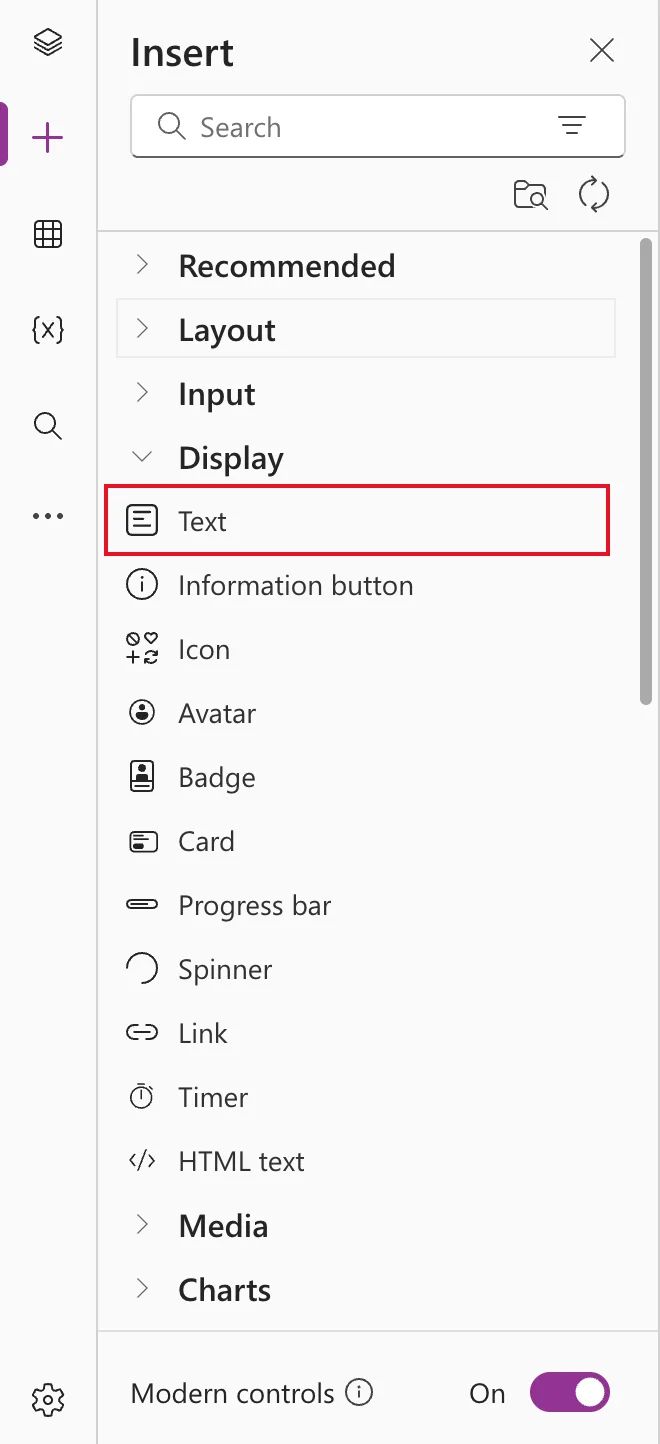
Select the container, open Insert, and select Text, under Display or at the top of Recommended:
It arrives showing the word Text:
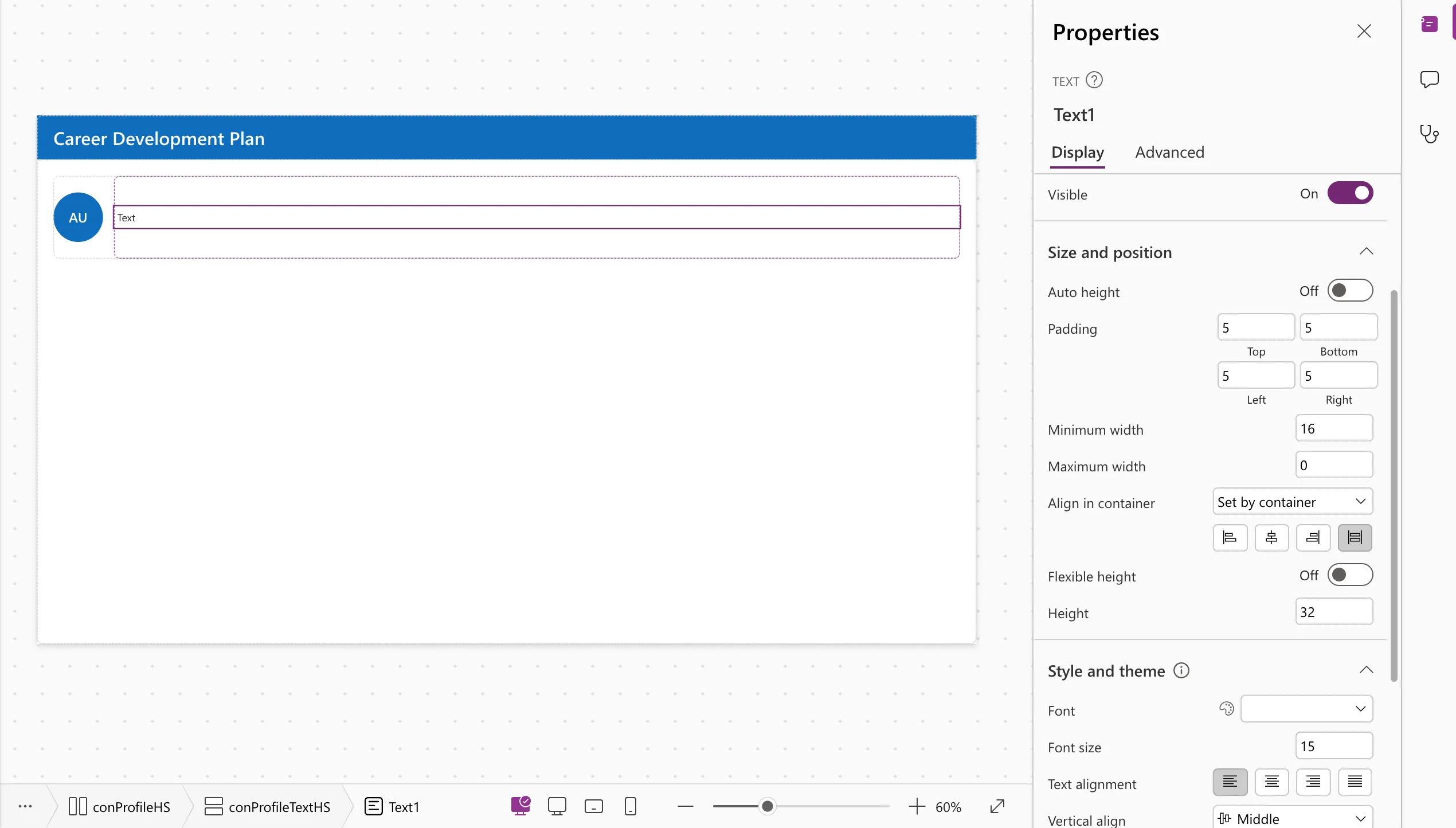
Rename it; the example's three are lblWelcomeHS, lblJobTitleHS and lblManagerHS.
Step 2: Set Its Text
Choose Text in the property list and type a formula. Plain words go in double quotes; anything else is a formula:
"Welcome, " & Coalesce(MyProfile.givenName, MyProfile.displayName)
The example joins a greeting to the person's first name; see How to Join Text in Power Apps and How to Replace Blank Values in Power Apps with Coalesce.
For plain text, you can also double-click the control on the canvas and type directly.
Step 3: Size and Weight
| Property | Example | Default |
|---|---|---|
| Size | 24 | 15 |
| FontWeight | FontWeight.Semibold | FontWeight.Normal |
| Color | Leave empty to follow the theme |
The example makes the welcome line larger and semibold, and leaves the other two at the default size.
Step 4: Let It Grow with Auto Height
Long text, or a narrow phone screen, can need more lines than the control's height allows. Turn on Auto height so the control grows to fit:
true
Wrap is on by default, so the text breaks onto new lines. If the Text control sits in a container with a fixed height, the container also needs to grow; see Fixed: Text Is Cut Off Inside a Container on Small Screens in Power Apps.
Step 5: Give It an Accessible Label
Studio's App checker flags new Text controls with Missing accessible label. Set AccessibleLabel to the control's own text:
Self.Text
See Fixed: Missing Accessible Label in the Power Apps App Checker.
Common Mistakes
| Mistake | What happens | Do this instead |
|---|---|---|
| Forgetting the quotes around plain words | Power Apps reads them as names and shows an error | "Welcome" |
| Leaving Auto height off for long text | Text is cut off | Turn Auto height on |
| Using a Text control as a screen heading | Screen readers don't treat it as a heading | Use a classic label with Role; see How to Add a Heading for Screen Readers |
Troubleshooting
| Symptom | Likely cause | Fix |
|---|---|---|
| The control shows nothing | The formula returns blank | Check the preview strip under the formula bar |
| The text is cut off | Fixed height | Auto height on, and let the container grow |
| An error icon on the control | The formula has an error | Hover the red underline in the formula bar |
FAQ
Text control or classic Label?
Use the Text control. It follows the theme and is the modern replacement. Keep the classic Label for headings, because only it has Role.
Can a Text control be clicked?
Yes. It has an OnSelect property. For actions, though, a Button is clearer to users.
What's FontWeight?
How heavy the text is: FontWeight.Lighter, Normal, Semibold or Bold.
Conclusion
Insert Text, put a formula in its Text property, adjust Size and FontWeight, turn on Auto height for anything that might wrap, and give it an AccessibleLabel.
Additional Resources
- Text modern control: every property.
- Recent updates to modern controls: renamed properties such as Size and Color.
