How to Add a Text Box to a Power BI Report

A text box puts words on a report page: a title, a subtitle, a note on what the page shows. Here's how to add one and make it look like a heading.
Microsoft's Add text boxes, shapes, and smart narratives to Power BI reports says: In the Power BI service, open a report in Editing view, and select Text box from the top menu. Power BI adds an empty text box to the canvas. The example adds the note Approved expenses over 10.00 to a report of expense claims.
Step 1: Select Text Box
In Editing mode, select Text box in the toolbar above the page. In the example, a report that had never been saved showed the toolbar as icons; Text box is the square with lines:

After a report is saved, the toolbar can show the new ribbon, with Text box on its Home tab (How to Switch Between Viewing and Editing a Power BI Report).
Step 2: Type and Format the Text
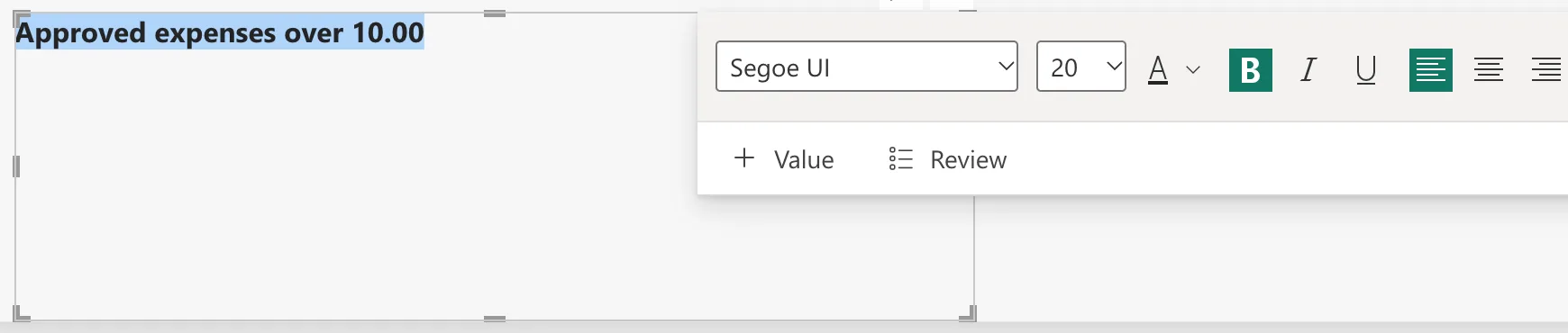
An empty text box appears on the page, ready for typing. Type the text, select it, and use the formatting bar above the box: the font size, here 20, and B for bold:
Step 3: Check It on the Page
Click outside the box. The text stays on the page as a heading:

The article says to select the grey area at the top and drag it to move the box, and to drag its sizing handles to resize it. You can also set its exact size and position (How to Set the Exact Size and Position of a Visual in Power BI).
Common Mistakes
| Mistake | What happens | Do this instead |
|---|---|---|
| Changing the size with nothing selected inside the box | The new size applies only to text typed next | Select the text first |
| A big empty box around short text | It covers visuals beneath it | Make the box fit the text |
| Typing numbers into a text box | They don't change with the data | Use a card for numbers |
Troubleshooting
| Symptom | Likely cause | Fix |
|---|---|---|
| No Text box button | The report is in Viewing mode | Switch to Editing |
| Clicking the box selects something else | A visual is on top of it | Select it in the Selection pane (How to Open the Selection Pane in Power BI) |
FAQ
Can a text box show a value from the data?
Yes. The article's section Add dynamic values to a text box explains how to display dynamic measure values in text boxes alongside your typed text; the formatting bar's + Value is the way in. For a single number, a card is simpler.
Can I add a link?
Yes: the article links Microsoft's guide to adding a hyperlink to a text box.
Conclusion
In Editing mode, select Text box, type the text, select it and set its size and Bold. The example's note reads Approved expenses over 10.00 in 20-point bold.
