How to Add a Slicer to a Power BI Report

A slicer is a filter that sits on the report page, where readers can see and change it: select Travel, and every visual on the page shows only travel. Here's how to add one.
Microsoft's Overview of slicers in Power BI describes slicers as a way to filter the other visuals on a page. The example adds a Category slicer to a report of expense claims whose cards show the total amount, the number of claims and the number of people (How to Add a Card to a Power BI Report).
Step 1: Select the Slicer Icon
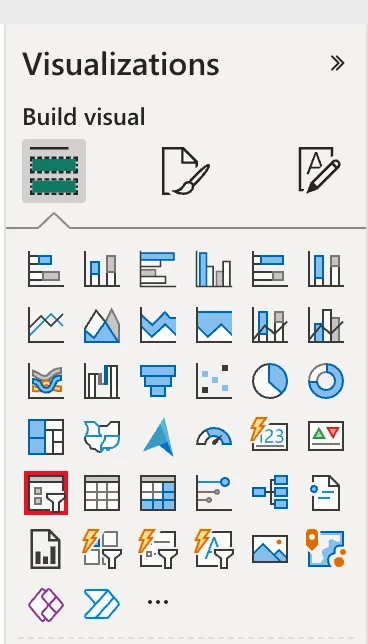
In the report, in Editing mode, click an empty part of the page so nothing is selected, then select the Slicer icon in the Visualizations pane, a list with a funnel:
Step 2: Tick the Column
In the Data pane, tick the column to filter by, here Category of the Expenses table. The slicer lists its values with a checkbox each:
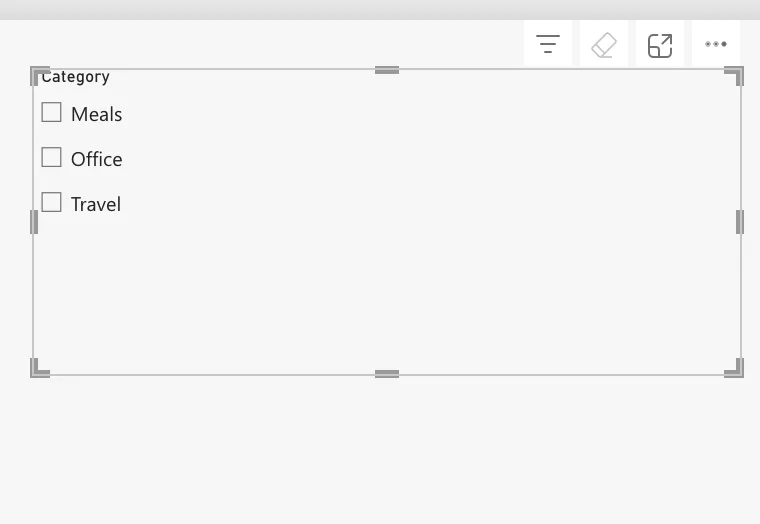
Move and resize it to fit the page.
Step 3: Try It
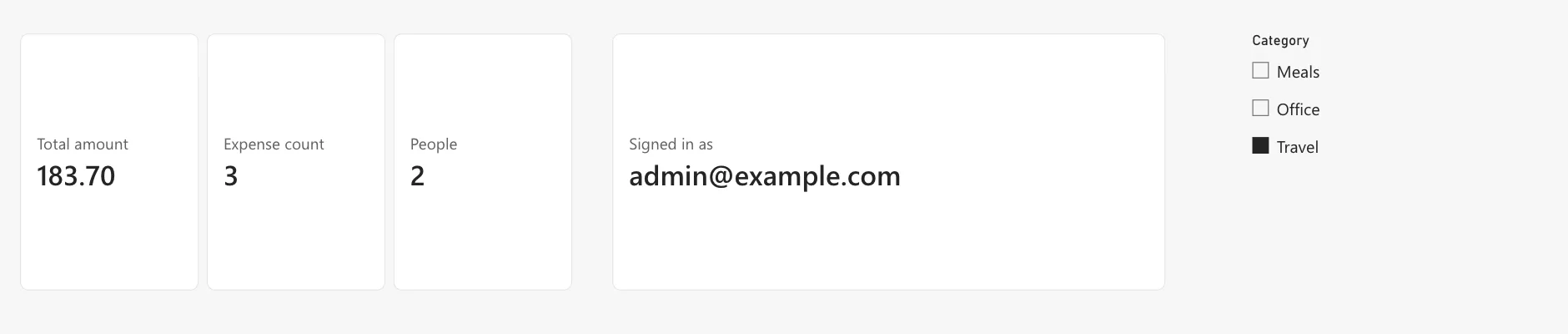
Select Travel. Every visual on the page follows: the cards show 183.70 from 3 claims by 2 people, the travel claims alone:
To show every category again, select the eraser icon in the slicer's header: Microsoft's article says it clears all selections in that slicer.
Common Mistakes
| Mistake | What happens | Do this instead |
|---|---|---|
| Ticking the column with another visual selected | The column goes into that visual instead | Click an empty part of the page first |
| A slicer on a column with hundreds of values | A long list nobody scrolls | Slice by a column with few values, such as a category or month |
| Forgetting a selection before saving | Readers open the report already filtered | Clear the slicer before you save |
Troubleshooting
| Symptom | Likely cause | Fix |
|---|---|---|
| A visual doesn't change with the slicer | It uses a table the slicer's column can't filter | Relate the tables, or slice by a column of the related table |
| The slicer shows (Blank) as an item | Some rows have no value in the column | Fill the values at the source, or ignore it |
| Under row-level security, the slicer lists fewer items | The reader can see only some rows | Expected |
FAQ
What's the difference between a slicer and the Filters pane?
Both filter the page. A slicer sits on the page where readers see it; the Filters pane is at the side and can also filter all pages.
Can readers search a long slicer?
Yes. The article says to open the slicer's More options (...) and select Search, or select the slicer and press Ctrl+F.
Conclusion
Select the Slicer icon with nothing selected, tick a column, and readers can filter the page. The example's Category slicer turned the cards to 183.70, 3 and 2 for Travel.
