How to Add a Refresh Button to a Screen in Power Apps

A Refresh button lets people reload a screen's data without leaving it. The neat way to build one: move the screen's loading formula into the button's OnSelect, start it with Refresh, and make the screen's OnVisible select the button. Opening the screen and selecting Refresh then run the same formula.
Prerequisites
- A screen that loads its data in OnVisible (How to Run a Formula When a Screen Opens).
- A header to put the button in. The example uses the Career Development Plan app's headers: a horizontal container with a Back button and a title (How to Add a Horizontal Container).
Step 1: Add the Button to the Header
Select the header container and insert Input → Button (How to Add a Button in Power Apps). It goes in at the end of the container. In the example, the title fills the space in between, so the button sits at the right edge. Rename it, for example btnRefreshMPS on the My Plan screen, and set:
| Property | Value |
|---|---|
| Text | "Refresh" |
| Icon | "ArrowClockwise" |
| Width, Height | 112, 40 |
| AccessibleLabel | "Refresh this screen" |
The example keeps the default Appearance, Primary, like the Back button on the same colored header (How to Add an Icon to a Button).
Step 2: Move the Loading Formula into the Button
Cut the screen's OnVisible formula and paste it into the button's OnSelect. Then add Refresh for each data source the screen reads, right after the line that shows the spinner (How to Refresh Data with the Refresh Function):
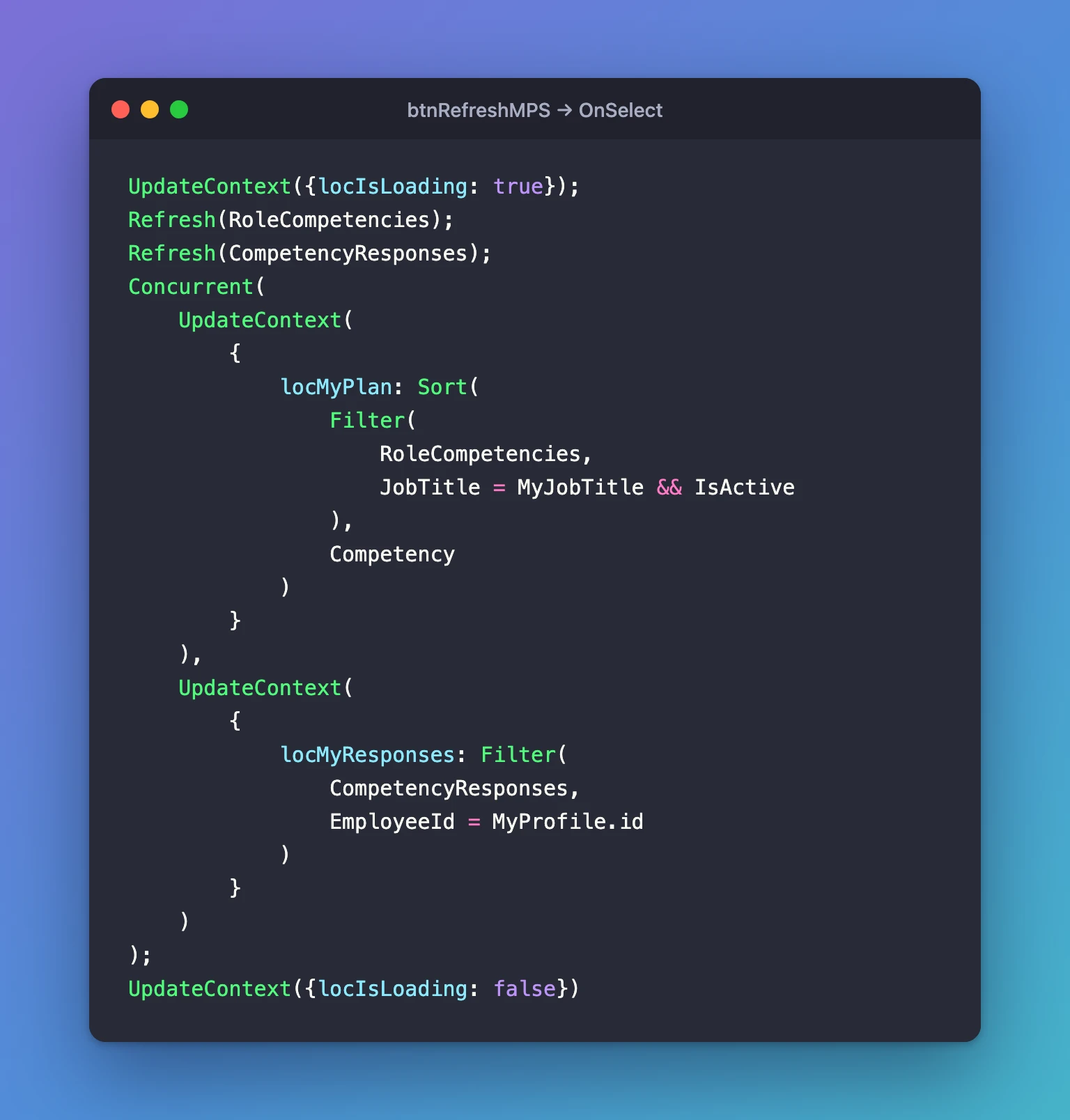
UpdateContext({locIsLoading: true});
Refresh(RoleCompetencies);
Refresh(CompetencyResponses);
Concurrent(
    UpdateContext(
        {
            locMyPlan: Sort(
                Filter(
                    RoleCompetencies,
                    JobTitle = MyJobTitle && IsActive
                ),
                Competency
            )
        }
    ),
    UpdateContext(
        {
            locMyResponses: Filter(
                CompetencyResponses,
                EmployeeId = MyProfile.id
            )
        }
    )
);
UpdateContext({locIsLoading: false})
The spinner shows while the lists refresh, because locIsLoading is set first.
Step 3: Make OnVisible Select the Button
Select(btnRefreshMPS)
Select runs a control's OnSelect as if someone had selected it (How to Use the Select Function). Microsoft's reference sets four rules, and this fits all of them (Select function):
- Select only works on the same screen, and the button is on it.
- It only works in behavior formulas, and OnVisible is one.
- A control can't select itself.
- It queues the OnSelect, so it may run just after OnVisible finishes.
The example leaves the button's DisplayMode alone. Microsoft's reference doesn't say whether Select works on a disabled control, so the button stays enabled.
Step 4: Copy It to Other Screens
Build the button once, then copy it (How to Copy and Paste Controls Between Screens). For each screen:
- Select ... on the finished button → Copy.
- Select ... on the other screen's header container → Paste. The copy lands at the end of the header with
_1added to its name. - Rename it for its screen, such as
btnRefreshMTS. - Replace its OnSelect with that screen's OnVisible formula plus Refresh, and set the screen's OnVisible to
Select()on the new button.
Copy the button again before each paste. Pasting a formula into OnSelect puts the formula on the clipboard, and the next paste fails (Fixed: "There's Something Wrong with the Pasted Code").
Step 5: Test It
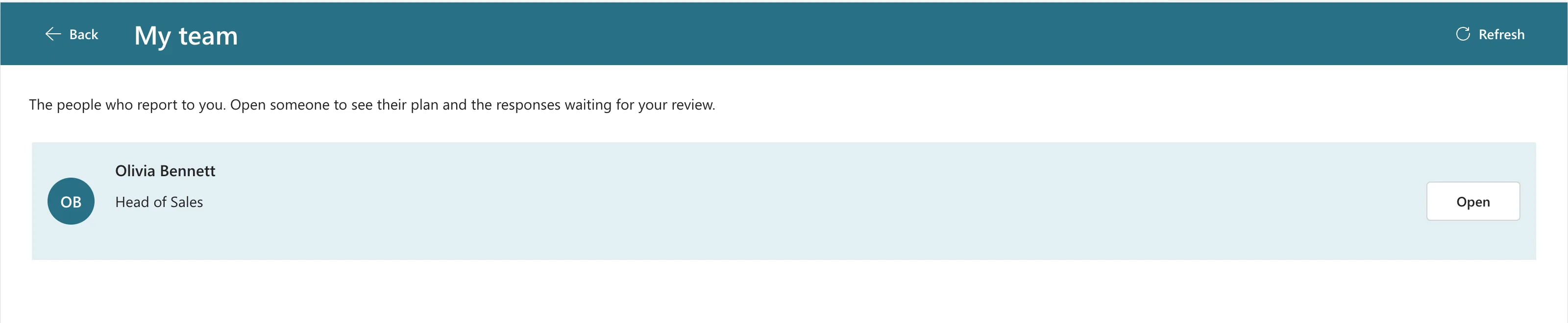
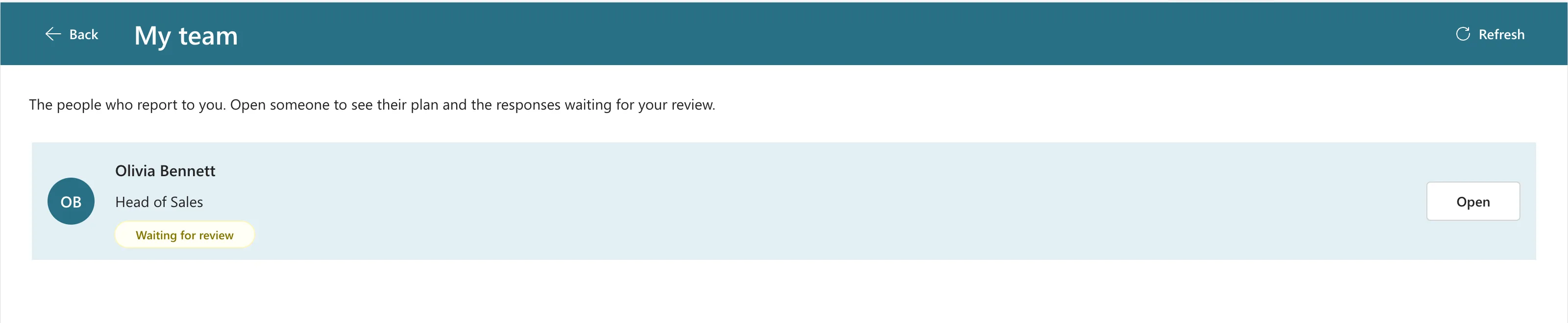
Preview the app, open the screen, and change something from somewhere else, such as another person's session or the SharePoint list. Then select Refresh. In the example, a manager's My team screen was open when an employee sent a response. Before Refresh:
After Refresh, her row has its Waiting for review badge:
On a phone, the header has less room for its buttons. How to Show Only the Icon on a Button on Phones shows the button as just its icon there.
Common Mistakes
| Mistake | What happens | Do this instead |
|---|---|---|
Refresh(...) alone in the button | Screens that use variables keep their old copy | Put the whole loading formula after Refresh |
| Keeping the formula in OnVisible and copying it into the button | Two copies to keep in step | One formula in the button, Select() in OnVisible |
| Selecting a button on another screen | Select doesn't work across screens | Give each screen its own button |
Troubleshooting
| Symptom | Likely cause | Fix |
|---|---|---|
| The screen no longer loads when opened | OnVisible doesn't select the button | Set OnVisible to Select() on the button |
| Errors on many controls after removing a button | That button's formula was what created their variables | Put the formula back, or paste a copy and set its OnSelect |
| The paste fails | The clipboard holds a formula | Copy the button again |
FAQ
Why not just call Refresh in OnVisible?
That covers opening the screen. The button covers people who stay on it, such as a manager waiting for responses. With Select, both share one formula.
Does the button need a confirmation?
No. It only reloads data. Anything not yet saved on the screen, such as text typed in a box, is reset only if the screen's loading formula resets it.
Conclusion
Put the screen's loading formula in a Refresh button, starting with Refresh(), and make OnVisible select it. Opening the screen and pressing Refresh then run one formula, and the button copies to other screens with only its formula changed.
