How to Add a Person Column to a SharePoint List with the REST API in Power Automate

A person column holds people from your organization, picked by name or email address. A flow adds one with the REST API's createfieldasxml. Type='User' makes a column for one person. Type='UserMulti' with Mult='TRUE' makes one for several people.
Syntax
The request goes through Send an HTTP request to SharePoint (How to Use Send an HTTP Request to SharePoint):
| Field | Value |
|---|---|
| Method | POST |
| Uri | _api/web/lists/getbytitle('<list name>')/fields/createfieldasxml |
| Headers | Accept: application/json;odata=nometadata |
Content-Type: application/json;odata=verbose |
{
  "parameters": {
    "__metadata": { "type": "SP.XmlSchemaFieldCreationInformation" },
    "SchemaXml": "<the column's Field element>",
    "Options": 25
  }
}
Options 25 keeps your internal name and adds the column to the forms and the default view. How to Add a Column to a SharePoint List with CreateFieldAsXml explains the number and the rest of the body.
The column itself is one Field element:
<Field Type='<User or UserMulti>' Name='<internal name>' StaticName='<internal name>' DisplayName='<display name>' Description='<description>' Mult='TRUE' UserSelectionMode='<who can be picked>' Required='TRUE' />
From Microsoft's Field element reference:
Type:Userfor one person.UserMultifor several; the reference calls it a User field that can contain more than one value.NameandStaticName: the internal name, which never changes. Flows and apps use it. Keep it without spaces.DisplayName: the name people see above the column.Description(optional): the hint under the column in the item form.Mult='TRUE': only withUserMulti. The reference describesMultonly as a scale factor for numbers, but a person column created in the browser with Allow multiple selections hasType='UserMulti'andMult='TRUE'in its schema, and the example below uses both.UserSelectionMode: who can be picked. The reference gives0, only the names of individuals, and1, the names of both individuals and groups. The names from Microsoft's FieldUserSelectionMode list work too:PeopleOnlyis0andPeopleAndGroupsis1.Required='TRUE'(optional): the column must have a value.
The XML uses single quotes because it sits inside a JSON string, which uses double quotes.
The Example
A blank list called Projects gets two person columns:
| Column | Holds | Who can be picked |
|---|---|---|
| ProjectLead | One person | People only |
| TeamMembers | Several people | People and groups |
The flow has the trigger Manually trigger a flow and two Send an HTTP request to SharePoint actions, Add ProjectLead and Add TeamMembers.
Prerequisites
- Permission to change the list, such as Edit or Full Control on the site, for the account the flow's SharePoint connection uses.
Step 1: Add a Column for One Person
Add Send an HTTP request to SharePoint and rename it Add ProjectLead:
| Field | Value |
|---|---|
| Site Address | Your site |
| Method | POST |
| Uri | _api/web/lists/getbytitle('Projects')/fields/createfieldasxml |
| Headers | Accept: application/json;odata=nometadata |
Content-Type: application/json;odata=verbose |
The headers are under Advanced parameters. The body:
{
  "parameters": {
    "__metadata": { "type": "SP.XmlSchemaFieldCreationInformation" },
    "SchemaXml": "<Field Type='User' Name='ProjectLead' StaticName='ProjectLead' DisplayName='ProjectLead' Description='The person who leads the project.' UserSelectionMode='PeopleOnly' />",
    "Options": 25
  }
}
Step 2: Add a Column for Several People
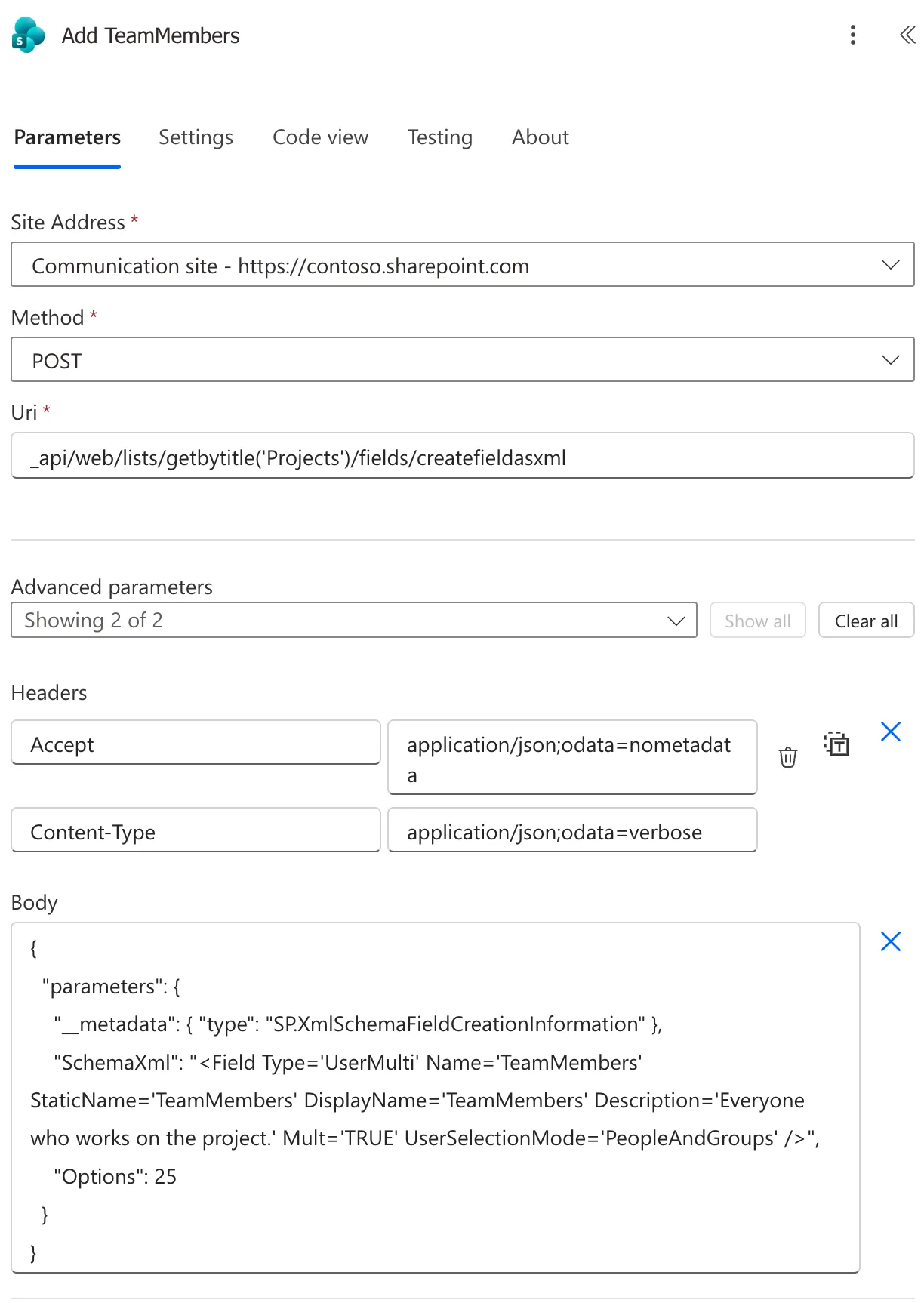
Copy the action (How to Copy and Paste an Action in Power Automate) or add a new one, rename it Add TeamMembers, and keep the same site, method, Uri and headers. In the body, the type becomes UserMulti, Mult='TRUE' allows several people, and PeopleAndGroups allows groups as well:
{
  "parameters": {
    "__metadata": { "type": "SP.XmlSchemaFieldCreationInformation" },
    "SchemaXml": "<Field Type='UserMulti' Name='TeamMembers' StaticName='TeamMembers' DisplayName='TeamMembers' Description='Everyone who works on the project.' Mult='TRUE' UserSelectionMode='PeopleAndGroups' />",
    "Options": 25
  }
}
Step 3: Run the Flow
Save the flow and test it manually (How to Test a Cloud Flow Manually in Power Automate). Both actions succeeded.
The Result
The Projects list's New item form has both columns, each with a people picker and its description:
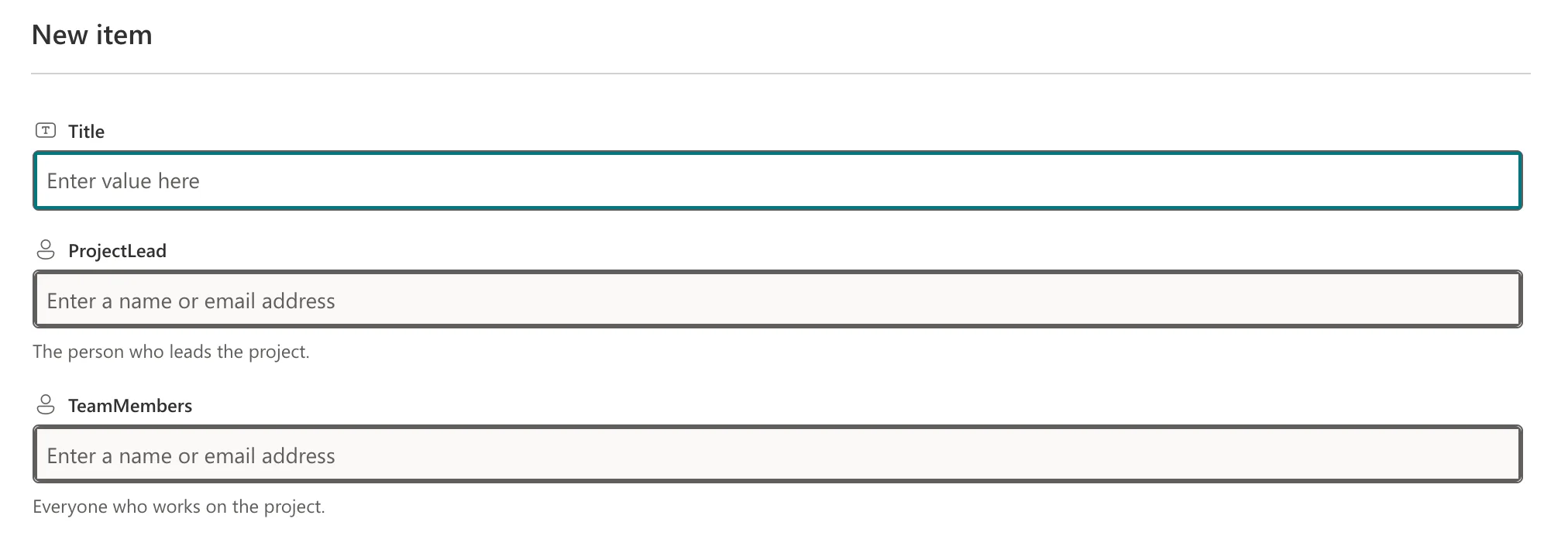
The two boxes look the same; the difference is in the columns. Read back through the REST API, ProjectLead is a User column that doesn't allow multiple values, with selection mode 0. TeamMembers is a UserMulti column that allows multiple values, with selection mode 1. How to See a SharePoint Column's Internal Name and SchemaXml in the Browser shows how to read a column like that.
Common Mistakes
| Mistake | What happens | Do this instead |
|---|---|---|
Type='User' for a column that needs several people | The column holds one person | Use UserMulti with Mult='TRUE' |
| Double quotes inside the XML | The JSON body breaks | Use single quotes in the XML |
| An apostrophe in the description | The attribute ends early | Write ' |
| Running the flow again unchanged | It tries to add the column a second time | Check that the column is missing first |
Troubleshooting
| Symptom | Likely cause | Fix |
|---|---|---|
| Status 403 | The connection's account can't change the list | Give it Edit or Full Control |
| Status 404 | No list with that title on the site | Check the title in getbytitle('…') |
| Groups can't be picked | UserSelectionMode is PeopleOnly or 0 | Use PeopleAndGroups or 1 |
FAQ
Can I limit the picker to one SharePoint group?
The Field element has UserSelectionScope for that. The reference says that above 0 it restricts the picker to members of the SharePoint group whose ID equals the value. The example leaves it out, which means no restriction.
How do I fill a person column from a flow?
With Create item or Update item, which show a field for it (How to Create an Item in a SharePoint List in Power Automate).
Does this need a premium licence?
No. Send an HTTP request to SharePoint is part of the standard SharePoint connector.
Conclusion
POST a Field element to createfieldasxml: Type='User' for one person, or Type='UserMulti' with Mult='TRUE' for several, and UserSelectionMode PeopleOnly or PeopleAndGroups for who can be picked. With Options 25, the column appears in the item form with its description.
Additional Resources
- Field element (List):
User,UserMulti,UserSelectionModeandUserSelectionScope. - FieldUserSelectionMode enumeration:
PeopleOnlyandPeopleAndGroups. - Working with lists and list items with REST: creating fields with REST.
