How to Add a Person Column to a SharePoint List

A Person column stores people from your organization, not names typed as text. You pick each person from a list of suggestions, so a misspelt name or a wrong email address can't get in. One setting lets it hold several people.
In the Overtime Timesheet series, the Departments list has an Approvers column: the people who approve overtime for each department. A department can have more than one approver, and approvers are always individual people.
Prerequisites
- A SharePoint list, and permission to change it. How to Create a List and Add Columns in SharePoint Online creates one.
- People in your organization to choose from. The Overtime Timesheet series uses the demo team from Part 1.
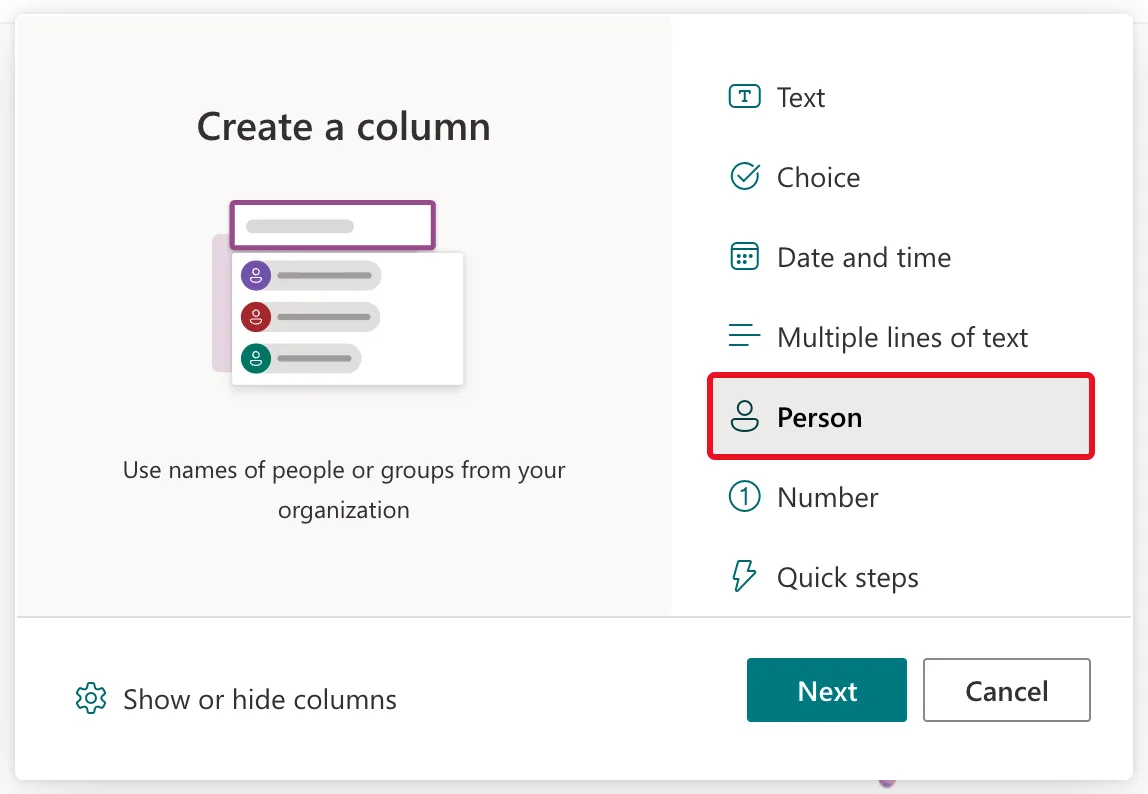
Step 1: Choose Person
Select + Add column, then Person, then Next:
Step 2: Set It Up
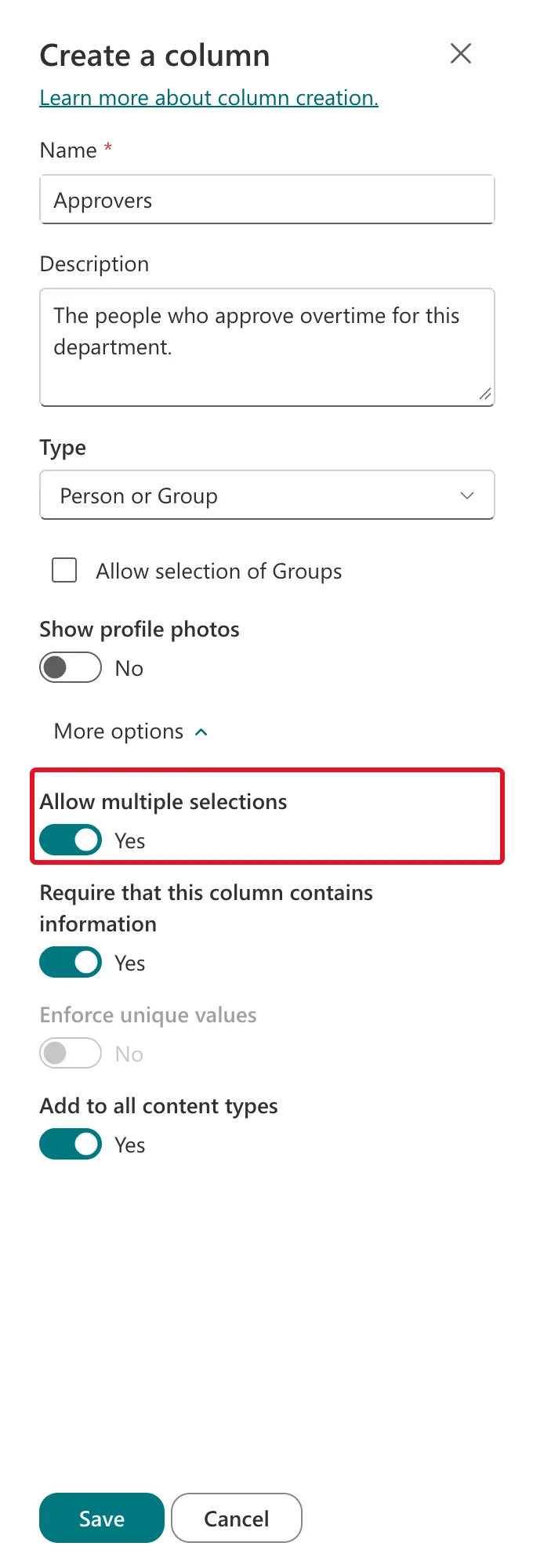
In the Create a column panel, the type shows as Person or Group. Fill it in:
| Setting | Approvers | What it does |
|---|---|---|
| Name | Approvers | The column's name |
| Description | The people who approve overtime for this department. | Shown under the field in the form |
| Allow selection of Groups | Cleared, the default | Cleared: people only. Ticked: groups too |
| Show profile photos | No, the default | Shows each person's photo in the list |
| Allow multiple selections | Yes (under More options) | Lets one item hold several people |
| Require that this column contains information | Yes (under More options) | Every department must have an approver |
Microsoft's List and library column types and options describes the two choices that matter most:
- "Allow multiple selections: Allow people to select as many options as they like or limit the number of selections to only one option."
- Groups: "Specify whether the list includes only individual people, or additionally includes e-mail distribution lists and SharePoint groups."
As soon as Allow multiple selections was on, Enforce unique values greyed out. A column that holds several people can't be unique. Select Save.
Step 3: Fill It In
In the item form, the field says Enter a name or email address. Type part of a name, and SharePoint suggests matching people, each with their job title:

Select the person to add them. With multiple selections on, type another name to add a second person. How to Add an Item to a SharePoint List walks through a whole item.
The job title comes from SharePoint's own copy of each person's profile, which can lag behind a recent change: Fixed: SharePoint People Picker Shows a User's Old Job Title.
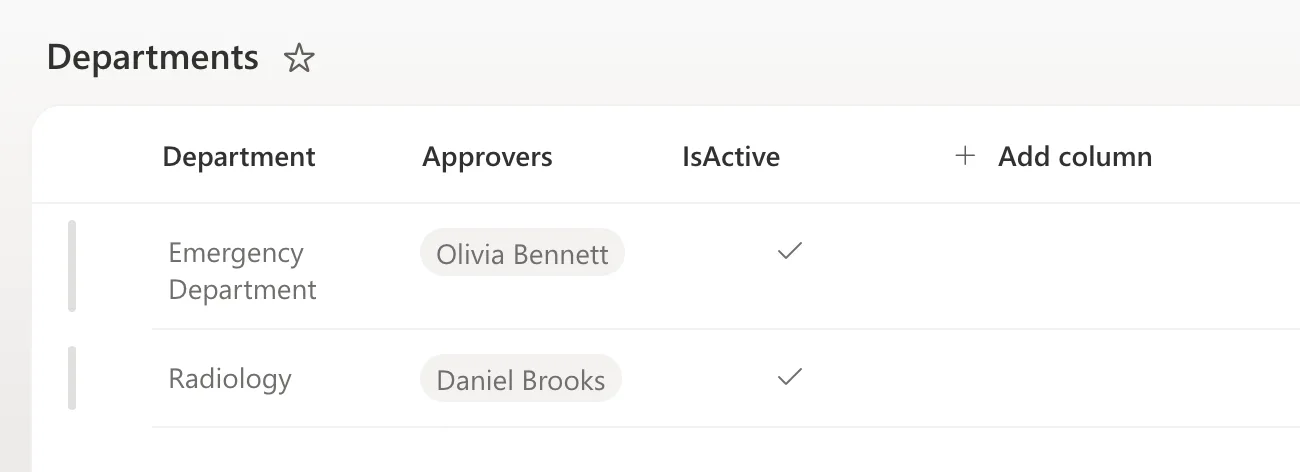
What It Looks Like in the List
The list shows each person as a name chip:
What Multiple Selections Changes
- Indexing. Microsoft's Add an index to a list or library column lists "Person or Group (single value)" as a column you can index and "Person or Group (multi-valued)" as one you can't.
- Unique values. Not available, as the panel showed.
- Power Apps. The column is a table of people in the app. Microsoft's Connect to SharePoint from a canvas app says "Only Email and DisplayName are delegable in the Person data type."
For Approvers none of these matter: a list of departments stays small, far from the limits that indexes and delegation are about. In a list that grows into thousands of items, choose a single selection if you need to index or filter on the person.
Common Mistakes
| Mistake | What happens | Do this instead |
|---|---|---|
| Typing names into a text column | Misspellings, and no link to the person's account | Use a Person column |
| Allowing groups when you mean people | A whole group can be picked | Leave Allow selection of Groups cleared |
| Allowing multiple people on a column you'll filter by | It can't be indexed | Use a single selection, or a separate column to filter on |
Troubleshooting
| Symptom | Likely cause | Fix |
|---|---|---|
| The person isn't suggested | Their name is spelt differently, or they're not in the organization | Type their email address, or select Search Directory |
| The suggestion shows an old job title | SharePoint's copy of their profile hasn't updated yet | Fixed: SharePoint People Picker Shows a User's Old Job Title |
| Enforce unique values is greyed out | Allow multiple selections is on | Switch it off, if one person per item is enough |
FAQ
Why not store email addresses in a text column?
A Person column links to the person's account, so it can only hold people who exist in your organization, and flows can read each person's email from it. A typed address is just text, typos included.
Does adding someone to a Person column give them access to the list?
No. It records who they are; permissions are separate. The Overtime Timesheet series sets permissions in Part 3.
Conclusion
+ Add column → Person → leave Allow selection of Groups cleared for people only → under More options, switch on Allow multiple selections if an item needs several people → Save. Then pick people from the suggestions instead of typing names.
Additional Resources
- List and library column types and options
- Add an index to a list or library column
- Connect to SharePoint from a canvas app
